


Quick Access Shortcuts Auto Actions & Icons (퀵 액세스 단축키 오토액션 & 아이콘) 퀵 액세스 단축키 오토액션 & 아이콘
Content ID:2238547
-
925


When not using the keyboard, auto actions are registered in Quick Access and used as a shortcut
I used to turn on/off sketches, and suddenly I wanted to share (this insignificant feature), but I didn't really use social media, so I made it all day
I don't use many features, so I only made what I can think of, but if you need anything more, please send me a personal message (it may be late to confirm).
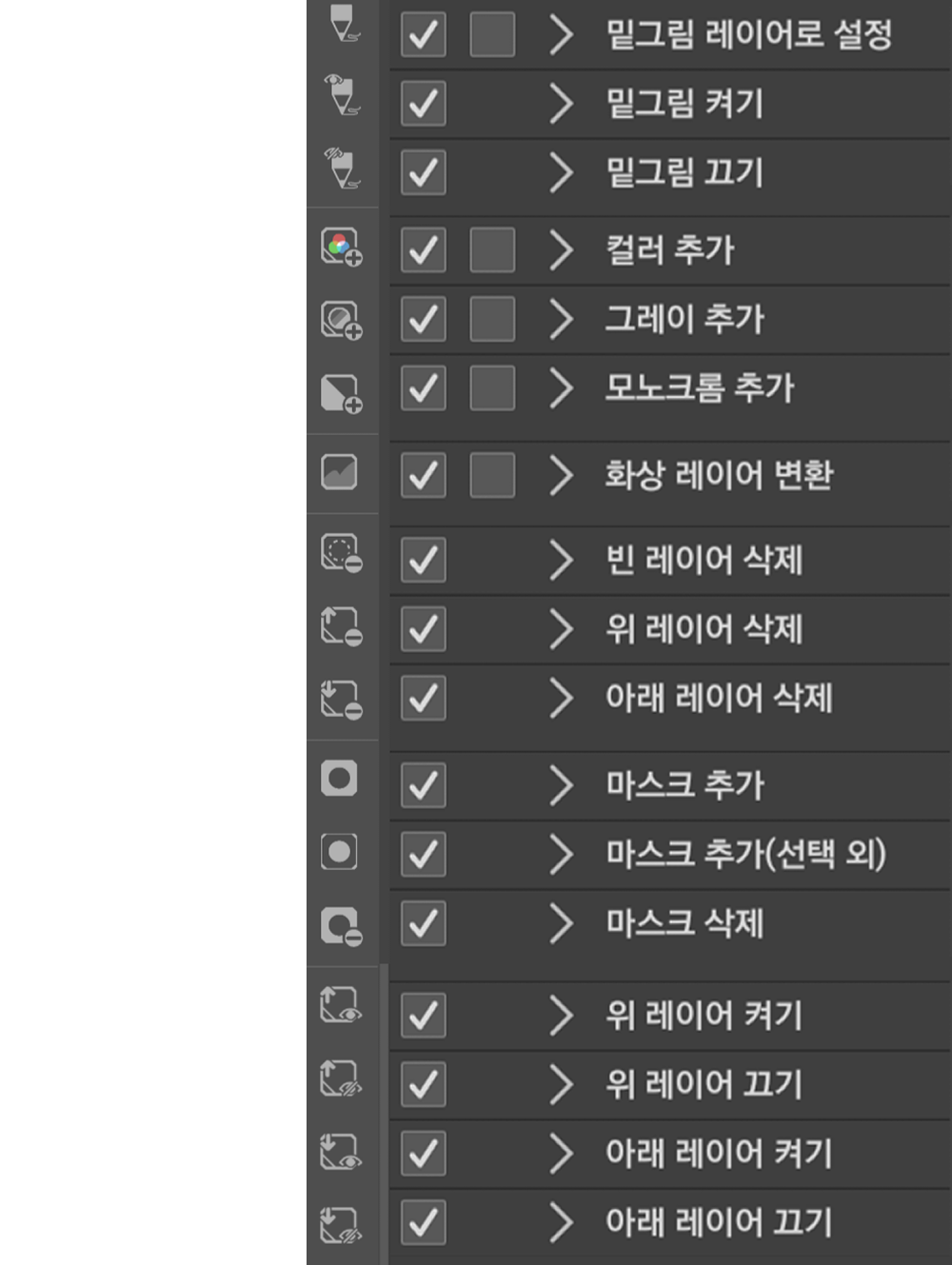
Below is the list
How to apply
1. First, you need to save the image
Import the layer template onto the canvas of the layer template name size (H*L)
Save each layer to your gallery with a transparent background
(Light mode=W, dark mode=D)

***
TIP. If you set the bean as an icon for an auto action that has no functions, you can work with it like a jake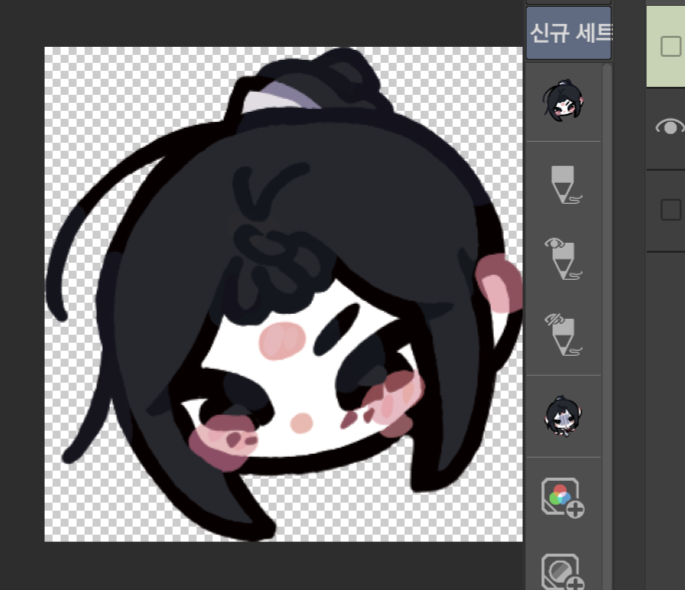
I used to turn on/off sketches, and suddenly I wanted to share (this insignificant feature), but I didn't really use social media, so I made it all day
I don't use many features, so I only made what I can think of, but if you need anything more, please send me a personal message (it may be late to confirm).
Below is the list
Description of functions for translation (in order from top)
Set as sketch layer (you need to use this function to use On/Off as sketch layer), sketch on, sketch off
-----
Add a color layer, add a gray layer, add a monochrome layer
-----
Batch delete blank layers, delete layers above, delete layers below
-----
Add mask, add mask outside of selection, delete mask (layers are not deleted, only masks)
-----
Turn on the top layer, turn off the top layer, turn on the bottom layer, turn off the bottom layer
Set as sketch layer (you need to use this function to use On/Off as sketch layer), sketch on, sketch off
-----
Add a color layer, add a gray layer, add a monochrome layer
-----
Batch delete blank layers, delete layers above, delete layers below
-----
Add mask, add mask outside of selection, delete mask (layers are not deleted, only masks)
-----
Turn on the top layer, turn off the top layer, turn on the bottom layer, turn off the bottom layer
How to apply
1. First, you need to save the image
Import the layer template onto the canvas of the layer template name size (H*L)
Save each layer to your gallery with a transparent background
(Light mode=W, dark mode=D)

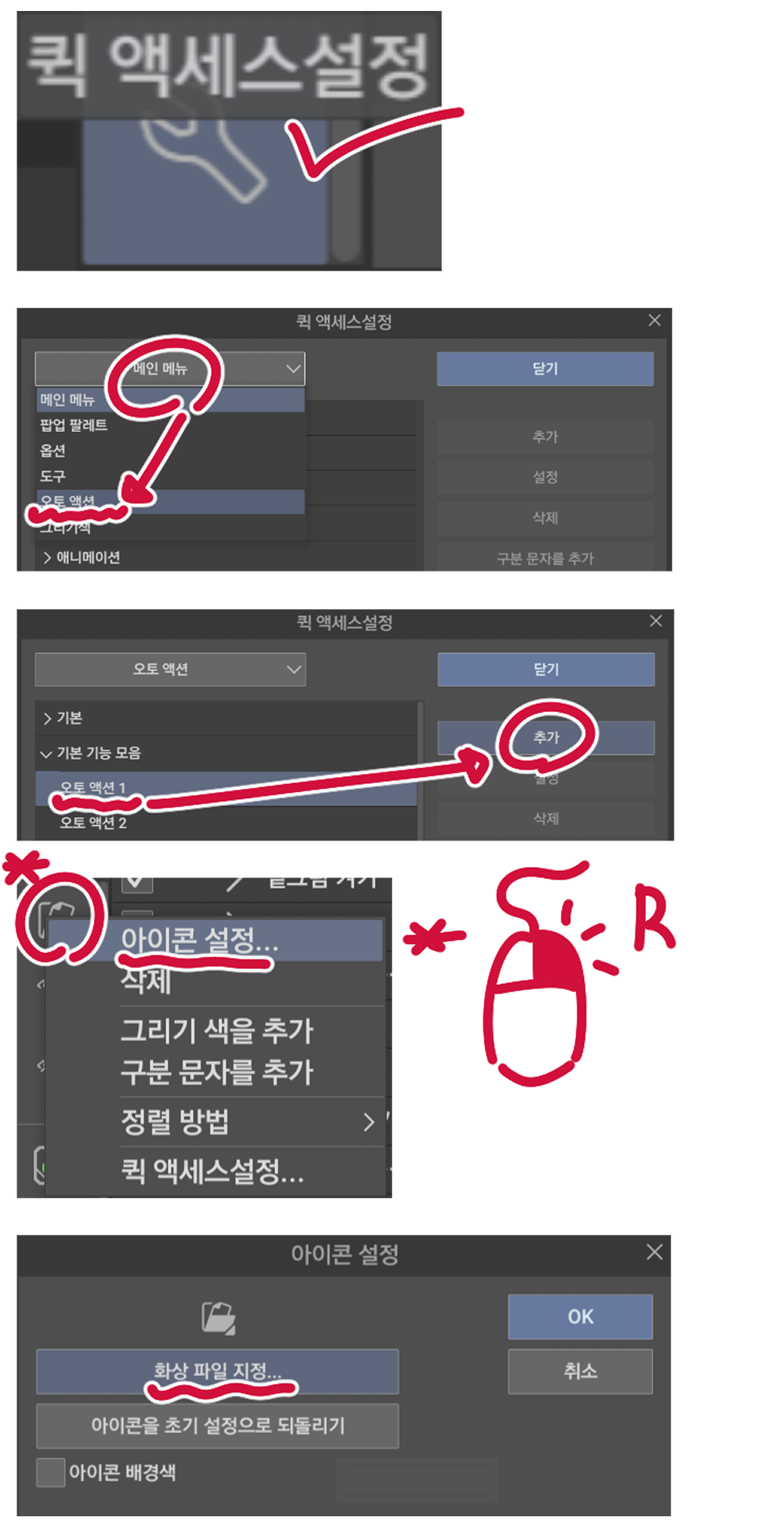
2. Register Auto Actions for Quick Access
Enter the Quick Access settings, go to Auto Actions, select the desired Auto Action, and tap Add (you need to press Add to add it)
3. Let's change the icon
Right-click on the Quick Access shortcut (left-click to execute the auto action)
Click the icon Settings, enter Image File Specification, select the desired image, and click OK
Enter the Quick Access settings, go to Auto Actions, select the desired Auto Action, and tap Add (you need to press Add to add it)
3. Let's change the icon
Right-click on the Quick Access shortcut (left-click to execute the auto action)
Click the icon Settings, enter Image File Specification, select the desired image, and click OK
4. Set the display method (optional)
Tap three rows in the Quick Access window
Select step 4 of the tile in the display method (when you select something else, you can see the autoaction name, in fact, I don't know what the display method is)
Tap three rows in the Quick Access window
Select step 4 of the tile in the display method (when you select something else, you can see the autoaction name, in fact, I don't know what the display method is)

***
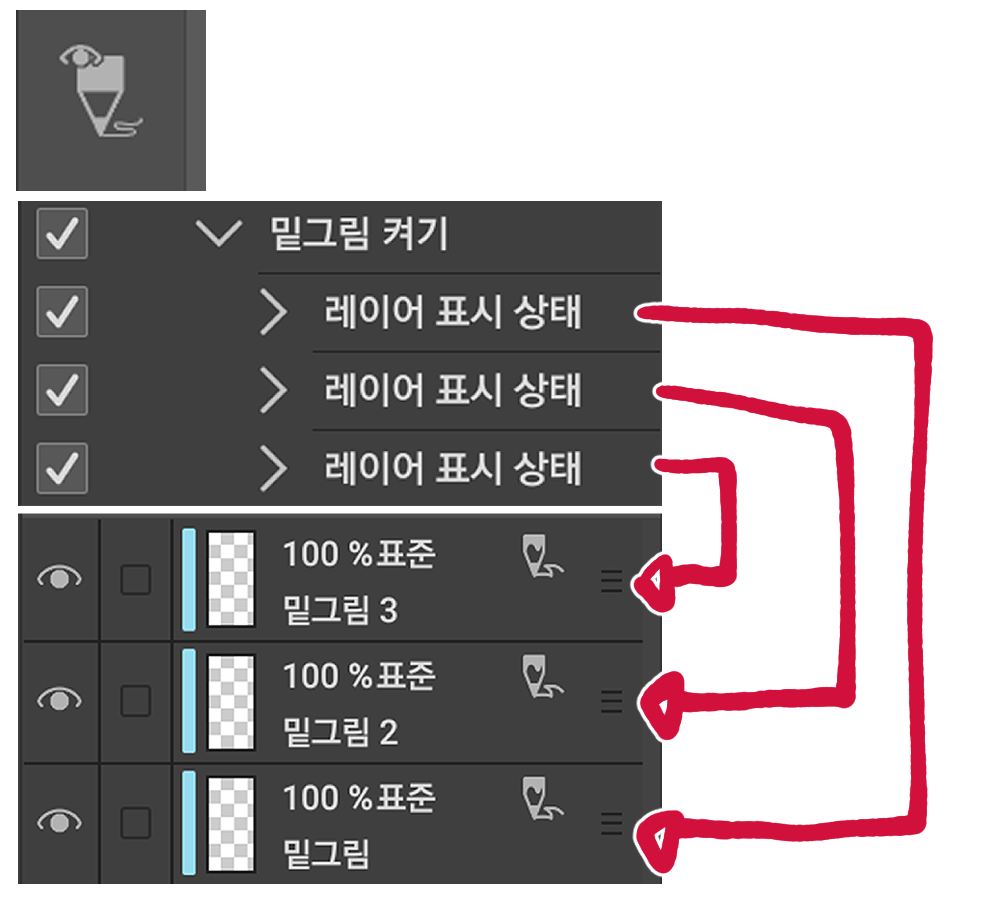
If a warning window appears saying that it cannot be executed when using sketch On/Off, you can change the checkmark to Off as shown in the picture

If you are using multiple sketches: The auto action is turned on/off by the layer name, so write 2 or 3 with a space at the end of the layer name (e.g. 'Sketch 2').
After that, you can change the checkmark to On to turn off and kill multiple layers at the same time
TIP. If you set the bean as an icon for an auto action that has no functions, you can work with it like a jake
We are increasingly learning when data is blown away from Kltu
키보드를 안 쓸 때 퀵 액세스에 오토액션을 등록해서 단축키처럼 사용합니다
밑그림 켜기/끄기를 애용하다가 갑자기 (이 별 볼 일 없는 기능을)공유하고 싶어졌는데 딱히 SNS는 안 해서 하루종일 만들었습니다
딱히 많은 기능은 사용하지 않는지라 생각나는 것만 만들었는데 더 필요한게 있다면 개인 메세지 해주세요(확인이 늦을 수도 있습니다)
아래는 목록입니다
적용하는 법
1. 먼저 이미지를 저장해야 합니다
레이어 템플릿을 레이어 템플릿 이름 크기의 캔버스에 불러옵니다(가로*세로)
각 레이어를 투명배경으로 갤러리에 저장합니다
(라이트 모드=W, 다크 모드=D)
***
TIP. 아무 기능이 없는 오토액션에 콩알자캐를 아이콘으로 설정하면 자캐와 같이 작업할 수 있습니다
밑그림 켜기/끄기를 애용하다가 갑자기 (이 별 볼 일 없는 기능을)공유하고 싶어졌는데 딱히 SNS는 안 해서 하루종일 만들었습니다
딱히 많은 기능은 사용하지 않는지라 생각나는 것만 만들었는데 더 필요한게 있다면 개인 메세지 해주세요(확인이 늦을 수도 있습니다)
아래는 목록입니다
번역을 위한 기능 설명(위부터 순서대로)
밑그림 레이어로 설정(이 기능을 써야 밑그림 레이어로 On/Off를 사용할 수 있습니다), 밑그림 On, 밑그림 Off
-----
컬러 레이어 추가, 그레이 레이어 추가, 모노크롬 레이어 추가
-----
빈 레이어 일괄 삭제, 위 레이어 삭제, 아래 레이어 삭제
-----
마스크 추가, 선택 범위 외 마스크 추가, 마스크 삭제(레이어는 삭제되지 않습니다 오직 마스크만)
-----
위 레이어 켜기, 위 레이어 끄기, 아래 레이어 켜기, 아래 레이어 끄기
밑그림 레이어로 설정(이 기능을 써야 밑그림 레이어로 On/Off를 사용할 수 있습니다), 밑그림 On, 밑그림 Off
-----
컬러 레이어 추가, 그레이 레이어 추가, 모노크롬 레이어 추가
-----
빈 레이어 일괄 삭제, 위 레이어 삭제, 아래 레이어 삭제
-----
마스크 추가, 선택 범위 외 마스크 추가, 마스크 삭제(레이어는 삭제되지 않습니다 오직 마스크만)
-----
위 레이어 켜기, 위 레이어 끄기, 아래 레이어 켜기, 아래 레이어 끄기
적용하는 법
1. 먼저 이미지를 저장해야 합니다
레이어 템플릿을 레이어 템플릿 이름 크기의 캔버스에 불러옵니다(가로*세로)
각 레이어를 투명배경으로 갤러리에 저장합니다
(라이트 모드=W, 다크 모드=D)
2. 퀵 액세스에 오토액션을 등록합시다
퀵 액세스 설정에 들어가 오토액션으로 들어간 뒤 원하는 오토액션을 선택하고 추가를 누릅니다(추가를 눌러야 추가 됩니다)
3. 아이콘을 바꿉시다
퀵 액세스 단축키를 마우스 우클릭합니다(좌클릭 시 오토액션이 실행됩니다)
아이콘 설정을 클릭한 뒤 화상파일 지정으로 들어가 원하는 이미지를 선택하고 OK 합니다
퀵 액세스 설정에 들어가 오토액션으로 들어간 뒤 원하는 오토액션을 선택하고 추가를 누릅니다(추가를 눌러야 추가 됩니다)
3. 아이콘을 바꿉시다
퀵 액세스 단축키를 마우스 우클릭합니다(좌클릭 시 오토액션이 실행됩니다)
아이콘 설정을 클릭한 뒤 화상파일 지정으로 들어가 원하는 이미지를 선택하고 OK 합니다
4. 표시방법 설정(선택사항)
퀵 액세스 창에 줄 세 개를 누릅니다
표시 방법에서 타일 4단계를 선택합니다(다른 걸 선택 시 오토액션 이름이 보입니다 사실 저도 표시 방법은 뭐가 뭔지 잘 모릅니다)
퀵 액세스 창에 줄 세 개를 누릅니다
표시 방법에서 타일 4단계를 선택합니다(다른 걸 선택 시 오토액션 이름이 보입니다 사실 저도 표시 방법은 뭐가 뭔지 잘 모릅니다)
***
밑그림 On/Off를 사용 시 실행 할 수 없다는 경고창이 뜨면 사진처럼 체크표시를 Off로 변경하시면 됩니다
밑그림을 여러개 사용하실 경우: 해당 오토액션은 레이어 이름으로 On/Off를 하기에 레이어 이름 끝에 띄어쓰기 후 2 혹은 3을 쓰세요 (예: '밑그림 2')
그 후 체크표시를 On으로 변경하시면 동시에 여러 레이어를 끄고 킬 수 있습니다
TIP. 아무 기능이 없는 오토액션에 콩알자캐를 아이콘으로 설정하면 자캐와 같이 작업할 수 있습니다
점점 클튜에서 데이터가 날아가는 경우를 배우고 있습니다
Quick shortcuts 퀵 단축키









Other materials by tto_iya


Popular “Material catalog” materials


New materials




Badges
-
 MVP ◆This user has contributed greatly to the management of the community, by posting many great responses to the questions asked. Once every three months, MVPs are determined based on the points earned during that period and will be recognized accordingly.
 -
 New Valuable Player (NVP) ◆These are the next-best contributors to the community after MVPs. This is awarded to users who have not yet won an MVP award, based on the number of points they have earned.
 -
 Official Expert ◆Chosen out of all MVP awardees, who are already proof of excellence, this is a testimony of outstanding correspondence in the community. After careful screening, they are appointed by CELSYS and assume their position.Note: Formally called “Evangelists”
 -
 Official Moderator of CELSYS ◆Moderators are official CELSYS staff members who are fluent in Japanese as well as various other languages. Moderators are not experts on the software or illustration, so they are not able to directly answer your questions. However, moderators provide communication and language support to ensure that everyone can smoothly communicate with each other.
 -
 CELSYS official accountThe Official Administrator Account