The inside of the mirror is there from the beginning
When drawing a beauty salon, in the mirror remains to the end. After you finish drawing the foreground, you will start thinking about what will look and how. After deciding the position and adjusting the angle, you can finally draw. That's where the hand stops.
CLIP STUDIO PAINT 3D does not have the ability to display mirror reflections. Even if you place a mirror, nothing will be reflected as it is.
This asset simulates the reflection. On the other side of the mirror, I created a room that is flipped left and right as it is. It is a way to put another room in a position that appears to be reflected rather than an actual reflection.
If you overlay it on another asset [Beauty Salon 01 | Cutscene], the inside of the mirror is already reflected even before you start drawing. There is no process of thinking about what will be shown where. Since it is made to the back of the mirror, the inside of the mirror will not come out white.
* This image is a combination of this asset and another asset "Drawable Beauty Salon 01 | Cutscene".
When the mirror is empty and when it is reflected
The top is the same angle with only [Drawable Beauty Salon 01 | Cutscene] placed, and the bottom is the same angle with this asset stacked.
* The image below is a combination of this asset and another asset "Drawable Beauty Salon 01 | Cutscene".
Even if you change the angle, the inside of the mirror remains correct
The same space as in the foreground is created by inverting it as it is. No matter where you swing the camera, the inside of the mirror will not contradict the front.
* This image / video is a combination of this asset and another asset "Drawable Beauty Salon 01 | Cutscene".
What's in
The mirror itself, the frame and the glass surface are on the [Beauty Salon 01 Cutscene] side. This asset is what you put behind that mirror.
If the picture does not use a mirror, it can be used alone.
This asset is the scene of the cut itself. Walls and mirrors are not included, so you can draw the background yourself or combine it with other materials.
In [Drawable Beauty Salon 01|Cutscene], the hairdresser is right-handed. This asset is a mirror image of the cutscene, so I have a scissor in my left hand. When used alone, it can be used as it is as a left-handed hairdresser.
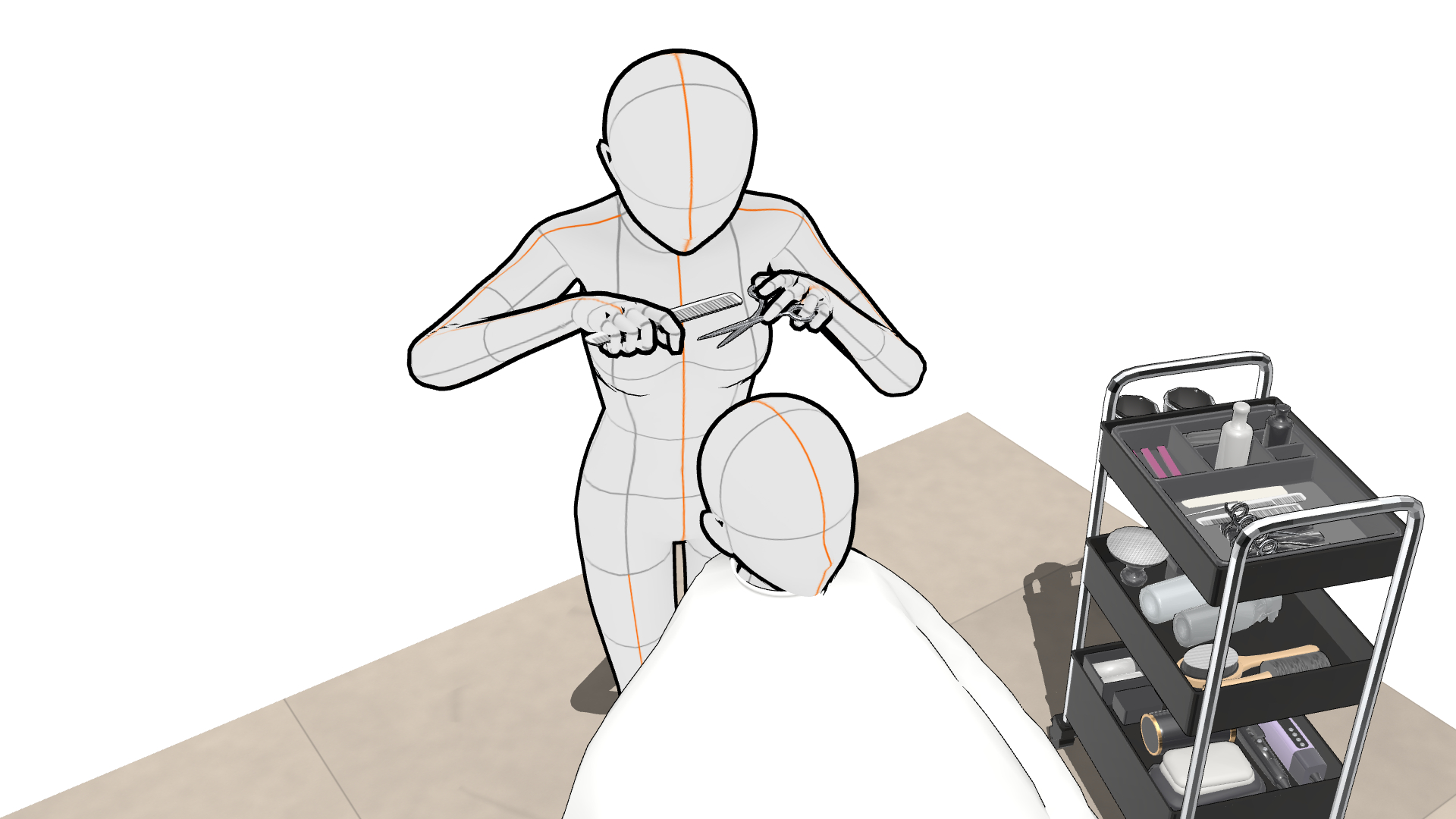
LT conversion is confirmed
The top is placed as it is, and the bottom is after LT conversion. It is made under the same conditions as the front side, so the lines come out in the same way.
* This image is a combination of this asset and another asset "Drawable Beauty Salon 01 | Cutscene".
Flow when using
Deployment method
1. Place the separately sold [Drawable Beauty Salon 01 | Cutscene] in the new file.
2. Place the downloaded Asset.
3. Select "Drawable Beauty Salon 01 | Cutscene [In the Mirror]" in the object list of the tool details panel.
4. After selecting the placement of the tool details panel, enter 0 (zero) for all X, Y, and Z positions.
5. The position of this asset and [Drawable Beauty Salon 01 | Cutscene] will be correct.
6. Rotate the camera to determine the angle.
7. Draw as it is or make a line drawing with LT conversion.
When you move the object in front of you (in front of the mirror)
In the placed state, it is suitable as a mirror image, but the system does not have an interlocking function, and the object outside the mirror and inside the mirror do not work together automatically. When moving a chair or wagon, or changing a person's pose, move the inside of the mirror as well.
If you don't move the object, you can draw it as a background material. If you just decide the angle with the camera, you don't need to touch the mirror.
* It is enough to match only the area reflected in the mirror. The part that protrudes does not appear in the picture.
* This image is a combination of this asset and another asset "Drawable Beauty Salon 01 | Cutscene".
How to reflect in the mirror when changing the pose of the 3D drawing figure
In 3 steps, you can take a picture of all the tools you have.
【How to copy the pose】
1. Select the 3F drawing doll whose pose outside the mirror has been changed, and select "Register full body pose as material" from ▼ next to the doll icon on the launcher.
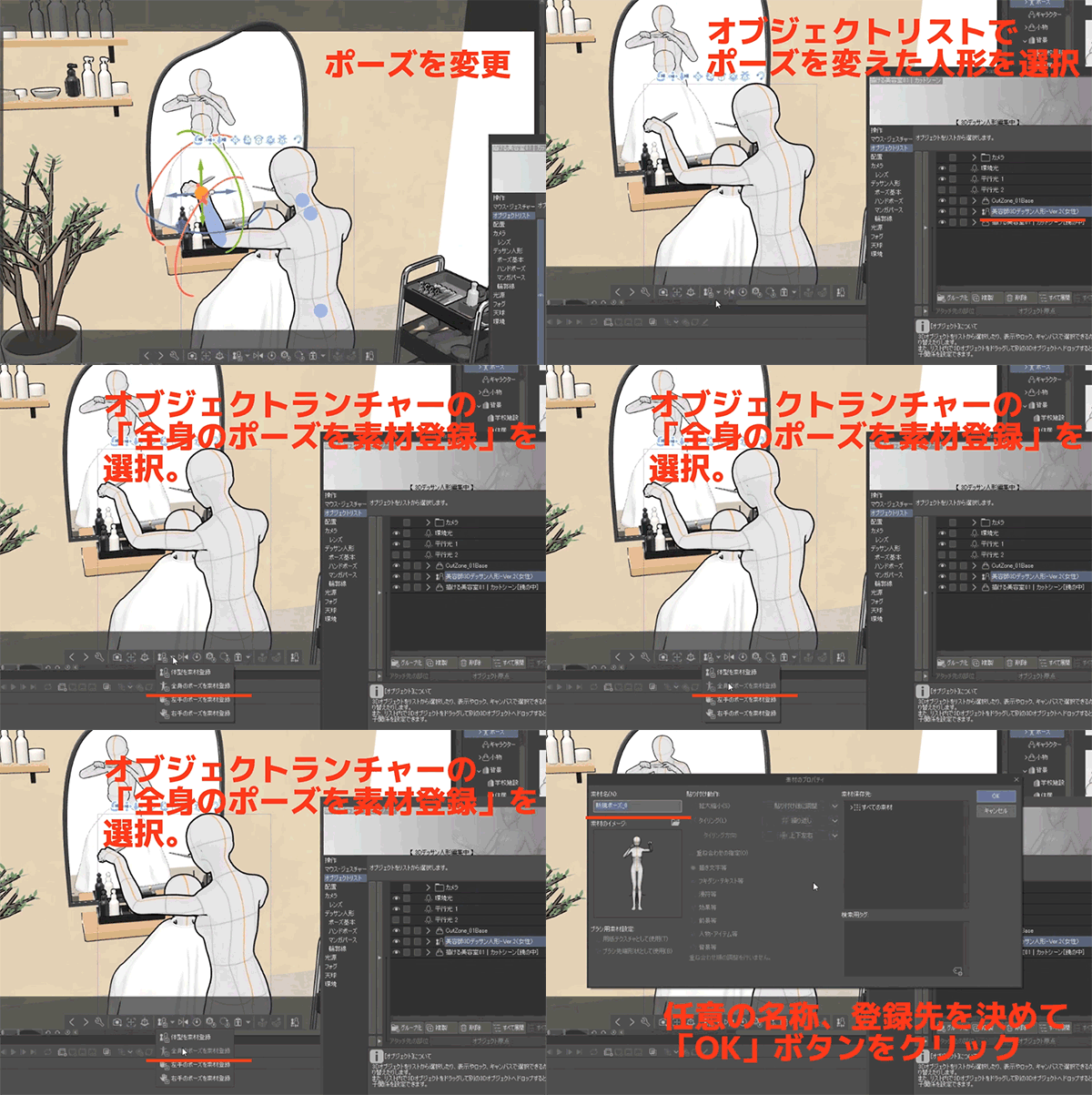 * This image is a combination of this asset and another asset "Drawable Beauty Salon 01 | Cutscene".
2. Select a 3D drawing figure in the mirror and drag the registered pose from the material palette to apply it.
* This image is a combination of this asset and another asset "Drawable Beauty Salon 01 | Cutscene".
3. With the pose applied 3D drawing figure still selected, click the Invert button on the launcher.
* This image is a combination of this asset and another asset "Drawable Beauty Salon 01 | Cutscene".
鏡の中が、最初からあります
美容室を描くとき、鏡の中は最後まで残ります。手前を描き終えてから、何がどう映るのかを考えはじめることになります。位置を決めて、角度を合わせて、ようやく描ける。そこで手が止まります。
CLIP STUDIO PAINTの3Dには、鏡の映り込みを表示する機能がありません。鏡を置いても、そのままでは何も映りません。
本アセットは、その映り込みを疑似的に表現するものです。鏡の向こう側に、左右反転した部屋をそのまま作成しています。実際の反射ではなく、映っているように見える位置に、もう一つの部屋を置く方法です。
別アセット[描ける美容室01|カットシーン]に重ねると、描きはじめる前から鏡の中はもう映っています。何がどこに映るのかを考える工程がありません。鏡の奥まで作ってあるので、鏡の中が白く抜けることもありません。
※この画像は本アセットと、別アセット「描ける美容室01|カットシーン」を組み合わせた状態のものです。
鏡が空のときと、映っているとき
上が[描ける美容室01|カットシーン]だけを配置した状態、下が本アセットを重ねた状態の同じアングルです。
※下の画像は本アセットと、別アセット「描ける美容室01|カットシーン」を組み合わせた状態のものです。
アングルを変えても、鏡の中は正しいまま
手前と同じ空間を、そのまま反転して作成してあります。カメラをどこに振っても、鏡の中が手前と矛盾しません。
※この画像・映像は本アセットと、別アセット「描ける美容室01|カットシーン」を組み合わせた状態のものです。
入っているもの
鏡そのもの、枠とガラス面は[描ける美容室01|カットシーン]側にあります。このアセットは、その鏡の向こうに置くものです。
鏡を使わない絵なら、単体でも使えます
本アセットはカットの場面そのものです。壁と鏡は含まないので、背景はご自身で描くか、他の素材と組み合わせてください。
[描ける美容室01|カットシーン]では美容師は右利きの設定です。本アセットはカットシーンの鏡像なので、左手にシザーを持っています。単体でご使用いただき際は、左利きの美容師として、そのまま使えます。
LT変換は確認済みです
上がそのまま配置した状態、下がLT変換後です。手前側と同じ条件で作ってあるので、線の出方がそろいます。
※この画像は本アセットと、別アセット「描ける美容室01|カットシーン」を組み合わせた状態のものです。
使うときの流れ
配置方法
1. 新規ファイルに別売の[描ける美容室01|カットシーン]を配置します。
2. ダウンロードした本アセットを配置します。
3. ツール詳細パネルのオブジェクトリスト内の「描ける美容室01|カットシーン[鏡の中]」を選択します。
4. ツール詳細パネルの配置を選択後、位置の X, Y, Z すべてに 0(ゼロ)を入力します。
5. 本アセットと[描ける美容室01|カットシーン]の位置が正しくなります。
6. カメラを回してアングルを決めます。
7. そのまま下描きにするか、LT変換で線画にします。
手前(鏡の前)のオブジェクトを動かしたときは
配置した状態では鏡像として合っていますが、システムに連動機能が無く、鏡の外と鏡の中のオブジェクトは自動では連動しません。椅子やワゴンを動かしたり、人のポーズを変えたときは、鏡の中側もあわせて動かしてください。
オブジェクトを動かさなければ、そのまま背景素材として描きすすめられます。アングルをカメラで決めるだけなら、鏡の中に触れる必要はありません。
※鏡に映る範囲だけ合わせれば十分です。はみ出す部分は絵にでません。
※この画像は本アセットと、別アセット「描ける美容室01|カットシーン」を組み合わせた状態のものです。
3Dデッサン人形のポーズを変えたときの、鏡の中への写し方
3手順で、持たせた道具ごと写ります。
【ポーズの写し方】
1. 鏡の外のポーズを変更した3Fデッサン人形を選択し、ランチャーの人形アイコン横の▼から「全身のポーズを素材登録」を選びます。
※この画像は本アセットと、別アセット「描ける美容室01|カットシーン」を組み合わせた状態のものです。
2. 鏡の中の3Dデッサン人形を選び、素材パレットから登録したポーズをドラッグして適用します。
※この画像は本アセットと、別アセット「描ける美容室01|カットシーン」を組み合わせた状態のものです。
3. ポーズを適用した3Dデッサン人形を選択したまま、ランチャーの反転ボタンをクリックします。
※この画像は本アセットと、別アセット「描ける美容室01|カットシーン」を組み合わせた状態のものです。





 * This image is a combination of this asset and another asset "Drawable Beauty Salon 01 | Cutscene".


 MVP ◆This user has contributed greatly to the management of the community, by posting many great responses to the questions asked. Once every three months, MVPs are determined based on the points earned during that period and will be recognized accordingly.
 New Valuable Player (NVP) ◆These are the next-best contributors to the community after MVPs. This is awarded to users who have not yet won an MVP award, based on the number of points they have earned.
 Official Expert ◆Chosen out of all MVP awardees, who are already proof of excellence, this is a testimony of outstanding correspondence in the community. After careful screening, they are appointed by CELSYS and assume their position.Note: Formally called “Evangelists”
 Official Moderator of CELSYS ◆Moderators are official CELSYS staff members who are fluent in Japanese as well as various other languages. Moderators are not experts on the software or illustration, so they are not able to directly answer your questions. However, moderators provide communication and language support to ensure that everyone can smoothly communicate with each other.
 CELSYS official accountThe Official Administrator Account