



Simple lighting installation. 간단한 조명 넣기.
This is a gradient tool set.
You can easily adjust the mood of the illustration.
It's a good choice when you feel lazy to add contrast but want to improve the quality of your doodle or when you're unsure about the lighting direction for your illustration.
You can easily adjust the mood of the illustration.
It's a good choice when you feel lazy to add contrast but want to improve the quality of your doodle or when you're unsure about the lighting direction for your illustration.
How to use
Drag it over layers to use it. A linear light layer is automatically generated.
You can adjust the angle and length of the gradient while holding Ctrl.
Drag it over layers to use it. A linear light layer is automatically generated.
You can adjust the angle and length of the gradient while holding Ctrl.

More delicate adjustments are possible with the Manipulation-Object tool.

After using the mood maker , adding highlights easily improves the quality. For highlights, we recommend adding (glowing) layers.
Gradient List (15 types)
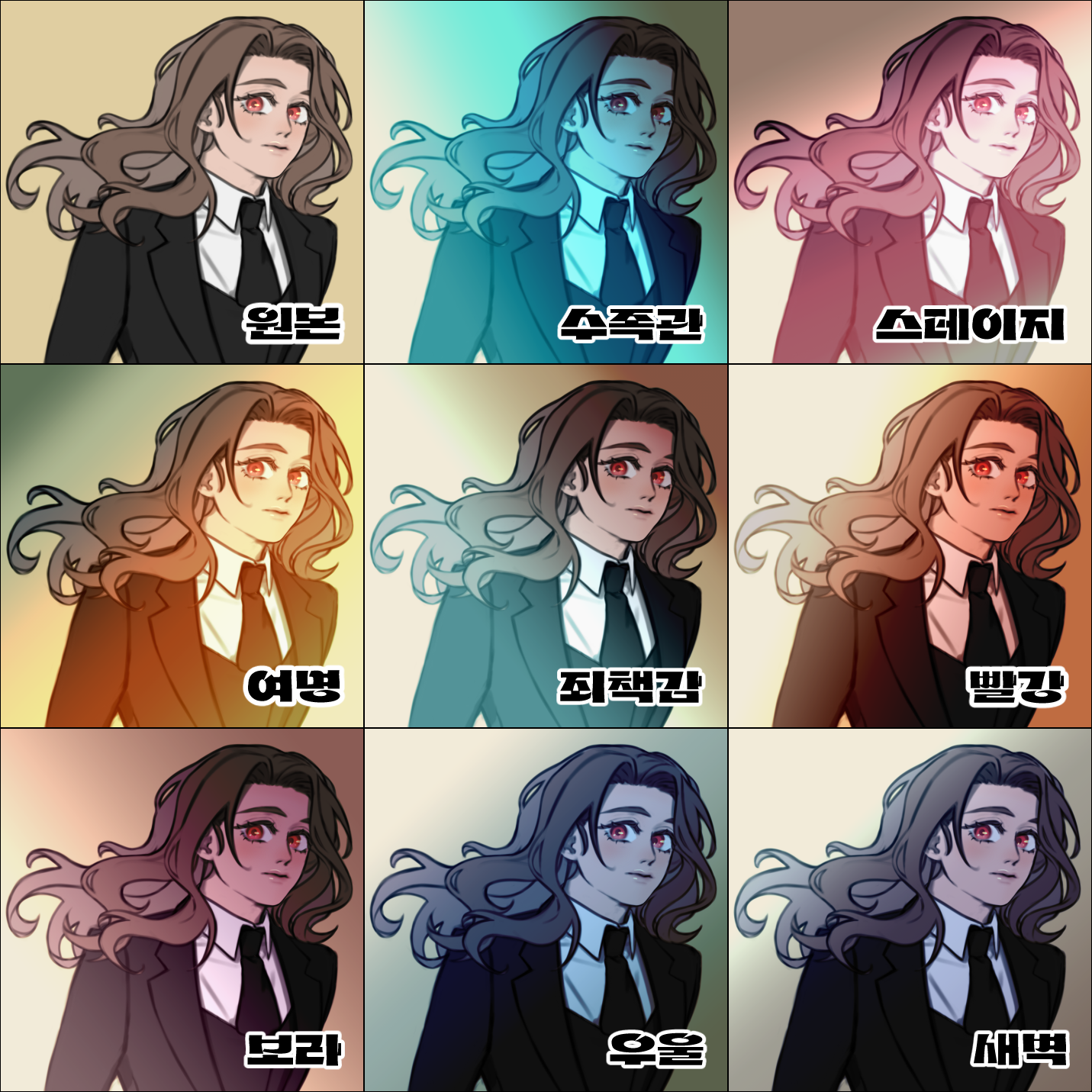
Gradient List (15 types)

(light)

For lighter gradients, it's good to use mood enhancement (AutoAction) together.
AutoAction duplicates two more gradient layers you are selecting, then changes each to a multiplication layer and a luminance layer. Adjust the layer opacity to your liking.
It's even better if you add accent colors with an overlay layer + airbrush.
Changing Synthesis Mode

If you want to add just a bit of color while maintaining the brightness of the image, it's good to change the layer compositing mode from the existing linear light to overlay or soft light.
Change tool properties

In the tool properties, you can change the gradient shape to straight, circle, or ellipse.
Creating a new gradient tool

After cloning the tool, click the slider in the tool properties window to edit the gradient.
You can choose one of the gradients you have to create a new tool. Adjust sliders and adjust opacity to create tools that suit your taste.
It's more natural to have about 2~4 nodes rather than complicated ones.
Correction of complex color gradient maps (+Example Gradation 2)


For gradient maps with complex colors, it's better to simplify them before using them as is.
By selecting a node in the gradient, you can copy the color code. After copying the color code, it's best to remove the point color nodes.
Simplify the remaining nodes by reducing them to about 2~4. It's best to remove or adjust the color for overly bright or dark colors.
For the point colors you removed, apply them to the overlay layer with an airbrush for a natural look.
If you rename the newly created gradient tool with a point color code, it's easy to remember later.
그라데이션 도구 세트입니다.
간단히 일러스트의 분위기를 수정할 수 있습니다.
명암을 넣기는 귀찮지만 낙서의 퀄리티를 올리고 싶을 때, 일러스트의 조명 방향이 고민될 때 사용하기 좋습니다.
간단히 일러스트의 분위기를 수정할 수 있습니다.
명암을 넣기는 귀찮지만 낙서의 퀄리티를 올리고 싶을 때, 일러스트의 조명 방향이 고민될 때 사용하기 좋습니다.
사용방법
레이어 위로 드래그해 사용합니다. 자동으로 선형 라이트 레이어가 생성됩니다.
Ctrl을 누른 상태로 그라데이션의 각도와 길이를 수정할 수 있습니다.
레이어 위로 드래그해 사용합니다. 자동으로 선형 라이트 레이어가 생성됩니다.
Ctrl을 누른 상태로 그라데이션의 각도와 길이를 수정할 수 있습니다.
조작-오브젝트 도구로 더 섬세한 수정이 가능합니다.
무드 메이커를 사용한 후 하이라이트를 추가해주면 간단히 퀄리티가 올라갑니다. 하이라이트는 더하기(발광) 레이어를 추천드립니다.
그라데이션 목록(15종)
그라데이션 목록(15종)
(light)
옅은 색의 그라데이션에는 무드 강화(오토액션)을 함께 사용하면 좋습니다.
오토액션은 선택하고 있는 그라데이션 레이어를 2개 더 복제한 후 각각을 곱하기 레이어, 휘도 레이어로 변경합니다. 레이어 불투명도를 취향에 맞게 조절해주세요.
오버레이 레이어+에어브러쉬로 포인트컬러를 넣어주면 더 좋습니다.
합성 모드 변경
그림의 명도를 유지한 상태로 색만 약간 넣고 싶다면, 레이어 합성 모드를 기존의 선형 라이트에서 오버레이나 소프트 라이트로 변경해주면 좋습니다.
도구 속성 변경
도구 속성에서 그라데이션 모양을 직선/원/타원으로 변경할 수 있습니다.
새로운 그라데이션 도구 작성
도구를 복제한 후, 도구 속성 창에서 슬라이더를 클릭하면 그라데이션을 편집할 수 있습니다.
갖고 있는 그라데이션 중 하나를 선택해 새로운 도구를 만들 수 있습니다. 슬라이더를 조정하고 불투명도를 조절해 취향에 맞는 도구를 만들어보세요.
복잡한 것보다 노드가 2~4개 정도인 게 더 자연스럽습니다.
색이 복잡한 그라데이션 맵의 수정(+예시 그라데이션 2)
색이 복잡한 그라데이션 맵은 그대로 사용하는 것보다 단순화한 후 사용하는 것이 좋습니다.
그라데이션에서 노드를 선택하면 색상코드를 복사할 수 있습니다. 색상코드 복사 후 포인트 컬러 노드는 제거해주는 게 좋습니다.
나머지 노드는 2~4개 정도로 줄이며 단순화해주세요. 지나치게 밝거나 어두운 컬러는 제거하거나 색을 조절해주는 게 좋습니다.
제거했던 포인트 컬러는, 오버레이 레이어에 에어브러시로 칠해주면 자연스럽습니다.
새로 만든 그라데이션 도구의 이름을 포인트 컬러 색상코드로 바꿔주면 나중에도 기억하기 좋습니다.
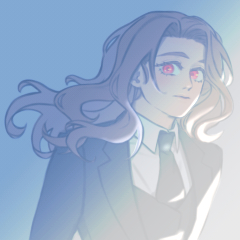
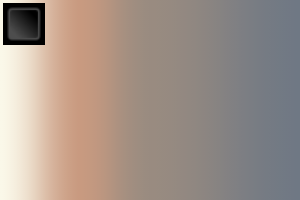
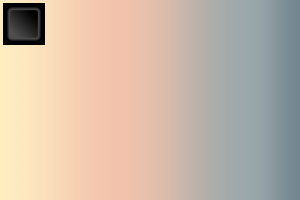
mood maker 무드 메이커















Popular “Material catalog” materials


New materials




Badges
-
 MVP ◆This user has contributed greatly to the management of the community, by posting many great responses to the questions asked. Once every three months, MVPs are determined based on the points earned during that period and will be recognized accordingly.
 -
 New Valuable Player (NVP) ◆These are the next-best contributors to the community after MVPs. This is awarded to users who have not yet won an MVP award, based on the number of points they have earned.
 -
 Official Expert ◆Chosen out of all MVP awardees, who are already proof of excellence, this is a testimony of outstanding correspondence in the community. After careful screening, they are appointed by CELSYS and assume their position.Note: Formally called “Evangelists”
 -
 Official Moderator of CELSYS ◆Moderators are official CELSYS staff members who are fluent in Japanese as well as various other languages. Moderators are not experts on the software or illustration, so they are not able to directly answer your questions. However, moderators provide communication and language support to ensure that everyone can smoothly communicate with each other.
 -
 CELSYS official accountThe Official Administrator Account