



* In order to simplify the introduction of the model, the contents of the material collection have been updated.
Along with this, we are also updating explanations and usage examples. There are no updates such as model movement. (26.09.19)
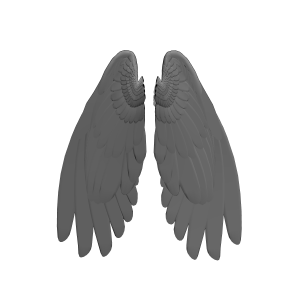
This is a 3D model of movable wings (left and right).
I have a habit of moving it.
It refers to the general flow of bird feathers, but it is not accurate, so it is recommended to use Atari or reference only.
※モデルの導入を簡易的にするため、素材集の内容更新を行いました。
それに伴い、解説・使用例の更新も行っています。モデルの動きなどの更新はありません。(26.09.19)
可動式の羽(左右)の3Dモデルです。
動かし方に癖があります。
一般的な鳥の羽根の流れを参考にしていますが、正確ではないためアタリや参考程度の使用を推奨します。


Category 1 カテゴリ1







Update history
2026.09.19 The contents, thumbnail, and explanations of the material collection have been updated to simplify model introduction. 2026.09.19 モデル導入簡易化のため素材集の内容・サムネイル・解説内容の更新を行いました。
Old version


Other materials by _雨宮_


Popular “Material catalog” materials


New materials


-
 MVP ◆This user has contributed greatly to the management of the community, by posting many great responses to the questions asked. Once every three months, MVPs are determined based on the points earned during that period and will be recognized accordingly.
 -
 New Valuable Player (NVP) ◆These are the next-best contributors to the community after MVPs. This is awarded to users who have not yet won an MVP award, based on the number of points they have earned.
 -
 Official Expert ◆Chosen out of all MVP awardees, who are already proof of excellence, this is a testimony of outstanding correspondence in the community. After careful screening, they are appointed by CELSYS and assume their position.Note: Formally called “Evangelists”
 -
 Official Moderator of CELSYS ◆Moderators are official CELSYS staff members who are fluent in Japanese as well as various other languages. Moderators are not experts on the software or illustration, so they are not able to directly answer your questions. However, moderators provide communication and language support to ensure that everyone can smoothly communicate with each other.
 -
 CELSYS official accountThe Official Administrator Account