



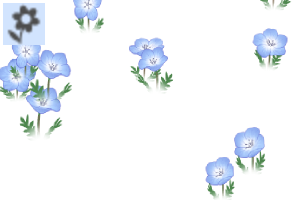
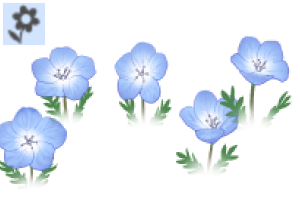
It is a brush that can draw a flower garden of nemophila ネモフィラの花畑を描けるブラシです
Flowers are good, I like flowers, but it's hard to draw a lot!
… It is a brush that I made from such thoughts and can draw a lot of nemophila.
Set [Nemophila Brush] for near view and [Nemophila Spray] for distant view.
It's easy to use, just change the brush size and draw in order from a distance.
In a short time, you can create a vast flower garden in the park where nemophila is in full bloom.
… It is a brush that I made from such thoughts and can draw a lot of nemophila.
Set [Nemophila Brush] for near view and [Nemophila Spray] for distant view.
It's easy to use, just change the brush size and draw in order from a distance.
In a short time, you can create a vast flower garden in the park where nemophila is in full bloom.
Please feel free to use it.
I hope you find it useful!
I hope you find it useful!

[Nemophila Brush]
Place the substrate in one row.
brush size and particle size are the same.
It is used to finish the close-up view.
Place the substrate in one row.
brush size and particle size are the same.
It is used to finish the close-up view.

[Nemophila Spray]
Scatter the particle size material over the brush size area.
By default, the particle size is 40% of brush size and brush size
If you change the (spraying range), the particle size will also change while maintaining the ratio.
I use dual brushes so as not to be biased towards the center.
It is used to fill in the distant view.
(While it is easy to operate with continuous spraying, it overlaps in a circle if it remains stationary)
Scatter the particle size material over the brush size area.
By default, the particle size is 40% of brush size and brush size
If you change the (spraying range), the particle size will also change while maintaining the ratio.
I use dual brushes so as not to be biased towards the center.
It is used to fill in the distant view.
(While it is easy to operate with continuous spraying, it overlaps in a circle if it remains stationary)

(Example of use) Create a flower garden, put clouds and trees in the distance... It can be done in a short time.

First of all, so that the material does not float at the boundary part, carefully use [Nemophila Spray] ...

Repeat the image drawn horizontally while increasing the brush size.
It may be good to divide the layers by size.
Later, you can adjust the distant view to brighter (whiter) to make it easier to edit the color.
It may be good to divide the layers by size.
Later, you can adjust the distant view to brighter (whiter) to make it easier to edit the color.

Nearby, we will arrange large materials with [Nemophila Brush].
It may be good if it is a slightly wavy stroke.
It may be good if it is a slightly wavy stroke.

In the usage examples, we used them differently like this.
・I use my own illustrations as material patterns.
・ Since it is a color material, the color cannot be changed in the brush ...
Slightly increase the brightness of the layer where the distant view is placed, etc.
If necessary, adjust it after drawing.
Slightly increase the brightness of the layer where the distant view is placed, etc.
If necessary, adjust it after drawing.
・ If you use [Nemophila Spray] with a large particle size, the leaves will overlap the flowers!
For large particle size, it is safer to paint with [Nemophila Brush].
For large particle size, it is safer to paint with [Nemophila Brush].
・By default, the direction of particle is up.
When you want to use it diagonally overall, than changing the settings
It is easier to rotate the angle of the navigator.
When you want to use it diagonally overall, than changing the settings
It is easier to rotate the angle of the navigator.
※※Slightly unusual usage※※

If you change the check of the tool property and draw it with a curve
Photogenic background ready.
・Nemophila Brush
Change from [None] to [direction of line] with the [Orientation] right icon of [tool property].
・Nemophila Spray
・Nemophila Spray
Change from [None] to [direction of line] in [direction of particle] of [tool property]
In [2-direction of particle] of [tool property], change from [None] to [direction of line]
* With this setting, the stroke is fixed from left to right.
* Please return the settings after use, it will be difficult to draw normally.
* Please return the settings after use, it will be difficult to draw normally.
花は良い、花は好きだ、でもたくさん描くのは大変だ!?
…そんな思いから作った、ネモフィラをたくさん描けるブラシです。
近景用の[ネモフィラBrush]と遠景用の[ネモフィラSpray]をセット。
使い方は簡単、ブラシサイズを変えて遠くから順番に描くだけ。
短時間でネモフィラが咲き誇る公園の広大な花畑を作れます。
…そんな思いから作った、ネモフィラをたくさん描けるブラシです。
近景用の[ネモフィラBrush]と遠景用の[ネモフィラSpray]をセット。
使い方は簡単、ブラシサイズを変えて遠くから順番に描くだけ。
短時間でネモフィラが咲き誇る公園の広大な花畑を作れます。
ご自由にご活用して頂いて構いません。
お役に立てれば幸いです!
お役に立てれば幸いです!
[ネモフィラBrush]
素材を1列に配置します。
ブラシサイズと粒子サイズは同じです。
近景を仕上げるのに使います。
素材を1列に配置します。
ブラシサイズと粒子サイズは同じです。
近景を仕上げるのに使います。
[ネモフィラSpray]
粒子サイズの素材をブラシサイズの範囲に散布します。
デフォルトでは粒子サイズがブラシサイズの40%で、ブラシサイズ
(散布範囲)を変えると比率を維持したまま粒子サイズも変わります。
中心に偏らないようにデュアルブラシを使っています。
遠景を埋めるのに使います。
(連続吹き付けで操作しやすい反面、止まったままだと円形に重なります)
粒子サイズの素材をブラシサイズの範囲に散布します。
デフォルトでは粒子サイズがブラシサイズの40%で、ブラシサイズ
(散布範囲)を変えると比率を維持したまま粒子サイズも変わります。
中心に偏らないようにデュアルブラシを使っています。
遠景を埋めるのに使います。
(連続吹き付けで操作しやすい反面、止まったままだと円形に重なります)
(使用例) 花畑を作って、雲や木を遠くに置いて…短時間で出来ます。
最初に境界部分で素材が浮いたりしないよう、[ネモフィラSpray]で念入りに…
ブラシサイズを大きくしながら横方向に描くイメージを繰り返します。
大きさでレイヤー分けすると、良いかもしれません。
後から遠景を明るく(白く)調整するなど、色味を編集しやすくなります。
大きさでレイヤー分けすると、良いかもしれません。
後から遠景を明るく(白く)調整するなど、色味を編集しやすくなります。
近くは[ネモフィラBrush]で大きい素材を並べていきます。
少し波打つストロークだと良いかもしれません。
少し波打つストロークだと良いかもしれません。
使用例ではこのように使い分けました。
・自作のイラストを素材パターンに使っています。
・カラー素材なのでブラシ内で色を変えられません…。
遠景を配置したレイヤーの明度を少し上げるなど、
必要に応じて描画後に調整して下さい。
遠景を配置したレイヤーの明度を少し上げるなど、
必要に応じて描画後に調整して下さい。
・[ネモフィラSpray]を大きい粒子サイズで使うと花に葉が重なってしまいます!
大きい粒子サイズでは[ネモフィラBrush]で塗り重ねた方が無難です。
大きい粒子サイズでは[ネモフィラBrush]で塗り重ねた方が無難です。
・デフォルトでは粒子の向きは上です。
全体的に斜めで使いたい時は、設定を変えるよりも
ナビゲーターの表示角度を回転した方が簡単です。
全体的に斜めで使いたい時は、設定を変えるよりも
ナビゲーターの表示角度を回転した方が簡単です。
※※少し変わった使い方※※
ツールプロパティのチェックを変えて、曲線で描くと
フォトジェニックな背景の出来上がり。
・ネモフィラBrush
[ツールプロパティ]の[向き]右アイコンで[なし]から[線の方向]に変更
・ネモフィラSpray
・ネモフィラSpray
[ツールプロパティ]の[粒子の向き]で[なし]から[線の方向]に変更
[ツールプロパティ]の[2-粒子の向き]でも[なし]から[線の方向]に変更
※この設定だとストロークは左から右へ固定になります
※使用後は設定を戻して下さい、通常の描画が難しくなります
※使用後は設定を戻して下さい、通常の描画が難しくなります
Brushes ブラシ




Popular “Material catalog” materials


New materials




Badges
-
 MVP ◆This user has contributed greatly to the management of the community, by posting many great responses to the questions asked. Once every three months, MVPs are determined based on the points earned during that period and will be recognized accordingly.
 -
 New Valuable Player (NVP) ◆These are the next-best contributors to the community after MVPs. This is awarded to users who have not yet won an MVP award, based on the number of points they have earned.
 -
 Official Expert ◆Chosen out of all MVP awardees, who are already proof of excellence, this is a testimony of outstanding correspondence in the community. After careful screening, they are appointed by CELSYS and assume their position.Note: Formally called “Evangelists”
 -
 Official Moderator of CELSYS ◆Moderators are official CELSYS staff members who are fluent in Japanese as well as various other languages. Moderators are not experts on the software or illustration, so they are not able to directly answer your questions. However, moderators provide communication and language support to ensure that everyone can smoothly communicate with each other.
 -
 CELSYS official accountThe Official Administrator Account