【Basic Information】
Number of vertices (vertices) ... 9409 each
Number of object (Objects)... 1 each
・Number of Materials... 1 each
【Example of use】
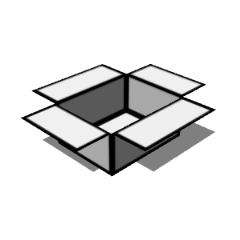
You can decide how to open the lid of the cardboard box and use it as a reference for drawing.
You can also use the shape keys to recreate a battered box.
You can decide how open the cardboard box lid should be and use that as a reference for your drawing.
You can also use shape keys to recreate a worn-out box.
【Point 1】
Since bones are set for each lid, you can change the degree of opening for each lid.
Bones are set for each lid, so you can change the degree to which each lid opens.
【Point 2】
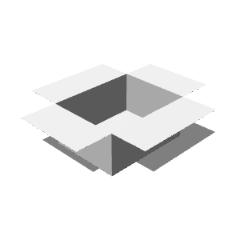
You can use the shape keys to reproduce the battered state.
You can use shapekeys to recreate a worn-out look.
【Usage image】
01.Bottom_corner_1,2
02.Bottom_side_1,2
03.Middle_corner
04.Middle_side
05.Lid_corner_1,2,3
06.Lid_side
【Usage image】
(1) Select the layer where the 3D model is placed.
①Select the layer containing the 3D model
(2) Select [Operation] from the tool→ select [object] from the sub tool.
②Select [Operation] from the tool menu → Select [Object] from the sub tool menu
(3) Select the target object from the tool property
③Select the target object from the tool properties
(4) Select [Operation Shape Key] from the tool property and change the numerical value.
④Select [Shape Key Operation] from the tool properties and change the value
【Point 3】
To make it easy to understand what is happening in the process of deformation,
We draw a line connecting the top and bottom and a line that goes around the horizontal direction.
To make it easier to understand what is happening during the transformation process,
I've drawn a line connecting the top and bottom and a line going around horizontally.
Since you can't assign more than one material,
Plain (Basic), outer frame only (Flrame) and polygon are registered as separate materials.
Since it is not possible to assign multiple materials,
(Basic) and (Flame) and (Polygon) are registered as separate materials.
【Point 4】
The hole on the side can be reproduced by placing the "hole" in the material collection in the same layer.
You can also use the shape keys to change the size of the height and width.
The holes on the sides can be recreated by placing the "hole" from the material collection on the same layer.
You can also use the shapekeys to change the width and height.
【Usage image】
07.Hole_width
07.Hole_length
【Others 1】
If you don't need black areas (shadows) on the 3D model, click the tool property Light
and uncheck [This model is apply light source].
If you don't want black areas (shadows) on the 3D model,
uncheck [This model is affected by light sources] in the [Light Source] tool properties.
[Others 2]
Since the angle fluctuates quite finely, LT conversion and contour line
I don't think it works very neatly. Thank you for your understanding.
Since the angle fluctuates quite a bit, LT conversion and outlines may not work very well.
Thank you for your anderstanding.
Thank you for downloading!
I will continue to post materials, so
Please follow our account!
Thank you for downloading!
I will continue to post materials,
so please follow my account!
【基本情報】
・頂点数(Vertices)…各9409
・オブジェクト数(Objects)…各1
・マテリアル数(Materials)…各1
【使用例】
段ボール箱のフタの開き具合を決めて描画の参考にできます。
またシェイプキーを使ってボロボロな状態の箱を再現できます。
You can decide how open the cardboard box lid should be and use that as a reference for your drawing.
You can also use shape keys to recreate a worn-out box.
【ポイント1】
各フタにボーンを設定しているので、フタ毎に開き具合を変えられます。
Bones are set for each lid, so you can change the degree to which each lid opens.
【ポイント2】
シェイプキーを使ってボロボロな状態を再現できます。
You can use shapekeys to recreate a worn-out look.
【使用イメージ】
01.Bottom_corner_1,2
02.Bottom_side_1,2
03.Middle_corner
04.Middle_side
05.Lid_corner_1,2,3
06.Lid_side
【使用イメージ】
①3Dモデルを置いたレイヤーを選択
①Select the layer containing the 3D model
②ツールから[操作]を選択→サブツールから[オブジェクト]を選択
②Select [Operation] from the tool menu → Select [Object] from the sub tool menu
③ツールプロパティから対象となるオブジェクトを選択
③Select the target object from the tool properties
④ツールプロパティから[シェイプキーの操作]を選択し数値を変更
④Select [Shape Key Operation] from the tool properties and change the value
【ポイント3】
変形する過程でどうなっているかが分かりやすいよう、
上下を結ぶラインと水平方向を一周するラインを引いています。
To make it easier to understand what is happening during the transformation process,
I've drawn a line connecting the top and bottom and a line going around horizontally.
マテリアルを複数割り当てることができないので、
無地(Basic)と外枠のみ(Flrame)とポリゴン(Polygon)は別素材として登録しています。
Since it is not possible to assign multiple materials,
(Basic) and (Flame) and (Polygon) are registered as separate materials.
【ポイント4】
側面に空いている穴は素材集内の「hole」を同レイヤー内に置いて再現できます。
またシェイプキーを使用して縦横の大きさを変えられます。
The holes on the sides can be recreated by placing the "hole" from the material collection on the same layer.
You can also use the shapekeys to change the width and height.
【使用イメージ】
07.Hole_width
07.Hole_length
【その他1】
3Dモデル上の黒い部分(影)が不要な場合はツールプロパティの[光源]
から[このモデルは光源の影響を受ける]のチェックを外してください。
If you don't want black areas (shadows) on the 3D model,
uncheck [This model is affected by light sources] in the [Light Source] tool properties.
【その他2】
角度がかなり細かく変動しているのでLT変換や輪郭線は
あまり綺麗に機能しないと思われます。ご了承ください。
Since the angle fluctuates quite a bit, LT conversion and outlines may not work very well.
Thank you for your anderstanding.
ダウンロードしていただきありがとうございます!
引き続き素材を投稿していこうと思いますので、
アカウントのフォローなどもぜひお願いします!
Thank you for downloading!
I will continue to post materials,
so please follow my account!












 MVP ◆This user has contributed greatly to the management of the community, by posting many great responses to the questions asked. Once every three months, MVPs are determined based on the points earned during that period and will be recognized accordingly.
 New Valuable Player (NVP) ◆These are the next-best contributors to the community after MVPs. This is awarded to users who have not yet won an MVP award, based on the number of points they have earned.
 Official Expert ◆Chosen out of all MVP awardees, who are already proof of excellence, this is a testimony of outstanding correspondence in the community. After careful screening, they are appointed by CELSYS and assume their position.Note: Formally called “Evangelists”
 Official Moderator of CELSYS ◆Moderators are official CELSYS staff members who are fluent in Japanese as well as various other languages. Moderators are not experts on the software or illustration, so they are not able to directly answer your questions. However, moderators provide communication and language support to ensure that everyone can smoothly communicate with each other.
 CELSYS official accountThe Official Administrator Account