



Desk calendar vector lines. From Sunday to Monday, the folder contains a date layer for the beginning of each day, a layer for Japanese and English versions of the day of the week, and a border layer. If you take the selection and place it along the perspective line, the calendar will be drawn along the perspective. 卓上カレンダーのベクター線です。フォルダ内に日曜日から月曜日まで、それぞれの曜日始まりの日付レイヤーと、曜日の日本語版と英語版のレイヤー、枠線のレイヤーが入っています。選択範囲を取り、パース線に沿うように配置すると、パースに沿ってカレンダーが描かれます。
Examples of use
1. Delete
Let's delete layer the date layers and days of the week that we don't need.
2. Additions
Since there is no year, let's add it to the upper left. You can copy and paste any number from the date, or you can create a new vector line of numbers.
Vectorize numbers
Type the numbers in white with the letter tool (the date is made with I-OTF antic StdB). Attach the edge at 0.1 mm, etc., and rasterize. From the three lines in the upper left of the layer palette, select the convert layer and vectorize it.
Adding a calendar publisher or a Japanese-style month name may increase the reality.
If you want to add illustrations, draw them vector layer. At this time, if there is a line outside the border of the calendar, the selection will not be taken well, so be careful.
If you write about the behavior of the character, such as dating, part-time work, and going to work, you may get a sense of life.
3、Deformation
You can remove the selection with the free transform → transform → menu[edit]. Place it so that the four sides of the selection are aligned with Perth.
4. Line change
When changing all lines at once
When you select a layer while holding down the Ctrl key, all line drawings are selected, and you can change the line width and line type from the object.
When to use the correct line width tool
Uncheck the process whole line and use the tool to narrow towards the back of the perspective for a sense of perspective.
5. Finished!
The image below is an example of usage. The 30th and 31st are placed on the same square as the other dates. The number of days varies depending on the month, so don't forget to delete it ...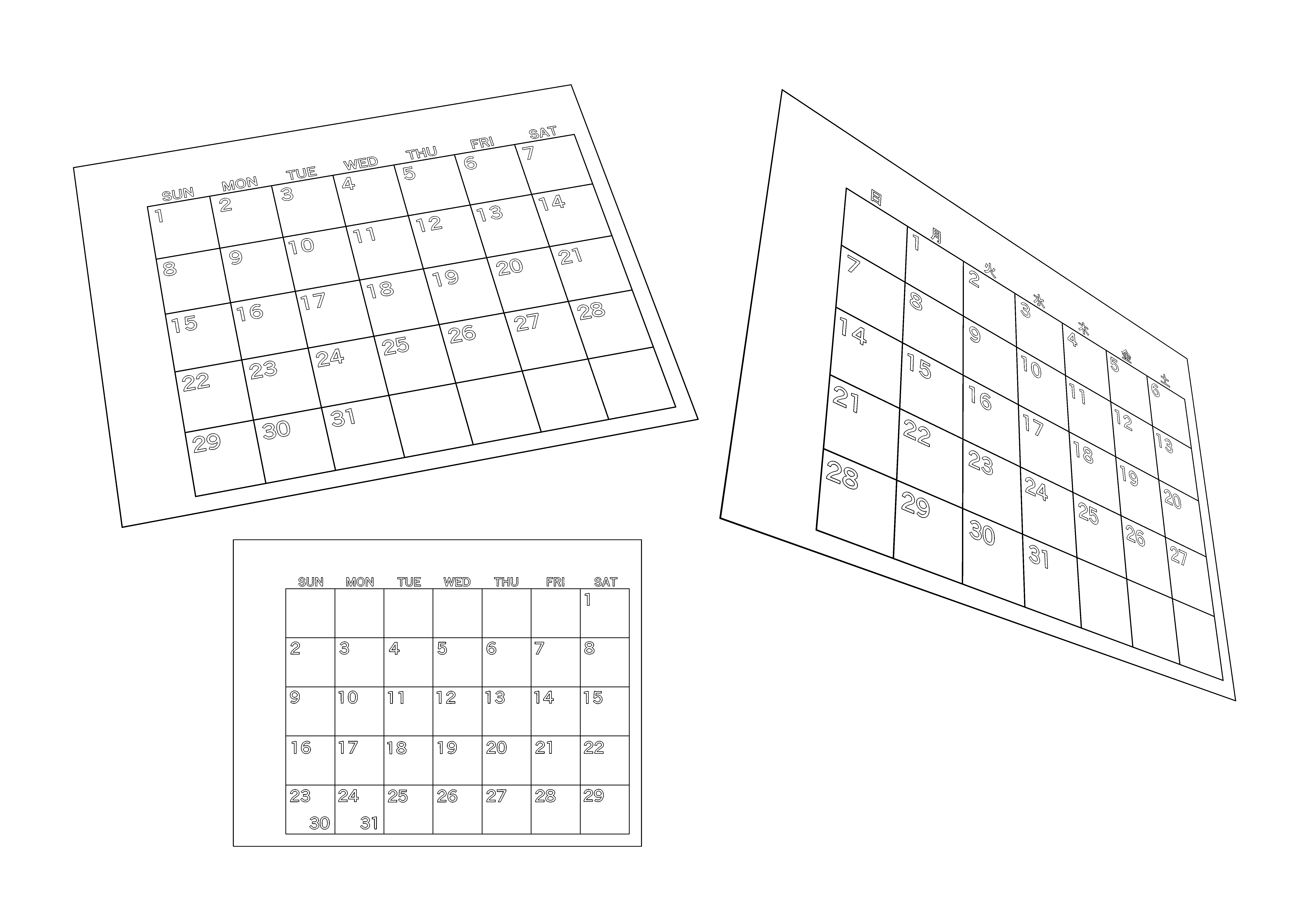
使用例
1、削除
不要な日付レイヤーと曜日レイヤーを削除しましょう。
2、描き足し
年月が無いので左上等に付け足しましょう。日付から任意の数字をコピーして張るのもいいですし、新たに数字のベクター線を作るのでもいいです。
数字のベクター化
白で数字を文字ツールで打ちます(日付はI-OTFアンチックStdBで作ってます)。フチを0.1mm等で付け、ラスタライズ。レイヤーパレット左上の三本線から、レイヤーの変換を選択し、ベクター化します。
カレンダーの出版社や、和風月名などを付け足すとリアリティが増すかもしれません。
イラストなどを付け足したい場合はベクターレイヤーに描きましょう。このときカレンダーの枠線外に線があると選択範囲がうまく取れないので気を付けましょう。
デートやアルバイト、出勤などキャラクターの行動を書くと生活感がでるかもしれません。
3、変形
メニュー[編集]→変形→自由変形で選択範囲が取れます。パースに選択範囲の4辺が沿うように配置しましょう。
4、線変更
全ての線を一括で変更する場合
Ctrlキーを押しながらレイヤーを選択するとすべての線画選択され、オブジェクトから線の幅や線の種類が変更できます。
線幅修正ツールを使う場合
線全体に処理のチェックを外し、パースの奥に向かって細くなるようにツールを使うと、遠近感が出ます。
5、完成!
下画像が使用例です。30日や31日は他の日付と同じマスに配置しています。月によって日数が異なるので消し忘れの無いように…。


Other materials by 植物Shokubutsu


Popular “Image material” materials



New materials


Badges
-
 MVP ◆This user has contributed greatly to the management of the community, by posting many great responses to the questions asked. Once every three months, MVPs are determined based on the points earned during that period and will be recognized accordingly.
 -
 New Valuable Player (NVP) ◆These are the next-best contributors to the community after MVPs. This is awarded to users who have not yet won an MVP award, based on the number of points they have earned.
 -
 Official Expert ◆Chosen out of all MVP awardees, who are already proof of excellence, this is a testimony of outstanding correspondence in the community. After careful screening, they are appointed by CELSYS and assume their position.Note: Formally called “Evangelists”
 -
 Official Moderator of CELSYS ◆Moderators are official CELSYS staff members who are fluent in Japanese as well as various other languages. Moderators are not experts on the software or illustration, so they are not able to directly answer your questions. However, moderators provide communication and language support to ensure that everyone can smoothly communicate with each other.
 -
 CELSYS official accountThe Official Administrator Account