



웹툰용으로 예전에 복잡하게 만든 레이어 템플릿을 다시 작업했는데, 몇몇 부분이 혼란스럽거나 제가 생각했던 대로 작동하지 않는 걸 보고 그랬어요.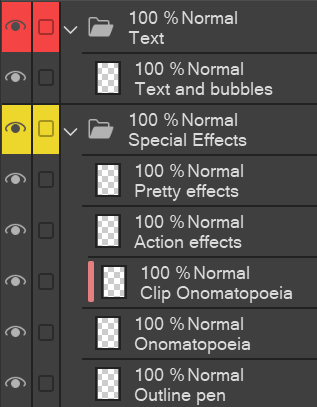


아주 정교한 레이어 템플릿을 원한다면 "Layer Template: Webtoon (very ecurate)"를 검색하거나 제 프로필의 첫 게시물을 참고하세요:)
사용 방법:
- 모든 프레임 레이어를 "Frames (3D in here)" 폴더로 끌어와서 스마트 선택 도구를 사용해 프레임 안쪽을 그리세요(다른 레이어에서 그려야 모든 패널마다 템플릿을 붙여넣을 필요는 없습니다). 3D 모델은 선택한 영역에 머물 수 없으므로, 그것들을 프레임 안으로 끌어와야 합니다.
- "Sketch" 폴더에서는 먼저 "매우 러프 스케치" 레이어에서 스토리보드를 만들고 값을 생각한 뒤 더 정교한 스케치로 넘어가요.
- 저는 "X 완료"와 "X 전송" 시스템(스케치, 배경 , 캐릭터 폴더에서 찾을 수 있음)을 사용합니다. 먼저 "전송" 레이어에 그려보고, 만족하면 "레이어" 아래에 있는 "하위 레이어로 전송" 기능을 사용해 "완성된" 레이어로 옮깁니다. 이렇게 하면 예를 들어 머리카락 선화만 먼저 그리는 데 집중할 수 있고, 얼굴 선화 일부를 지우는 걱정을 하지 않아도 됩니다. [저는 "레이어 병합" 기능보다 "전송" 기능을 선호합니다. 이렇게 하면 매번 새로운 레이어를 만들 필요가 없기 때문입니다.
- 특수 효과 레이어에 대한 설명: "아웃라인 펜"은 제가 아웃라인 펜으로 사용할 수 있는 모든 효과에 해당합니다. 예를 들어 수다/웃음, 짜증, 움직임 선, 킥킥 거림 같은 소리 단어 등. "의성어"는 BOOM! 같은 큰 효과음을 위한 것이고, "클립" 버전은 내부에서 그라데이션이나 패턴을 만들고 싶을 때 쓰는 것입니다.
- 캔버스 블랙 은 캔버스가 검은색이어야 하지만 종이를 검은색으로 만들 수 없는 장면에 쓰는 것이고, 종이는 페이지 전체가 아니기 때문입니다; 버킷 도구를 사용하세요.
- 텍스트에서는 모든 텍스트와 말풍선을 하나의 레이어로 합쳐서 부담이 되지 않게 합니다; 어쨌든 각 부품을 따로따로 움직일 수 있습니다.


I´ve reworked my old elaborate layer template for webtoons after seeing how some things were confusing/ not working how I thought they would.
If you want a veeeery elaborate layer template, search for "Layer Template: Webtoon (very elaborate)" or go to the first post on my profile :)
How to use:
- Pull all your frame layers into the "Frames (3D in here)" folder. Use the Smart selection tool to draw inside the Frames (but on the other layers, so you don´t need to paste the template for every panel). Since 3D models can´t stay in the selected area, you have to pull those into the frame.
- In the "Sketch" folder, I like to first do the storyboard on the "very rough sketch" layer, and think the values through, before I move on to the more elaborate sketch.
- I work with a system of "X finished" and "X Transfer" (to be found in Sketch, Background, and Characters folders). I draw on the "Transfer" layer first, and once I´m satisfied, I use the "Transfer to lower layer" function (under "Layer") to transfer it onto the "finished" layer. This way, I can focus on drawing e.g. only the hair lineart first and not worry about erasing parts of the face lineart. [I prefer the "transfer" function to the "merge layers" function, because this way, I don´t need to create a new layer every time.
- Explanations to the Special Effects layers: "Outline pen" is for every effect I would use the outline pen for, e.g. chatter/ laughing, annoyed, movement lines, sound words like snicker etc. "Onomatopoeia" is for the big sound effects like BOOM! and the "clip" version is in case you want to do gradients or patterns inside.
- Canvas black is for those scenes where your canvas should be black but you can´t make the paper black because it´s not the entire page; just use the bucket tool.
- in Text, I merge all my texts and speech bubbles into one layer so it doesn´t get overwhelming; you can still move each part separately anyway.


'Arifryer'님의 다른 소재

'레이어 템플릿'의 인기 소재


신규 소재





배지
-
 MVP ◆질문에 적절한 답변을 많이 게시하고 커뮤니티 운영에 크게 공헌한 사용자입니다. MVP는 3개월에 한 번, 그 사이에 획득한 포인트를 바탕으로 결정하고 표창을 실시하고 있습니다.
 -
 NVP(New Valuable Player) ◆MVP 다음으로 커뮤니티 운영에 공헌한 사용자입니다. 이제까지 MVP 수상 경험이 없는 분 중에서 획득한 포인트를 바탕으로 결정하여 표창을 실시하고 있습니다.
 -
 공식 엑스퍼트 ◆뛰어난 응답자의 증표인 MVP수상자 중에서 선택된 커뮤니티에서 가장 뛰어난 응답자의 증표입니다. 심사를 거쳐서 저희 회사에서 의뢰할 경우 취임되십니다.※ 옛 명칭 '에반젤리스트'
 -
 셀시스 공인 모더레이터 ◆모더레이터는 일본어와 기타 언어로 말할 수 있는 셀시스 공인 스태프입니다. 소프트웨어나 창작 전문가가 아니므로 직접 의문을 해결할 수는 없지만 여러분이 순조롭게 소통할 수 있도록 언어나 커뮤니케이션 측면에서 지원합니다.
 -
 셀시스 공식운영에 관련된 공식 계정입니다.