


○ CP version extrusion Bright vertical and horizontal four-way set (V.1.0.0) (○ CP版 押し出し Bright 縦横四方向セット (V.1.0.0)) ○ CP版 押し出し Bright 縦横四方向セット (V.1.0.0)
Content ID:2300633
-
0

A auto action that extrudes shapes and text by only 5px.
図形やテキストを 5px だけ押し出すオートアクションです。
CP Extrusion Bright Vertical and Horizontal Set (V.1.0.0)
■ Purpose
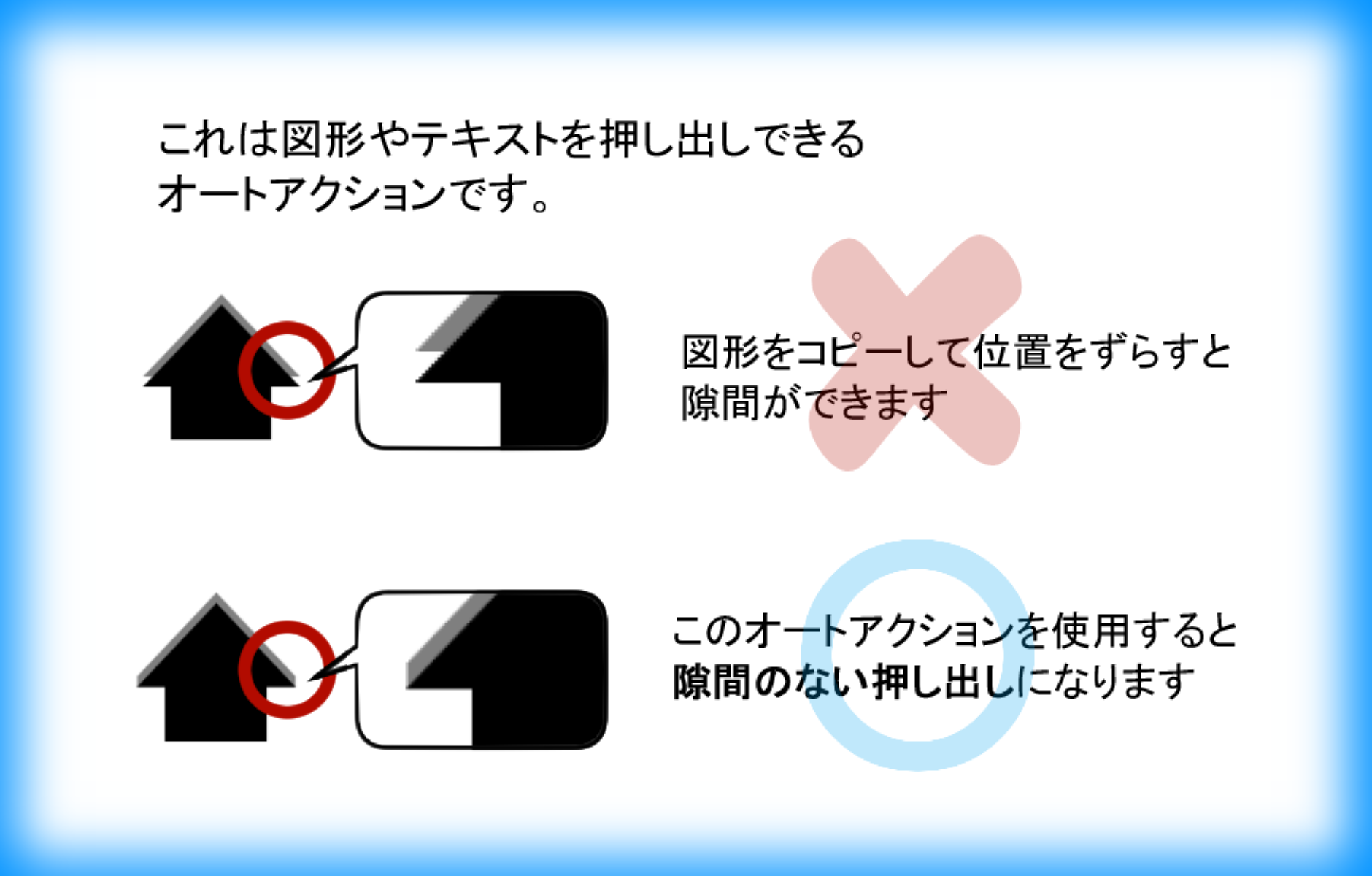
This is a auto action that fulfills the wish of "extruding shapes and text so that there are no gaps."
■ Overview
Development environment:
- Windows 11 Pro
- CLIP STUDIO PAINT EX (lifetime version V.5.0.4)
Details:
- Extrusion Width: +5px
- Extruded background color: +50 luminosity (light extrusion)
- Extrusion direction: up, right, down, left
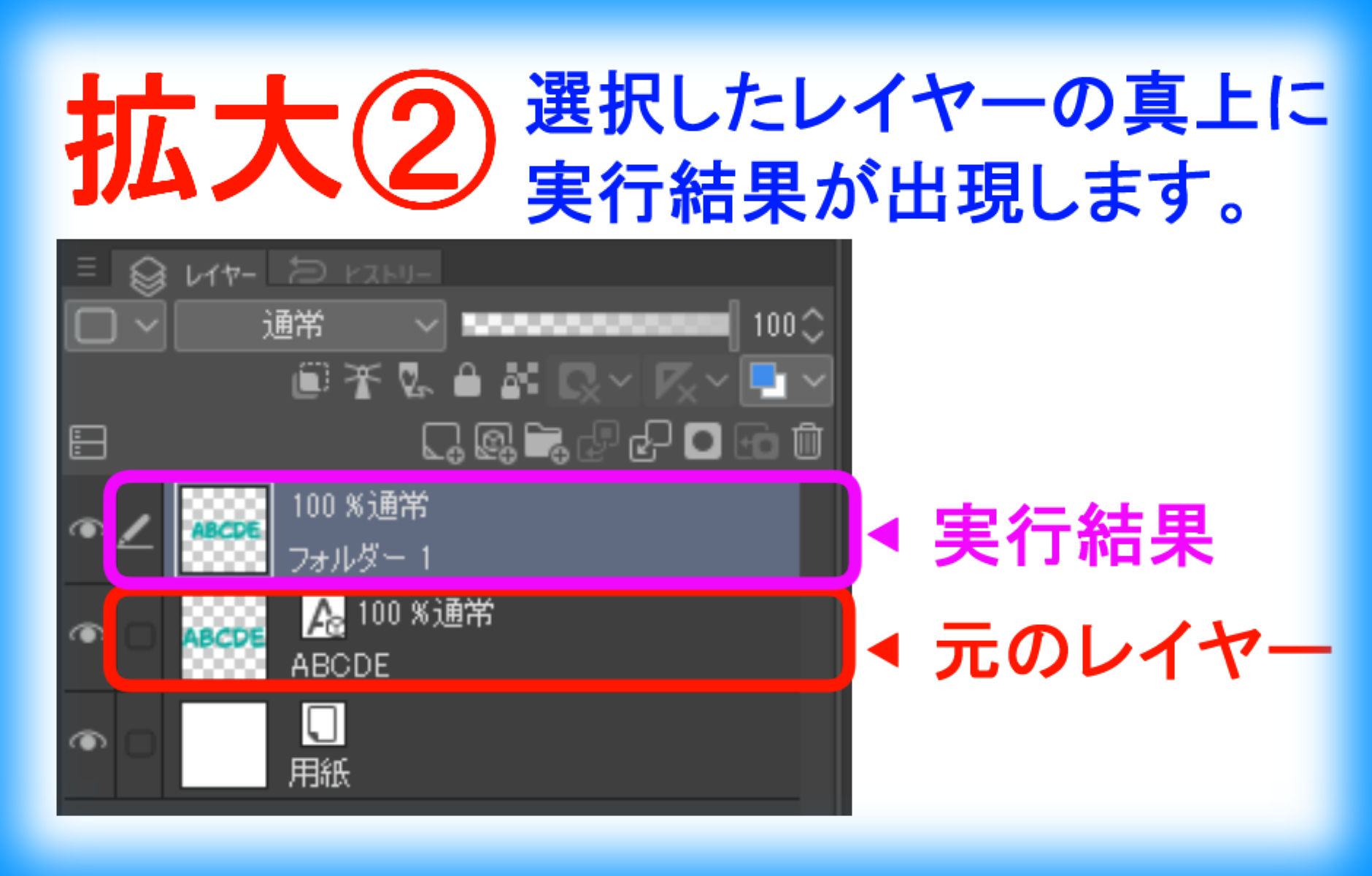
- Where the extrusion appears: directly above the selected layer
■ How to use
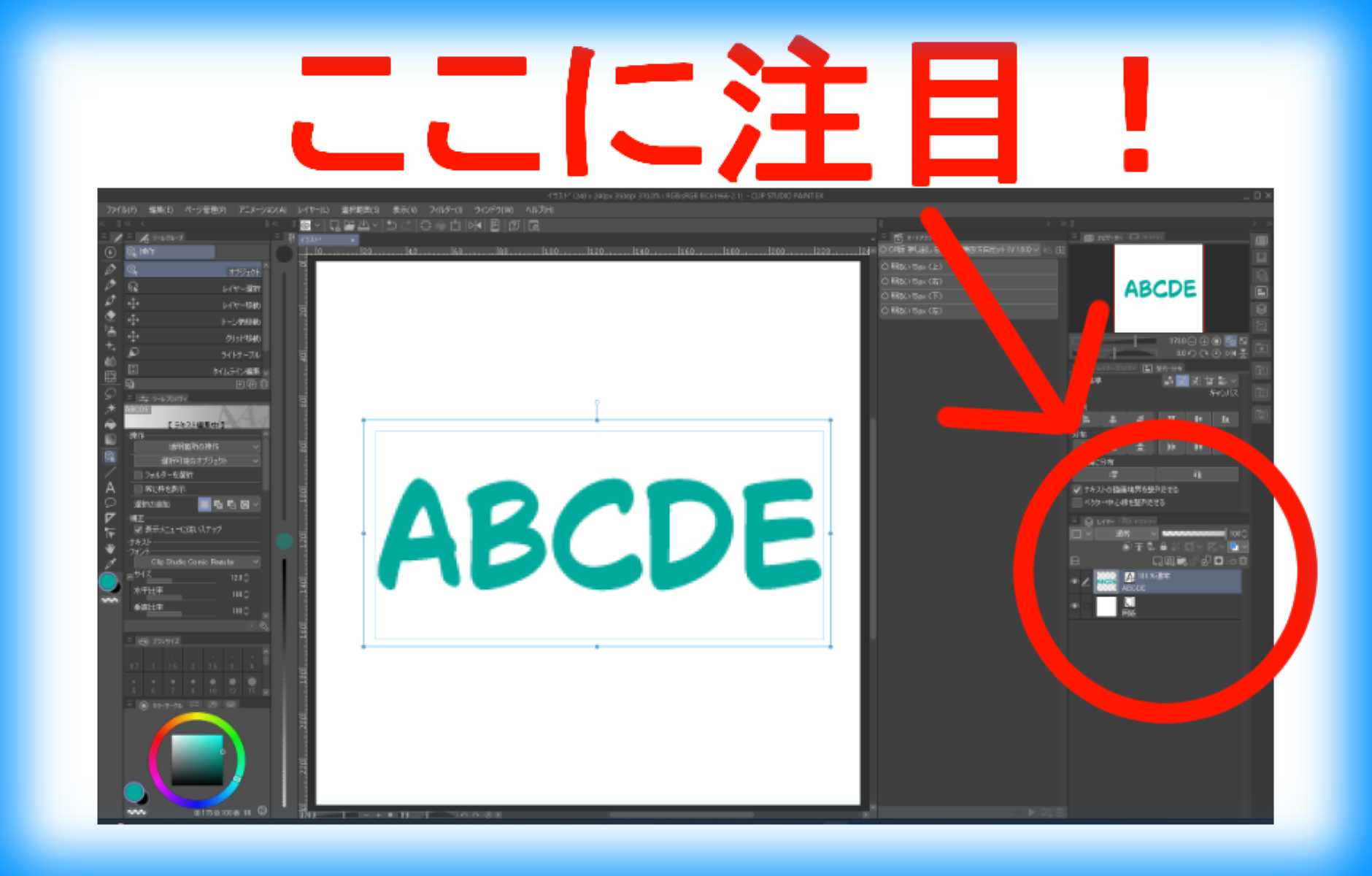
- Select only one layer that contains the shape or text you want to extrude
- Run the auto action
- The finished version appears directly above the selected layer
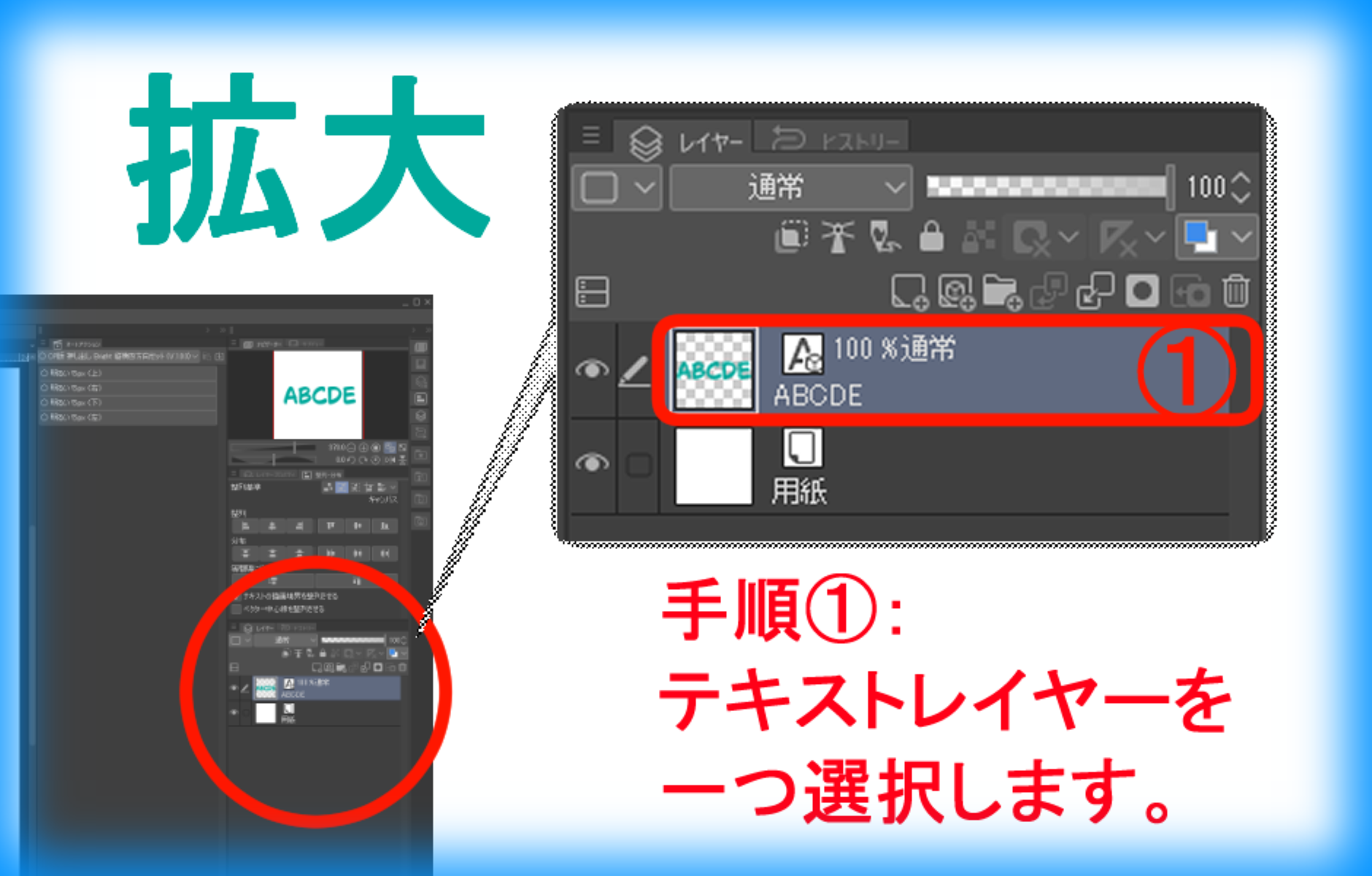
Step 1.select layer
▽ Enlarged screen
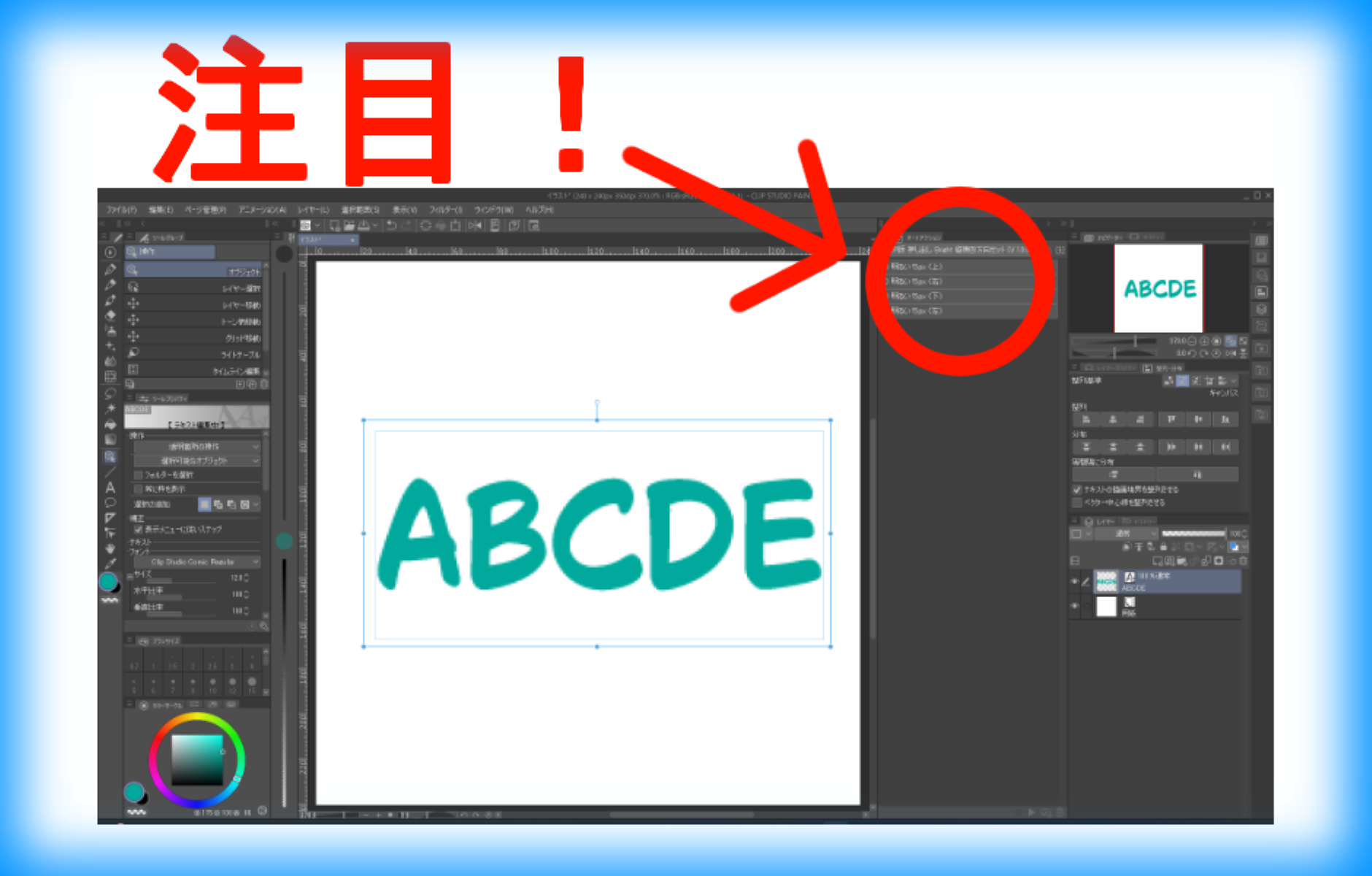
Perform step 2.auto action
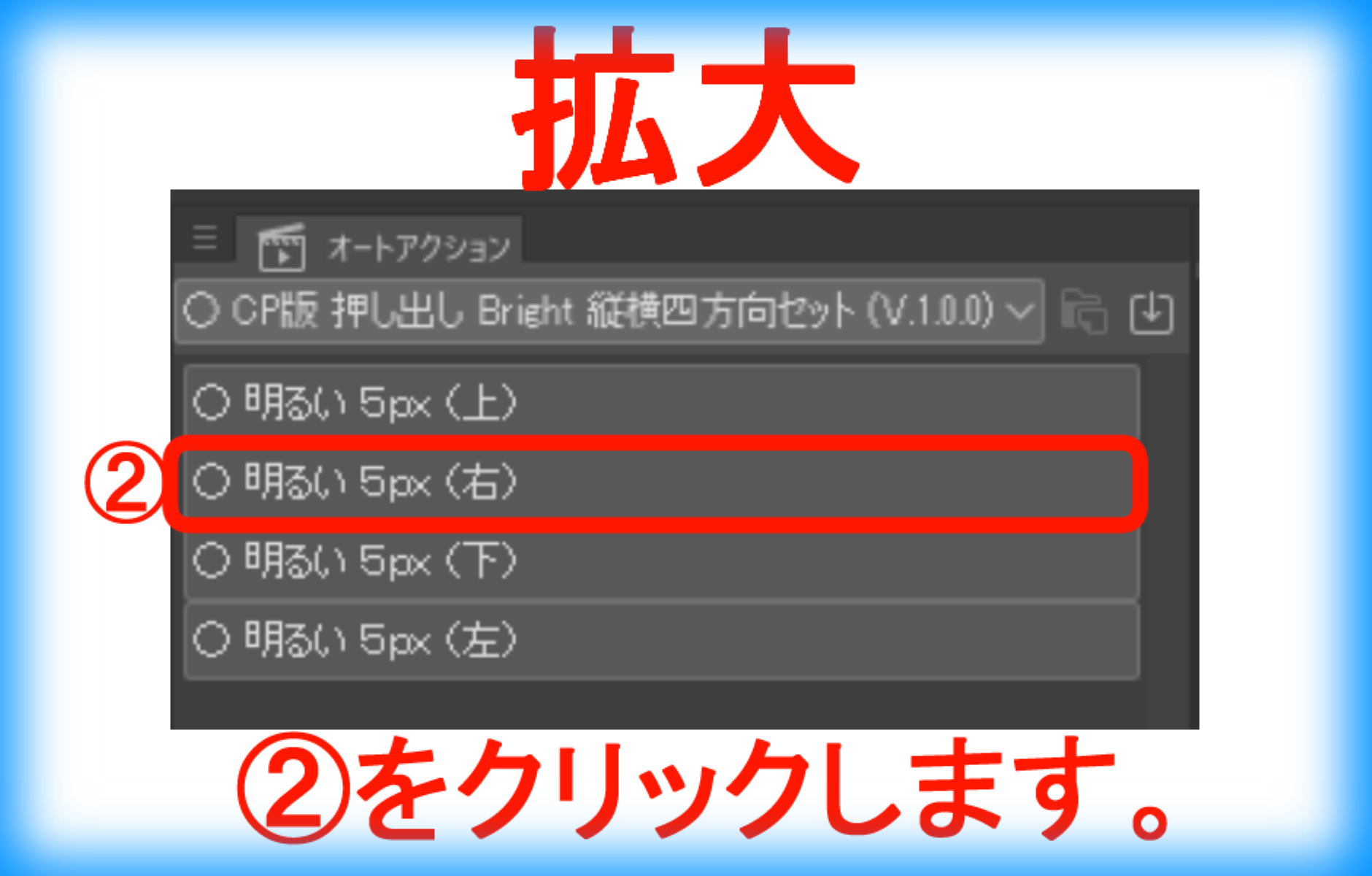
Zoom in
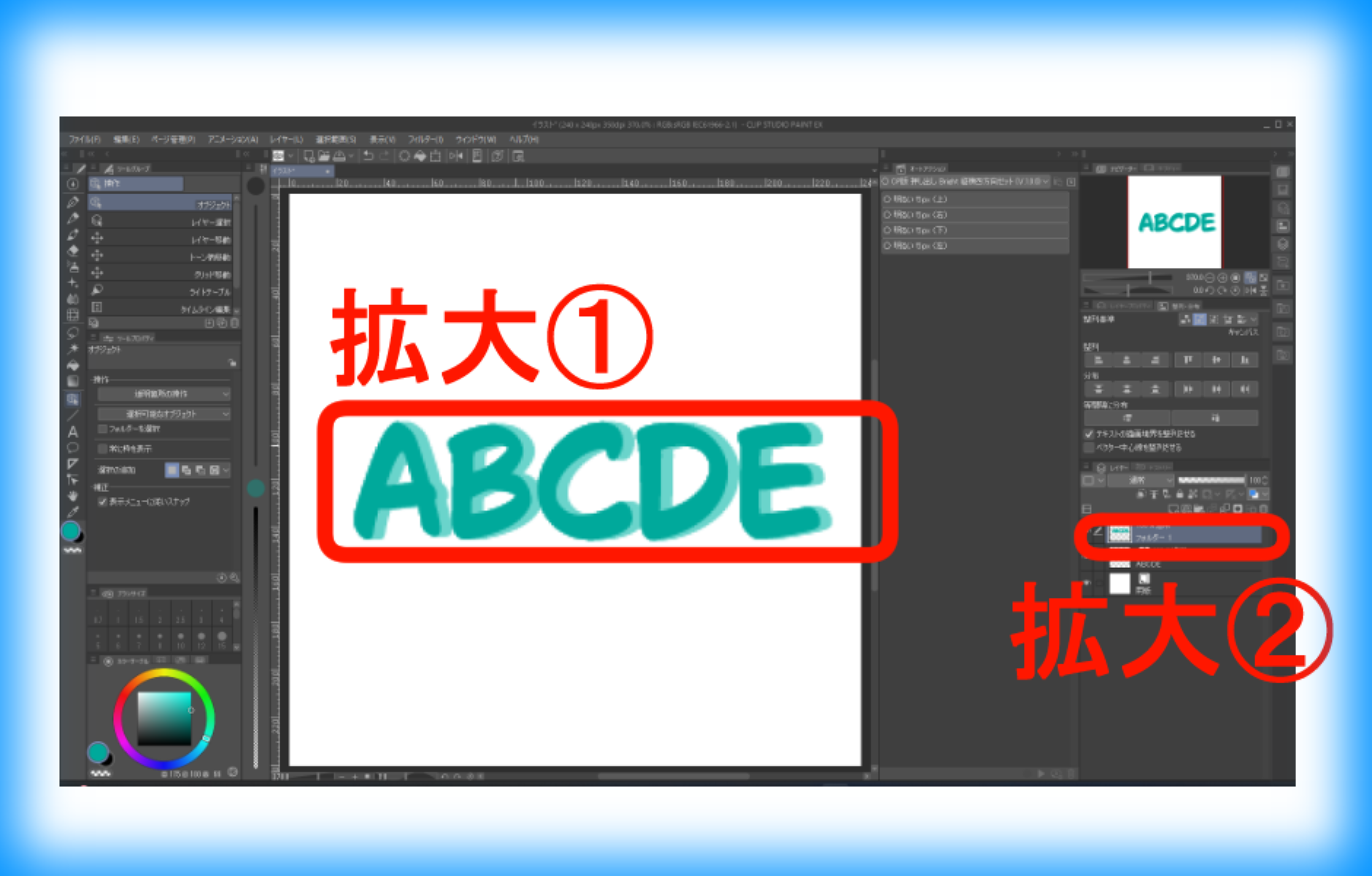
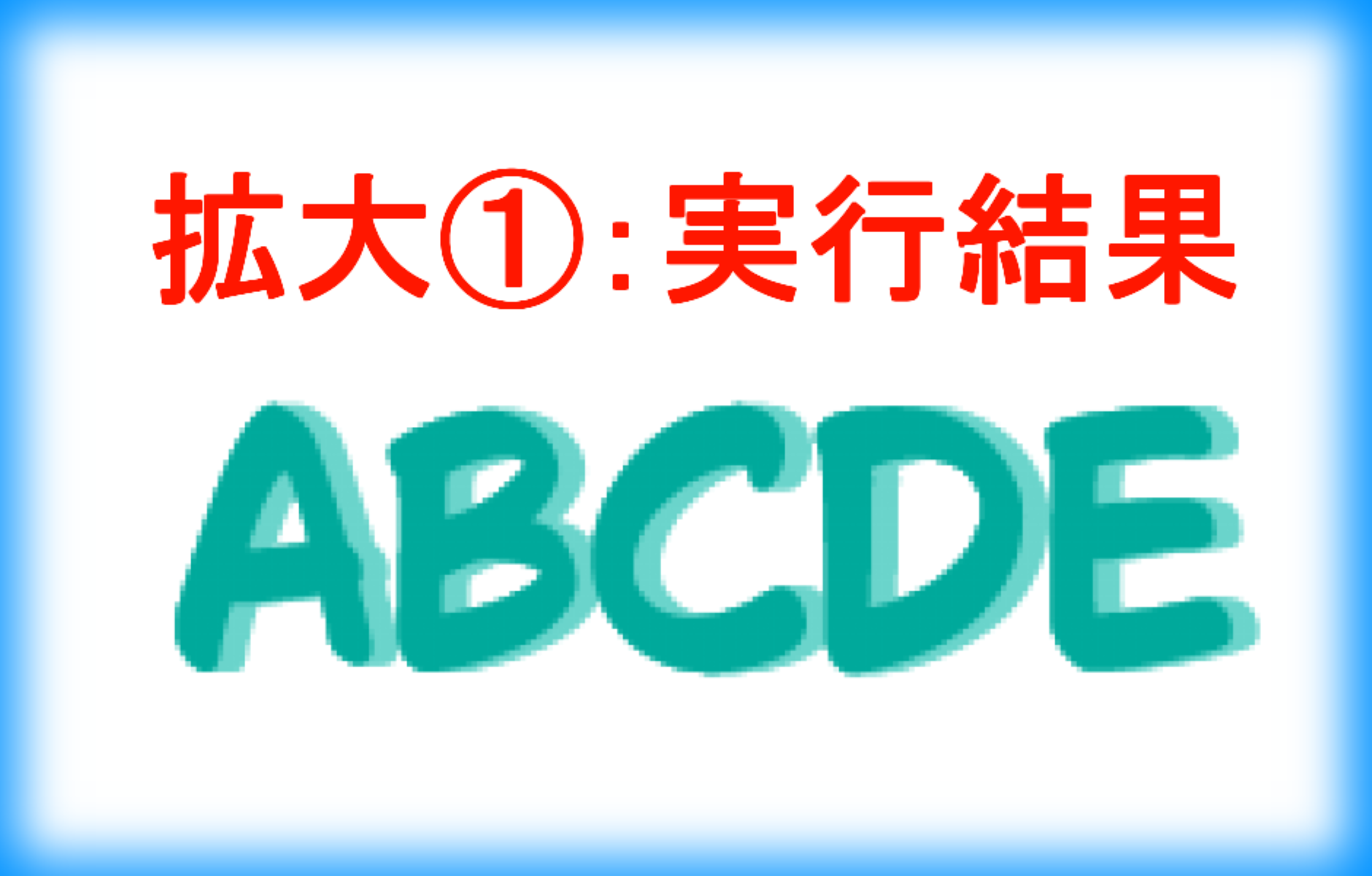
Step 3: The execution result will appear directly above the selected layer.
▽ Expansion 1
▽ Expansion 2
■ Download file
File Name:
- AutoAction_CP_Extrusion_Bright_URDL_V100.laf
Set Name:
○ CP version extrusion Bright vertical and horizontal four-way set (V.1.0.0)
In the set: auto action name:
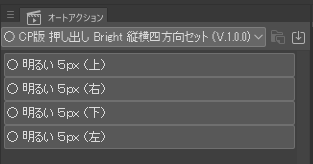
▽ [auto action] Palette screen○ Bright 5px (top)○ Bright 5px (right)○ Bright 5px (bottom)○ Bright 5px (left)
There are auto action in four directions in one set, and files downloaded from [import set] in [Settings (three-line icon in the upper left)] of the [auto action] palette are read and used.
CP版 押し出し Bright 縦横四方向セット (V.1.0.0)
■ 目的
これは、「図形やテキストを隙間ができないように押し出したい」という願いを叶えるオートアクションです。
■ 概要
開発環境:
- Windows 11 Pro
- CLIP STUDIO PAINT EX (無期限版 V.5.0.4)
内容詳細:
- 押し出し幅:+5px
- 押し出し背景色:明度+50(明るい色の押し出し)
- 押し出し方向:上、右、下、左
- 押し出しが出現する位置:選択したレイヤーの真上
■ 使い方
- 押し出したい図形やテキストがあるレイヤーを一つだけ選択します
- オートアクションを実行します
- 選択したレイヤーの真上に完成版が出現します
▽ 手順1.レイヤー選択
▽ 拡大画面
▽ 手順2.オートアクションを実行します
▽ 拡大
手順3.実行結果は選択したレイヤーの真上に出現します
▽ 拡大1
▽ 拡大2
■ ダウンロードファイル
ファイル名:
- AutoAction_CP_Extrusion_Bright_URDL_V100.laf
セット名:
○ CP版 押し出し Bright 縦横四方向セット (V.1.0.0)
セット内の:オートアクション名:
▽ [オートアクション]パレットの画面○ 明るい 5px (上)○ 明るい 5px (右)○ 明るい 5px (下)○ 明るい 5px (左)
1つのセット内に縦横4方向のオートアクションが入っており、[オートアクション]パレットの[設定(左上にある三本線のアイコンです)]内にある[セットの読み込み]からダウンロードしたファイルを読み込んで使用します。


Popular “Auto Action” materials


New materials




Badges
-
 MVP ◆This user has contributed greatly to the management of the community, by posting many great responses to the questions asked. Once every three months, MVPs are determined based on the points earned during that period and will be recognized accordingly.
 -
 New Valuable Player (NVP) ◆These are the next-best contributors to the community after MVPs. This is awarded to users who have not yet won an MVP award, based on the number of points they have earned.
 -
 Official Expert ◆Chosen out of all MVP awardees, who are already proof of excellence, this is a testimony of outstanding correspondence in the community. After careful screening, they are appointed by CELSYS and assume their position.Note: Formally called “Evangelists”
 -
 Official Moderator of CELSYS ◆Moderators are official CELSYS staff members who are fluent in Japanese as well as various other languages. Moderators are not experts on the software or illustration, so they are not able to directly answer your questions. However, moderators provide communication and language support to ensure that everyone can smoothly communicate with each other.
 -
 CELSYS official accountThe Official Administrator Account