


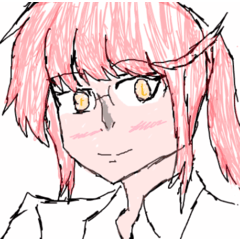
3D Head Drawing "Anime Face A_3Dhead" (Royal Road Beautiful Girl / Human Ear / girl) (3D頭部作画「アニメ顔A_3Dhead」(王道美少女/人間耳/girl)) 3D頭部作画「アニメ顔A_3Dhead」(王道美少女/人間耳/girl)
Content ID:2275106
-
14,231


It is a 3D head A of a beautiful girl who looks like an anime face!
I was conscious of modeling oriented to line art extraction.
This is an original 3D head model with an anime-like style!
アニメ顔っぽい美少女の3D頭部Aです!
線画抽出向きの造形を意識しました。
This is an original 3D head model with an anime-like style!
* If you use it as it is immediately after loading, the outline line will be too thick, so please lower [outline width] to 5 or 4 from the tool property column while selecting the 3D model!
* Since there is not enough quality to be diverted to line drawings as they are, I made it as an auxiliary tool to save time when creating rough ~ to stabilize the drawing.
- When moving parts after extracting the line drawing with auto action, it is recommended to apply the distortion (direction of travel) tool with a strength of 35 and hardness of 35!
Alternatively, you can use the lasso selection ➡ free transform to adjust the ratio. - The number of polygons is -4722 on the Blender side.
* The base is almost the same model as the first 3D head, but we have adjusted it to a safer face ratio that is easier to use from the beginning, and unnecessary internal polygons have been deleted. - I think that [apply light source] and [Show shade on floor] in the tool property column are turned off by default.
* If you turn on [apply light source], shadows will be displayed, but I think it is much easier to use if you extract only the line drawing with the light source OFF setting. - I'm good at oblique ⇔ horizontal viewpoints ⇔ the front, but if you have an extreme Aori perspective or an overhead view, the shortcomings peculiar to 3D models may be noticeable and difficult to use.
* Also, please note that the position of the ears tends to be a little uncomfortable.
The material was made by a Blender beginner, so I'm sorry if there is something wrong!
[Corrected 6/20/26]
If you mention an external auto action that is convenient to use together in the description, it seems to get stuck in the terms, so I deleted the related text and images.
※読みこみ直後のまま使うと輪郭線が太すぎるので、3Dモデル選択中のツールプロパティ欄から[輪郭線幅]を5か4へ下げて使用してください!
※そのまま線画に流用できるほどのクオリティーは無いため、あくまでラフ作成時の時短ツール~作画を安定させる補助ツールとして作りました。
- オートアクションなどで線画を抽出した後のパーツ移動は、ゆがみ(進行方向)ツールを強さ35・硬さ35でかけるのがオススメです!
または、投げ縄選択➡自由変形を使うと比率が調整しやすいです。 - ポリゴン数は、Blender側で△4722面です。
※土台は1人目の3Dヘッドとほぼ同じモデルですが、最初より使いやすい無難な顔比率に調整しなおして、不要な内部ポリゴンも削除しました。 - ツールプロパティ欄の[光源の影響を受ける]と[床面に陰を表示する]は初期設定でOFFにしておいたつもりです。
※[光源の影響を受ける]をONにすれば影も表示されますが、光源OFF設定で線画だけ抽出する方が断然使いやすいと思います。 - 正面⇔斜め⇔横の視点は得意ですが、極端なアオリ視点や俯瞰視点だと3Dモデル特有の欠点が目立って使いづらいかも…。
※あと、耳の位置も少し違和感が出やすいので注意してください。
Blender初心者が作った素材なので、なにか不備があったらすみません!
【26/6/20修正】
説明文の中で併用したら便利な外部オートアクションに言及すると、規約へひっかかってしまうらしく、関連文章と画像を削除しておきました。
Material マテリアル
-
default material 初期マテリアル

Configuration 配置
-
default layout 初期レイアウト





Other materials by 不断シエル


Popular “3D object” materials





New materials







Badges
-
 MVP ◆This user has contributed greatly to the management of the community, by posting many great responses to the questions asked. Once every three months, MVPs are determined based on the points earned during that period and will be recognized accordingly.
 -
 New Valuable Player (NVP) ◆These are the next-best contributors to the community after MVPs. This is awarded to users who have not yet won an MVP award, based on the number of points they have earned.
 -
 Official Expert ◆Chosen out of all MVP awardees, who are already proof of excellence, this is a testimony of outstanding correspondence in the community. After careful screening, they are appointed by CELSYS and assume their position.Note: Formally called “Evangelists”
 -
 Official Moderator of CELSYS ◆Moderators are official CELSYS staff members who are fluent in Japanese as well as various other languages. Moderators are not experts on the software or illustration, so they are not able to directly answer your questions. However, moderators provide communication and language support to ensure that everyone can smoothly communicate with each other.
 -
 CELSYS official accountThe Official Administrator Account