



Insert a texture below the illustration layer,

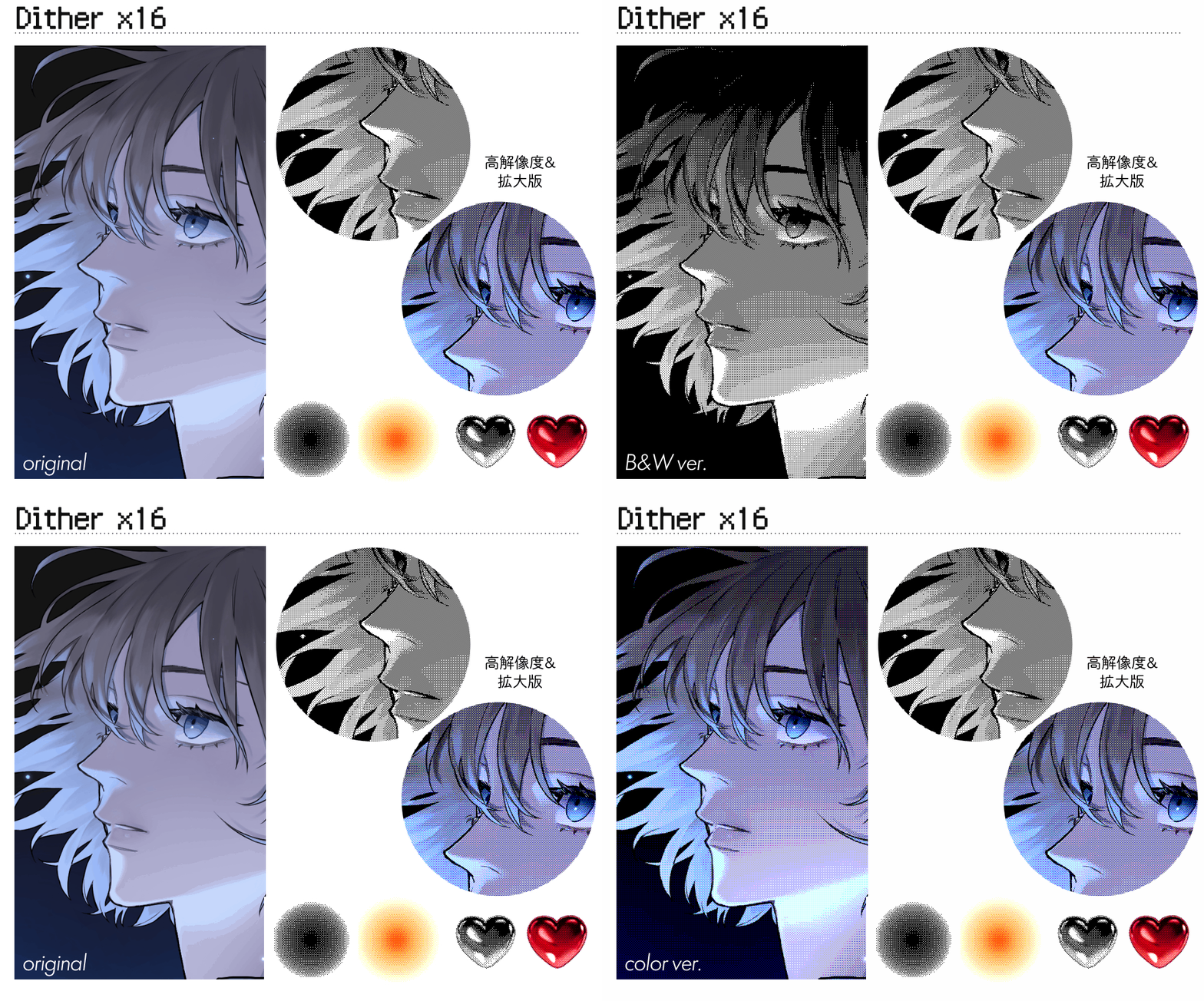


It is a material set that can be easily dithered just by playing auto action.
It is recommended when you want to intentionally make your illustration retro and low-quality style, or when you want to process it in a dot picture style ◎


■ Recording:
auto action material + 6 textured materials
Using
(1) If the illustration you want to dithered consists of multiple layers such as "background, line art, fill", etc., please combine all the layers in advance.
(It is recommended to left-click on > layer window and use [Merge copies of visible layers])
(2) Insert the texture material in the material palette under the layer joined in (1).
※Note※
At this time, do not scale or rotate the texture.

(3) With the layer you want to process selected,
Click the play icon on the auto action and you're done.

* A dialog will be displayed during the playback of the auto action, but you can ignore it and click [OK].
It is to adjust the appearance of color shades due to dithering, but by double-clicking the yellow frame part of the layer in the figure below created after auto action playback is finished, you can show log the dia to be adjusted again ◎


[Dither*2~] has larger dots than [Dither~] and gives a rougher image quality.


イラストレイヤーの下にテクスチャを挿入し、
オートアクションを再生するだけで簡単にディザ加工ができる素材セットです。
イラストをわざとレトロっぽく低画質風にしたいとき、ドット絵風に加工したいときなどにおすすめです◎
■ 収録素材:
オートアクション素材+テクスチャ素材6点
使い方
①ディザ加工をしたいイラストが「背景・線画・塗り」など複数のレイヤーで構成されている場合は、あらかじめレイヤーをすべて結合しておいてください。
(レイヤーウィンドウ上で左クリック>【表示レイヤーのコピーを結合】を使用することをおすすめします)
②素材パレット内のテクスチャ素材を、①で結合しておいたレイヤーの下に挿入します。
※注意※
このとき、テクスチャの拡大縮小・回転は絶対に行わないでください。
③加工したいレイヤーを選択した状態にして、
オートアクションの再生アイコンをクリックして完了です。
※オートアクションの再生途中でダイアログが表示されますが、無視して【OK】をクリックしても大丈夫です。
ディザ加工による色の濃淡の見え方を調整するためのものですが、オートアクション再生終了後に作成された下図のレイヤーの黄色枠部分をダブルクリックすることで、再度調整するダイアログを表示させることができます◎
【Dither*2~】は【Dither~】よりもドットが大きく、より粗い画質感が出ます。
Category 1 カテゴリ1




Other materials by 500㎖


Popular “Material catalog” materials


New materials





Badges
-
 MVP ◆This user has contributed greatly to the management of the community, by posting many great responses to the questions asked. Once every three months, MVPs are determined based on the points earned during that period and will be recognized accordingly.
 -
 New Valuable Player (NVP) ◆These are the next-best contributors to the community after MVPs. This is awarded to users who have not yet won an MVP award, based on the number of points they have earned.
 -
 Official Expert ◆Chosen out of all MVP awardees, who are already proof of excellence, this is a testimony of outstanding correspondence in the community. After careful screening, they are appointed by CELSYS and assume their position.Note: Formally called “Evangelists”
 -
 Official Moderator of CELSYS ◆Moderators are official CELSYS staff members who are fluent in Japanese as well as various other languages. Moderators are not experts on the software or illustration, so they are not able to directly answer your questions. However, moderators provide communication and language support to ensure that everyone can smoothly communicate with each other.
 -
 CELSYS official accountThe Official Administrator Account