



One! "Simple & Fashionable" photo frames on images with ワンクリック!で画像に「シンプル&オシャレ」な写真フレーム
Select any image layer or get selection
⇒Run this auto action!) Just by simply creating a photo-like frame while keeping the original image intact.
It is also sold at BOOTH (*^^*)
BOOTH ⇒ https://bit.ly/4tgISrd
BOOTH ⇒ https://bit.ly/4tgISrd

There is no need to make troublesome frames, cast shadows, or adjust color schemes.
When you want to add a photo frame to the image, you can quickly finish it "like that" with one click (= ゚ω゚)
When you want to add a photo frame to the image, you can quickly finish it "like that" with one click (= ゚ω゚)
In the A4/A5 size color illustration (resolution 350 dpi) manuscript (vertical), the thickness of the photo frame is set so that there is no unnatural size by arranging about three.
The thickness of the photo frame cannot be changed, but the color and intensity of the color can be changed relatively freely.

■ Set Contents
● Simple photo frame
・Photo frame 2mm
・Photo frame 3mm
・Polaroid frame
・Polaroid frame with lines
・Graph paper, Polaroid frame
・Photo frame 2mm
・Photo frame 3mm
・Polaroid frame
・Polaroid frame with lines
・Graph paper, Polaroid frame
● Colored photo frame
・Cream Polaroid frame
・Craft Polaroid frame
・Light blue graph paper, Polaroid frame
・Cream Polaroid frame
・Craft Polaroid frame
・Light blue graph paper, Polaroid frame
● Suggested color ★ photo frame
・Selection ★ main color ・Polaroid frame
・ ★ Selection main color & graph paper / Polaroid frame
・ ★ Selection main / sub & graph paper / Polaroid frame
・Selection ★ main color ・Polaroid frame
・ ★ Selection main color & graph paper / Polaroid frame
・ ★ Selection main / sub & graph paper / Polaroid frame
● Small material brush
・Masking tape brush
(Skeleton / Polka dot / Polka dot skeleton / Mottled polka dot / Mottled polka dot skeleton)
・Pin brush
・Clip brush
・Masking tape brush
(Skeleton / Polka dot / Polka dot skeleton / Mottled polka dot / Mottled polka dot skeleton)
・Pin brush
・Clip brush
■ How to use
Select any layer, take the selection of the part you want to fit in the photo frame, and perform the photo decoration auto action.
The original image is hidden under the folder where it was created.

If you do not take selection, the selected layer is apply to whole.
■ About the photo frame
● Simple photo frame

Recommended ★ when you want to quickly show reference photos in Lupo manga etc.

● Colored photo frame

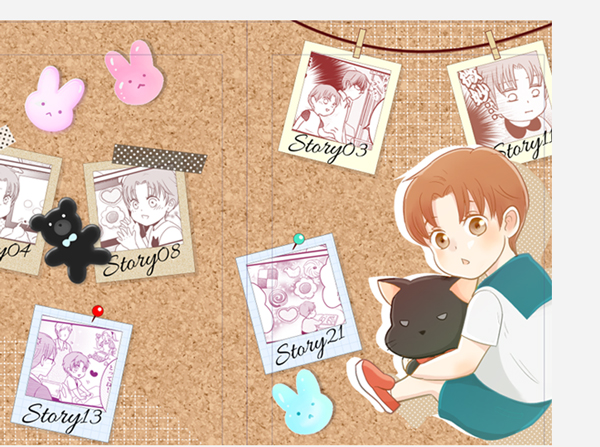

It is recommended as a small material when creating color illustrations (covers, etc.).
You can also change the color of each part, so please fine-tune it to your liking.
● Suggested color ★ photo frame


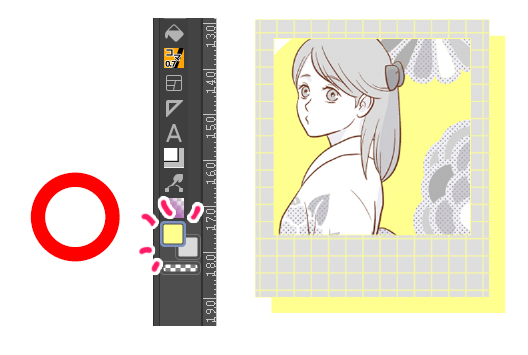

Since you can choose the color, you can use ♪ the color scheme according to the illustration to be used and the recommended character.

You can also create two colors, main and sub, so you can create a more particular photo frame.

※Note※
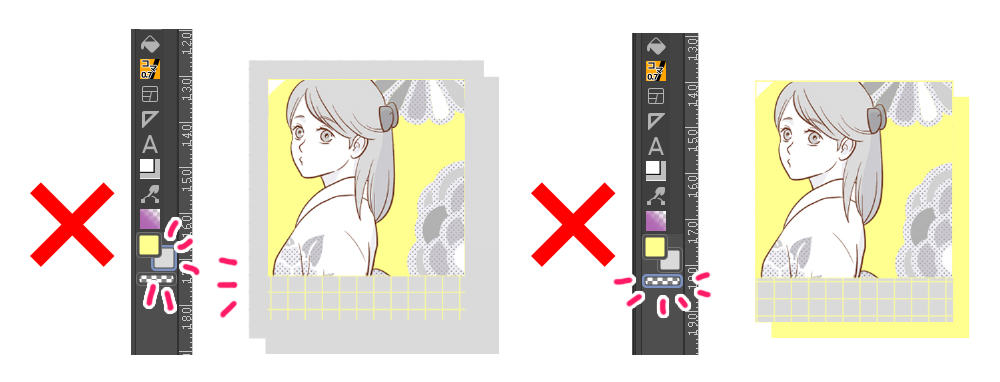
When using the "Recommended Color ★ Photo Frame", be sure to select the main color.
if you auto action with a sub color or transparent color selected it will not work
● Small material brush
Pin Brush

Clip Brush

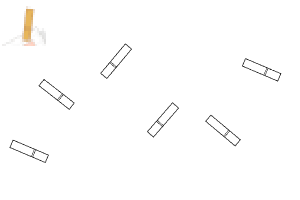
Maste brush (5 types)

* Please use with main color selected.
■ Arrangement
You cannot change the thickness of the photo frame, but you can change the color and color intensity relatively freely.
・ Add a pattern with tone material to the photo frame
・ Add text on the photo frame
・ Put a character on a photo photo
And so on...
Enjoy ★ the arrangement to your liking

That's all!
I hope you enjoy it even a little (= ゚ω゚)
任意の画像レイヤーを選択、もしくは選択範囲を取得
⇒こちらのオートアクションを実行!するだけで、元画像はそのままに、写真風フレームを自動作成します。
BOOTHでも販売しております(*^^*)
BOOTH ⇒ https://bit.ly/4tgISrd
BOOTH ⇒ https://bit.ly/4tgISrd
面倒な枠作り・影付け・配色調整はすべて不要。
画像に写真枠をつけたい時、ワンクリックでサッと“それっぽく”仕上げます(=゚ω゚)ノ
画像に写真枠をつけたい時、ワンクリックでサッと“それっぽく”仕上げます(=゚ω゚)ノ
A4/A5サイズのカラーイラスト(解像度350dpi)の原稿(縦)内に、3つほど並べて不自然のないサイズ感になるよう、写真枠の太さを設定しています。
写真枠の太さは変更できませんが、色&色の濃さ等は比較的自由に変えることができます。
■ セット内容
● シンプル写真枠
・写真枠2mm
・写真枠3mm
・ポラロイド枠
・線付・ポラロイド枠
・方眼紙・ポラロイド枠
・写真枠2mm
・写真枠3mm
・ポラロイド枠
・線付・ポラロイド枠
・方眼紙・ポラロイド枠
● 色付き写真枠
・クリームポラロイド枠
・クラフトポラロイド枠
・水色方眼紙・ポラロイド枠
・クリームポラロイド枠
・クラフトポラロイド枠
・水色方眼紙・ポラロイド枠
● 推し色★写真枠
・★選択メインカラー・ポラロイド枠
・★選択メインカラー&方眼紙・ポラロイド枠
・★選択メイン/サブ&方眼紙・ポラロイド枠
・★選択メインカラー・ポラロイド枠
・★選択メインカラー&方眼紙・ポラロイド枠
・★選択メイン/サブ&方眼紙・ポラロイド枠
● 小物素材ブラシ
・マスキングテープブラシ
(スケルトン/水玉/水玉スケルトン/まだら水玉/まだら水玉スケルトン)
・ピンブラシ
・クリップブラシ
・マスキングテープブラシ
(スケルトン/水玉/水玉スケルトン/まだら水玉/まだら水玉スケルトン)
・ピンブラシ
・クリップブラシ
■ 使い方
任意のレイヤーを選択し、写真枠に収めたい部分の選択範囲を取って、写真飾りオートアクションを実行してください。
元画像は作られたフォルダの下、非表示の状態にあります。
選択範囲を取らない場合は、選択したレイヤー全体に適用されます。
■ 写真枠について
● シンプル写真枠
ルポ漫画などで参考写真をサッと見せたい時にオススメ★
● 色付き写真枠
カラーイラスト(表紙など)作成時の小物素材としてオススメです。
各パーツの色変更もできるのでお好みで微調整してください
● 推し色★写真枠
色を選択できるので、使用するイラストや推しキャラに合わせた配色が可能です♪
メイン&サブの2色でも作れるのでよりこだわりのある写真枠が作成できます。
※注意※
「推し色★写真枠」をご使用の際は、必ずメインカラーを選択した状態で行ってください
サブカラーや透明色を選択した状態でオートアクションを行うと、上手く動作しません
● 小物素材ブラシ
ピンブラシ
クリップブラシ
マステブラシ(5種)
※メインカラーを選択した状態でご使用ください
■ アレンジ
写真枠の太さなどは変更できませんが、色&色の濃さ等は比較的自由に変えることができます。
・写真枠にトーン素材などで模様をプラス
・写真枠上に文字をプラス
・写真素材上にキャラをのせる
などなど…
お好みでアレンジを楽しんでください★
以上です!
少しでも楽しんでいただければ幸いです(=゚ω゚)ノ
Brush ブラシ





auto action オートアクション








Other materials by おくとば


Popular “Material catalog” materials


New materials





Badges
-
 MVP ◆This user has contributed greatly to the management of the community, by posting many great responses to the questions asked. Once every three months, MVPs are determined based on the points earned during that period and will be recognized accordingly.
 -
 New Valuable Player (NVP) ◆These are the next-best contributors to the community after MVPs. This is awarded to users who have not yet won an MVP award, based on the number of points they have earned.
 -
 Official Expert ◆Chosen out of all MVP awardees, who are already proof of excellence, this is a testimony of outstanding correspondence in the community. After careful screening, they are appointed by CELSYS and assume their position.Note: Formally called “Evangelists”
 -
 Official Moderator of CELSYS ◆Moderators are official CELSYS staff members who are fluent in Japanese as well as various other languages. Moderators are not experts on the software or illustration, so they are not able to directly answer your questions. However, moderators provide communication and language support to ensure that everyone can smoothly communicate with each other.
 -
 CELSYS official accountThe Official Administrator Account