



It is a auto action that processes letters and patterns into carved grooves. 文字や模様を彫刻した溝っぽく加工するオートアクションです。
It is a set of auto action that can process drawings represented by lines, such as letters and line drawings, as if they were carved with a chisel.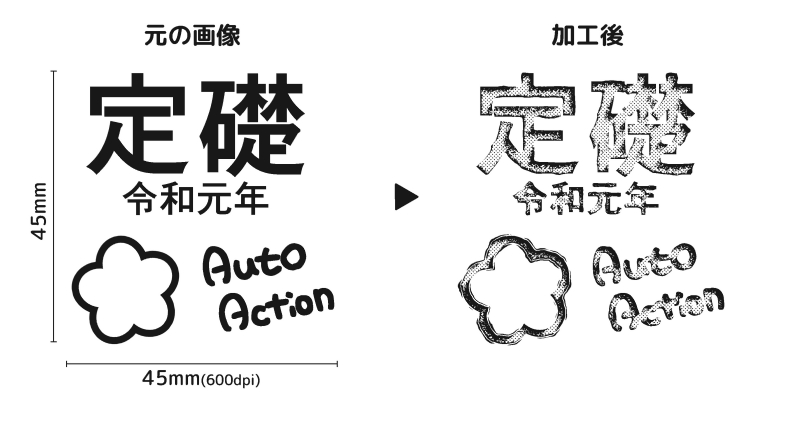


I made it to process characters about 1.5 to 2 cm square in a 600 dpi black and white manuscript. It seems that it can be used for various drawings other than text.
【How to use】
(1) Select the layer you want to process.
(*raster layer, operation in text layer, and image material layer has been confirmed.) )
(2) Play your favorite auto action.
【Type of auto action】
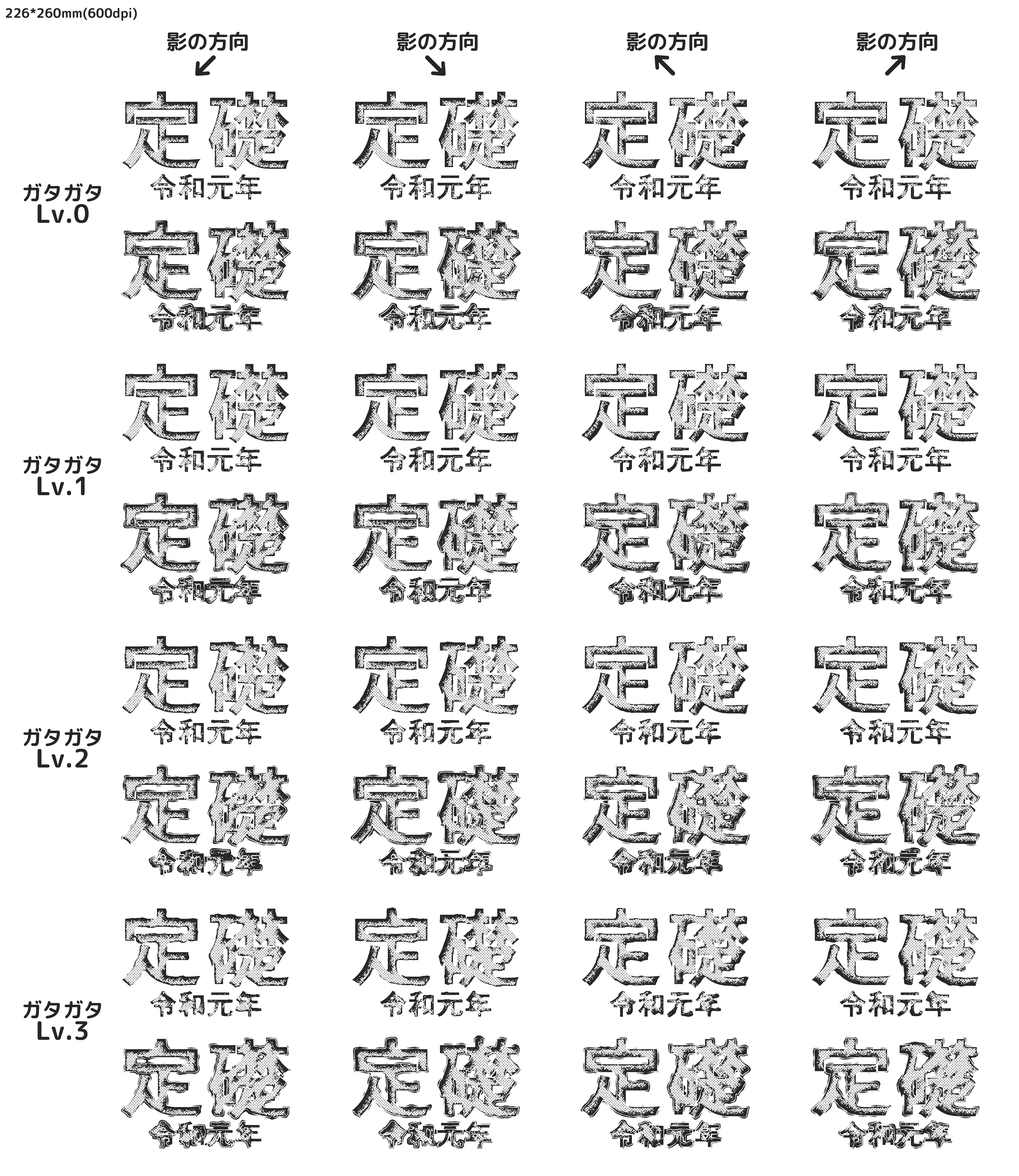
There are a total of 32 types of combinations of 3 patterns: rattling level, direction of shadow formation, and adding border lines around the perimeter.
【Features and Specifications】
The silhouette of the text or drawing material used as the processing source cannot be seen.

After running auto action, the layer structure will look like this:
The layer you want to process from disappears. If you are interested auto action we recommend that you save the file before playing.

【Example of use】
It seems to go well with any pattern that can be represented by lines, including letters.
It is convenient to draw carved things casually.

【In such a case】
Q.When I play auto action, I get the message "○○○○ cannot be executed at this time. A dialog will appear.
A.There is no problem, so please press [OK] as it is to continue.
文字や線画等、線で表される描画物を彫刻刀で彫ったかのように加工できるオートアクションのセットです。
600dpiの白黒原稿で約1.5〜2cm角の文字を加工するために作りました。文字以外でも色々な描画に使えそうです。
【使い方】
①加工したいレイヤーを選択する。
(※ラスターレイヤー、テキストレイヤー、画像素材レイヤーでの動作を確認済みです。)
②好きなオートアクションを再生する。
【オートアクションの種類】
ガタガタ化のレベル、影のできる方向、外周にフチの線を加えるかの3パターンの組み合わせで全32種あります。
【特徴と仕様】
加工元にした文字や描画物のシルエットは透けません。
オートアクション実行後は次のようなレイヤー構成になります。
加工元にするレイヤーは消えます。気になる方はオートアクション再生前にファイルを保存しておくことをおすすめします。
【使用例】
文字をはじめ、線で表せる模様なら何でも合いそうです。
気軽に彫刻されたものが描けて便利です。
【こんな時には】
Q.オートアクションを再生すると「現在○○○○は実行できません。続行しますか?」というダイアログが出てくる。
A.問題ないのでそのまま[OK]を押して続行してください。





Other materials by 荒川とら


Popular “Auto Action” materials


New materials





Badges
-
 MVP ◆This user has contributed greatly to the management of the community, by posting many great responses to the questions asked. Once every three months, MVPs are determined based on the points earned during that period and will be recognized accordingly.
 -
 New Valuable Player (NVP) ◆These are the next-best contributors to the community after MVPs. This is awarded to users who have not yet won an MVP award, based on the number of points they have earned.
 -
 Official Expert ◆Chosen out of all MVP awardees, who are already proof of excellence, this is a testimony of outstanding correspondence in the community. After careful screening, they are appointed by CELSYS and assume their position.Note: Formally called “Evangelists”
 -
 Official Moderator of CELSYS ◆Moderators are official CELSYS staff members who are fluent in Japanese as well as various other languages. Moderators are not experts on the software or illustration, so they are not able to directly answer your questions. However, moderators provide communication and language support to ensure that everyone can smoothly communicate with each other.
 -
 CELSYS official accountThe Official Administrator Account