


비디오 테이프 스타일의 오토 액션 (Video Tape-style Auto Action) Video Tape-style Auto Action
콘텐츠 ID:2251343
-
42,609
by
 ◆
◆
◆

복고풍 비디오테이프 스타일의 효과를 만들기 위한 자동 액션. Auto action to create a retro videotape-style effect.
그림에 복고풍 느낌을 만들어 보세요, 비슷한
VHS와 같은 아날로그 테이프 포맷에 의해 발생하는 신호 저하. 새 파일을 만들거나 원래 파일에 새로운 레이어를 만드는 데 사용할 수 있습니다.



여러
VHS의 기술적 세부사항, 감량 등 최대한 자세히 설명해 드릴 수 있습니다
전체 해상도, 크로마 서브샘플링, 색수차, 색조
움직이는 소리와 소음. 언젠가 더 자세한 내용을 추가해보려고 할 수도 있습니다.
지침
오픈
그림을 그리고 자동 액션을 실행하세요. 현재 두 가지 버전이 있습니다: "테이프 효과 적용(새 파일)"으로, 이 버전은 이 필터의 원래 버전의 작동 모드로 작동할 새 파일을 생성하고, 다른 하나는 "테이프 효과 적용(동일 파일)"으로, 원래 파일에서 작동하며 필터링된 버전에 새로운 레이어를 생성합니다. 같은 파일을 다루는 게 다소 어렵긴 하지만, 당신에게는 더 편할 수 있습니다.
새 파일 버전:
저장할 이름과 장소를 선택하세요
새 파일. "이미지 크기 변경" 창이 뜨게 됩니다. 기본값은
고해상도 파일에는 좋지만, 대략 4K 이하의 파일 크기에는 적합합니다
기본값은 0.22로 스케일을 1에 더 가깝게 조정하는 게 좋습니다
4K 캔버스를 480px 높이로 만들거나, 해상도를 높이면 낮추는 것도 좋습니다. 시도해 봐
여러 설정으로 몇 번 테스트해보면서 어떤 게 마음에 드는지 확인해보세요.
A 필터링된 이미지로 새 파일이 생성됩니다. 만약 당신이 마음에 들지 않는다면, 결과, 파일을 삭제해도 변경이 없을 것입니다 당신의 원본 그림.
A 필터링된 이미지로 새 파일이 생성됩니다. 만약 당신이 마음에 들지 않는다면, 결과, 파일을 삭제해도 변경이 없을 것입니다 당신의 원본 그림.
동일 파일 버전:
"스케일 레이어" 도구가 나타납니다. 예전 버전과 마찬가지로 스케일은 원하는 대로 설정하세요(기본값 22%, 예전 버전과 동일). 가장 마음에 드는 결과를 찾기 위해 실험해 보세요. 필터가 다른 단계를 마치면 "스케일 레이어" 도구가 다시 열립니다. 레이어를 원래 이미지 크기에 맞게 다시 확대하세요. 얼마나 스케일해야 하는지는 첫 번째 스케일 단계에서 선택한 설정에 따라 달라집니다. 정확한 크기를 맞추기 위해 수학을 계산해 볼 수도 있고, 그냥 눈대중으로 계산하는 게 가장 쉽습니다.
결과가 마음에 들지 않으면 생성된 레이어를 삭제하고 다시 시도하세요.
샘플
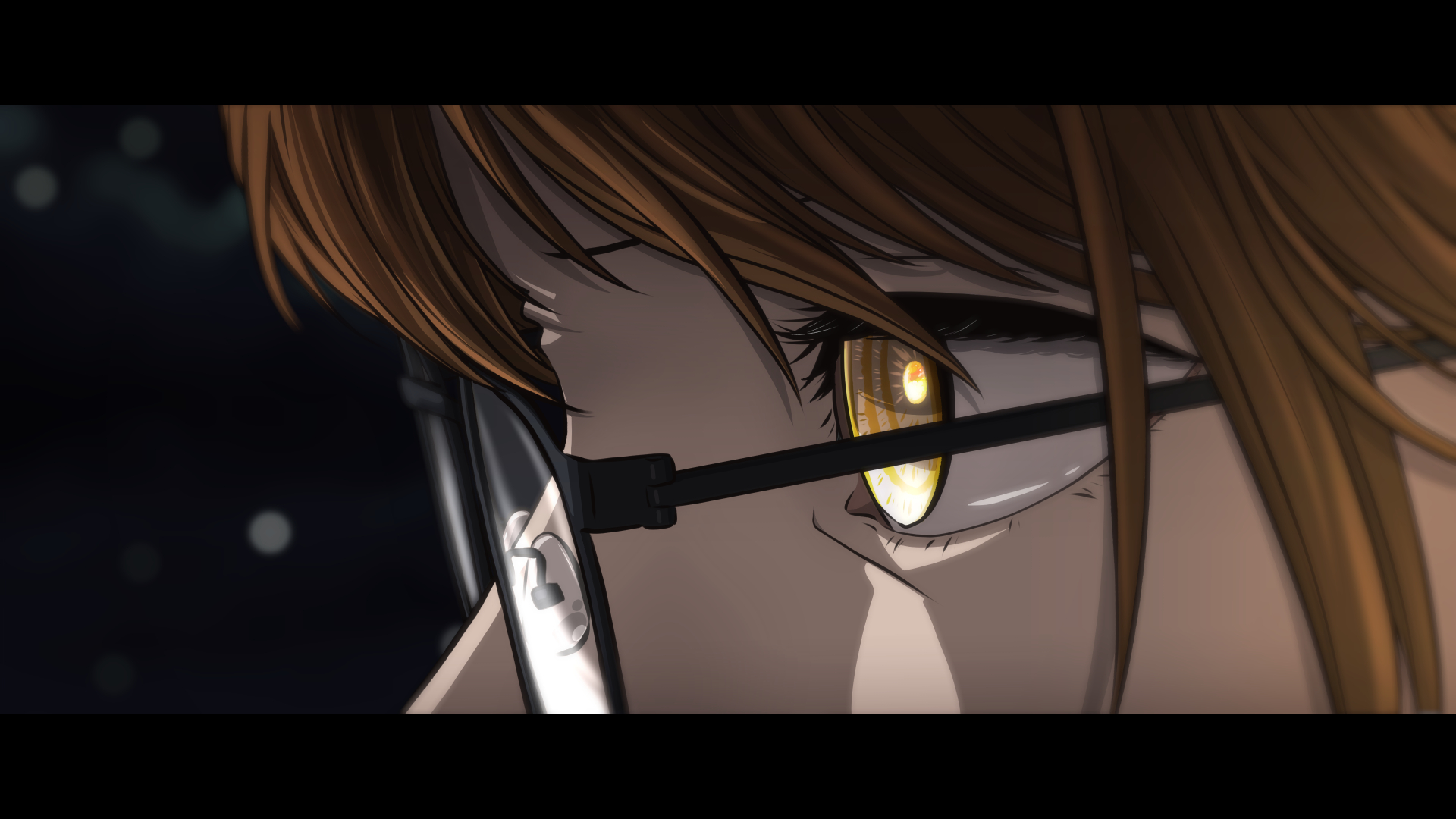
이전: 시작 해상도 4K (3840x2160 px)

이후: 기본 설정으로 실행하기 (스케일 = 0.22, 수직 해상도 = 480px)
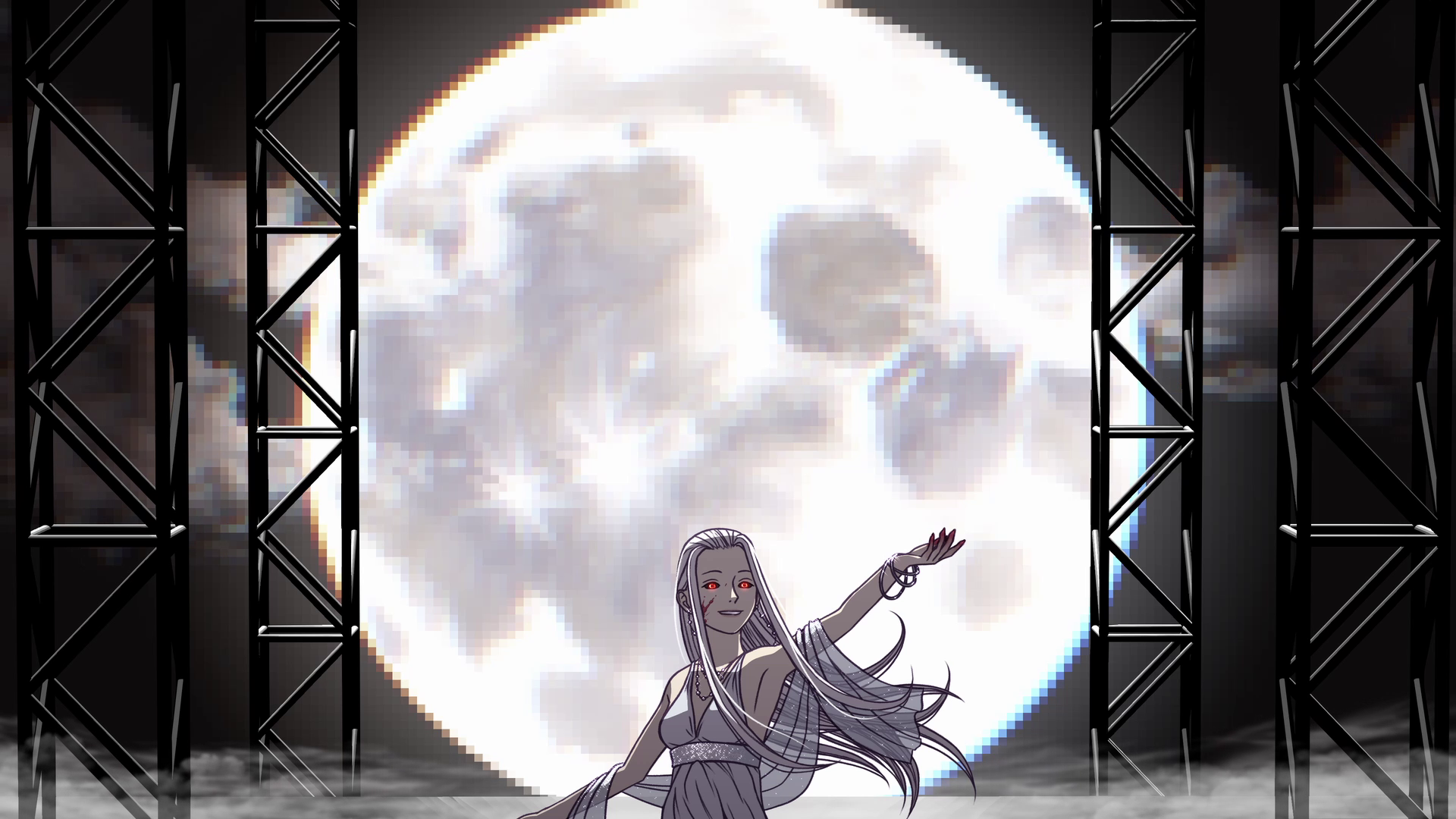
이전: 시작 해상도 = 1080p (1920x1080 px)

후: 스케일 = 0.75 (출력 해상도 = 1440x810 px)로 실행합니다

이전: 시작 해상도 4K (3840x2160 px)

이후: 스케일 = 0.5 (1920x1080 px)
오토 액션 소개
오토액션을 한 번도 사용해본 적이 없다면, 다음은 사용법에 대한 가이드입니다:
https://support.clip-studio.com/en-us/faq/articles/20210077
https://support.clip-studio.com/en-us/faq/articles/20220025
Create a retro feel for your drawings, similar to the
signal degradation produced by analog tape formats like VHS. Can be used to make a new file, or a new layer on the original file.
Emulates a number of the
technical details of VHS to the best of my ability, including decreasing
the overall resolution, chroma subsampling, chromatic aberration, hue
shifting, and noise. I may attempt to add more details at some point.
Instructions
Open
a drawing and run the auto action. There are now two versions: "Apply tape effect (new file)", which will create a new file to operate on (the mode of operation of the original version of this filter), or "Apply tape effect (same file)", which will work on the original file and create new layers for the filtered version. It's somewhat more difficult to work on the same file, but may be more convenient for you.
New File version:
Choose a name and location to save
the new file. The "Change image size" window will pop up. The default is
good for higher-resolution files, but for files smaller than roughly 4K
you may want to move the scale closer to 1 (defaults to .22, which will
make a 4K canvas 480px tall), or lower it for higher resolutions. Try
it out a few times with different settings to see what you like.
A new file will be created with the filtered image. If you don't like the results, you can delete the file and no changes will have been made to your original drawing.
A new file will be created with the filtered image. If you don't like the results, you can delete the file and no changes will have been made to your original drawing.
Same File version:
The "Scale layer" tool will appear. As with the old version of the filter, set the scale to whatever you prefer (default 22%, same as old version). Experiment to find the result you like best. After the filter has finished its other steps, the "Scale layer" tool will open again. Scale the layer back up to match the size of the original image. How much you have to scale will depend on what settings you chose for the first Scale step. You can do some math to find the exact required number to get the precise same size, or just eyeball it (the easiest way).
If you don't like the results, just delete the created layers and try again.
Samples
Before: Starting resolution 4K (3840x2160 px)
After: Run with default settings (scale = 0.22, vertical resolution = 480px)
Before: Starting resolution = 1080p (1920x1080 px)
After: Run with scale = 0.75 (output resolution = 1440x810 px)
Before: Starting resolution 4K (3840x2160 px)
After: Run with scale = 0.5 (1920x1080 px)
About Auto Actions
If you've never used an Auto Action before, here's some guides on how to use them:
https://support.clip-studio.com/en-us/faq/articles/20210077
https://support.clip-studio.com/en-us/faq/articles/20220025
구 버전





'DragonWithaFez'님의 다른 소재


'오토 액션'의 인기 소재


신규 소재



배지
-
 MVP ◆질문에 적절한 답변을 많이 게시하고 커뮤니티 운영에 크게 공헌한 사용자입니다. MVP는 3개월에 한 번, 그 사이에 획득한 포인트를 바탕으로 결정하고 표창을 실시하고 있습니다.
 -
 NVP(New Valuable Player) ◆MVP 다음으로 커뮤니티 운영에 공헌한 사용자입니다. 이제까지 MVP 수상 경험이 없는 분 중에서 획득한 포인트를 바탕으로 결정하여 표창을 실시하고 있습니다.
 -
 공식 엑스퍼트 ◆뛰어난 응답자의 증표인 MVP수상자 중에서 선택된 커뮤니티에서 가장 뛰어난 응답자의 증표입니다. 심사를 거쳐서 저희 회사에서 의뢰할 경우 취임되십니다.※ 옛 명칭 '에반젤리스트'
 -
 셀시스 공인 모더레이터 ◆모더레이터는 일본어와 기타 언어로 말할 수 있는 셀시스 공인 스태프입니다. 소프트웨어나 창작 전문가가 아니므로 직접 의문을 해결할 수는 없지만 여러분이 순조롭게 소통할 수 있도록 언어나 커뮤니케이션 측면에서 지원합니다.
 -
 셀시스 공식운영에 관련된 공식 계정입니다.