




LT转换栅格图层推荐以下设置(最好关掉纹理):


Japanese
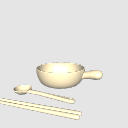
3 standard types + 1 cat-shaped ceramic gratin bowl with handle
[Image]
Two chopsticks, a spoon and a bowl can be moved independently.
If you want to raster layer with LT conversion, we recommend the following settings (it is recommended to turn off textures).
[Image]
When vector layer with LT conversion, the following settings are recommended.
[Image]
You can convert it to a pretty nice line drawing ~!
You can change the brush shape and thickness of the edges of the vector line drawing layer converted from the model by setting the expression color to Color and the anti-aliasing to Strong. Please feel free to arrange the line drawing that suits your own design ~!
[Image]
It looks like this when enlarged ~! With just a few tweaks with the vector line editing tools, you can make a nice line drawing that takes advantage of the texture of the brush!
[Image]
한국어
기본 디자인 3종+고양이 모양 1종으로 구성된 손잡이 달린 도자기 그라탱 볼
[이미지]
젓가락 두 개, 숟가락, 그릇은 각각 따로 움직일 수 있습니다.
LT 변환으로 래스터 레이어를 만들 때는 아래 설정을 추천합니다. 텍스처는 끄는 것을 권장합니다.
[이미지]
LT 변환으로 벡터 레이어를 만들 때는 아래 설정을 추천합니다.
[이미지]
꽤 깔끔한 선화로 변환할 수 있어요~!
모델에서 변환한 벡터 선화 레이어의 표현색을 ‘컬러’로 바꾸고 안티에일리어싱을 ‘강’으로 설정하면, 윤곽선의 브러시 모양과 두께를 변경할 수 있습니다. 자신의 그림체에 어울리는 선화로 자유롭게 바꿔 보세요~!
[이미지]
확대해서 보면 이런 느낌이에요~! 벡터 선 편집 도구로 조금만 다듬으면, 브러시 질감이 살아 있는 멋진 선화를 만들 수 있습니다!
[이미지]
English
Ceramic gratin bowls with handles: 3 classic designs + 1 cat-shaped design
[Image]
Both chopsticks, the spoon, and the bowl can each be moved independently.
For LT conversion to raster layers, I recommend the settings below. Turning off textures is also recommended.
[Image]
For LT conversion to vector layers, I recommend the settings below.
[Image]
You can get some lovely line art this way~!
Set the resulting vector line art layer’s expression color to “Color” and anti-aliasing to “Strong.” You can then change the outlines’ brush shape and thickness to suit your own drawing style~!
[Image]
Here’s how it looks up close~! A little adjustment with the vector line editing tools can give you lovely line art with a textured, brush-drawn feel!
[Image]
LT转换栅格图层推荐以下设置(最好关掉纹理):
日本語
定番3種類+猫型1種類の、持ち手付き陶器のグラタンボウル
[画像]
箸2本、スプーン、ボウルは、それぞれ個別に動かせます。
LT変換でラスターレイヤーにする場合は、以下の設定がおすすめです(テクスチャはオフにするのがおすすめです)。
[画像]
LT変換でベクターレイヤーにする場合は、以下の設定がおすすめです。
[画像]
なかなかいい感じの線画に変換できます~!
モデルから変換したベクター線画レイヤーの表現色を「カラー」にし、アンチエイリアスを「強」に設定すると、輪郭線のブラシ形状や太さを変更できます。ご自身の絵柄に合う線画に、自由にアレンジしてみてください~!
[画像]
拡大するとこんな感じです~!ベクター線の編集ツールで少し調整するだけで、ブラシの質感を活かした、いい感じの線画に仕上げられます!
[画像]
한국어
기본 디자인 3종+고양이 모양 1종으로 구성된 손잡이 달린 도자기 그라탱 볼
[이미지]
젓가락 두 개, 숟가락, 그릇은 각각 따로 움직일 수 있습니다.
LT 변환으로 래스터 레이어를 만들 때는 아래 설정을 추천합니다. 텍스처는 끄는 것을 권장합니다.
[이미지]
LT 변환으로 벡터 레이어를 만들 때는 아래 설정을 추천합니다.
[이미지]
꽤 깔끔한 선화로 변환할 수 있어요~!
모델에서 변환한 벡터 선화 레이어의 표현색을 ‘컬러’로 바꾸고 안티에일리어싱을 ‘강’으로 설정하면, 윤곽선의 브러시 모양과 두께를 변경할 수 있습니다. 자신의 그림체에 어울리는 선화로 자유롭게 바꿔 보세요~!
[이미지]
확대해서 보면 이런 느낌이에요~! 벡터 선 편집 도구로 조금만 다듬으면, 브러시 질감이 살아 있는 멋진 선화를 만들 수 있습니다!
[이미지]
English
Ceramic gratin bowls with handles: 3 classic designs + 1 cat-shaped design
[Image]
Both chopsticks, the spoon, and the bowl can each be moved independently.
For LT conversion to raster layers, I recommend the settings below. Turning off textures is also recommended.
[Image]
For LT conversion to vector layers, I recommend the settings below.
[Image]
You can get some lovely line art this way~!
Set the resulting vector line art layer’s expression color to “Color” and anti-aliasing to “Strong.” You can then change the outlines’ brush shape and thickness to suit your own drawing style~!
[Image]
Here’s how it looks up close~! A little adjustment with the vector line editing tools can give you lovely line art with a textured, brush-drawn feel!
[Image]
Material マテリアル
-
default material 初期マテリアル
Configuration 配置
-
bowl_1 bowl_1
-
bowl_2 bowl_2
-
bowl_3 bowl_3
-
cat bowl cat bowl



Other materials by Conscience

Popular “3D object” materials


New materials




-
 MVP ◆This user has contributed greatly to the management of the community, by posting many great responses to the questions asked. Once every three months, MVPs are determined based on the points earned during that period and will be recognized accordingly.
-
 New Valuable Player (NVP) ◆These are the next-best contributors to the community after MVPs. This is awarded to users who have not yet won an MVP award, based on the number of points they have earned.
-
 Official Expert ◆Chosen out of all MVP awardees, who are already proof of excellence, this is a testimony of outstanding correspondence in the community. After careful screening, they are appointed by CELSYS and assume their position.Note: Formally called “Evangelists”
-
 Official Moderator of CELSYS ◆Moderators are official CELSYS staff members who are fluent in Japanese as well as various other languages. Moderators are not experts on the software or illustration, so they are not able to directly answer your questions. However, moderators provide communication and language support to ensure that everyone can smoothly communicate with each other.
-
 CELSYS official accountThe Official Administrator Account