



. .
You can separate balloons and text that are together in a layer.
⚠️ : Notes
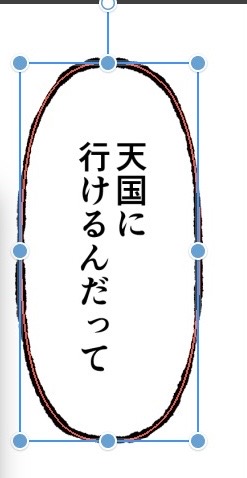
・ Be sure to use it with the object tool "with the object you want to move selected"
↑ Use it in a state where it looks like this. This state can be done by selecting it with the object tool.
[Remarks: Depending on the object tool settings, you may not be able to select it well if it is in a folder. In that case, try temporarily removing it from the folder and selecting it]
How to use
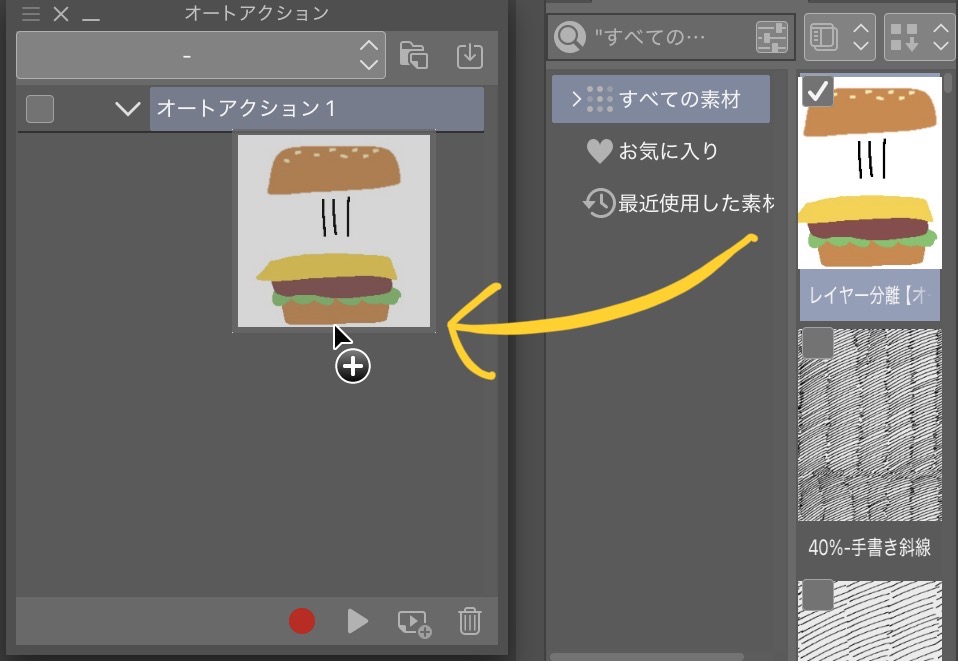
After downloading, swipe the asset to the auto action
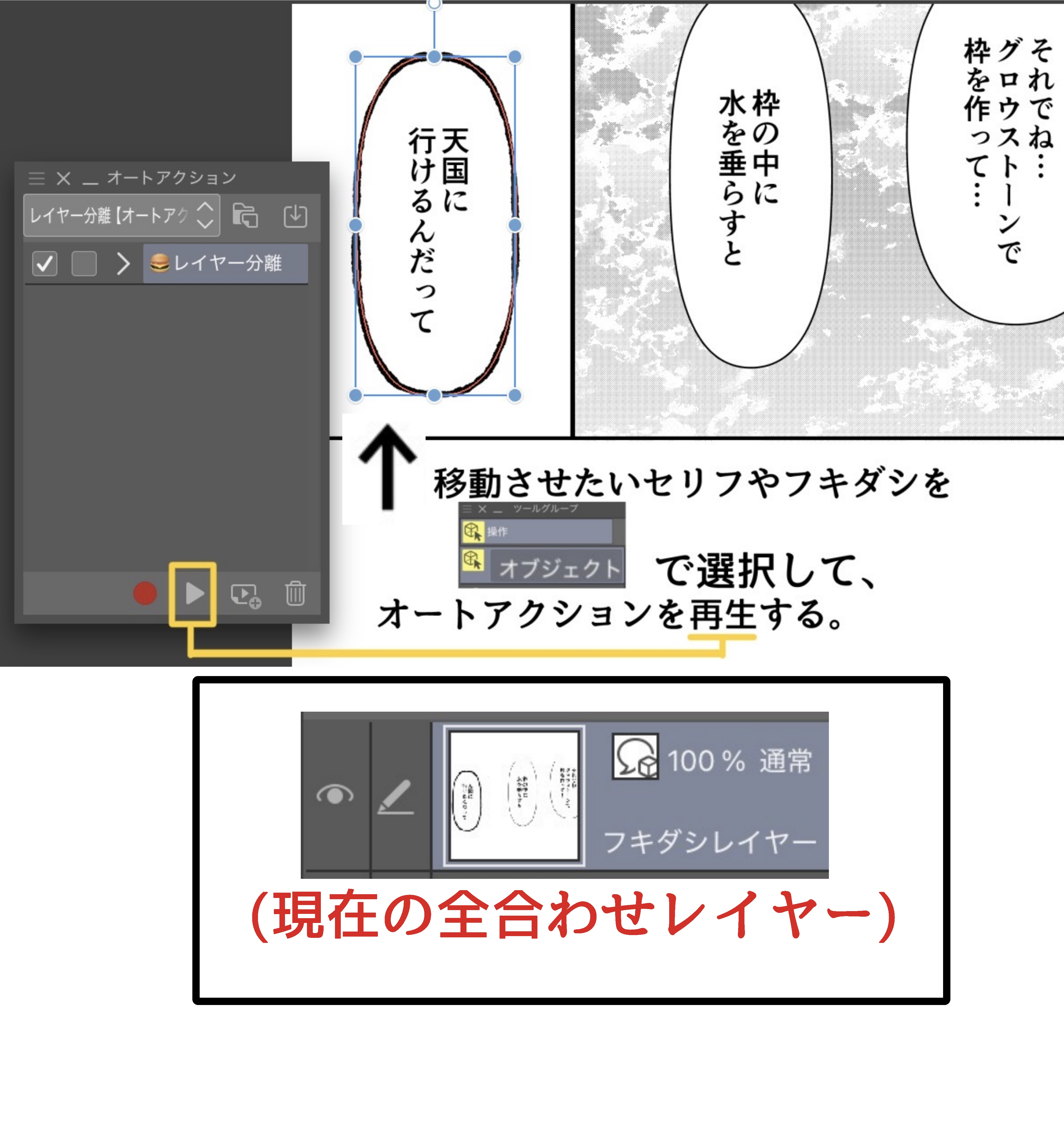
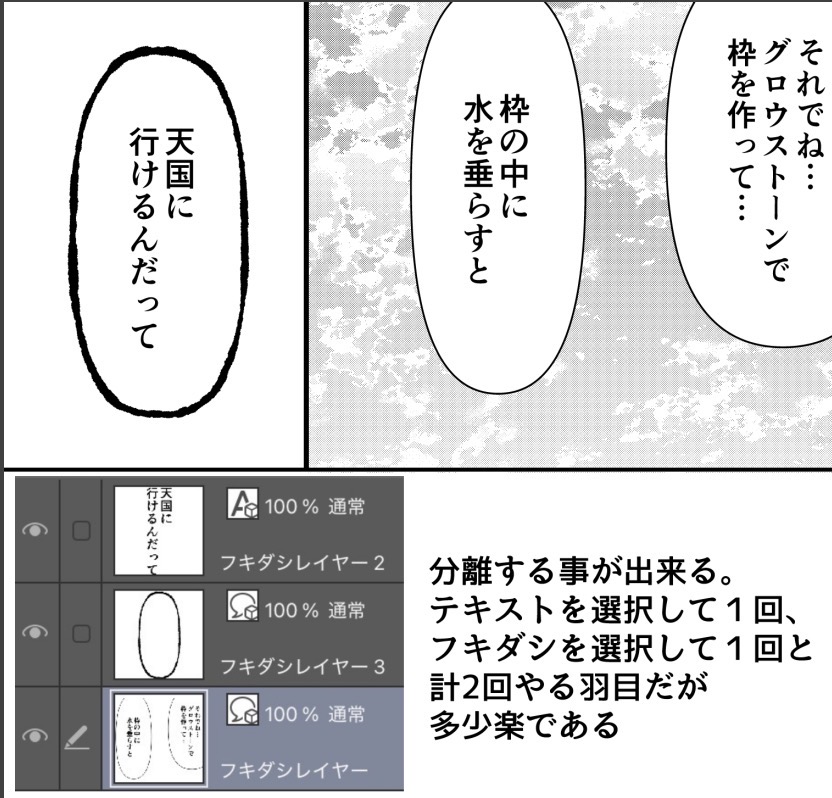
Select the object you want to move. In this case, I want to move the text of "I can go to heaven" and the balloon, so I will play it twice.
Tips: If you move from the balloon first, the dialogue will dive down
Because it becomes a little difficult to operate
Move → dialogue in balloon order.
Recommended.
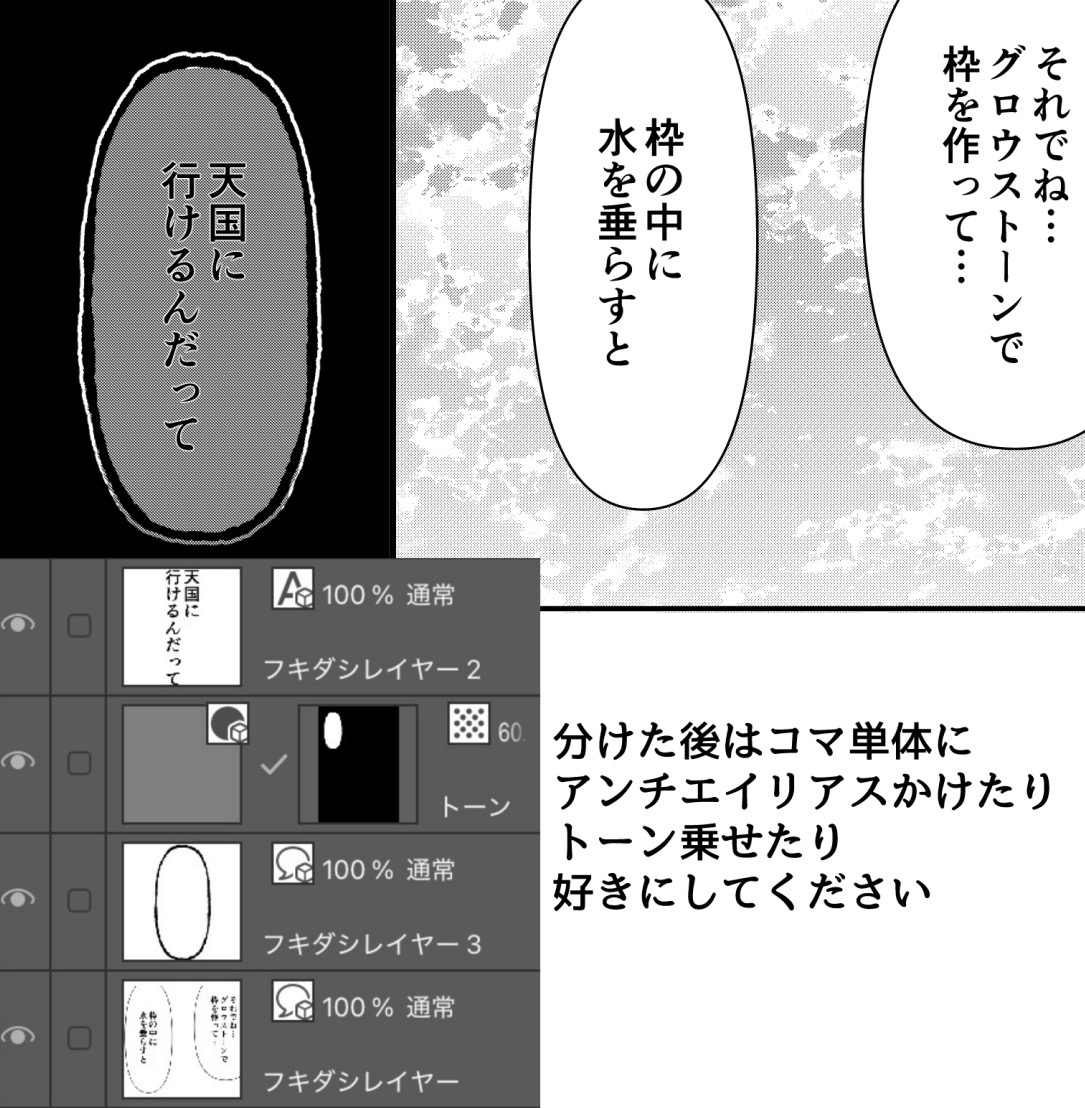
↓ After operation (used for text and two balloons)
Yattaze.......
If there is a problem with the operation, we apologize for the inconvenience, but X (old Twitter)
Please contact your account, Nomemo/[@mkg7g].
───────────────────
Bonus (you don't have to read it)
What kind of operations are being performed? :
[Copy clipping ➡️ new raster layer deletion raster layer ➡️ name change paste ➡️ raster layer target ➡️ object➡️]
The process is done with one tap.
It is a strange auto action that it will not be pasted into the existing balloon layer by sandwiching the new layer in the middle. The name is changed because the auto action moves along with the name.
This time, it is set to follow the name [radish], so if you usually use daikon as a layer name, please change it to burdock or something.
レイヤー内で一緒になっているフキダシやテキストを分離する事が出来ます。
⚠️ : 注意点
・必ずオブジェクトツールで「移動させたいオブジェクトを選択した状態で」使ってください
↑こんな感じになってる状態で使うこと。この状態はオブジェクトツールで選択すれば出来ます。
[備考:オブジェクトツールの設定次第ではフォルダ内に入ってると上手く選択出来ない場合があります。その場合一時的にフォルダから取り出して選択してみてください]
使い方
ダウンロード後、アセットをオートアクションにスワイプします
移動させたいオブジェクトを選択します。この場合「天国に行けるんだって」のテキストとフキダシの2つを移動させたいので2回、再生します
Tips:先にフキダシから移動させるとセリフが下に潜り
ほんの少し操作しづらくなるので
セリフ→フキダシの順番で移動することを
推奨します。
↓作動後(テキストとフキダシ2つに使用しています)
Yattaze.......
もし、操作に不具合がございましたらお手数ですがX(旧Twitter)の
アカウント、野目モ/【@mkg7g】までご連絡ください。
───────────────────
おまけ(読まなくて大丈夫です)
どの様な操作が行われているか?:
【対象オブジェクトのコピー➡️切り抜き➡️新規ラスターレイヤー作成➡️ラスターレイヤー名変更➡️ペースト➡️ラスターレイヤー削除】
の工程をワンタップで行っています。
途中新規レイヤーを挟むことにより既存のフキダシレイヤーにペーストしなくなるというだけのヘンテコオートアクションです。名称を変えるのはオートアクションが名称に沿って移動する故です。
今回【だいこん】という名前を追うように設定してある為、レイヤー名を普段から大根にしてる人はゴボウとかに変えといてください。




Other materials by 野目モ


Popular “Auto Action” materials


New materials


Badges
-
 MVP ◆This user has contributed greatly to the management of the community, by posting many great responses to the questions asked. Once every three months, MVPs are determined based on the points earned during that period and will be recognized accordingly.
 -
 New Valuable Player (NVP) ◆These are the next-best contributors to the community after MVPs. This is awarded to users who have not yet won an MVP award, based on the number of points they have earned.
 -
 Official Expert ◆Chosen out of all MVP awardees, who are already proof of excellence, this is a testimony of outstanding correspondence in the community. After careful screening, they are appointed by CELSYS and assume their position.Note: Formally called “Evangelists”
 -
 Official Moderator of CELSYS ◆Moderators are official CELSYS staff members who are fluent in Japanese as well as various other languages. Moderators are not experts on the software or illustration, so they are not able to directly answer your questions. However, moderators provide communication and language support to ensure that everyone can smoothly communicate with each other.
 -
 CELSYS official accountThe Official Administrator Account