


(24h only) Soberly convenient tool set ((24h限定)地味に便利なツールセット) (24h限定)地味に便利なツールセット
Content ID:2275317
-
8


It is a plain but useful set of tools and auto action.
Available in Japanese, English, and Korean.
Includes 6 tools (pre-iconed), 18 auto action, and 30 icon images for auto action.
For the icon image× please create a canvas of 100px 100px 72dpi, paste the icon image, save it in png format, and use it.
Prices will be revised in 24 hours.
A soberly useful tool
・Rectangle erasure
It is a tool that makes the interior disappear when you select a rectangular shape. It is convenient for deleting out-of-frame items such as protrusions.

・Erased lines
It is a tool that makes the inside of the line disappear. It is convenient for deleting out-of-frame items such as protrusions.

・Lasso eraser
It is a tool that can be erased with a lasso.
It is useful when roughly erasing rough and drafts, unnecessary materials, etc.

Snap lasso eraser
Snaps to the reference layer lineart and erases the selected interior.

・ Lasso selection movement
You can select it with a lasso and move it as it is.

・Selective movement
You can move selected object without moving between layers.

Soberly convenient auto action
・Convert to vector
Convert to vector layer in one click.
・ 3px shave and add line
Scrapes the outer 3px of the object in the selected layer to create an outline.
(Erases and smoothes the object outline jaggies)
You can change the thickness of the outline at the border effect of the layer.

・Confirmation of line width
After executing "3px shave and add line" and deciding the line width with "border effect",
Create a object+ outline raster layer with no border effect.

・Clipping deletion
Clip to layer below and remove unwanted parts.
The clipping source layer can remain a folder.
(* Please select the clipping source layer and execute it)

・ Clipping deletion (reduction)
Clip to layer below and shrink by 3px to remove unwanted parts.
The clipping source layer can remain a folder.
(* Please select the clipping source layer and execute it)

・ New layer + folder
Create a new folder and one with layers in it.

Rotate 90° to the right
Rotate 90° to the right with one click. If you press it multiple times, it will rotate in 90° increments.

Rotate 90° to the left
Rotate 90° to the left with one click. If you press it multiple times, it will rotate in 90° increments.

・Copy & paste integration
Duplicate layer folder and merge them into a single layer.
The original folder will remain.

・Continuous material registration
Material registration → layer below targeted.
You can easily register multiple materials.

・Batch deletion of tonal correction layer
tonal correction layer is very convenient, but when I press the "Delete" button when delete layer, I deleted the "selected mask", and then I made it because it was troublesome to delete the layer itself.

・Fine adjustment of line width
It is used when you want to make it slightly thicker or thinner.
The thickness is adjusted by operating the slider of "alpha threshold" in "layer property".

・Copy + paste
It is an ordinary copy and paste.
When specifying the selection, it is convenient because it is done all at once up to the deselect.
You can use it without specifying a selection.

・Cut + paste
Cut and paste inside the selection.
This is also done all at once until deselect, so it is soberly convenient.
You can use it without specifying a selection.

・Continuous JPEG/PNG export
When you export an image, the current layer (the exported layer) is hidden and moves to the next layer.
There are versions that move layer from top to bottom and bottom to top.
* Please execute the first layer to be exported in the visible state and the other layers in the hidden state.

・Take out only the border effect rays.
Extract only the border effect lines of the layer effect separately.
The original layer is still border effect on, so turn off the effect if you don't need it.
* If the color of the border effect is other than black, the extracted line will be monochrome.
If you run auto action with it set to black→ the extracted line layer is "lock transparent pixel", so change the color with the bucket tool or the like.

・Synthesis of border effect
If you run the auto action after setting the line in the border effect, the line will be attached without border effect setting.
It is the same function as "Confirm line width", but I created it so that it is easy to understand if you want to use this much.

- Store the selected layer in a folder
Place the selected layers in a folder and close the folder.
In "Create a folder and insert a layer", I created it because I had to close the folder myself.

Quick Access Settings
(1) Press the three-line icon on the left side of the Quick Access palette.
(If the Quick Access palette is not visible, display it in Quick Access > window)
(2) icon and click "Quick Access Settings".
(3) Select "auto action".
(4) Select the action you want to add and click "Add".
You can register for quick access by following these steps.

Icon settings
Set the icon on the added auto action.
(1) Right-click the auto action icon and click "Icon Settings".
(2) Click "Specify image file" in the displayed icon setting window.
(3) Select any icon from the downloaded icon file and press "Open".
(4) You will be returned to the "Icon Settings" window, so click "OK".

地味なのですが便利なツールとオートアクションのセットです。
日本語、英語、韓国語に対応しています。
ツール(アイコン設定済み)6個、オートアクション18個、オートアクション用のアイコン画像30個が収録されています。
アイコン画像は100px×100px 72dpiのキャンバスを作成し、アイコン画像を貼り付けてpng形式で保存しご使用ください。
価格は24時間後改定いたします。
地味に便利なツール
・長方形消し
長方形の形を選択すると内部が消えるツールです。はみ出しなどコマ外の削除に便利です。
・折れ線消し
折れ線の内部が消えるツールです。はみ出しなどコマ外の削除に便利です。
・投げ縄消しゴム
投げ縄で消すことができるツールです。
ラフや下書き、不要な素材などをざっくり消すときに便利です。
・スナップ投げ縄消しゴム
参照レイヤーの線画にスナップし、選択した内部を消します。
・投げ縄選択移動
投げ縄で選択し、そのまま移動させることができます。
・選択移動
レイヤー間を移動せずに、選択したオブジェクトを移動させることができます。
地味に便利なオートアクション
・ベクターに変換
ワンクリックでベクターレイヤーに変換します。
・3px削ってライン追加
選択したレイヤー内のオブジェクトの外側3pxを削り、アウトラインを作成します。
(オブジェクトのアウトラインのジャギーを消去し滑らかにします)
アウトラインはレイヤーの境界効果で太さを変更することができます。
・線幅の確定
「3px削ってライン追加」を実行し、「境界効果」で線の太さを決めた後、
境界効果の設定無しでオブジェクト+アウトラインのラスターレイヤーを作成します。
・クリッピング削除
下のレイヤーにクリッピングし、不要な部分を削除します。
クリッピング元のレイヤーはフォルダのままでも可能です。
(※クリッピング元のレイヤーを選択して実行してください)
・クリッピング削除(縮小)
下のレイヤーにクリッピングし、3px縮小して不要な部分を削除します。
クリッピング元のレイヤーはフォルダのままでも可能です。
(※クリッピング元のレイヤーを選択して実行してください)
・新レイヤー+フォルダ
新しくフォルダーと、その中にレイヤーを入れた状態のものを一括作成します。
・右に90°回転
ワンクリックで右に90°回転します。複数回押せばそのまま90°ずつ回転します。
・左に90°回転
ワンクリックで左に90°回転します。複数回押せばそのまま90°ずつ回転します。
・コピー&ペースト統合
レイヤーフォルダーを複製して一枚のレイヤーに統合します。
元のフォルダーは残したままになります。
・連続素材登録
素材登録→下のレイヤーを対象にします。
複数の素材を楽に登録していくことができます。
・色調補正レイヤー一括削除
色調補正レイヤーはとても便利なのですが、レイヤーを削除するときに「削除」ボタンを押すと「選択中のマスク」を削除し、次にレイヤー自体を削除するのが面倒で作りました。
・線の太さの微調節
ほんの少し太くしたい、細くしたい場合に使います。
太さは「レイヤープロパティ」内にある「アルファの閾値」のスライダーを操作して調節します。
・コピー+貼り付け
普通のコピペです。
選択範囲を指定する際に選択を解除まで一括で行うので地味に便利です。
選択範囲を指定しなくてもお使いいただけます。
・切り取り+貼り付け
選択範囲内を切り取って貼り付けを行います。
こちらも選択を解除まで一括で行うので地味に便利です。
選択範囲を指定なくてもお使いいただけます。
・連続JPEG/PNG書き出し
画像を書き出すと、現在のレイヤー(書き出したレイヤー)は非表示になり、次のレイヤーに移動します。移動したレイヤーは表示モードになります。
上から下、下から上の順にレイヤー移動するバージョンがあります。
※最初に書き出すレイヤーは表示状態、他のレイヤーは非表示状態で実行してください。
・境界効果線だけ取り出す
レイヤー効果の境界効果線だけ別に取り出します。
元のレイヤーは境界効果がオンになったままですので、不要な場合効果をオフにしてください。
※境界効果のカラーが黒以外の場合、取り出した線はモノクロになってしまいますので、
黒に設定してオートアクションを実行→取り出された線のレイヤーは「透明ピクセルをロック」されている状態なので、バケツツールなどで色を変更してください。
・境界効果を合成
境界効果で線を設定したあとオートアクションを実行すると、境界効果設定無しで線が付きます。
「線幅の確定」と同じ機能ですが、これだけ使用したい場合に分かりやすいように作成しました。
・選択したレイヤーをフォルダに格納
選択したレイヤーをフォルダに入れ、フォルダを閉じます。
「フォルダーを作成してレイヤーを挿入」ではフォルダーを自分で閉じるという一手間があったため作成しました。
クイックアクセスの設定
①クイックアクセスパレットの左側にある3本線のアイコンを押します。
(クイックアクセスパレットが表示されていない場合、ウィンドウ>クイックアクセスで表示してください)
②アイコンを押し、「クイックアクセス設定」をクリックします。
③「オートアクション」を選択します。
④追加したいアクションを選んで「追加」をクリックします。
以上の手順ででクイックアクセスに登録することができます。
アイコンの設定
追加したオートアクションにアイコンを設定します。
①オートアクションのアイコンを右クリックし、「アイコン設定」をクリックします。
②表示されたアイコン設定のウィンドウの「画像ファイルを指定」をクリックします。
③ダウンロードしたアイコンのファイルから、任意のアイコンを選び「開く」を押します。
④「アイコン設定」ウィンドウに戻りますので、「OK」をクリックします。
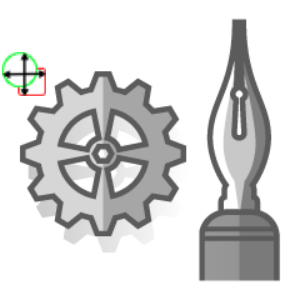
Tool ツール




auto action オートアクション



auto action icon オートアクションアイコン
-
3px shave and add lines (dark mode) 3px削ってライン追加(ダークモード)
-
Scrape 3px to add line (light mode) 3px削ってライン追加(ライトモード)
-
Move to the center of the canvas キャンバスの中心に移動
-
Clipping removal (reduction) クリッピング削除(縮小)
-
Clipping removal クリッピング削除
-
Copy + Paste + deselect コピー+貼り付け+選択解除
-
Copy + Paste + deselect 2 コピー+貼り付け+選択解除2
-
Copy and paste integration コピペ統合
-
Copy and paste integration 2 コピペ統合2
-
Convert to Vector ベクターに変換
-
Rotate 90° to the right 右に90°回転
-
Synthesize border effect 境界効果を合成
-
Take out only the border effect wire 境界効果線のみ取り出す
-
Rotate 90° to the left 左に90°回転
-
Delete tonal correction layer 色調補正レイヤー削除
-
Create a new layer + folder 新レイヤー+フォルダ作成
-
Cut + Paste + deselect 切り取り+貼り付け+選択解除
-
Cut + Paste + deselect 2 切り取り+貼り付け+選択解除2
-
Fine-tuning the line width 線の太さの微調整
-
Confirm Line Width (Dark Mode) 線幅の確定(ダークモード)
-
Confirm line width (light mode) 線幅の確定(ライトモード)
-
Store selected layers in a folder 選択したレイヤーをフォルダに格納
-
Continuous JPEG export from bottom to top 連続jpeg書き出し 下から上
-
Continuous JPEG export top to bottom 連続jpeg書き出し 上から下
-
Continuous JPEG export 連続jpeg書き出し
-
Continuous PNG export top to bottom 連続PNG書き出し 上から下
-
Continuous PNG export 連続png書き出し
-
Continuous PNG export bottom to top 連続PNG書き出し下から上
-
Continuous material registration from top to bottom 連続素材登録 上から下
-
Continuous material registration 連続素材登録




























Other materials by yuyuya00


Popular “Material catalog” materials


New materials





Badges
-
 MVP ◆This user has contributed greatly to the management of the community, by posting many great responses to the questions asked. Once every three months, MVPs are determined based on the points earned during that period and will be recognized accordingly.
 -
 New Valuable Player (NVP) ◆These are the next-best contributors to the community after MVPs. This is awarded to users who have not yet won an MVP award, based on the number of points they have earned.
 -
 Official Expert ◆Chosen out of all MVP awardees, who are already proof of excellence, this is a testimony of outstanding correspondence in the community. After careful screening, they are appointed by CELSYS and assume their position.Note: Formally called “Evangelists”
 -
 Official Moderator of CELSYS ◆Moderators are official CELSYS staff members who are fluent in Japanese as well as various other languages. Moderators are not experts on the software or illustration, so they are not able to directly answer your questions. However, moderators provide communication and language support to ensure that everyone can smoothly communicate with each other.
 -
 CELSYS official accountThe Official Administrator Account