



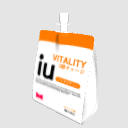
It is a nutritional jelly drink for those who do not have time to eat slowly.
Since the curve is made smoothly, the line comes out beautifully with LT conversion and can be used with little addition.
ゆっくり食事をする時間がない人向けの栄養ゼリードリンクです。
曲線をなめらかに作っているのでLT変換で線が綺麗に出て加筆が少なく使用できます。


Sister products and calorie sweets are also on sale. Please combine ↓ Content ID: 2238472

姉妹品でカロリーのお菓子も出品中です。合わせてどうぞ↓コンテンツID:2238472
Material マテリアル
-
Color カラー
-
for shadowspure white 影用真っ白

configuration 配置
-
Cap available キャップ有り
-
No cap キャップ無し


Update history
2026/01/17 I drilled a hole in the cap. Fixed the initial position. 2026/01/17 キャップに穴を開けました。初期位置を直しました。
Old version





Other materials by 里@BOOTH販売あり


Popular “3D object” materials





New materials


-
 MVP ◆This user has contributed greatly to the management of the community, by posting many great responses to the questions asked. Once every three months, MVPs are determined based on the points earned during that period and will be recognized accordingly.
 -
 New Valuable Player (NVP) ◆These are the next-best contributors to the community after MVPs. This is awarded to users who have not yet won an MVP award, based on the number of points they have earned.
 -
 Official Expert ◆Chosen out of all MVP awardees, who are already proof of excellence, this is a testimony of outstanding correspondence in the community. After careful screening, they are appointed by CELSYS and assume their position.Note: Formally called “Evangelists”
 -
 Official Moderator of CELSYS ◆Moderators are official CELSYS staff members who are fluent in Japanese as well as various other languages. Moderators are not experts on the software or illustration, so they are not able to directly answer your questions. However, moderators provide communication and language support to ensure that everyone can smoothly communicate with each other.
 -
 CELSYS official accountThe Official Administrator Account