


Live2D용 Vtuber 모델 세팅업 (Vtuber Model SetUp for Live2D) Vtuber Model SetUp for Live2D
콘텐츠 ID:2252285
-
315


Live2D용 레이어 구성 템플릿 Template for the layers's configuration for Live2D
이 템플릿은 제가 직접 만든 색상 구분 레이어 템플릿 입니다 . 저는 원하는 걸 찾 기 더 편 해서 색상이 있는 레이어를 선호 하기 때문입니다!
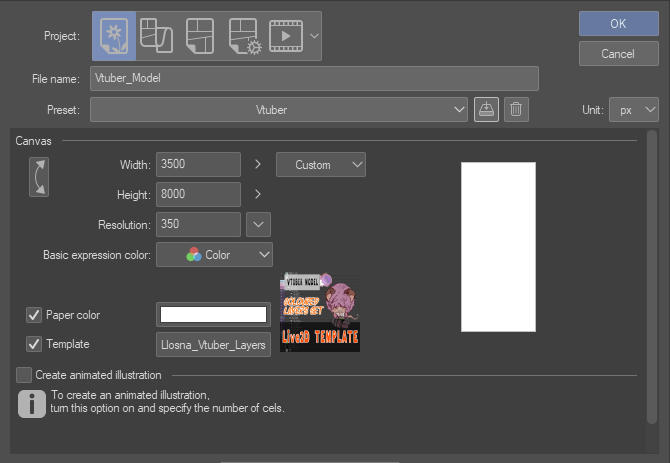
이 자료들은 무엇을 하나요?
이 템플릿 은 일러스트 에 여러 개의 이름 붙인 폴더, 하위 폴더 , 레이어를 추가 하여 VTuber 모델을 레이어 링 하여 리깅 준비 를 돕 습니다.
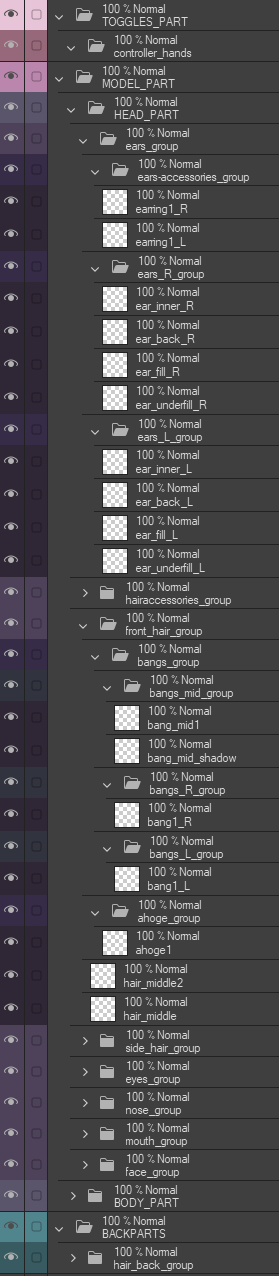
이 대학은 세 가지 주요 범주 로 나 뉩니다 :
- 토글 | 연한 분홍
- 본문 | 보라색
- 뒷부분 | 덕 그린
각 폴더와 레이어는 Live2D 리깅을 염두에 두고 명 명되어 있습니다
모두 빈 레이어입니다. 가장 기본 적인 레이어만 삽입 했으니, 레이어와 폴더는 마음껏 추가하거나 제거할 수 있습니다.
단, 레이어 이름에 공백 을 남기 지 마세요 . Live2D가 이름을 제거 하고 "ArtMesh"로 대체 할 수 있기 때문입니다.
밑줄은 당신의 가장 친한 친구야 :3
아티스트와 리거 취향에 따라 "R"과 "L" 위치를 바꾸는 게 좋은데, 저는 개인적으로 이름 끝에 있는 걸 선호해서 모두 이름 끝에 두는 걸 선호해요.
메인 폴더 는 대문자이고, 하위 폴더와 레이어 이름 은 소문자로 되어 있습니다.
Live2D에서는 삭제하거나 끄기 위해 네 개의 레이어가 만들어졌습니다.
- 눈의 피로 층: 화면으로 인한 눈의 피로를 완화하는 층
- R and L : 페이지 양면에 "R"과 "L"이 적힌 레이어로, Vtuber 모델의 오른쪽과 왼쪽을 기억하는 데 도움이 됩니다
- 그린 필 : 지울 색 부분을 찾는 데 도움을 주는 레이어
- 블랙 필 : 지울 색 지점을 찾는 데 도움을 주는 레이어
어떻게 설정하나요?
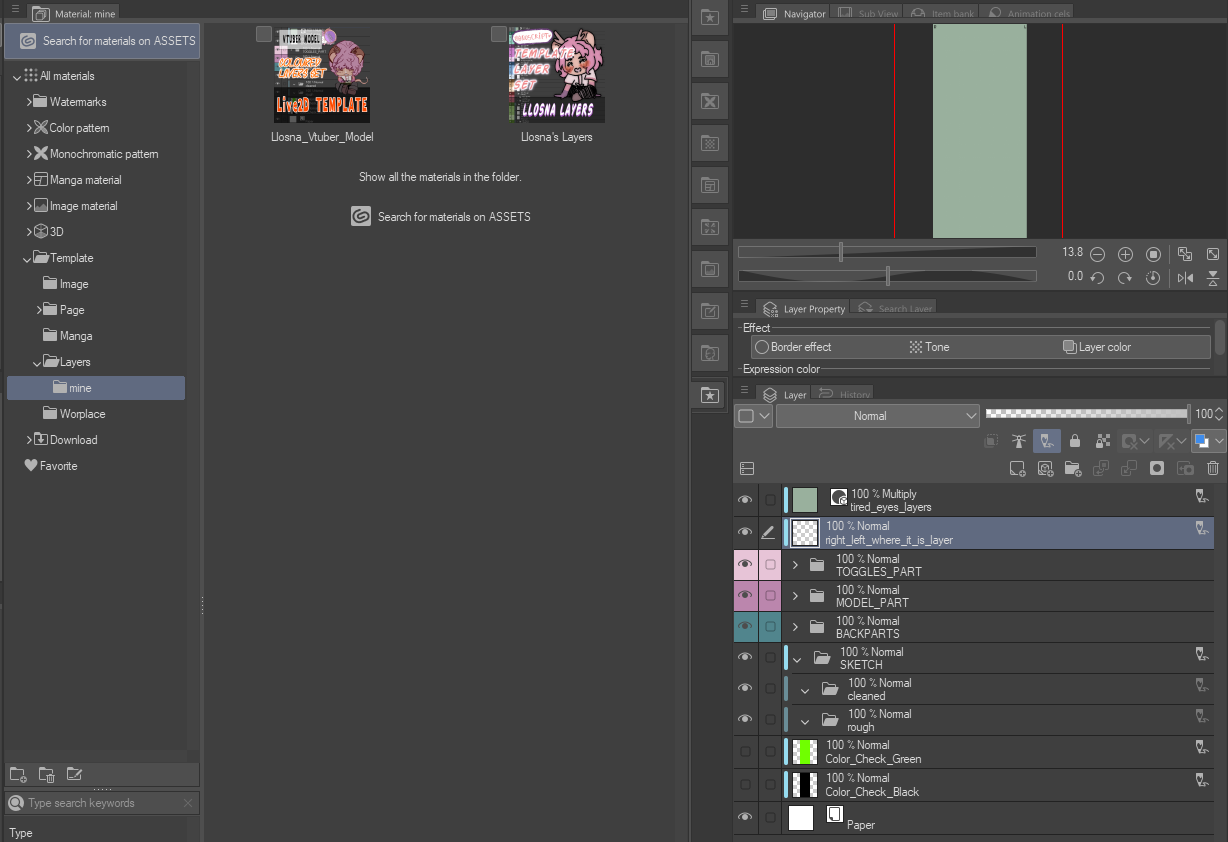
먼저 "template" 버튼을 클릭한 후 "downloaded material"에서 검색하거나 "LLOSNA"라고 입력하면 추가할 수 있습니다
또는 재료를 레이어로 드래그해서 이동시킬 수도 있습니다.
추가하면 이렇게 보이네요:
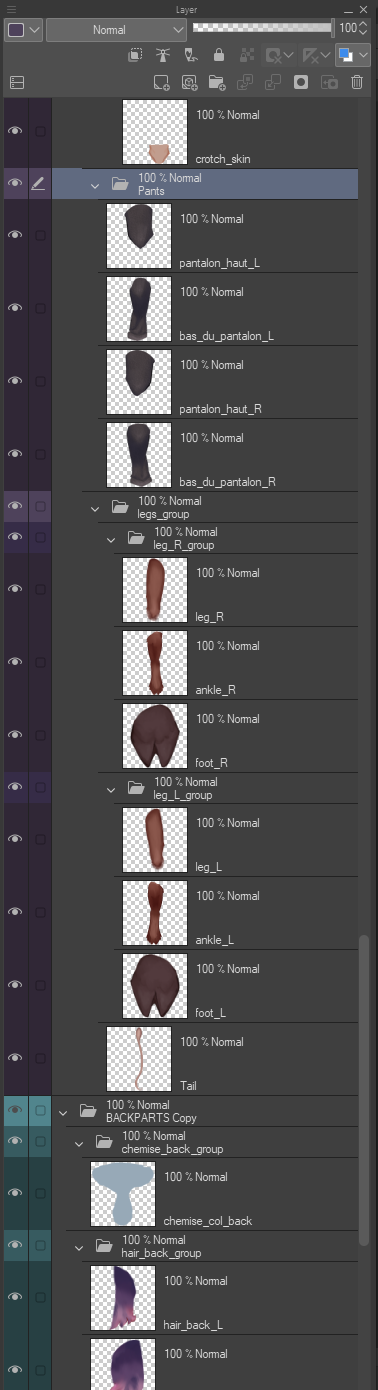
그리고 모델을 완성 한 후 이렇게 보입니다
(예전 VTuber 모델에서 가져옴) :
이 자료가 모델을 리깅에 보낼 때 좋은 기반이 될 거예요!
그리고 항상 고해상도로 페이지를 만드는 것을 잊지 마세요!
내려가는 게 항상 오르는 것보다 쉬워.
즐거운 시간 보내세요!
This is a colour coded layers template I made for myself, because I prefer to have my layers with colours, as it is easier for me to find what I want !
WHAT DOES THIS MATERIAL DO ?
This template add to your illustration, multiple nammed folders, subfolders and layers to help you layer your VTuber Model to make it ready for Rigging.
It is separated in three main categories :
- Toggle | Light Pink
- Body | Purple
- BackPart | Duck green
Each folders and layers are nammed for Live2D Rigging in mind
They are all empty layers, I inserted the most basic layers, you can add and remove layers and folders as your heart content,
Just remember to not leave space in your layer's name, because Live2D will remove the name and replace it with "ArtMesh".
Underscore are your best friend :3
The placement of "R" and "L" switch depending of artist's and rigger's preference, I, personally, prefer mine at the end, so they all are at the end of the name.
The main folder are in uppercase, the subfolders as well as layers's name are in lowercase.
There are four layers created to either erase, or toggle off for Live2D.
- Eye-strain layers : A layer to help with the eye strain from the screen
- R and L : A Layer with "R" and "L" written on each side of the page, to help you remember which side is the right and left for your Vtuber Model
- Green fill : A layer to help you find colour spot to erase
- Black fill : A layer to help you find colour spot to erase
HOW TO SET UP ?
You can add it first by clicking on the "template" button and searching it from "downloaded material"or writing "LLOSNA" in the search option
Or by dragging it to your layers, from your materials.
This is how it looks when you add it :
And this is how it looks once you are done with your model
(Taken from my old Vtuber Model) :
This should give you a good base for sending your model to rigging !
And don't forget to ALWAYS create a page in high resolution !
It's always easier to go down than up.
Have fun !


'Llsona'님의 다른 소재

'레이어 템플릿'의 인기 소재


신규 소재





배지
-
 MVP ◆질문에 적절한 답변을 많이 게시하고 커뮤니티 운영에 크게 공헌한 사용자입니다. MVP는 3개월에 한 번, 그 사이에 획득한 포인트를 바탕으로 결정하고 표창을 실시하고 있습니다.
 -
 NVP(New Valuable Player) ◆MVP 다음으로 커뮤니티 운영에 공헌한 사용자입니다. 이제까지 MVP 수상 경험이 없는 분 중에서 획득한 포인트를 바탕으로 결정하여 표창을 실시하고 있습니다.
 -
 공식 엑스퍼트 ◆뛰어난 응답자의 증표인 MVP수상자 중에서 선택된 커뮤니티에서 가장 뛰어난 응답자의 증표입니다. 심사를 거쳐서 저희 회사에서 의뢰할 경우 취임되십니다.※ 옛 명칭 '에반젤리스트'
 -
 셀시스 공인 모더레이터 ◆모더레이터는 일본어와 기타 언어로 말할 수 있는 셀시스 공인 스태프입니다. 소프트웨어나 창작 전문가가 아니므로 직접 의문을 해결할 수는 없지만 여러분이 순조롭게 소통할 수 있도록 언어나 커뮤니케이션 측면에서 지원합니다.
 -
 셀시스 공식운영에 관련된 공식 계정입니다.