


자동 윤곽선(선 두께 포함) (Auto-Outline (with line-weight)) Auto-Outline (with line-weight)
콘텐츠 ID:1968595
-
2,918


모양에 검은색 윤곽선을 만들지만 선 두께를 시뮬레이션하는 옵션도 제공하는 자동 작업입니다.
Auto-Action that creates a black outline on shapes but also offers the option to simulate line-weight.
자동 윤곽선 v2
이 자동 동작은 모양에 검은색 윤곽선을 자동으로 생성 하지만 선 두께를 시뮬레이션하는 옵션도 제공합니다.
셀 음영 스타일에서 선과 색상이 동시에 있는 그림을 만드는 데 유용할 수 있습니다.
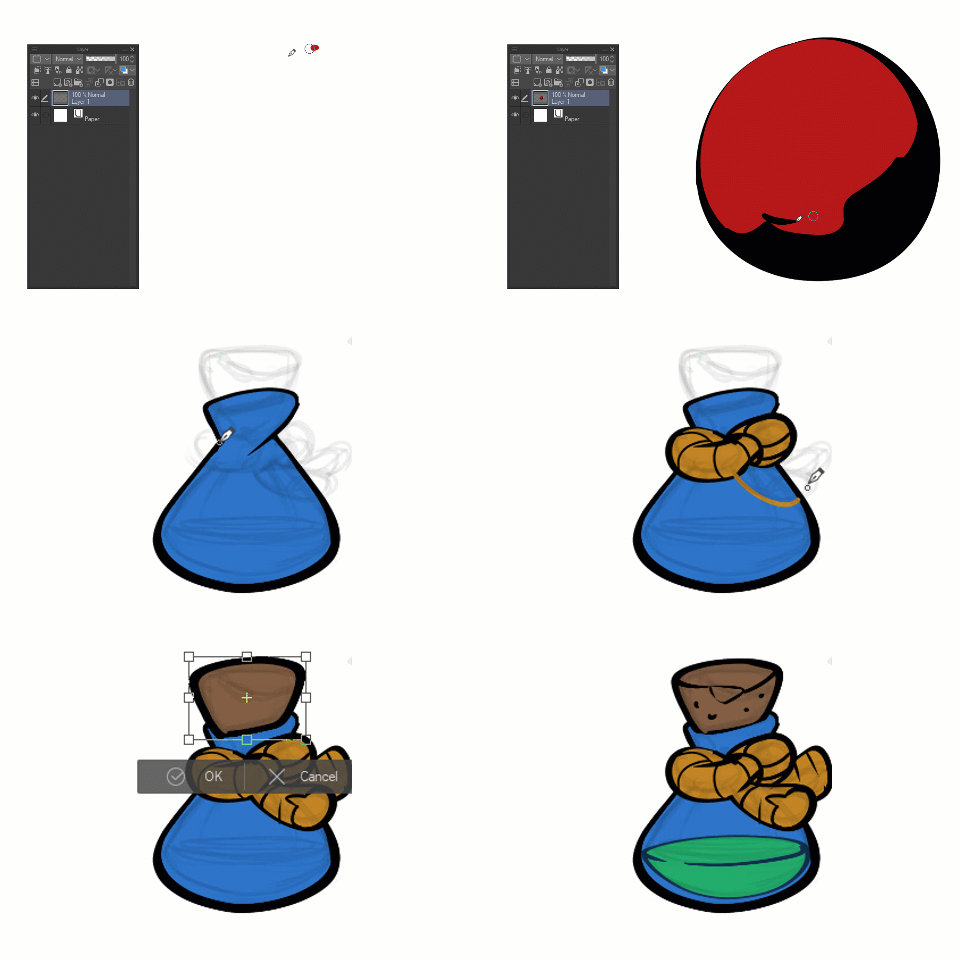
사용하는 방법:

- 기본 도형 그리기
- 자동 작업 실행 (키보드 단축키에 추가하는 것이 좋습니다)
- 윤곽선 변환 (선 두께 시뮬레이션); Enter 키를 눌러 확인합니다.
- 내부 모양과 세부 사항을 그립니다(투명 픽셀이 잠김으로 설정됨).
사용자 지정 방법:
이러한 명령을 수정하여 자동 작업을 사용자 지정할 수 있습니다.
- A - 선에 다른 색조/값을 사용하기 위해 다른 기본 색상을 선택하는 자신을 기록합니다.
- B - 가장 얇은 윤곽선을 제어합니다. 이 두 가지 변형(선택 영역 확장)을 선택하거나 사용자 지정 값으로 새 명령을 기록할 수 있습니다.
- C - 작업이 완료될 때 투명 픽셀을 잠그 지 않으 려는 경우 이 명령을 끌 수 있습니다.

* 효율성을 높이려면 키보드 단축키와 함께 사용할 자동 동작을 설정하십시오.
2022 - 다도트로닉 (트위터 @dadotronic)
Auto-Outline v2
This Auto-Action automatically creates a black outline on shapes but also offers the option to simulate line-weight.
It can be useful for making drawings with lines and colors at the same time in the cel-shade style.
How-to use:
- Draw the main shape
- Execute the Auto-Action (I suggest add to a keyboard shortcut)
- Transform the outline (simulating line-weight); hit enter to confirm
- Draw the interior shapes and details (transparent pixels is set to locked)
How-to customize:
You can modify those commands to customize the Auto-Action:
- A - record yourself selecting another primary color to use another hue/value for the line.
- B - this controls the thinnest outline; you can choose these two variations (Expand Selected Area) or record a new command with a custom value.
- C - You can toggle this command off if you prefer to not have the transparent pixels locked when the action finishes.
* for more efficiency, set the auto-action to be used with a keyboard shortcut.
2022 - DADOtronic (@dadotronic on twitter)






'Dadotronic'님의 다른 소재


'오토 액션'의 인기 소재





신규 소재





배지
-
 MVP ◆질문에 적절한 답변을 많이 게시하고 커뮤니티 운영에 크게 공헌한 사용자입니다. MVP는 3개월에 한 번, 그 사이에 획득한 포인트를 바탕으로 결정하고 표창을 실시하고 있습니다.
 -
 NVP(New Valuable Player) ◆MVP 다음으로 커뮤니티 운영에 공헌한 사용자입니다. 이제까지 MVP 수상 경험이 없는 분 중에서 획득한 포인트를 바탕으로 결정하여 표창을 실시하고 있습니다.
 -
 공식 엑스퍼트 ◆뛰어난 응답자의 증표인 MVP수상자 중에서 선택된 커뮤니티에서 가장 뛰어난 응답자의 증표입니다. 심사를 거쳐서 저희 회사에서 의뢰할 경우 취임되십니다.※ 옛 명칭 '에반젤리스트'
 -
 셀시스 공인 모더레이터 ◆모더레이터는 일본어와 기타 언어로 말할 수 있는 셀시스 공인 스태프입니다. 소프트웨어나 창작 전문가가 아니므로 직접 의문을 해결할 수는 없지만 여러분이 순조롭게 소통할 수 있도록 언어나 커뮤니케이션 측면에서 지원합니다.
 -
 셀시스 공식운영에 관련된 공식 계정입니다.