



* The entire name and setting value have been changed and corrected.
It's easy to use these days! It is a setting that I think.
It is a very standard colored brush, and the lineup is as follows.
・ Type that changes opacity with pen pressure × brush tip shape ●▲■
・ Type that changes concentration with pen pressure × brush tip shape ●▲■
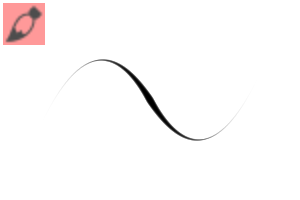
・ Thin brush for drawing details (concentration change, ●)
The default value is color mixing off. Check "mix ground color" in the property to mix colors.
The size changes drastically depending on the pressure of the pen.

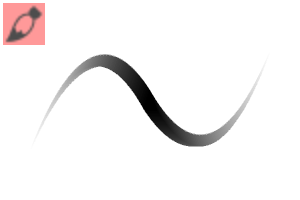
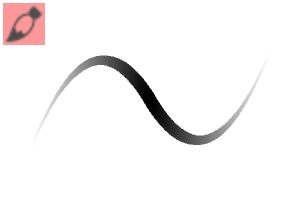
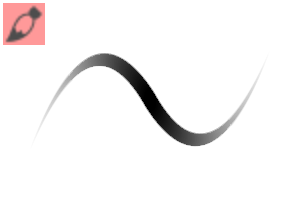
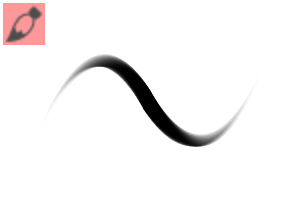
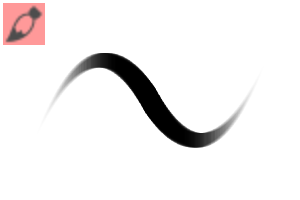
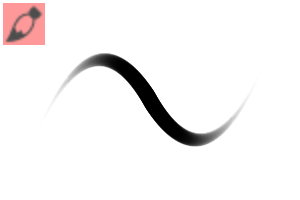
↑●■▲ handwriting. [Translucent] is characterized by flat handwriting, and [dark] is characterized by blurring on the inside.
● of opacity and concentration is oval.
I think it is easier to paint because it is easier to take a shape close to a polygon if it is not a regular circle.
In particular, ■▲ is recommended for shadow painting clothes.
――You can adjust the softness of the contour with [hardness].
"Thin" means that the starting and ending is turned on. Turn it off when you want to draw it like a normal line.
Hair highlights are easy to draw.

[Translucent] automatically fades out lightly when starting and ending is turned on.

In addition, please change the effect source settings of the "orientation" of the brush tip to your liking.
It varies quite a bit depending on the item.
When you want to layer colors thinly, lowering the pen pressure will make the brush size smaller,
In that case shortcut it is recommended to enlarge it with the key.
Rather than painting with an even brush size and scraping to shape it,
It is better to correct only the shade while controlling the size with pen pressure.
This is because they feel that it is efficient.
It's easy once you get used to it, so please give it a try.
※名称や設定値をまるごと変更修正しました。
最近の自分が使いやすい!と思っている設定になっています。
ごくスタンダードな色塗りブラシで、ラインナップは以下の通り。
・ 筆圧で不透明度が変化するタイプ × ブラシ先端形状 ●▲■
・ 筆圧で濃度が変化するタイプ × ブラシ先端形状 ●▲■
・細部描き込み用の細いブラシ(濃度変化、●)
初期値は混色オフ。プロパティの「下地混色」にチェックで混色します。
全て筆圧でサイズが大幅に変化します。
↑●■▲の筆跡。 [透] は筆跡が平坦、 [濃] は内側でボケるような特徴です。
不透明度・濃度の●は楕円形になっています。
正円でない方が多角形に近い形が取りやすいため、塗りやすいと思います。
特に■▲は服の影塗りにおすすめ。
●は「硬さ」で輪郭の柔らかさを調整出来ます。
「細」は入り抜きがオンになっています。普通の線のように描きたい時はオフに。
髪のハイライトが描きやすいです。
[透]は入り抜きをオンにすると、自動で薄くフェードアウトします。
その他、ブラシ先端の「向き」の影響元設定をお好みで変えてみて下さい。
項目によって結構変わります。
色を薄く重ねたい時、筆圧を下げるとブラシサイズも小さくなってしまいますが、
その場合はショートカットキーでグッと大きくして塗るのがおすすめ。
均等なブラシサイズで塗って削って形を整えるより、
筆圧でサイズをコントロールしながら濃淡だけ修正する方が
効率が良いと感じているためです。
慣れれば楽なので是非お試し下さい。
Category 1 カテゴリ1
Old version





Other materials by horitora


Popular “Material catalog” materials


New materials




Badges
-
 MVP ◆This user has contributed greatly to the management of the community, by posting many great responses to the questions asked. Once every three months, MVPs are determined based on the points earned during that period and will be recognized accordingly.
 -
 New Valuable Player (NVP) ◆These are the next-best contributors to the community after MVPs. This is awarded to users who have not yet won an MVP award, based on the number of points they have earned.
 -
 Official Expert ◆Chosen out of all MVP awardees, who are already proof of excellence, this is a testimony of outstanding correspondence in the community. After careful screening, they are appointed by CELSYS and assume their position.Note: Formally called “Evangelists”
 -
 Official Moderator of CELSYS ◆Moderators are official CELSYS staff members who are fluent in Japanese as well as various other languages. Moderators are not experts on the software or illustration, so they are not able to directly answer your questions. However, moderators provide communication and language support to ensure that everyone can smoothly communicate with each other.
 -
 CELSYS official accountThe Official Administrator Account