



I made these magnetic filling tools to quickly lay down the base colors for my illustrations. They require semi clean lineart for the magnetic feature to work.


My two favourite tools for quick coloring ♡
Magic Lasso Fill:

First make sure to set each of your lineart layers or a folder containing them, as reference layer. (To do that click on the small lighthouse icon in the upper row of the "Layers"-window while the layers/folder are selected)
Choose the Tool "Magic Lasso Fill by Elorian" and select the color you want to fill with. Then select the area either by drawing one continuous line or tapping points you want to connect. If there is a referenced lineart, the cursor will automatically snap to it and use it as a guideline once the cursor comes near it.
_________________________________________________________________________
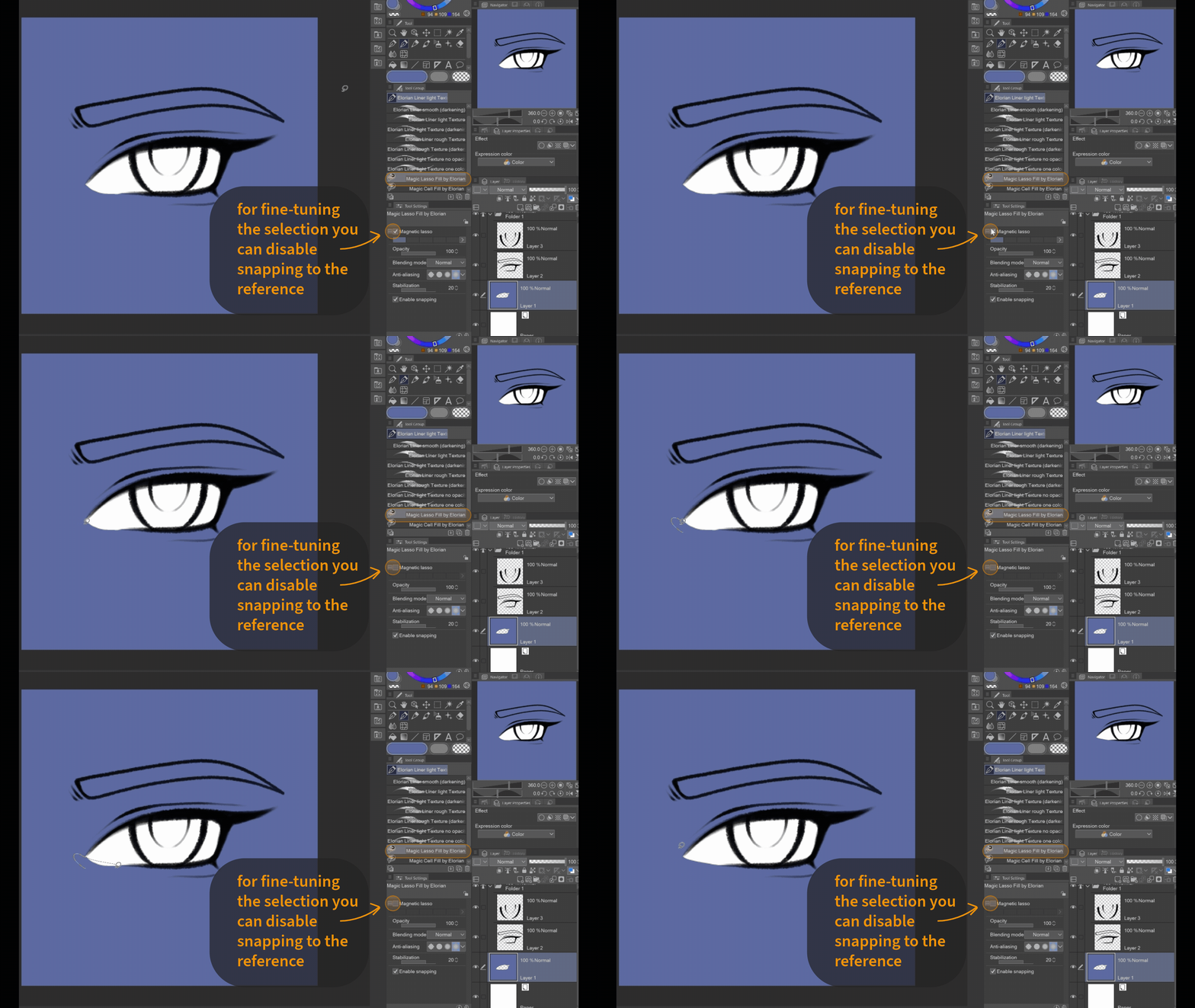
You can also turn the magnetic filling tool into a regular lasso fill by enabling "magnetic lasso" in the tool settings. This can come in handy when the reference lines have gaps. (For those of you who don't want to have the tool property window open all the time, I will add an additional non-magnetic Lasso Fill Tool.)
_________________________________________________________________________

If you don't want to fill an area with color, but to erase, then just use "transparent" as a color.
_________________________________________________________________________

To use the full potential of the magnetic setting, you dont have to trace the line but can simply click on it on multiple points and the selection will automatically go along the reference lineart.
_________________________________________________________________________
Magic Cell Fill:
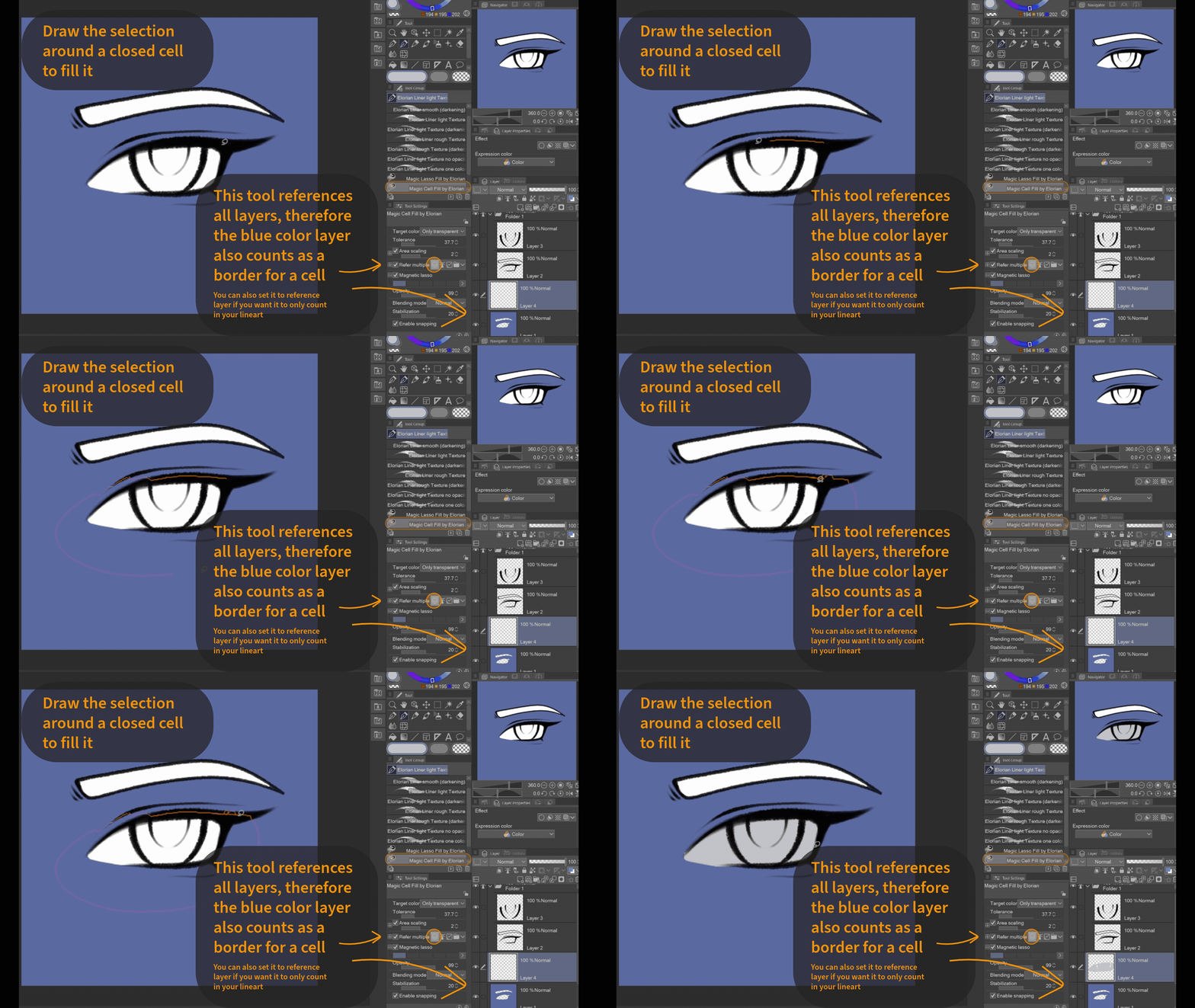
This tool recognizes closed cells (= areas that are fully enclosed by other colors) as well as lineart and can be used as a quick filling tool.
You might want to adjust the tolerance based on the lineart tool you use. The default settings should work just fine with Elorian's Dynamic Lineart Brushes. (Once you've found a tolerance setting that works for you, set it as standard in the tool settings)
You might want to adjust the tolerance based on the lineart tool you use. The default settings should work just fine with Elorian's Dynamic Lineart Brushes. (Once you've found a tolerance setting that works for you, set it as standard in the tool settings)
Choose any closed cell and roughly paint around it, make sure the whole cell is within the selection.
_________________________________________________________________________
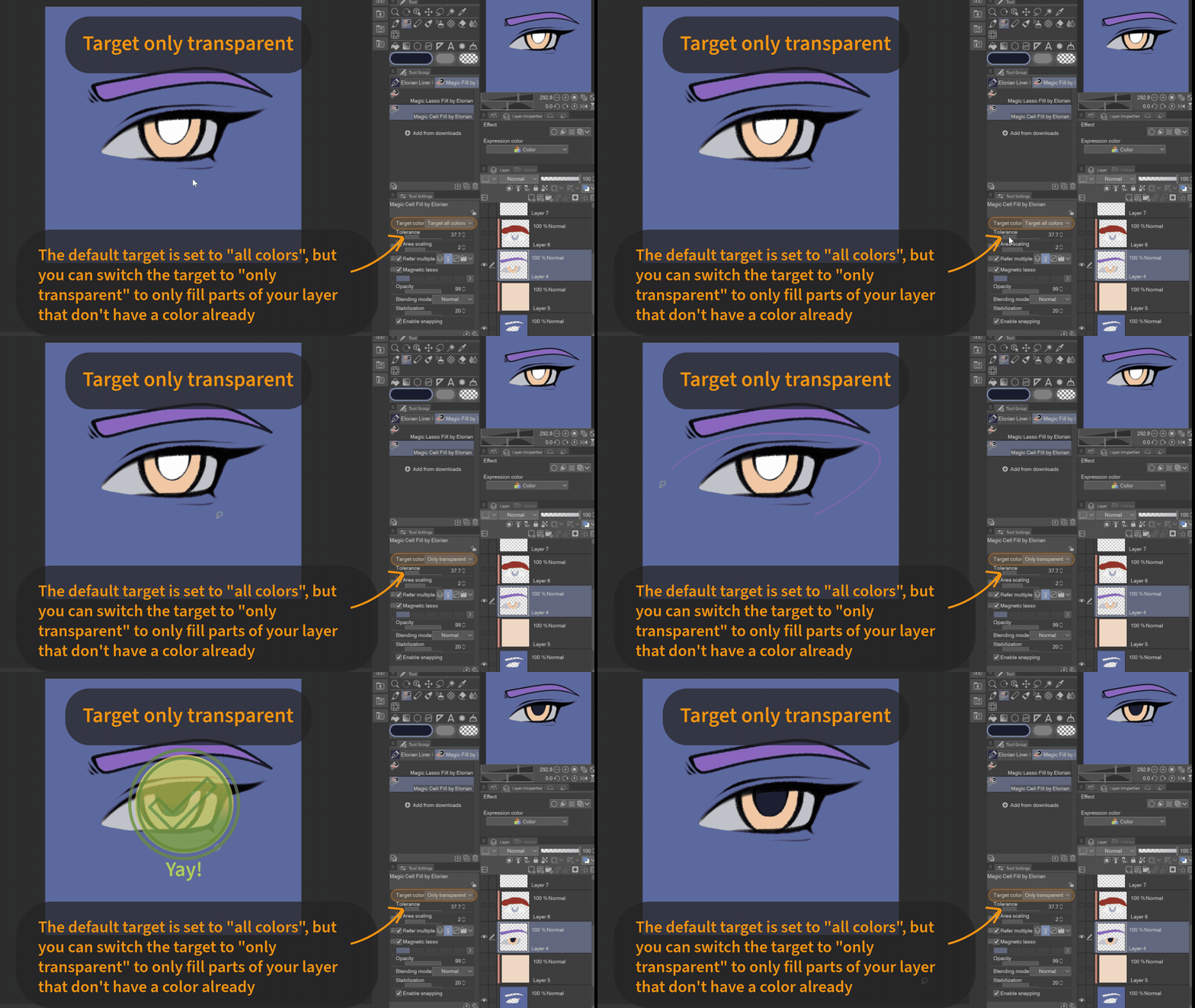
It will fill all pixels of a certain type on the layer youre painting on. The default is set to "all colors" (transparency counts as color).
But sometimes you might want to only target transaprent pixels to not overpaint already colored areas on the same layer. For that you can switch the target color in the settings to "only transparent". (For those of you who don't want to have the tool property window open all the time, I will add an additional only transparent Cell Fill Tool.)
But sometimes you might want to only target transaprent pixels to not overpaint already colored areas on the same layer. For that you can switch the target color in the settings to "only transparent". (For those of you who don't want to have the tool property window open all the time, I will add an additional only transparent Cell Fill Tool.)
From this:

To this:
_________________________________________________________________________
Have Fun! ♡
Magic Fill Tools by Elorian




Old version





Other materials by Elorian_art


Popular “Material catalog” materials


New materials





Badges
-
 MVP ◆This user has contributed greatly to the management of the community, by posting many great responses to the questions asked. Once every three months, MVPs are determined based on the points earned during that period and will be recognized accordingly.
 -
 New Valuable Player (NVP) ◆These are the next-best contributors to the community after MVPs. This is awarded to users who have not yet won an MVP award, based on the number of points they have earned.
 -
 Official Expert ◆Chosen out of all MVP awardees, who are already proof of excellence, this is a testimony of outstanding correspondence in the community. After careful screening, they are appointed by CELSYS and assume their position.Note: Formally called “Evangelists”
 -
 Official Moderator of CELSYS ◆Moderators are official CELSYS staff members who are fluent in Japanese as well as various other languages. Moderators are not experts on the software or illustration, so they are not able to directly answer your questions. However, moderators provide communication and language support to ensure that everyone can smoothly communicate with each other.
 -
 CELSYS official accountThe Official Administrator Account
