



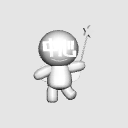
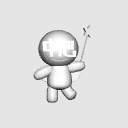
A fairy who soothes rampaging 3D and helps you find better angles, helping you center 3D 暴れる3Dをなだめ、より良いアングル探しのお手伝いをする、3Dの中心を手伝う妖精さん

★Fairy ★ helping in the center of 3D

1. In the 3D you are positioning,★Place a fairy ★ to help you with the center of the 3D.

2. Use the quadruple window to move the fairy to the center of the angle.
・ I want to center on the character's face → Stick a fairy to the face・ I want to make it an angle where both people can see at the same time → In the center of the two* When moving the fairy, if there is another object that is in the way,Temporarily hide disturbing object from the list.3. Press "focus on editing target" with the fairy selected.4. Centered on the fairy, 3D is displayed.If the 3D is in the frame,A fairy appears in the center of the frame.If the 3D is outside the frame, clickA fairy appears in the center of the canvas.5. Fine-tune the angle to complete!
When you're done, don't forget to hide the fairies!* If you want to move the entire 3D during adjustment,We recommend using [move layer]!
(In the 3D tool, if you move the camera a lot,
3D starts to rampage more and more....
If you go wild, you can go on a rampage again 2. Follow the steps in 3. )* Actually, even if you are not a fairy, if you do "focus on editing target", any object is OK,Because the positioned object to be converted to LT or the doll is difficult to move to the center,I want to put something easy to understand and stand out in the middle...!and a fairy born.


★3Dの中心を手伝う妖精★
1.配置している3Dに、★3Dの中心を手伝う妖精★を配置します。
2.四面図のウィンドウを使って、アングルの中心に妖精を移動します。
・キャラの顔を中心にしたい → 顔に妖精をくっつける・二人を同時に見えるアングルにしたい → 二人の中心に※妖精を移動する際に、別のオブジェクトがあって邪魔な場合は、邪魔しているオブジェクトを、一時的にリストから非表示にして下さい。3.妖精を選択した状態で「編集対象を注視」を押します。4.妖精を中心に、3Dが表示されます。3Dがコマわりの中にある場合は、コマの中心に妖精が表示される。3Dがコマわりの外にある場合は、キャンバスの中心に妖精が表示される。5.アングルを微調整して完成!!
完了後は、妖精を非表示にすることを忘れずに!※調整中に、3Dを全体的に移動したい場合は、【レイヤー移動】を使用することをおすすめします!
(3Dツールの中にある、カメラ移動で大きく移動を行うと
3Dがどんどん暴れ始めます…。
暴れてしまった場合は、また 2. 3. の手順を行って下さい。)※実のところ、妖精さんじゃなくても「編集対象を注視」をすれば、どのオブジェクトでもOKだけど、LT変換する予定の位置決めされたオブジェクトとか、人形は中心に移動しづらいから、わかりやすくて目立つものを真ん中に置きたいな…!と生まれた妖精です。
Material マテリアル
-
default material 初期マテリアル
Configuration 配置
-
default layout 初期レイアウト
Update history
26.6.2 Public 26.6.2 公開


Other materials by 萬屋いろは堂


Popular “3D object” materials




New materials





-
 MVP ◆This user has contributed greatly to the management of the community, by posting many great responses to the questions asked. Once every three months, MVPs are determined based on the points earned during that period and will be recognized accordingly.
 -
 New Valuable Player (NVP) ◆These are the next-best contributors to the community after MVPs. This is awarded to users who have not yet won an MVP award, based on the number of points they have earned.
 -
 Official Expert ◆Chosen out of all MVP awardees, who are already proof of excellence, this is a testimony of outstanding correspondence in the community. After careful screening, they are appointed by CELSYS and assume their position.Note: Formally called “Evangelists”
 -
 Official Moderator of CELSYS ◆Moderators are official CELSYS staff members who are fluent in Japanese as well as various other languages. Moderators are not experts on the software or illustration, so they are not able to directly answer your questions. However, moderators provide communication and language support to ensure that everyone can smoothly communicate with each other.
 -
 CELSYS official accountThe Official Administrator Account