


layers template and complementary auto-action for illustration and comic's page
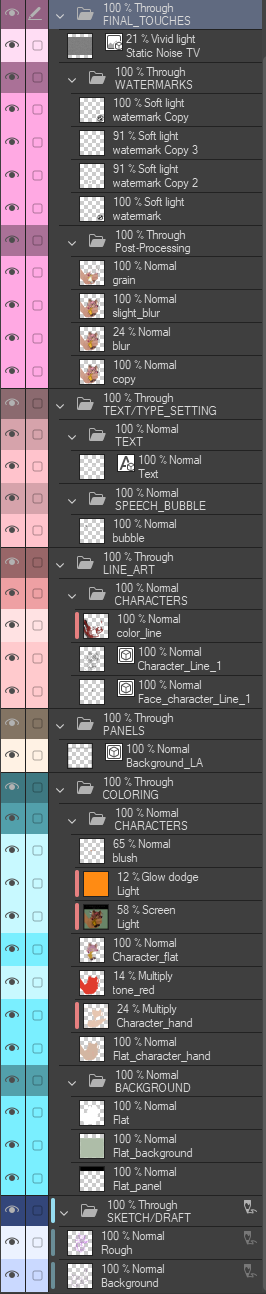
This is a colour coded layers template I made for myself, because I prefer to have my layers with colours, as it is easier for me to keep track of everything without getting too lost.
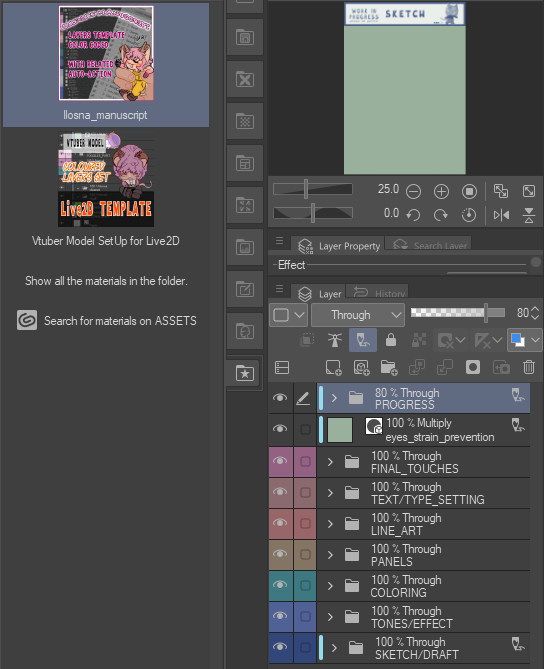
The "PROGRESS", "eye_strain_prevention" and "SKETCH" are set on "Draft Layer", wich mean they will not show when you export your work even if they are turned on, but they will still be shown on your homepage.

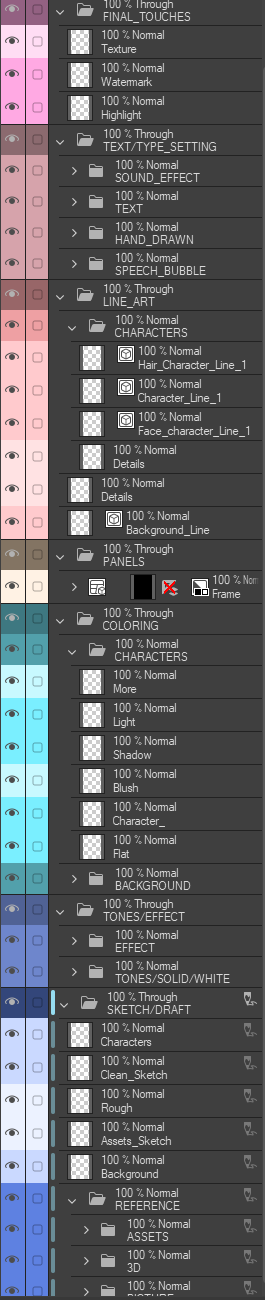
And here it is with all folder open :
Here's how my space looks for my Ansoll illustration ;

WHAT DOES THIS MATERIAL DO ?
This template add to your illustration, multiple nammed folders, subfolders and layers
The auto-action make it easier to recolor and create layers
The Template has eight main categories ;
- PROGRESS | This is a folder with Image material to help you remember in what state you left the illustration at in one simple look.
- FINAL TOUCHES | Reddish Magenta
- TEXT/TYPE SETTING | Pinkish Red
- LINE ART | Copper Rose
- PANELS | Brownish Grey
- COLORING | Faded Jade
- TONES/EFFECT | Dusky Blue
- SKETCH/DRAFT | Blue Jay
One Eye Strain Prevention layer was added on top of the main folders.
The "PROGRESS", "eye_strain_prevention" and "SKETCH" are set on "Draft Layer", wich mean they will not show when you export your work even if they are turned on, but they will still be shown on your homepage.
(˶ˆ꒳ˆ˵)
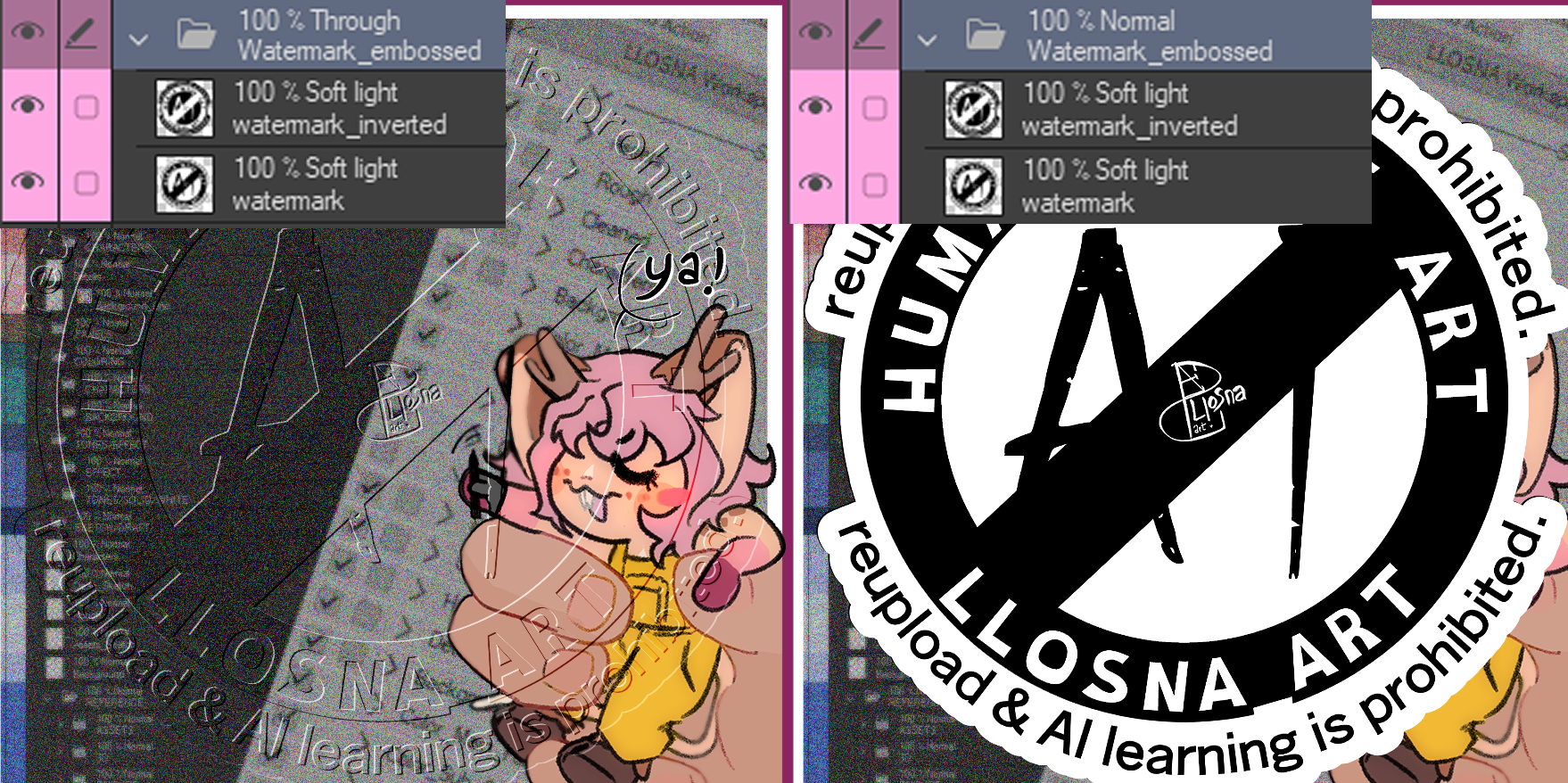
All folders are set on "Through";
It allows the individual blending modes of those layers in the folder to pass through to the layers below the folder.
Without "Through", the blending modes will default to the blend mode of the folder itself.
Here's a picture exemple : With set on "Through" and set on "Normal"
ദ്ദി ˉ͈̀꒳ˉ͈́ )✧
Progress Folder :
You can Place it where you want on the page, and it fit your canvas when added, there is eight variant, colored with their corresponding's main folder's shade.
Here how it looks ;
Here how it looks ;

HOW TO SET UP ?
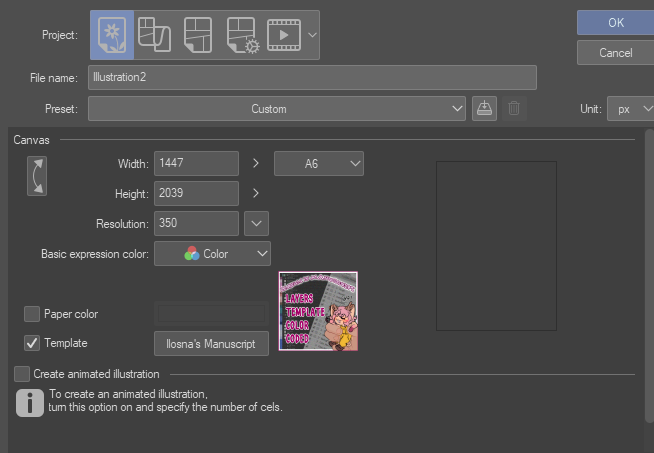
You can add it first by clicking on the "template" button and searching it from "downloaded material"or writing "LLOSNA" in the search option
Or by dragging it to your layers, from your materials.
This picture also show how the template looks when added !
And here it is with all folder open :
I tried to keep it as basic as possible, all while having relatively what is needed.
Do not hesitate to add and remove as you wish !
Do not hesitate to add and remove as you wish !
Here's how my space looks for my Ansoll illustration ;
I erased the folders and layers I didn't need, and added my owns, depending of my needs :3
﹌﹌﹌﹌﹌﹌﹌﹌﹌﹌﹌﹌﹌﹌﹌﹌
Now with that, I created an auto-action that add nammed and colored layers, as well as just switch the color of the layers !
So I don't have to do everything manually.
Again, it's just the strict minimum, especially for creating ones with names, I mostly use the color action to easily recolor my layers.
ദ്ദി◝ ⩊ ◜.ᐟ
They are separated with empty auto-action to be as easily readable as possible

And that's all for me ! Have a nice day, and thanks for being interested in my work (it took me so long lmao)
૮₍ ´ ꒳ `₎ა
* fighting for my life understanding how to uptate material catalogue, so I just recreated one, edit to remove the text in the image from the progress folder and change the font in the thumbnails
Pop-Up Layers Template

Complementary Auto Action



Other materials by Llsona

Popular “Material catalog” materials


New materials


Badges
-
 MVP ◆This user has contributed greatly to the management of the community, by posting many great responses to the questions asked. Once every three months, MVPs are determined based on the points earned during that period and will be recognized accordingly.
 -
 New Valuable Player (NVP) ◆These are the next-best contributors to the community after MVPs. This is awarded to users who have not yet won an MVP award, based on the number of points they have earned.
 -
 Official Expert ◆Chosen out of all MVP awardees, who are already proof of excellence, this is a testimony of outstanding correspondence in the community. After careful screening, they are appointed by CELSYS and assume their position.Note: Formally called “Evangelists”
 -
 Official Moderator of CELSYS ◆Moderators are official CELSYS staff members who are fluent in Japanese as well as various other languages. Moderators are not experts on the software or illustration, so they are not able to directly answer your questions. However, moderators provide communication and language support to ensure that everyone can smoothly communicate with each other.
 -
 CELSYS official accountThe Official Administrator Account
