


CMYK layer setup and gritty repeating screentone pattern materials
Okay, I have returned from the troubleshooting mines with a new version of the layer setup I uploaded earlier. This one is reorganized so the folders are grouped by colour rather than by screentone density to make it easier to use for things like prepping files for Riso printing, or scuffing up the images to make finished pieces with an analogue print media appearance.

Same drill as last time, open the folder and draw on the layers to create fills at 10%, 20%, 50%, 70%, and 100% tone density on the Cyan, Magenta, Yellow, and Black tones.
To change the scale of the screentone texture, select the object editor and go to the Tool Properties window to change “scale ratio”. This will make the dots bigger or smaller.

Once you have the colours how you like them, if you want flat black and white versions of these plates for something like printing you can turn off the colour layer effect to make the dots black again.

If you want to clean up these layers, while the dots are in black and white, you can select an entire folder and go to “merge selected layer’ to flatten them into one layer that should automatically be the color of the label. (dots need to be black and white if you do this, or they’ll get lighter when you flatten them). I made the folder name the hex codes for Yellow, Magenta, and Cyan if the colours aren’t working for whatever reason and you need to manually change them.

There are a whole bunch of ways to mess with these and make them look more traditional without flattening, this is just if it stresses you out to have a lot of layers and want to simplify.
Now you can offset the layers and add texture and grime, throw a paper texture, whatever you want to make it look how you want

One last troubleshooting thing, you might notice that things you draw in the cmyk layers look opaque on top of any layers under the folder (as in, if you have a paper texture at the bottom rather than on top, the dots will look like they have a white fill around them rather than multiply) I did this on purpose so if I have a reference layer for colours at the bottom I can’t see it through the fills while I work, but if you don’t want it to do that you can change the layer mode of the folder from “normal” to “through”.
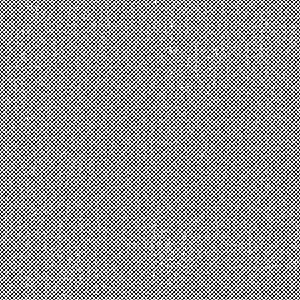
Other than that, I put a whole pile of repeating tones in there you can play with to your heart’s content. There are different variants of most of them because they all have different noise and grit on them, so you can have some variety and not the same little nicks and scuffs in every image.

Tones







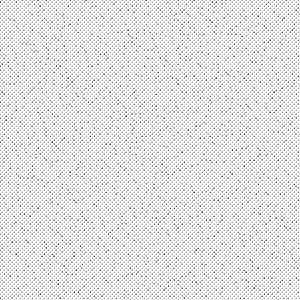

Layer Setup







Other materials by Coelasquid


Popular “Material catalog” materials


New materials









Badges
-
 MVP ◆This user has contributed greatly to the management of the community, by posting many great responses to the questions asked. Once every three months, MVPs are determined based on the points earned during that period and will be recognized accordingly.
 -
 New Valuable Player (NVP) ◆These are the next-best contributors to the community after MVPs. This is awarded to users who have not yet won an MVP award, based on the number of points they have earned.
 -
 Official Expert ◆Chosen out of all MVP awardees, who are already proof of excellence, this is a testimony of outstanding correspondence in the community. After careful screening, they are appointed by CELSYS and assume their position.Note: Formally called “Evangelists”
 -
 Official Moderator of CELSYS ◆Moderators are official CELSYS staff members who are fluent in Japanese as well as various other languages. Moderators are not experts on the software or illustration, so they are not able to directly answer your questions. However, moderators provide communication and language support to ensure that everyone can smoothly communicate with each other.
 -
 CELSYS official accountThe Official Administrator Account
