



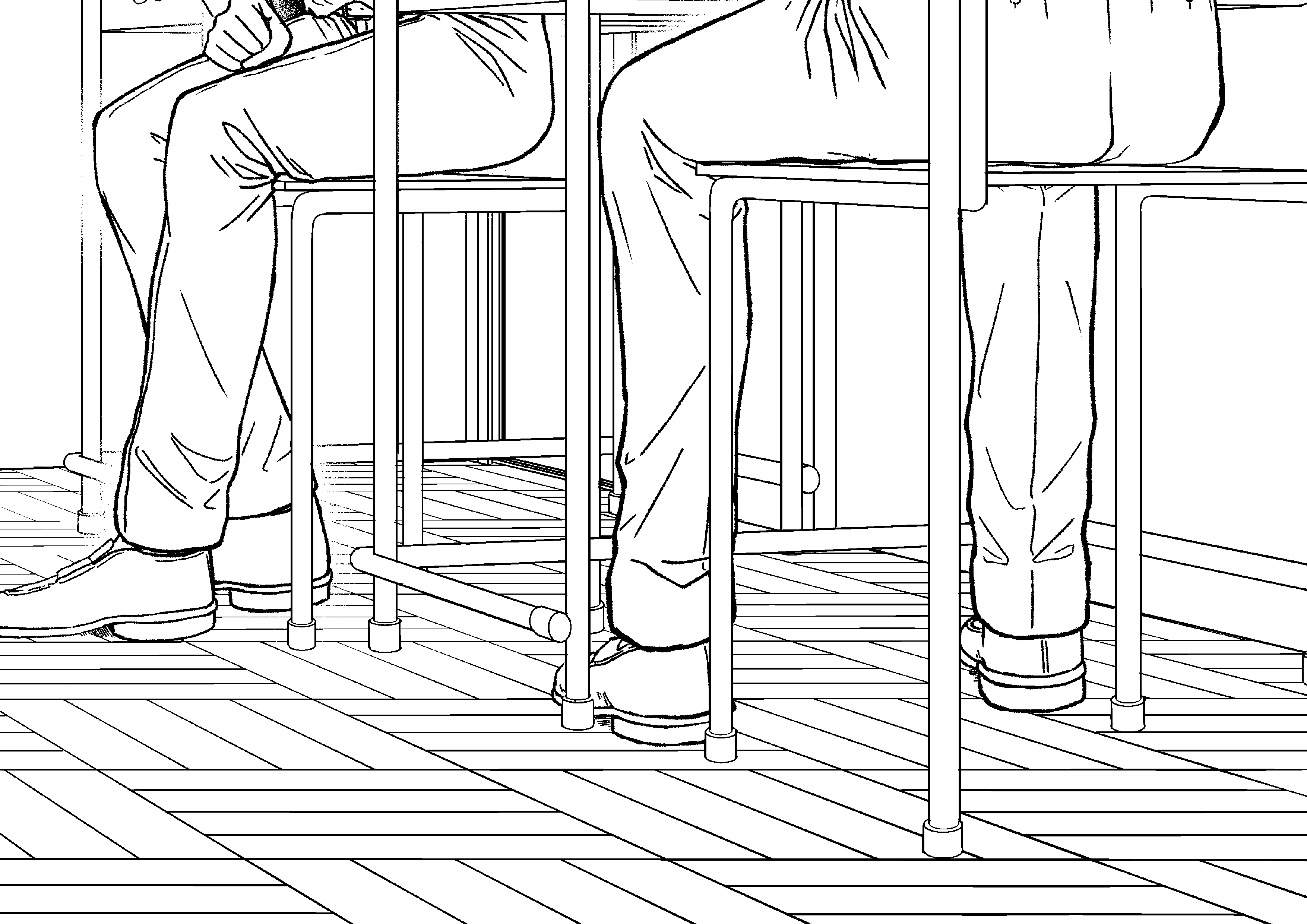
Vector lines on the classroom floor. After taking the selection with the auto select or rectangle, place the four sides of the selection on the free transform along the perspective line to create a floor along the perspective. 教室の床のベクター線です。自動選択や長方形選択で選択範囲を取った後、自由変形で選択範囲の4辺を、パース線上に沿うかたちで配置すると、パースに沿って床が張れます。
Vector lines on the classroom floor.
use
1. Take selection
For auto select
Select the outside of the shape→ selection flip it create selection
* When removing the selection after erasing the excess part, if there is unerased or garbage, the selection will not be in an arbitrary range, so it is recommended to check whether there is any unerased residue with a border.
For rectangle
Select any range
2. Change the how to transform of the tool property to free transform.
3. Arrange the four sides of the selection along the perspective line
4. Trim the lines
When changing all lines at once
Hold down the Ctrl key and click on the layer → change the line width or pen with object
If you want to change some line widths
Uncheck the process whole line of the correct line width and use it.
If you use [thin width] in the back part of the perspective, you will get a sense of perspective.
5. Finished!
I think it's beautiful if you apply a gradient so that the tone is thinner in the back (depending on your preference ...). Adjust it to fit your own design.
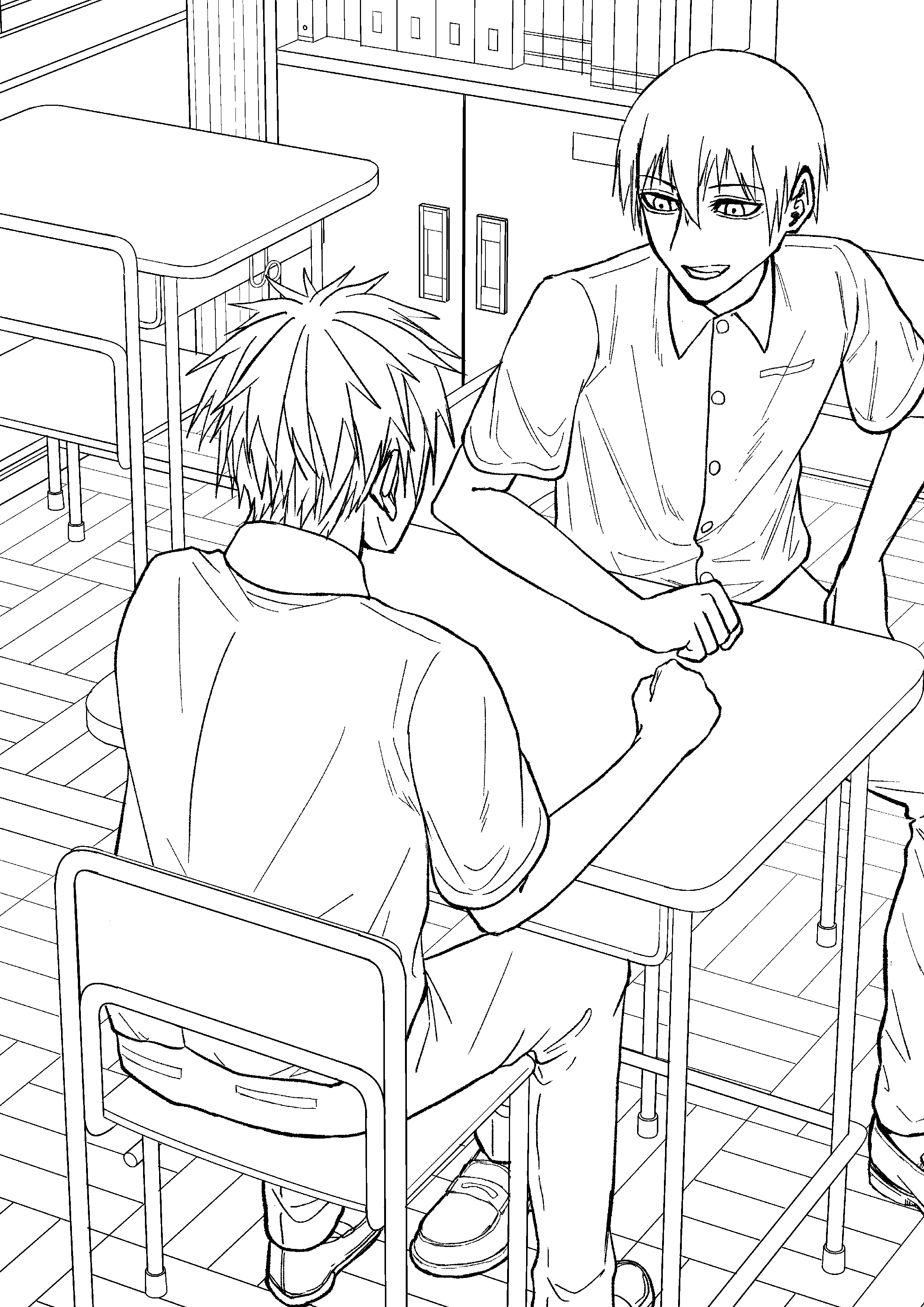
The image below is an example of the work.
教室床のベクター線です。
使い方
1、選択範囲を取る
自動選択の場合
図形の外側を選択→選択範囲反転で、選択範囲を作成
※余分な部分を消去してから選択範囲を取る場合、消し残しやごみがあると選択範囲が任意の範囲にこないので、フチなどで消し残しが無いか確認することをお勧めします。
長方形選択の場合
任意の範囲を選択
2、ツールプロパティの変形方法を自由変形に変更
3、パース線上に沿うように選択範囲の4辺を配置
4、線を整える
全ての線を一括で変更する場合
Ctrlキーを押しながらレイヤーをクリック→オブジェクトで線幅やペンを変更
一部の線幅を変更する場合
線幅修正の線全体に処理のチェックを外し使用。
パース上の奥にあたる部分に[指定幅で細らせる]を使用すると遠近感がでます。
5、完成!
トーンは奥の方が薄くなるように、グラデーションをかけると綺麗だと思います(好みによりますが…)。自分の絵柄に合うように調整してください。
下画像が作品例です。


Other materials by 植物Shokubutsu

Popular “Image material” materials




New materials





Badges
-
 MVP ◆This user has contributed greatly to the management of the community, by posting many great responses to the questions asked. Once every three months, MVPs are determined based on the points earned during that period and will be recognized accordingly.
 -
 New Valuable Player (NVP) ◆These are the next-best contributors to the community after MVPs. This is awarded to users who have not yet won an MVP award, based on the number of points they have earned.
 -
 Official Expert ◆Chosen out of all MVP awardees, who are already proof of excellence, this is a testimony of outstanding correspondence in the community. After careful screening, they are appointed by CELSYS and assume their position.Note: Formally called “Evangelists”
 -
 Official Moderator of CELSYS ◆Moderators are official CELSYS staff members who are fluent in Japanese as well as various other languages. Moderators are not experts on the software or illustration, so they are not able to directly answer your questions. However, moderators provide communication and language support to ensure that everyone can smoothly communicate with each other.
 -
 CELSYS official accountThe Official Administrator Account