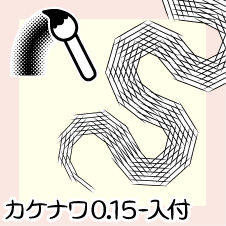
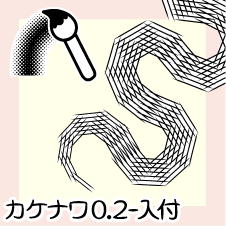
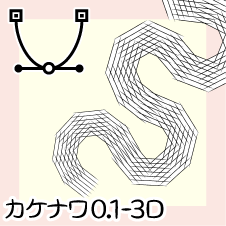
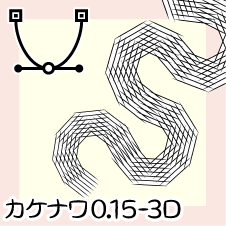
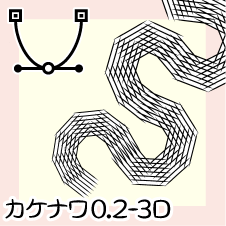
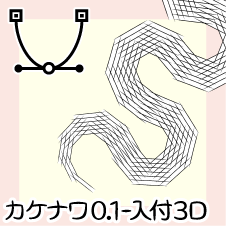
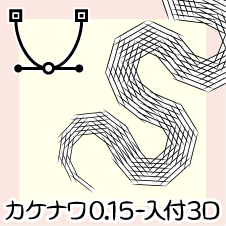
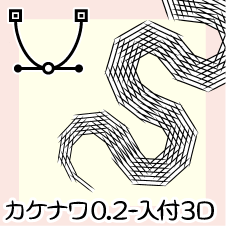
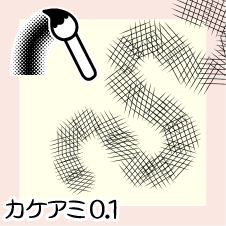
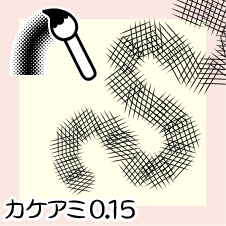
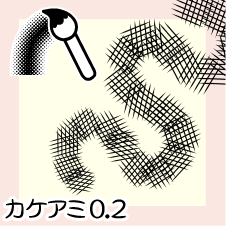
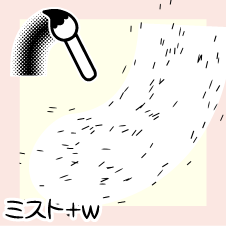
・Material data
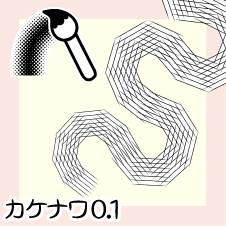
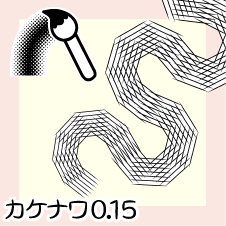
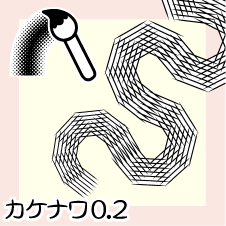
【Kakenawa】 【cross-hatching】
・main color: Black, sub color: White
-W x H: 10 x 20 mm or less, 1200 dpi
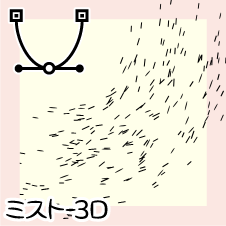
【Mist】
* The main brush tip shape uses a circular shape (original picture not used)
White background is W x H: 10 x 20 mm, 300 dpi
・ 6 types of stamp types (Kakenawa)
・6 → brushes
・ →cubic bezier 6 points
・3 types of stamps (cross-hatching)
・3 → brushes
・ 2 types that do not use original images (mist)
・2 → brushes
・→cubic bezier 2 points
・Total 19 points
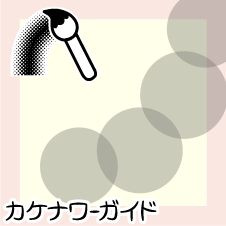
・Bonus
・ 1 type of stamp type for guide
It's hard to draw, but I want to use it to describe the atmosphere.
If you can use it at such a time ... I made it with that in mind.
【Kakenawa】Series (Stamp Type)
Original
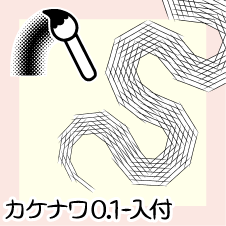
The sample above is the original picture of [Kakenawa 0.2-Itsuke].
It is a dual setting in which the kake line (black) and the base (white) are separated.
In order to make the most of the hand-drawn feel, there is some rattling on the kake line.
For the type that draws in monospace, only the seven rightmost line lines are registered.
If you need a monowidth with few cut lines, you can make it by removing the unnecessary width from [Insert].
* [Admission] is "starting and ending→: On" (described later)
*Please be careful.
It is difficult to see the original picture such as [Kakenawa 0.1].
If you hover over the cursor, the name will be displayed, so please use it as a guide.
Please refer to the free sample (ID: 2021260) for explanations such as tool property.
Entry settings
The dual brush also has two "starting and ending" settings.
Be sure to set the same number.
[Admission] expresses the effect of entering by registering the original picture,
Some numbers are also entered in the settings.
Top: Enter→On (default setting)
Bottom: Enter→Off
Change it to your liking.
Also, if you reduce the entry setting, the lines of the original drawing will also become thinner.
Please be careful.
【KAKENAWA-3D】Series (Stamp Type)
For those who want to make quick changes after drawing, we recommend using cubic bezier.
Drawing example
I use the bonus guide brush to draw along a circle.
sub tool I also changed the thickness in "Line correction →correct line width / control point".
*For bezier curve, see Tips "Tips for drawing"
* "The wonderful relationship between cubic bezier and brushes" (https://tips.clip-studio.com/ja-jp/articles/5467) is published.
tool property
The basics are the same as the brush type, but there are cubic bezier-specific settings.
Change it to make it easier to use.
【cross-hatching】Series (Stamp brush type only)
Original
Six kake lines and two seven kake lines are registered in a dual format.
Please refer to the free sample (ID: 2021260) for explanations such as tool property.
[Mist] series (original picture not used type)
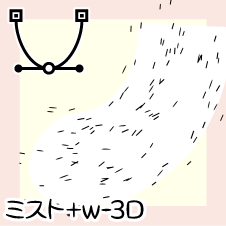
* [+w] The series has an original drawing with a white base (ribbon type).
Draw
Above: No original image used (scatter setting + scatter setting)
Bottom: Use of white base (scatter setting + ribbon setting)
tool property
Dual configuration with particles only
*Explanations are omitted for common areas.
(1')brush size
If you change the numerical value separately from the main size, the expression will change.
(3) Thickness
You can change the state of the particle.
Also, by default, it flows parallel to the drawing line,
You can switch to a right angle with 《direction of applying》.
(4) Spacing
You can adjust the degree of scattering of particles.
(7) particle size
You can change the state of the particle.
I think it would be interesting to have different settings for brush 1 and brush 2.
cubic bezier tool property has separate items at the beginning and at the end.
Right: cubic bezier-specific settings
Left: The cubic bezier line cannot be strengthened or weakened by "pen pressure", etc.
Please make use of 《starting and ending》.
Dual settings combined with white base
*Explanations are omitted for common areas.
(3'') Thickness
You can change the thickness of the white base.
I think you can use it when you don't want change brush size set it.
(8)brush density
You can change the transparency of the white base.
On the white base, the original drawing of a semicircle is registered at the beginning of the drawing.
Pull it out if necessary.
Draw
e )
Even if you use pen pressure or starting and ending settings to increase or decrease the intensity of one stroke
The particle size remains the same.
f )
Even if you select the whole thing and change the brush size after drawing
The particle size remains the same.
g )
If you partially change the brush size by line correction (sub tool) after drawing
The particle size also changes.
*Light green adds the actual brush size for easier viewing.
[Mist] is a brush that anyone can make by reproducing the number of properties.
I can't recommend purchasing for the purpose of [Mist] because it's a waste!
Bonus
This also uses a circular shape for the brush tip.
If you select a color other than black and white for main color and draw it on a color layer,
You can draw in a colorfully color-coded state.
You can also change the guide brush in various ways by adjusting the properties.
Please use it as a guide for the kakenawa you want to draw.
I hope it will be useful for those who are not good at kakenawa.

・素材データ
【カケナワ】【カケアミ】
・メインカラー:黒、サブカラー:白
・幅 x 高さ:10 x 20 mm 以内、1200 dpi
【ミスト】
*メインのブラシ先端形状は円形を使用(原画未使用)
・白地は 幅 x 高さ:10 x 20 mm 、300 dpi
・スタンプタイプ 6 種類(カケナワ)
・→ブラシ 6 点
・→3次ベジェ 6 点
・スタンプタイプ 3 種類(カケアミ)
・→ブラシ 3 点
・原画不使用タイプ 2 種類(ミスト)
・→ブラシ 2 点
・→3次ベジェ 2 点
・計 19 点
・おまけ
描くの大変だけど雰囲気描写に使いたい。
そんな時に使えたら…と思って作りました。
【カケナワ】シリーズ(スタンプタイプ)
原画
上のサンプルは【カケナワ0.2-入付】の原画です。
カケ線(黒)と下地(白)が分かれている、デュアル設定です。
手描き感を生かすため、カケ線に多少のガタつきがあります。
等幅で描くタイプは、右端のカケ線 7 本のみを登録しています。
カケ線の少ない等幅が必要な場合【入付】から不要な幅を抜けば作れます。
*【入付】は《入り抜き→入り:オン》になっています(後述)
*ご注意ください。
【カケナワ0.1】など原画が見づらいです。
カーソルを重ねると名称が表示されるので目安にしてください。
ツールプロパティ など説明は試供品(ID:2021260)をご確認ください。
入り設定
デュアルブラシは《入り抜き》設定も 2 箇所あります。
必ず同じ数値を設定してください。
【入付】は入り効果を原画登録で表現していますが、
設定でも若干の数値を入れています。
お好みで変更してください。
また、入り設定を小さくすると原画の線も細くなります。
ご注意ください。
【カケナワ-3D】シリーズ(スタンプタイプ)
描画後の手軽な変更を望む人には3次ベジェの活用をオススメします。
描画例
オマケのガイドブラシを利用して円形に沿うよう描いています。
サブツール《線修正→線幅修正・制御点》で太さも変更してみました。
*ベジェ曲線については TIPS「お絵かきのコツ」に
*「3次ベジェとブラシの素敵な関係」(https://tips.clip-studio.com/ja-jp/articles/5467)を公開しています。
ツールプロパティ
基本はブラシタイプと同じですが、3次ベジェ特有の設定があります。
使いやすいように変更してください。
【カケアミ】シリーズ(スタンプ ブラシタイプのみ)
原画
カケ線 6 本とカケ線 7 本を 2 点ずつ、デュアル形式で登録しています。
ツールプロパティ など説明は試供品(ID:2021260)をご確認ください。
【ミスト】シリーズ(原画不使用タイプ)
*【+w】シリーズは白下地(リボンタイプ)の原画があります。
描画
上:原画不使用(散布設定+散布設定)
下:白下地使用(散布設定+リボン設定)
ツールプロパティ
粒子のみでデュアル設定
*共通箇所は説明を省略します。
(1')ブラシサイズ
メインのサイズとは別に数値を変更すると表情が変化します。
(3)厚さ
粒子の状態を変更できます。
また、初期設定では描画線に沿うよう平行に流れますが、
《適用方向》で直角に切り替えられます。
(4)間隔
粒子の飛散具合を調整できます。
ブラシ1とブラシ2で異なる設定にしても面白いと思います。
3次ベジェのツールプロパティには、最初と最後に別項目があります。
右:3次ベジェ特有の設定
左:3次ベジェの線は《筆圧》等で強弱が付けられません。
《入り抜き》を活用してください。
白下地と組み合わせたデュアル設定
*共通箇所は説明を省略します。
(3'')厚さ
白下地の厚みを変更できます。
設定しているブラシサイズを変更したくないとき等で使えると思います。
白下地には描き始めに半円の原画を登録しています。
必要に応じて抜いてください。
描画
e )
筆圧や入り抜き設定を使ってワンストロークに強弱をつけても
粒子サイズは変わりません。
f )
描画後に全体を選択してブラシサイズを変えても
粒子サイズは変わりません。
g )
描画後に線修正(サブツール)で部分的にブラシサイズを変えると
粒子サイズも変わります。
*薄い緑は実際のブラシサイズを見やすく加えたものです。
【ミスト】はプロパティの数字を再現すれば誰にでも作れるブラシです。
【ミスト】が目的での購入は、もったいないのでオススメできません!
おまけ
これもブラシ先端に円形を使っています。
メインカラーに黒白以外の色を選択してカラーレイヤーに描けば
カラフルに色分けした状態で描けます。
プロパティの調整でガイドブラシもいろいろに変更できます。
描きたいカケナワの目安にご利用ください。
カケナワが苦手な人のお役に立てば幸いです。