




Material data
Dual-format brushes 20 points
1 layer : Touch (stamp type) 2 layers: Main Line (Ribbon type)
Single-format brushes 04 points
Touch No, Main line only (sister products [touch & Stroke POP] Common
Total 24 points
Original (brush tip)
Grey/ 600 dpi, main color: black, sub color: White
Size: ~ 50 mm, main wire: ~ 2.6 mm
-Draw the main line and drawing (touch) by one stroke,
I made a shorter brush for the goal.
I can pursue the ideal finish because I can customize even after drawing.
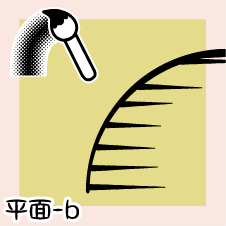
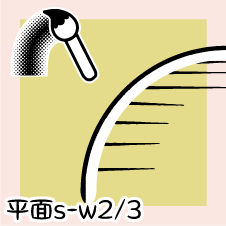
[Plane] Series


[S] is a thin touch (about half).
We assume the finish of a flat surface, such as a wall or a floor.
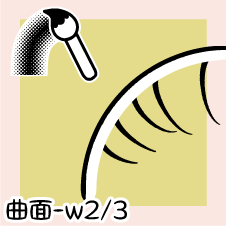
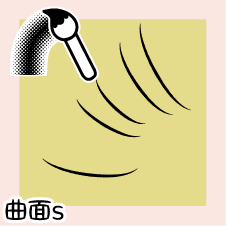
[Curved Surface] Series


We expect to draw landscapes and natural objects such as pipes and cups, cortex and cliffs.
tool property

Red : touch setting Blue : Main Line setting
1) thickness, direction
You can change the length (vertical) or thickness (horizontal) of the touch in thickness.
You can change the drawing angle of the touch in orientation.

Rabbit in front [plane-b] Dual setting: OFF (Touch only)
Bunny in the back [plane] changed to red and Zlatko to copy and paste after drawing in white
In the initial setting of "orientation" so as not to come out uniform feeling
The orientation effect source settings → Random: 1.

When it is anxious about the rose with a long deformed by 《 thickness?
If you remove the random check, it will grow to beautiful.
[Plane] initial setting "Orientation effect source settings: None"

[Curved] Initial setting [Orientation effect source settings: direction of line 》]

Customize to make them both easy to use.
2) "Reverse Side" 《 "flip vertical 》"
You can change the right and left of the drawing.

*[Horizontal inversion] of each touch and [main Line] of the [plane] does not change.
3) "Stroke"

You can change the spacing between the touch.
Integrated main Line and highlight (white)

[-W2/3] draws highlights on touch. 《 Application Method: normal 》
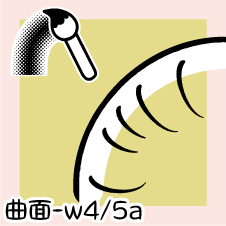
[-W4/5] draws highlights under touch. Application Method: Multiplication
You can switch to make them both easier to use.
If you want to change the main line after drawing

The necessary [Main Line] sub tool detail → brush shape → register to preset
You can change this from 2-brush shape → list to select → apply brush shape.
[-W4/5] override orientation
If you want to draw it again, you can erase (hide) the bottom touch.

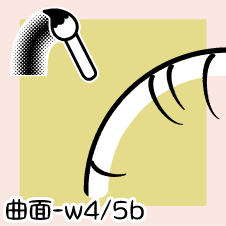
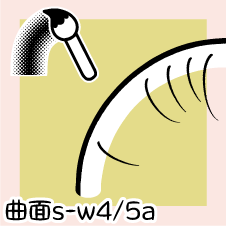
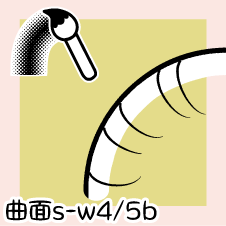
[-W4/5a]: Highlights part (main line and touch is away)
[-W4/5b]: Main Line and touch only (main line and touch are in close contact)
* It may not be able to be erased by the change of pressure and the drawing situation.
Array of images

A lot of blank images are registered to enter a random margin at the time of drawing.
The expression of the line changes when it pulls and it moves it.
Please try various.
Drawing samples
A) [plane] b) [Plane S]

C) [Curved] D) [Curved surface]
Although the main line is uniformly in the sample, it is actually doing settings of pen pressure.
Adjust to your liking.
Copy and paste easily
If you should減rase up to two points of control point of the object, it is easy to copy and paste → change.

Each "thickness" "orientation" "Stroke → interval" If you adjust the numerical value to your liking,
You can draw without rotating a ruler or canvas.
* The Control Point tool List customize the icon of the flicker in the video
*→ [Control point icon] (ID: 1898604) free

You can change the finish as shown above quickly and after drawing!
I think that it can be used in various situations depending on an idea.
Sister Products [Touch & Stroke POP] (ID: 1902747) is a deformed tone.
I'm happy to see what it feels like ☆
・素材データ
・デュアル形式ブラシ 20 点
・ 1層:タッチ(スタンプタイプ) 2層:主線(リボンタイプ)
・シングル形式ブラシ 04 点
・ タッチ無・主線のみ(姉妹品【Touch & Stroke POP】と共通)
・計 24 点
・原画(ブラシ先端)
・グレー・600 dpi 、メインカラー:黒、サブカラー:白
・サイズ:〜 50 mm、主線:〜 2.6 mm
・主線と描き込み(タッチ)をワンストロークで描ける、
・時短ブラシを目標に作りました。
・描画後もカスタマイズできるので理想の仕上がりを追求できます。
【平面】シリーズ
【 s 】はタッチが細い(およそ半分)です。
壁や床など平たい面の仕上げを想定しています。
【曲面】シリーズ
管やコップなどの曲面、木肌や崖などの風景や自然物の描画を想定しています。
ツールプロパティ
赤:タッチの設定 青:主線の設定
1)《厚さ》《向き》
《厚さ》でタッチの長さ(垂直)や太さ(水平)を変更できます。
《向き》でタッチの描画角度を変更できます。
手前のウサギ【平面-b】デュアル設定:OFF(タッチのみ)
奥のウサギ【平面】白で描画した後コピペしてズラし赤に変更
均一感が出ないように《向き》の初期設定では
《向き影響元設定→ランダム:1 》になっています。
《厚さ》で長く変形してバラつきが気になる場合
《ランダム》のチェックを外せばキレイに伸びます。
【平面】初期設定は《向き影響元設定:なし》
【曲面】初期設定は《向き影響元設定:線の方向》
いずれも使いやすいようにカスタマイズしてください。
2)《左右反転》《上下反転》
描画の左右を変更できます。
*【平面】の各タッチと【主線】の《左右反転》は変化しません。
3)《ストローク》
タッチの間隔を変更できます。
主線とハイライト(白)の一体型
【-w2/3】はハイライトをタッチの上に描画します。《適用方法:通常》
【-w4/5】はハイライトをタッチの下に描画します。《適用方法:乗算》
どちらも使いやすいように切り替えできます。
描画後に主線を変更したい場合
必要な【主線】を《サブツール詳細→ブラシ形状→プリセットに登録》し、
《2-ブラシ形状→一覧から選択→ブラシ形状を適用》で変更できます。
【-w4/5】は上書き向き
重ねて描きたい場合、下のタッチを消し(隠し)ながら描画できます。
【 -w4/5a 】:ハイライト部分あり(主線とタッチが離れている)
【 -w4/5b 】:主線とタッチのみ(主線とタッチが密着している)
*筆圧の変化や描画の状況によって消しきれない場合もあります。
画像の配列
描画時にランダムで余白が入るように空白の画像を多く登録しています。
抜いたり移動したりすると線の表情が変化します。
いろいろお試しください。
描画サンプル
a )【平面】 b )【平面s】
c )【曲面】 d )【曲面s】
サンプルでは主線を均一にしていますが、実際には筆圧設定をしています。
お好みに調整してください。
コピペで楽々
オブジェクトの制御点を2点まで減らせば、コピペ→変更も簡単です。
各々の《厚さ》《向き》《ストローク→間隔》を好みに数値調整すれば、
定規やキャンバスの回転などを使わずに描画できます。
*動画内にチラ出の「アイコンをカスタマイズした制御点ツール一覧」
*→【制御点アイコン】(ID:1898604)無料
上図のような仕上げを手早く、描画後の変更も可能!
アイデア次第で様々な場面に活用できると思います。
姉妹品【Touch & Stroke POP】(ID:1902747)はデフォルメ調です。
どんな感じか、見ていただけると幸いです☆
Plane Touch 平面タッチ





Curved Touch 曲面タッチ




masterstroke 主線


Other materials by _mariyan_


Popular “Material catalog” materials


New materials




Badges
-
 MVP ◆This user has contributed greatly to the management of the community, by posting many great responses to the questions asked. Once every three months, MVPs are determined based on the points earned during that period and will be recognized accordingly.
 -
 New Valuable Player (NVP) ◆These are the next-best contributors to the community after MVPs. This is awarded to users who have not yet won an MVP award, based on the number of points they have earned.
 -
 Official Expert ◆Chosen out of all MVP awardees, who are already proof of excellence, this is a testimony of outstanding correspondence in the community. After careful screening, they are appointed by CELSYS and assume their position.Note: Formally called “Evangelists”
 -
 Official Moderator of CELSYS ◆Moderators are official CELSYS staff members who are fluent in Japanese as well as various other languages. Moderators are not experts on the software or illustration, so they are not able to directly answer your questions. However, moderators provide communication and language support to ensure that everyone can smoothly communicate with each other.
 -
 CELSYS official accountThe Official Administrator Account