


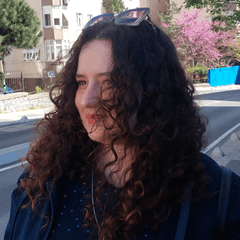

Blender에서 머리카락 재질의 크기를 조심스럽게 조정하고, 머리에 딱 맞도록 여러 차례 미세 조정을 했습니다. 사용 준비가 되어 있어서 모든 것이 최적의 맞춤으로 조정되었다는 확신을 가지고 마음껏 즐길 수 있습니다!
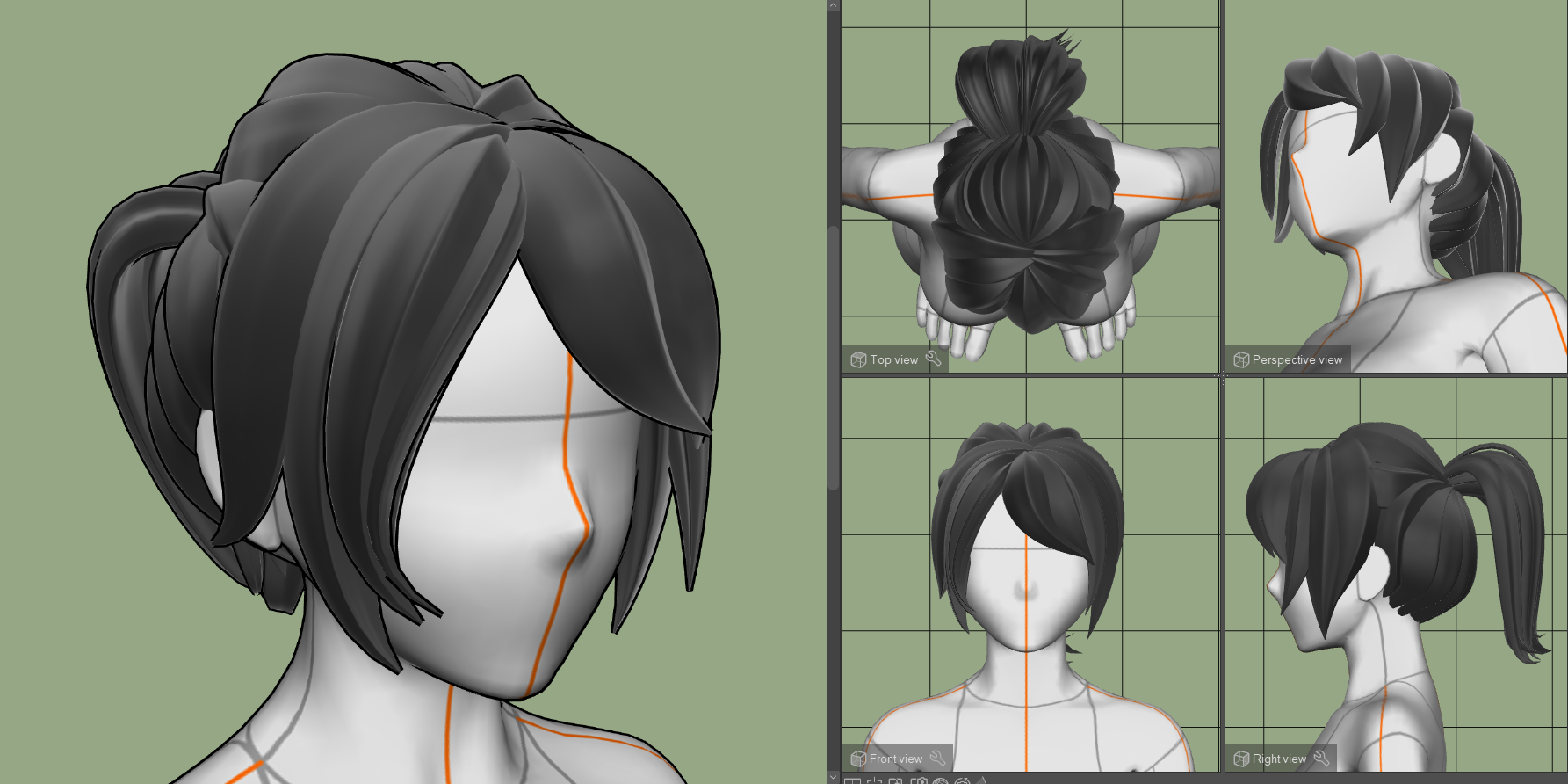
머리에 재질을 꼭 붙이세요!
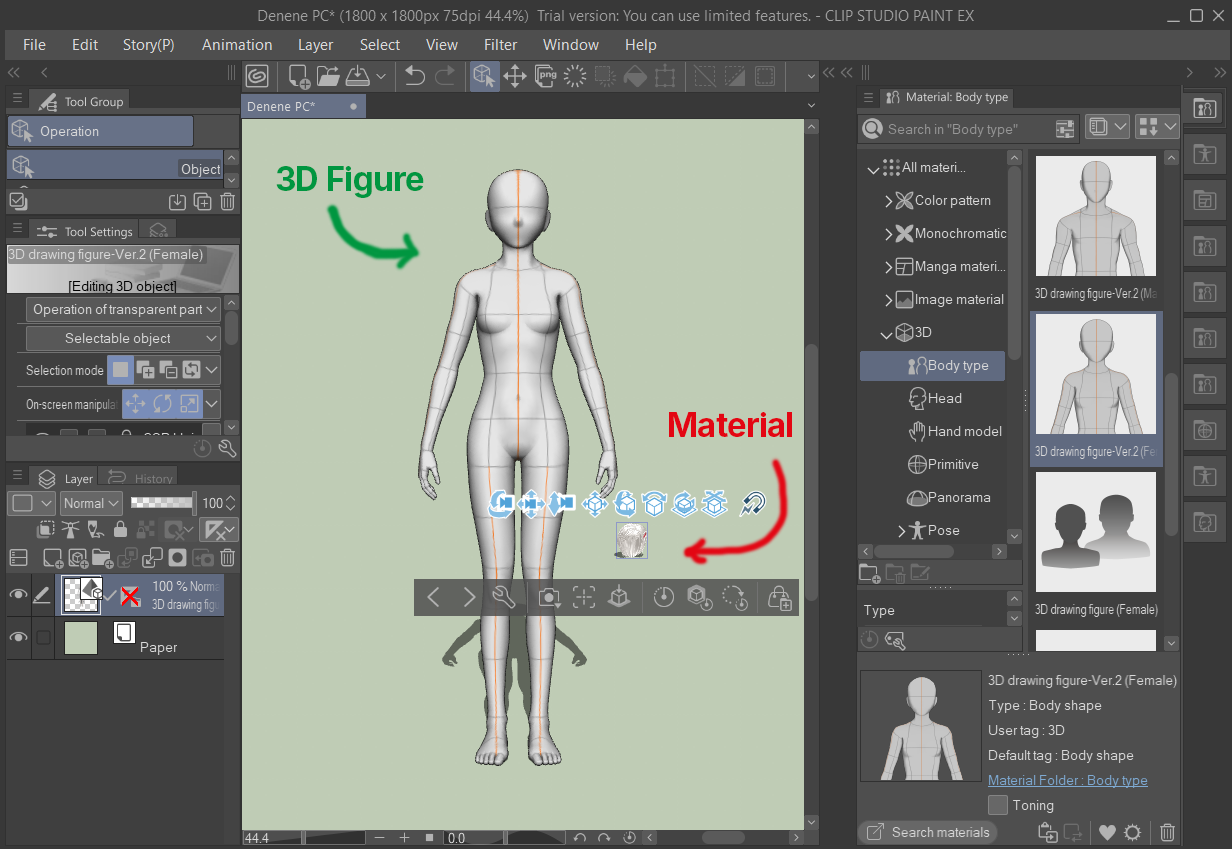
1단계: 3D 피규어를 캔버스에 가져오세요.
2단계: 3D 피규어를 선택한 상태(같은 레이어에서)를 가져와서 머리카락 재질을 가져오세요. 재료가 피규어에서 멀리 스폰되더라도 걱정하지 마세요; 그냥 다음 단계로 넘어가세요.
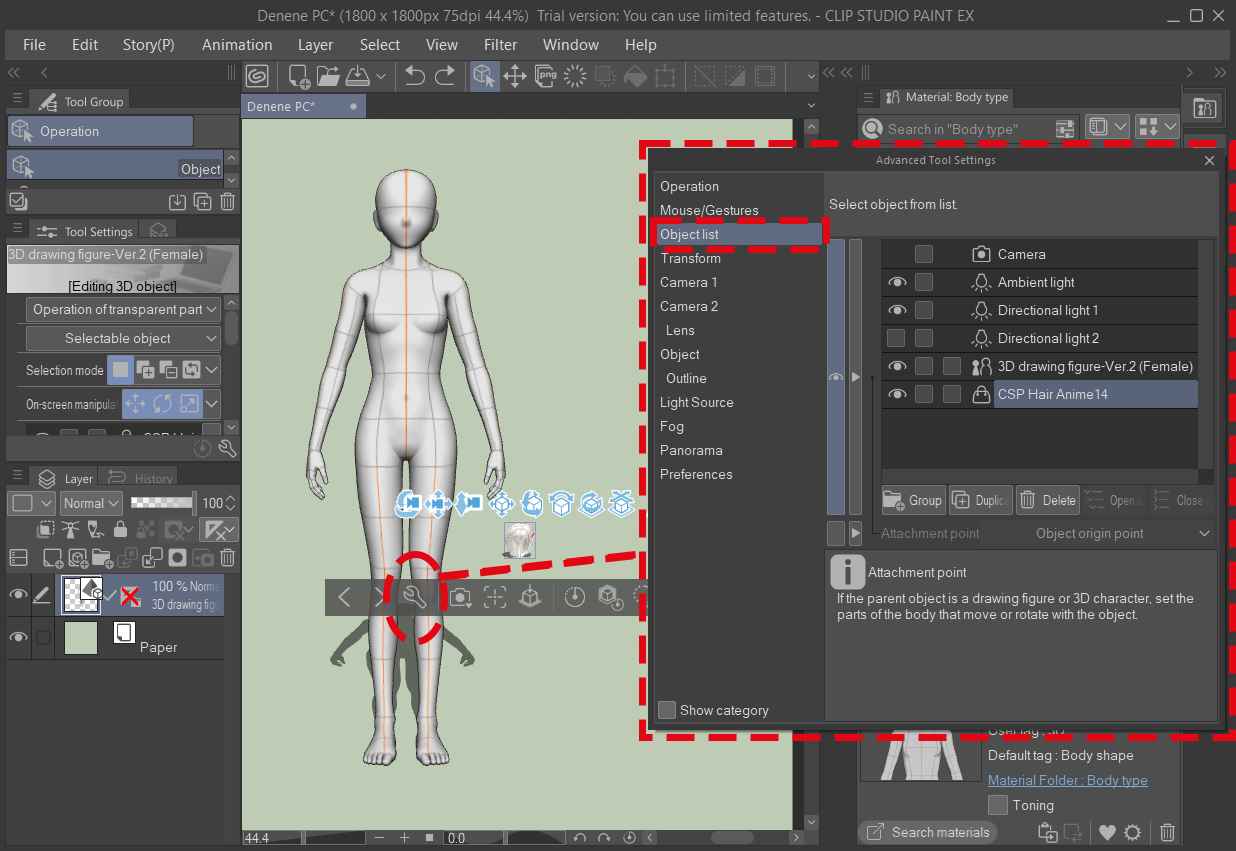
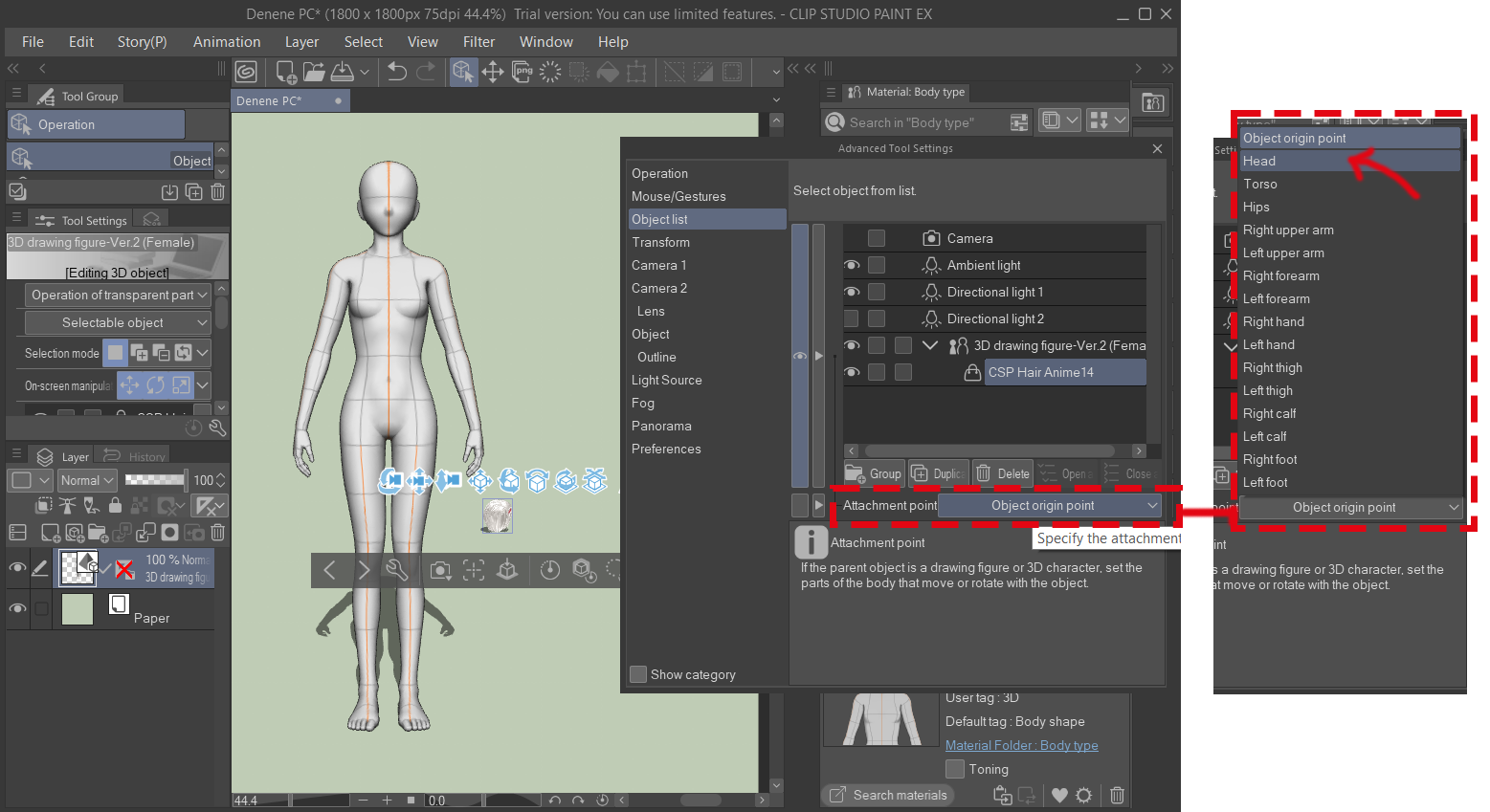
3단계: 렌치 아이콘을 클릭해 서브 툴 디테일 팔레트를 열고 Object list 탭으로 이동하세요.
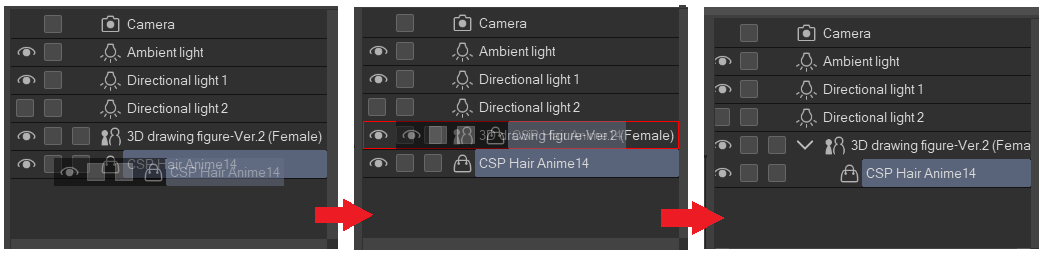
4단계: 머리카락 재질을 리스트 내 3D 피규어에 드래그 앤 드롭해서 자식 레이어로 만듭니다.
5단계: 바로 아래 부착 지점 메뉴를 펼친 후 머리를 선택하세요.
머리카락은 자동으로 머리와 정렬됩니다.
이제 머리카락이 피규어에 붙어 있어서, 어떤 자세를 취하든 머리를 자연스럽게 따라갑니다.
I carefully adjusted the hair material’s size in Blender and made numerous fine-tunings to ensure it fits perfectly when attached to the head. It’s ready to use, so you can enjoy it with confidence knowing everything has been fine-tuned for the best fit!
Don’t forget to attach the material to the head!
Step 1: Import your 3D figure onto the canvas.
Step 2: With your 3D figure selected (on the same layer), import your hair material. Don't worry if the material spawns far away from the figure; just proceed to the next step.
Step 3: Click the wrench icon to open the Sub Tool Detail palette and navigate to the Object list tab.
Step 4: Drag and drop the hair material onto the 3D figure in the list to make it a child layer.
Step 5: Expand the Attachment point menu directly below and select Head.
The hair will automatically align with the head.
Since the hair is now attached to the figure, it will follow the head seamlessly no matter what pose you apply.
재료 Material


'suna.art'님의 다른 소재


'3D 오브젝트'의 인기 소재


신규 소재


배지
-
 MVP ◆질문에 적절한 답변을 많이 게시하고 커뮤니티 운영에 크게 공헌한 사용자입니다. MVP는 3개월에 한 번, 그 사이에 획득한 포인트를 바탕으로 결정하고 표창을 실시하고 있습니다.
 -
 NVP(New Valuable Player) ◆MVP 다음으로 커뮤니티 운영에 공헌한 사용자입니다. 이제까지 MVP 수상 경험이 없는 분 중에서 획득한 포인트를 바탕으로 결정하여 표창을 실시하고 있습니다.
 -
 공식 엑스퍼트 ◆뛰어난 응답자의 증표인 MVP수상자 중에서 선택된 커뮤니티에서 가장 뛰어난 응답자의 증표입니다. 심사를 거쳐서 저희 회사에서 의뢰할 경우 취임되십니다.※ 옛 명칭 '에반젤리스트'
 -
 셀시스 공인 모더레이터 ◆모더레이터는 일본어와 기타 언어로 말할 수 있는 셀시스 공인 스태프입니다. 소프트웨어나 창작 전문가가 아니므로 직접 의문을 해결할 수는 없지만 여러분이 순조롭게 소통할 수 있도록 언어나 커뮤니케이션 측면에서 지원합니다.
 -
 셀시스 공식운영에 관련된 공식 계정입니다.