




이 자석 충전 도구들을 만들어 삽화의 기본 색상을 빠르게 바르기 위해 만들었습니다. 자기 기능이 작동하려면 반쯤 깨끗한 선화가 필요합니다. I made these magnetic filling tools to quickly lay down the base colors for my illustrations. They require semi clean lineart for the magnetic feature to work.


빠른 색칠♡을 위한 제가 가장 좋아하는 두 가지 도구
매직 올가미 충전:

먼저 각 라인아트 레이어나 그 안에 있는 폴더를 참조 레이어로 설정하세요. (이를 위해서는 레이어/폴더를 선택한 상태에서 "레이어" 창 상단 행의 작은 등대 아이콘을 클릭하세요)
"Magic Lasso Fill: Elorian" 도구를 선택하고 채우고 싶은 색상을 선택하세요. 그 다음 연속된 선 하나를 그리거나 연결하고 싶은 지점을 탭하여 영역을 선택하세요. 참조된 선화가 있으면 커서가 자동으로 그 선화에 스냅되어 가까이 오면 가이드라인으로 사용합니다.
_________________________________________________________________________
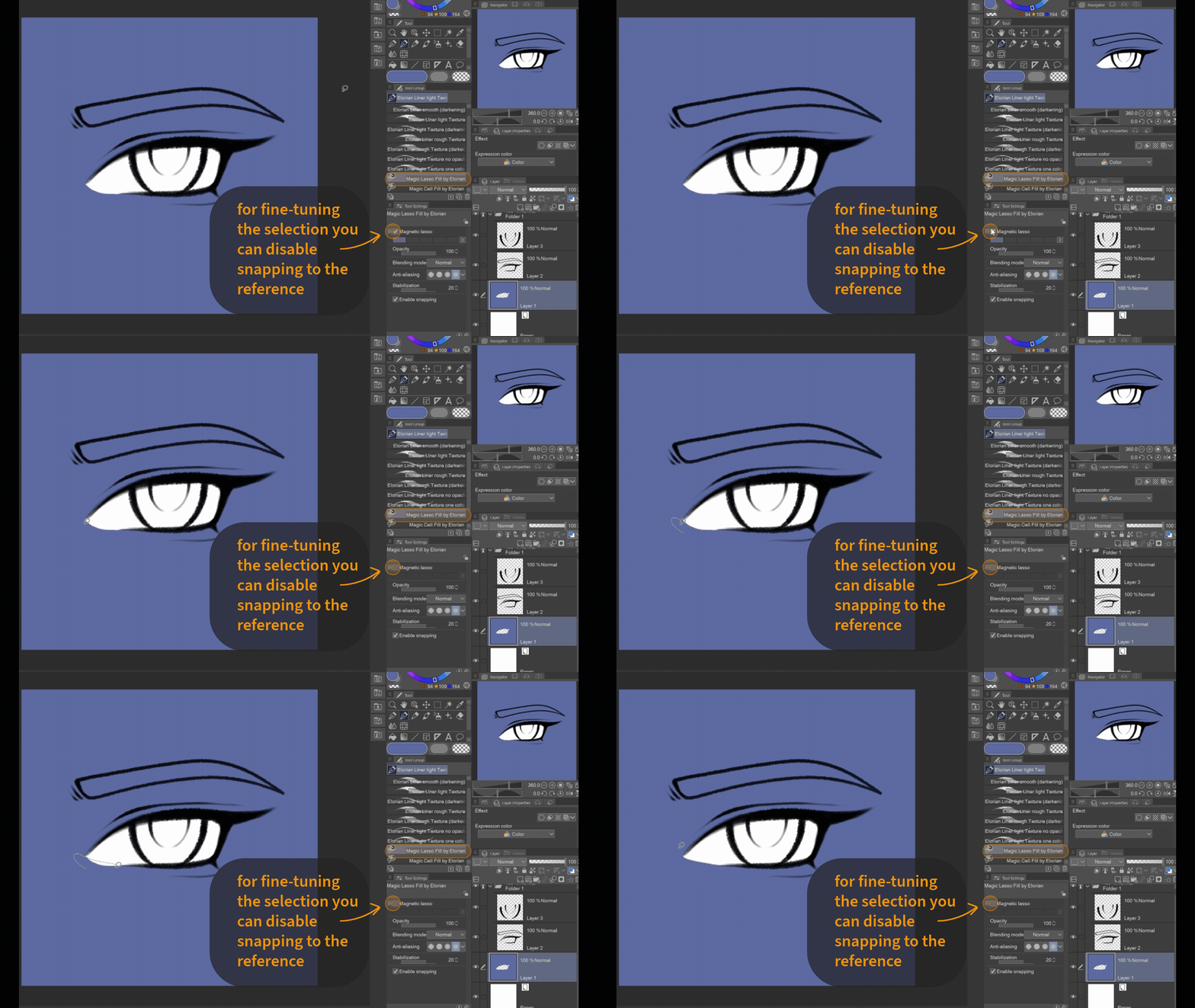
또한 도구 설정에서 "마그네틱 라쏘"를 활성화하면 자기 충전 도구를 일반 올가미로 바꿀 수도 있습니다. 기준선에 빈틈이 있을 때 유용할 수 있습니다. (도구 속성 창을 항상 열어두고 싶지 않으신 분들을 위해, 추가로 비자석 라쏘 채움 도구를 추가하겠습니다.)
_________________________________________________________________________

색으로 영역을 채우고 싶지 않고 지우고 싶다면 "투명"을 색으로 사용하세요.
_________________________________________________________________________

자석 설정의 잠재력을 최대한 활용하려면 선을 따라 그릴 필요 없이 여러 지점에서 클릭하면 자동으로 기준 선화를 따라 선택이 진행됩니다.
_________________________________________________________________________
마법 셀 충전:
이 도구는 닫힌 셀(= 다른 색상으로 완전히 둘러싸인 영역)과 선화를 인식하여 빠른 채우기 도구로 사용할 수 있습니다.
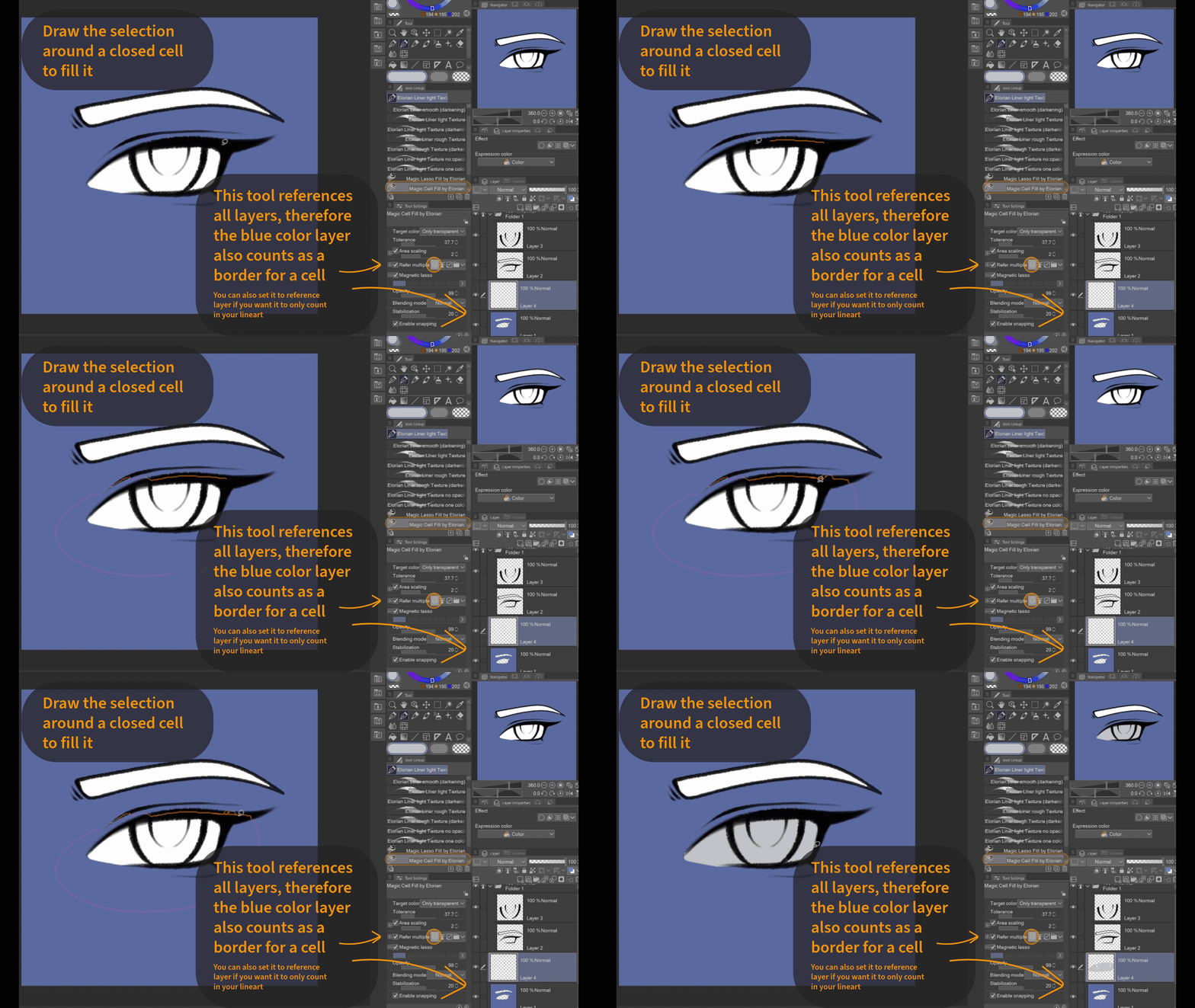
닫힌 셀을 선택해서 대략 그 주위에 페인트를 칠하고, 셀 전체가 그 셀 안에 있는지 확인하세요.
_________________________________________________________________________
이 카드는 당신이 칠하는 레이어의 특정 유형의 모든 픽셀을 채워줍니다. 기본값은 "모든 색상"으로 설정되어 있습니다(투명도도 색상으로 간주됨).
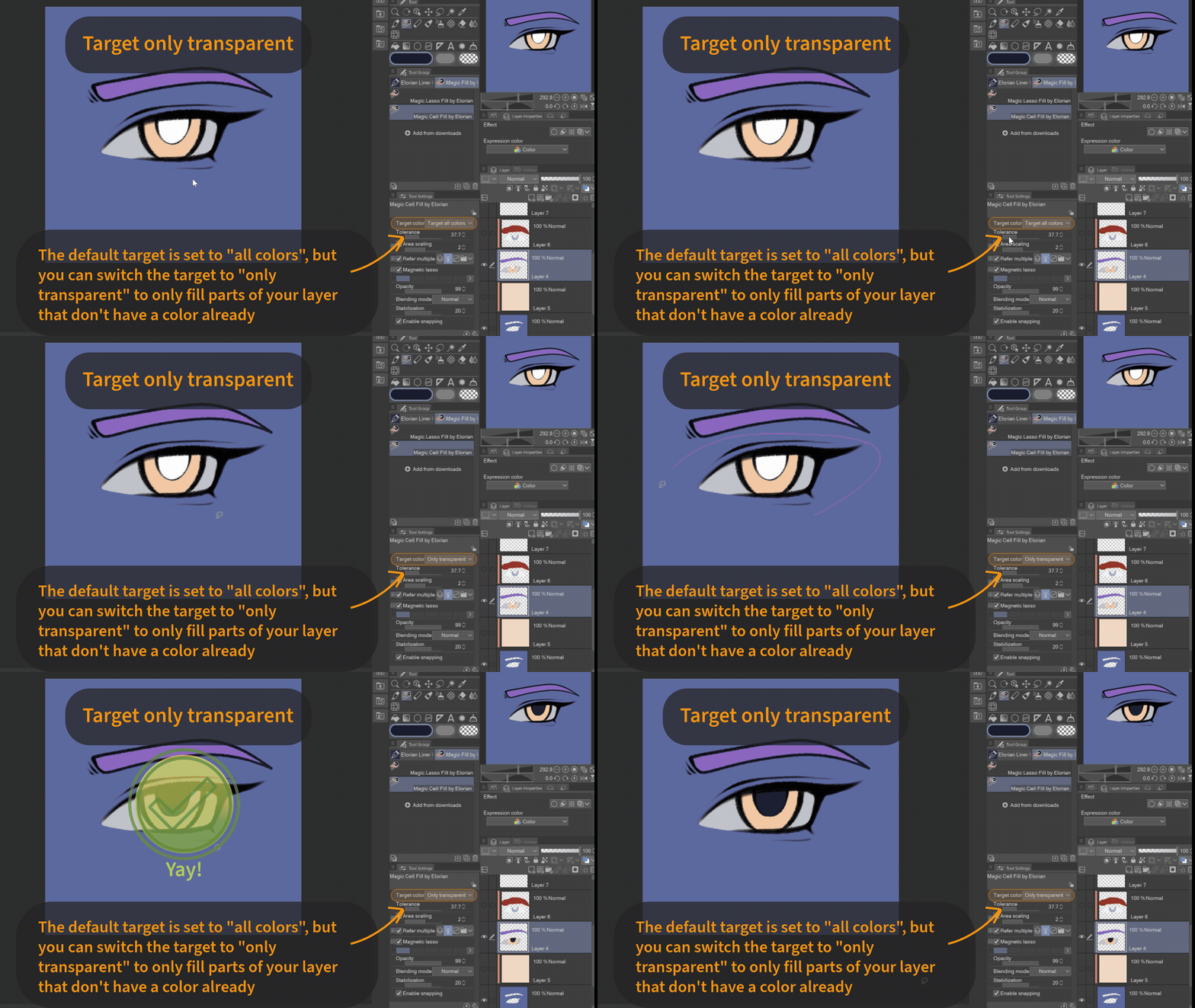
하지만 때로는 같은 레이어에서 이미 색이 칠해진 영역을 덮어버리지 않도록 트랜스어프런트 픽셀만 타겟팅하고 싶을 때도 있습니다. 그럴 경우 설정에서 목표 색상을 '투명성만'으로 바꿀 수 있습니다. (도구 속성 창을 항상 열어두고 싶지 않은 분들을 위해, 투명 전용 셀 필 도구를 추가하겠습니다.)
하지만 때로는 같은 레이어에서 이미 색이 칠해진 영역을 덮어버리지 않도록 트랜스어프런트 픽셀만 타겟팅하고 싶을 때도 있습니다. 그럴 경우 설정에서 목표 색상을 '투명성만'으로 바꿀 수 있습니다. (도구 속성 창을 항상 열어두고 싶지 않은 분들을 위해, 투명 전용 셀 필 도구를 추가하겠습니다.)
이것에서:

이에 대해 말씀드리자면:
_________________________________________________________________________
즐거운 시간 보내세요! ♡
My two favourite tools for quick coloring ♡
Magic Lasso Fill:
First make sure to set each of your lineart layers or a folder containing them, as reference layer. (To do that click on the small lighthouse icon in the upper row of the "Layers"-window while the layers/folder are selected)
Choose the Tool "Magic Lasso Fill by Elorian" and select the color you want to fill with. Then select the area either by drawing one continuous line or tapping points you want to connect. If there is a referenced lineart, the cursor will automatically snap to it and use it as a guideline once the cursor comes near it.
_________________________________________________________________________
You can also turn the magnetic filling tool into a regular lasso fill by enabling "magnetic lasso" in the tool settings. This can come in handy when the reference lines have gaps. (For those of you who don't want to have the tool property window open all the time, I will add an additional non-magnetic Lasso Fill Tool.)
_________________________________________________________________________
If you don't want to fill an area with color, but to erase, then just use "transparent" as a color.
_________________________________________________________________________
To use the full potential of the magnetic setting, you dont have to trace the line but can simply click on it on multiple points and the selection will automatically go along the reference lineart.
_________________________________________________________________________
Magic Cell Fill:
This tool recognizes closed cells (= areas that are fully enclosed by other colors) as well as lineart and can be used as a quick filling tool.
Choose any closed cell and roughly paint around it, make sure the whole cell is within the selection.
_________________________________________________________________________
It will fill all pixels of a certain type on the layer youre painting on. The default is set to "all colors" (transparency counts as color).
But sometimes you might want to only target transaprent pixels to not overpaint already colored areas on the same layer. For that you can switch the target color in the settings to "only transparent". (For those of you who don't want to have the tool property window open all the time, I will add an additional only transparent Cell Fill Tool.)
But sometimes you might want to only target transaprent pixels to not overpaint already colored areas on the same layer. For that you can switch the target color in the settings to "only transparent". (For those of you who don't want to have the tool property window open all the time, I will add an additional only transparent Cell Fill Tool.)
From this:
To this:
_________________________________________________________________________
Have Fun! ♡
엘로리안의 매직 필 도구 Magic Fill Tools by Elorian








'Elorian_art'님의 다른 소재


'소재집'의 인기 소재


신규 소재






배지
-
 MVP ◆질문에 적절한 답변을 많이 게시하고 커뮤니티 운영에 크게 공헌한 사용자입니다. MVP는 3개월에 한 번, 그 사이에 획득한 포인트를 바탕으로 결정하고 표창을 실시하고 있습니다.
 -
 NVP(New Valuable Player) ◆MVP 다음으로 커뮤니티 운영에 공헌한 사용자입니다. 이제까지 MVP 수상 경험이 없는 분 중에서 획득한 포인트를 바탕으로 결정하여 표창을 실시하고 있습니다.
 -
 공식 엑스퍼트 ◆뛰어난 응답자의 증표인 MVP수상자 중에서 선택된 커뮤니티에서 가장 뛰어난 응답자의 증표입니다. 심사를 거쳐서 저희 회사에서 의뢰할 경우 취임되십니다.※ 옛 명칭 '에반젤리스트'
 -
 셀시스 공인 모더레이터 ◆모더레이터는 일본어와 기타 언어로 말할 수 있는 셀시스 공인 스태프입니다. 소프트웨어나 창작 전문가가 아니므로 직접 의문을 해결할 수는 없지만 여러분이 순조롭게 소통할 수 있도록 언어나 커뮤니케이션 측면에서 지원합니다.
 -
 셀시스 공식운영에 관련된 공식 계정입니다.