



이 서예 펜 보조 도구는 캐릭터의 머리카락을 빠르게 렌더링할 수 있는 브러시 중 하나입니다. 그럼 바로 말씀드리자면, 정말 기다리고 계시네요... 직접 사세요! This calligraphy pen sub tool is one brush you should have in your arsenal for quick render of your character’s hair. so without further ado, what a you waiting for … get it for yourself!
 Calligraphy Pen 서브 툴과 테이퍼 이완 앤 아웃을 사용하면 두꺼운 머리를 손쉽게 만들 수 있습니다.


 Using the Calligraphy pen sub tool with a taper ease in & out, you will be able to create chunky hair effortlessly.
이완 인과 아웃 테이퍼 엔드 Ease in & out taper end

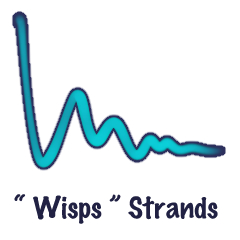
수채화 가장자리 활성화 시 With watercolor edge enable





'is.AÖD(☆▽☆)'님의 다른 소재


'소재집'의 인기 소재


신규 소재




-
 MVP ◆질문에 적절한 답변을 많이 게시하고 커뮤니티 운영에 크게 공헌한 사용자입니다. MVP는 3개월에 한 번, 그 사이에 획득한 포인트를 바탕으로 결정하고 표창을 실시하고 있습니다.
 -
 NVP(New Valuable Player) ◆MVP 다음으로 커뮤니티 운영에 공헌한 사용자입니다. 이제까지 MVP 수상 경험이 없는 분 중에서 획득한 포인트를 바탕으로 결정하여 표창을 실시하고 있습니다.
 -
 공식 엑스퍼트 ◆뛰어난 응답자의 증표인 MVP수상자 중에서 선택된 커뮤니티에서 가장 뛰어난 응답자의 증표입니다. 심사를 거쳐서 저희 회사에서 의뢰할 경우 취임되십니다.※ 옛 명칭 '에반젤리스트'
 -
 셀시스 공인 모더레이터 ◆모더레이터는 일본어와 기타 언어로 말할 수 있는 셀시스 공인 스태프입니다. 소프트웨어나 창작 전문가가 아니므로 직접 의문을 해결할 수는 없지만 여러분이 순조롭게 소통할 수 있도록 언어나 커뮤니케이션 측면에서 지원합니다.
 -
 셀시스 공식운영에 관련된 공식 계정입니다.