



흑백 음영을 다채롭게 만드는 자동 액션. An auto action that makes black and white shading colorful.
사용 방법:

1. 그림자 레이어에 검은색으로 그려서 레이어 이름을 '셰이딩'으로 지정하세요.
2. 흰색으로 라이트 레이어를 그리고 그 레이어를 '하이라이트'라고 명명합니다.

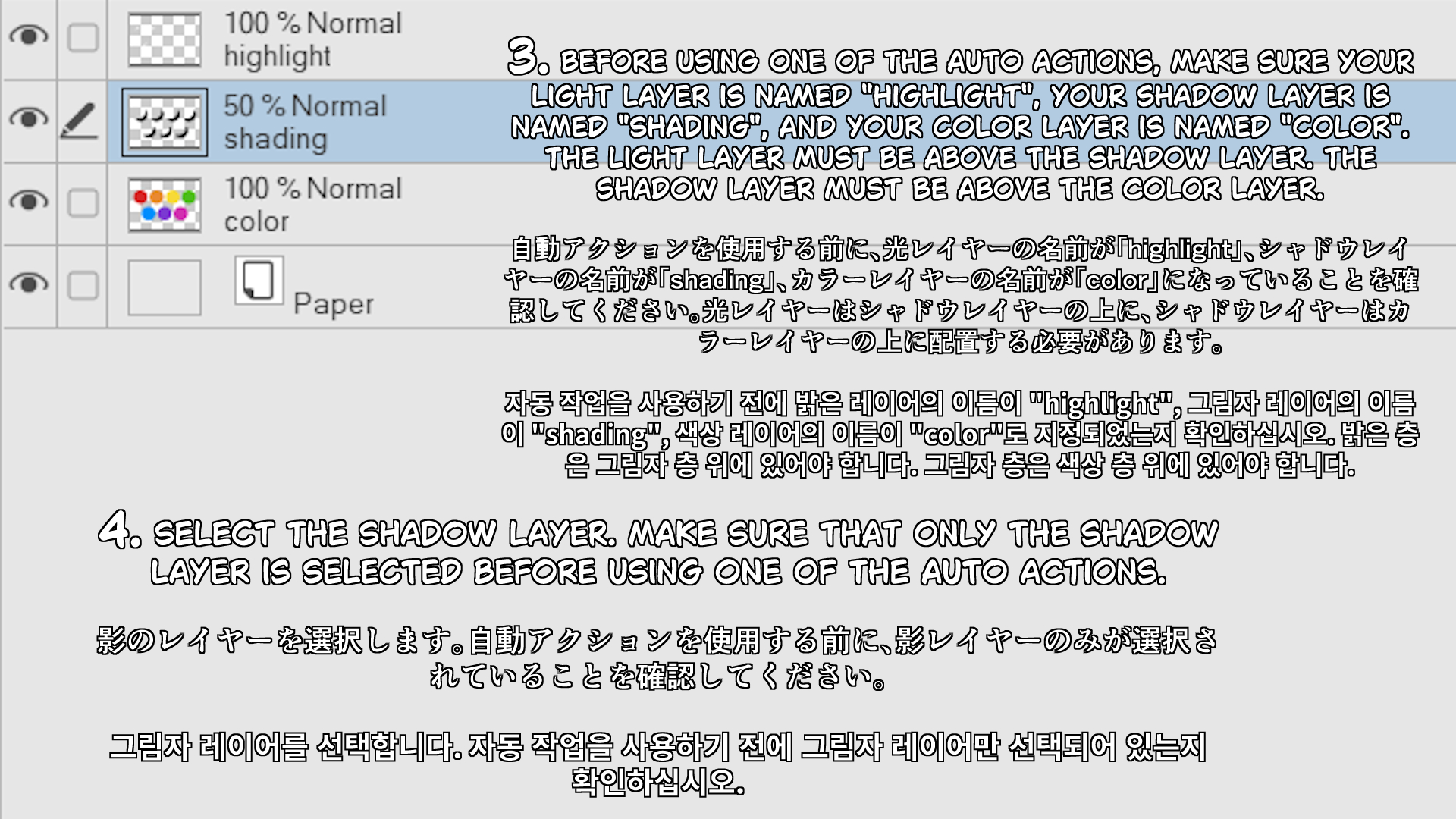
3. 자동 행동을 사용하기 전에, 빛 레이어의 이름이 "highlight", 그림자 레이어가 "shading", 색상 레이어가 "color"로 명명되도록 하세요. 빛 층은 그림자 층 위에 있어야 합니다. 섀도우 레이어는 컬러 레이어 위에 있어야 합니다.
4. 그림자 레이어를 선택합니다. 자동 행동을 사용하기 전에 그림자 레이어만 선택했는지 확인하세요.
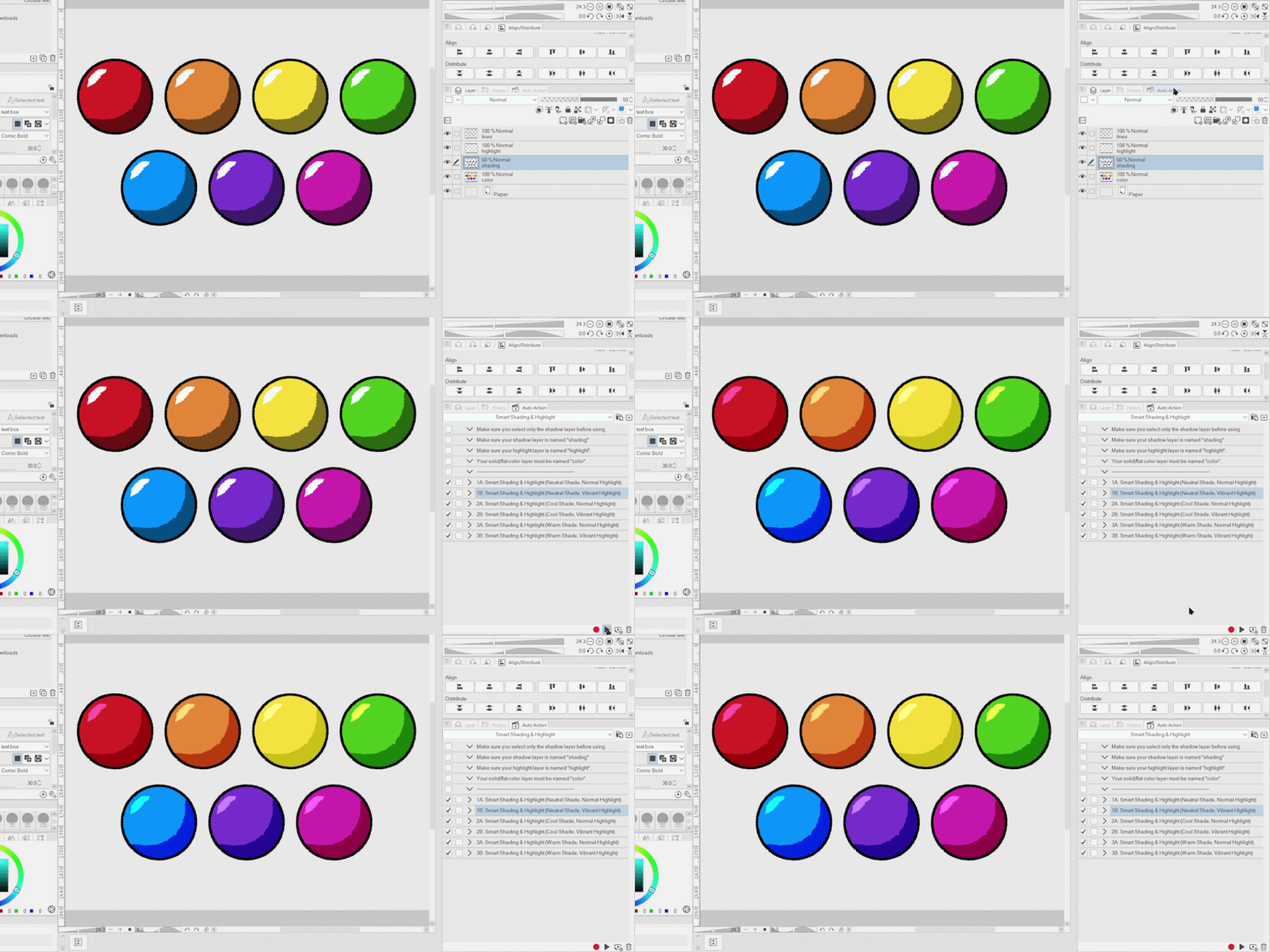
5. 번호가 붙은 자동 행동 중 하나를 선택하고 재생 버튼을 클릭하세요.
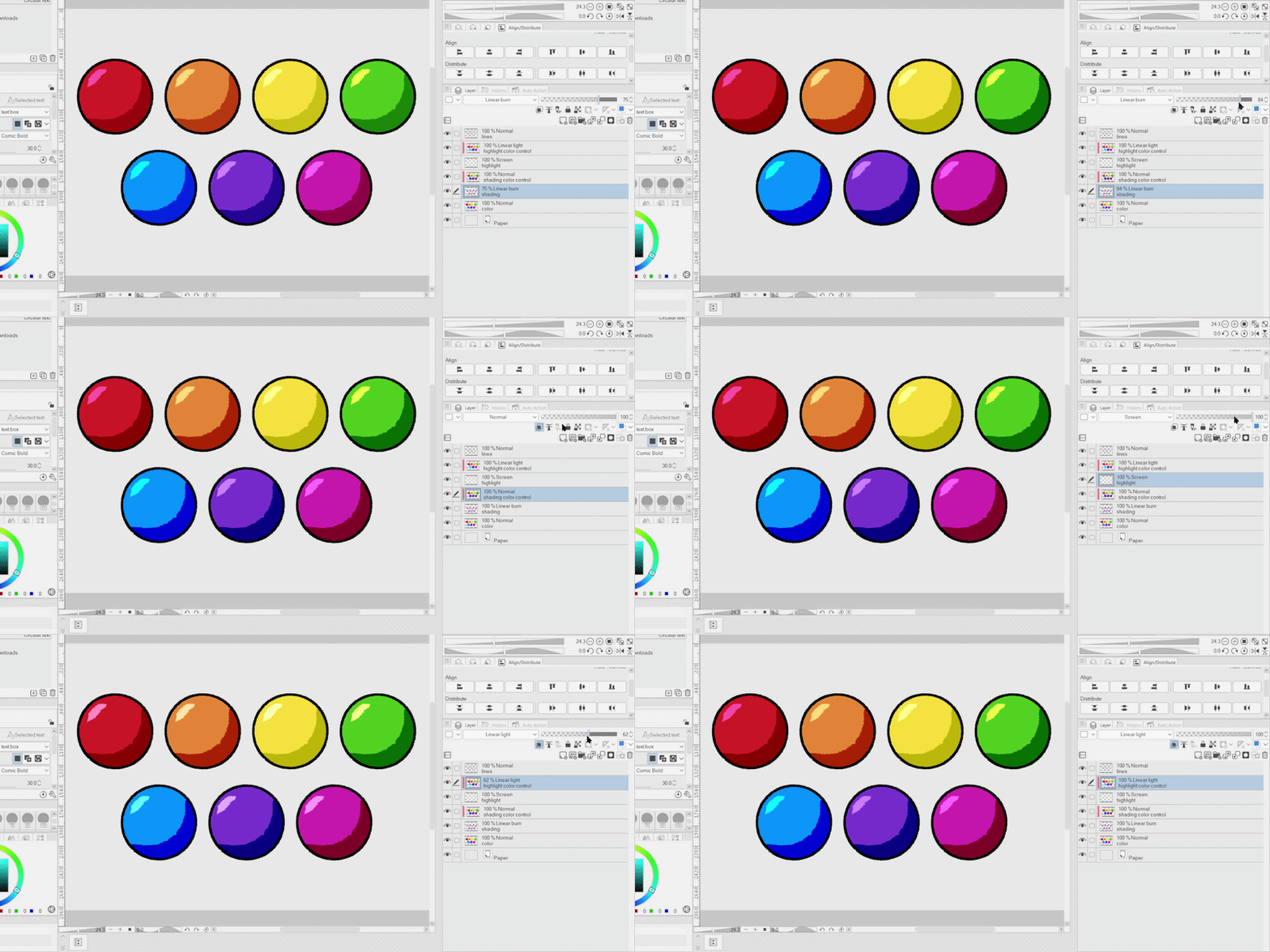
6. 하이라이트 레이어, '하이라이트 색상 제어' 레이어, 그림자 레이어, '음영 색상 제어' 레이어의 불투명도를 조정합니다.
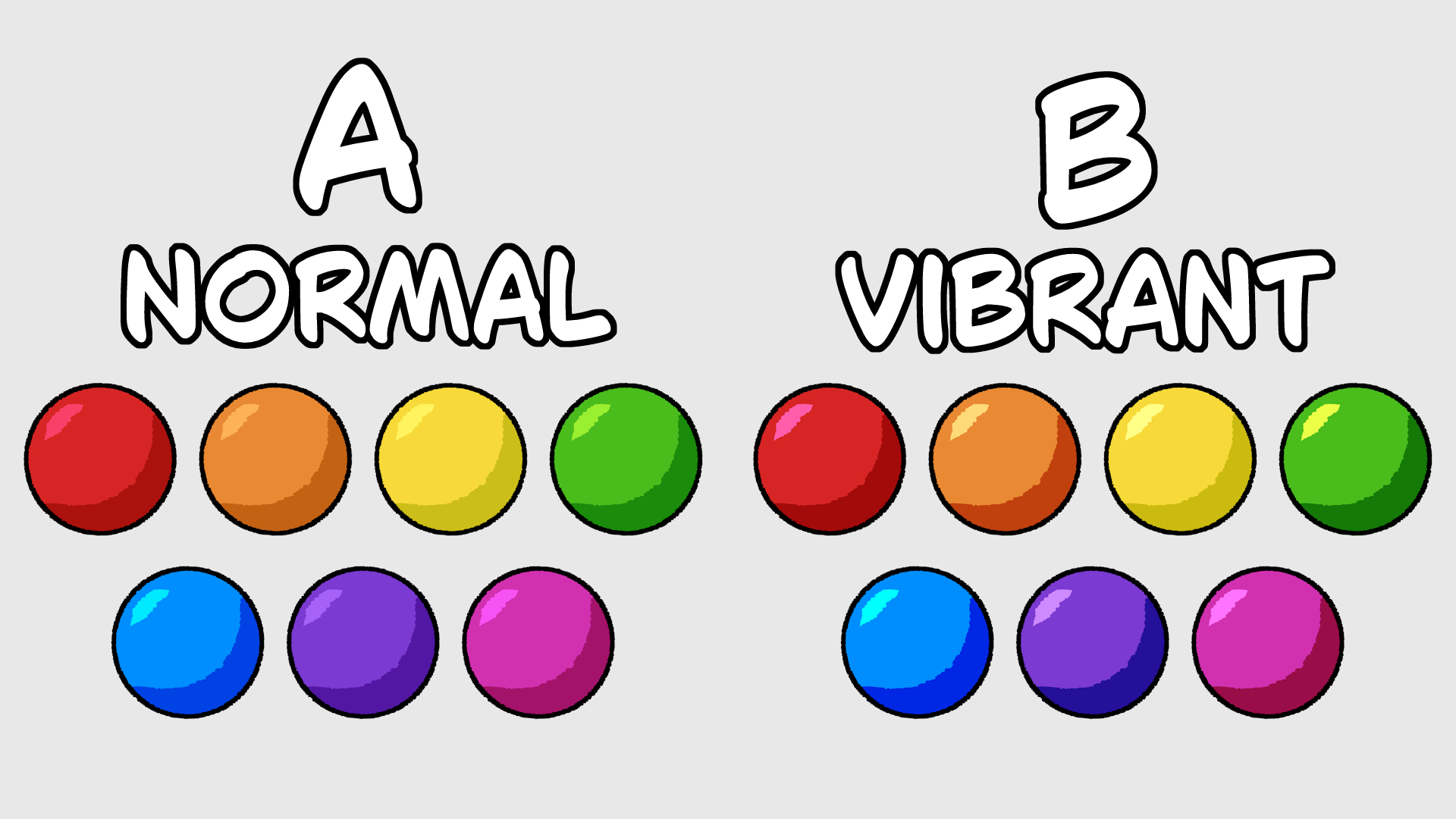
오토액션 6가지가 있으며, 그림자 온도와 빛 채도가 다릅니다. "음영 색상 제어" 레이어의 불투명도를 높이거나 낮춰서 그림자 온도의 강도를 조절할 수 있습니다. 또한 '하이라이트 컬러 컨트롤' 레이어의 불투명도를 높이거나 낮춰서 채도를 조절할 수도 있습니다.
How to Use:
1. Draw on your shadow layer in black and name the layer "shading".
2. Draw on your light layer in white and name the layer "highlight".
3. Before using one of the auto actions, make sure your light layer is named "highlight", your shadow layer is named "shading", and your color layer is named "color". The light layer must be above the shadow layer. The shadow layer must be above the color layer.
4. Select the shadow layer. Make sure that only the shadow layer is selected before using one of the auto actions.
5. Choose one of the numbered auto actions and click the play button.
6. Adjust the opacity of the highlight layer, the "highlight color control" layer, the shadow layer and the "shading color control" layer.
There are six auto actions with different shadow temperatures and light saturation. You can adjust the intensity of the shadow temperature by increasing or decreasing the opacity of the "shading color control" layer. You can also adjust the saturation of the light by increasing or decreasing the opacity of the "highlight color control" layer.





'daffodilyily'님의 다른 소재


'오토 액션'의 인기 소재


신규 소재



배지
-
 MVP ◆질문에 적절한 답변을 많이 게시하고 커뮤니티 운영에 크게 공헌한 사용자입니다. MVP는 3개월에 한 번, 그 사이에 획득한 포인트를 바탕으로 결정하고 표창을 실시하고 있습니다.
 -
 NVP(New Valuable Player) ◆MVP 다음으로 커뮤니티 운영에 공헌한 사용자입니다. 이제까지 MVP 수상 경험이 없는 분 중에서 획득한 포인트를 바탕으로 결정하여 표창을 실시하고 있습니다.
 -
 공식 엑스퍼트 ◆뛰어난 응답자의 증표인 MVP수상자 중에서 선택된 커뮤니티에서 가장 뛰어난 응답자의 증표입니다. 심사를 거쳐서 저희 회사에서 의뢰할 경우 취임되십니다.※ 옛 명칭 '에반젤리스트'
 -
 셀시스 공인 모더레이터 ◆모더레이터는 일본어와 기타 언어로 말할 수 있는 셀시스 공인 스태프입니다. 소프트웨어나 창작 전문가가 아니므로 직접 의문을 해결할 수는 없지만 여러분이 순조롭게 소통할 수 있도록 언어나 커뮤니케이션 측면에서 지원합니다.
 -
 셀시스 공식운영에 관련된 공식 계정입니다.