


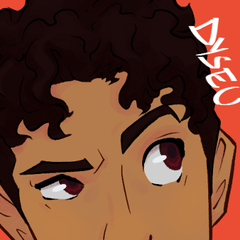

작은 화면, 특히 10.2인치 화면의 아이패드를 위해 만든 간단한 일러스트 작업 공간입니다. 노트북과 중간 크기 펜 디스플레이로도 사용합니다.
대부분의 단축키는 기본값과 맞물리지만, iPad에서는 엣지 키보드 T키가 임시 지우개, 메인 및 서브 컬러 전환, 현재 및 이전 변경 도구 교체, 팝업 도구(컬러 휠, 서브 뷰, 컬러 믹스), 3D 모델 조작 등으로 설정되어 있습니다.
아이패드에서는 "브러시 크기 변경"을 CMD + 드래그로 설정하면 이 작업 공간이 가장 잘 작동합니다.
A simple illustration workspace I made for small screens, specifically for an iPad with a 10.2” screen. I also use it with my laptop and a medium sized pen display.
Most shortcuts match default, while on iPad the edge keyboard T-keys are set to things such as: temporary eraser, switch main and sub colors, swap present and prev tool, pop-up tools (color wheel, sub view, color mix), and 3D model manipulation.
On iPad this workspace works best if you have set “change brush size” to CMD + drag.


'Dyseu'님의 다른 소재


'워크스페이스'의 인기 소재





신규 소재



-
 MVP ◆질문에 적절한 답변을 많이 게시하고 커뮤니티 운영에 크게 공헌한 사용자입니다. MVP는 3개월에 한 번, 그 사이에 획득한 포인트를 바탕으로 결정하고 표창을 실시하고 있습니다.
 -
 NVP(New Valuable Player) ◆MVP 다음으로 커뮤니티 운영에 공헌한 사용자입니다. 이제까지 MVP 수상 경험이 없는 분 중에서 획득한 포인트를 바탕으로 결정하여 표창을 실시하고 있습니다.
 -
 공식 엑스퍼트 ◆뛰어난 응답자의 증표인 MVP수상자 중에서 선택된 커뮤니티에서 가장 뛰어난 응답자의 증표입니다. 심사를 거쳐서 저희 회사에서 의뢰할 경우 취임되십니다.※ 옛 명칭 '에반젤리스트'
 -
 셀시스 공인 모더레이터 ◆모더레이터는 일본어와 기타 언어로 말할 수 있는 셀시스 공인 스태프입니다. 소프트웨어나 창작 전문가가 아니므로 직접 의문을 해결할 수는 없지만 여러분이 순조롭게 소통할 수 있도록 언어나 커뮤니케이션 측면에서 지원합니다.
 -
 셀시스 공식운영에 관련된 공식 계정입니다.