



CMYK 레이어 세팅과 거친 반복 스크린톤 패턴 재질 CMYK layer setup and gritty repeating screentone pattern materials
네, 문제 해결 광산에서 전에 업로드한 레이어 세팅의 새 버전을 가지고 돌아왔습니다. 이 작업은 폴더를 스크린톤 밀도가 아닌 색상별로 그룹화하여 리소 인쇄용 파일 준비나 아날로그 인쇄 매체 완성 작업을 위해 이미지를 긁는 데 더 편리하게 배치되었습니다.

지난번과 같은 드릴로, 폴더를 열고 레이어에 10%, 20%, 50%, 70%, 100% 톤 밀도의 채우기를 시안, 마젠타, 옐로우, 블랙 톤으로 만듭니다.
스크린톤 텍스처의 스케일을 변경하려면 오브젝트 에디터를 선택하고 도구 속성 창에서 "스케일 비율"을 변경하세요. 이렇게 하면 점들이 더 크거나 작아집니다.

원하는 색상이 정해졌다면, 인쇄 같은 작업에 이 플레이트의 평면 흑백 버전을 원한다면 컬러 레이어 효과를 꺼서 점들을 다시 검은색으로 만들 수 있습니다.

이 레이어들을 정리하고 싶다면, 점들이 흑백일 때 전체 폴더를 선택하고 "선택한 레이어 병합" 옵션으로 이동해 자동으로 라벨 색상이 될 하나의 레이어로 평평하게 만들 수 있습니다. (이 방법은 점이 흑백이어야 하며, 그렇지 않으면 평평하게 만들면 더 밝아집니다.) 색상이 작동하지 않고 수동으로 변경해야 할 경우, 폴더 이름에 옐로우, 마젠타, 시안의 헥스 코드를 붙였습니다.

이런 것들을 평평하게 만들지 않고 좀 더 전통적인 느낌을 줄 수 있는 방법이 정말 많아요. 단지 레이어가 많아서 스트레스를 받고 싶을 때 더 단순화하고 싶을 때를 위한 거예요.
이제 레이어를 오프셋하고 텍스처와 때를 더하거나, 종이 텍스처를 넣는 등 원하는 대로 만들 수 있습니다

마지막으로 문제 해결 한 가지, CMYK 레이어에서 그린 것들이 폴더 아래 레이어 위에 불투명하게 보이는 경우가 있을 수 있습니다(예를 들어, 위가 아니라 아래에 종이 텍스처가 있으면 점들이 곱셈이 아니라 흰색 채워 보이는 것처럼 보입니다). 저는 일부러 이렇게 해서 아래에 색상 참조 레이어가 있으면 보이지 않습니다 작업하는 동안 채우기 작업을 통해 처리하지만, 원하지 않는다면 폴더의 레이어 모드를 '노멀'에서 '통과'로 바꿀 수 있습니다.
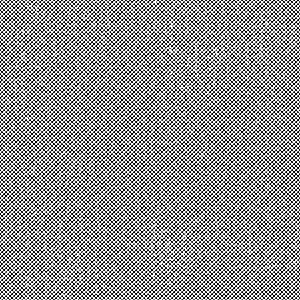
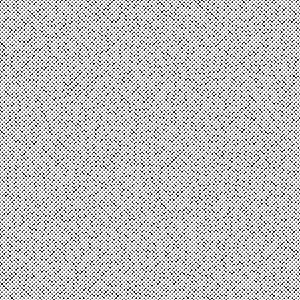
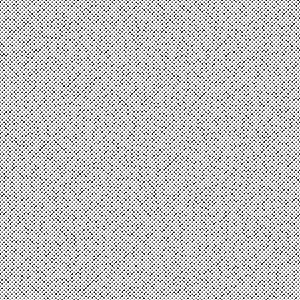
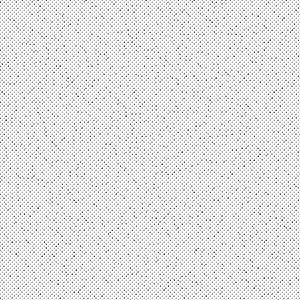
그 외에는 마음껏 연주할 수 있는 반복 음들을 잔뜩 넣어뒀어요. 대부분은 다양한 변형이 있는데, 각기 다른 노이즈와 모래가 있어서 모든 이미지에 같은 작은 흠집이나 긁힘이 없어도 어느 정도 다양하게 만들 수 있습니다.

Okay, I have returned from the troubleshooting mines with a new version of the layer setup I uploaded earlier. This one is reorganized so the folders are grouped by colour rather than by screentone density to make it easier to use for things like prepping files for Riso printing, or scuffing up the images to make finished pieces with an analogue print media appearance.
Same drill as last time, open the folder and draw on the layers to create fills at 10%, 20%, 50%, 70%, and 100% tone density on the Cyan, Magenta, Yellow, and Black tones.
To change the scale of the screentone texture, select the object editor and go to the Tool Properties window to change “scale ratio”. This will make the dots bigger or smaller.
Once you have the colours how you like them, if you want flat black and white versions of these plates for something like printing you can turn off the colour layer effect to make the dots black again.
If you want to clean up these layers, while the dots are in black and white, you can select an entire folder and go to “merge selected layer’ to flatten them into one layer that should automatically be the color of the label. (dots need to be black and white if you do this, or they’ll get lighter when you flatten them). I made the folder name the hex codes for Yellow, Magenta, and Cyan if the colours aren’t working for whatever reason and you need to manually change them.
There are a whole bunch of ways to mess with these and make them look more traditional without flattening, this is just if it stresses you out to have a lot of layers and want to simplify.
Now you can offset the layers and add texture and grime, throw a paper texture, whatever you want to make it look how you want
One last troubleshooting thing, you might notice that things you draw in the cmyk layers look opaque on top of any layers under the folder (as in, if you have a paper texture at the bottom rather than on top, the dots will look like they have a white fill around them rather than multiply) I did this on purpose so if I have a reference layer for colours at the bottom I can’t see it through the fills while I work, but if you don’t want it to do that you can change the layer mode of the folder from “normal” to “through”.
Other than that, I put a whole pile of repeating tones in there you can play with to your heart’s content. There are different variants of most of them because they all have different noise and grit on them, so you can have some variety and not the same little nicks and scuffs in every image.
톤 Tones
-
그런지톤90A Grungetone90A
-
그룬지톤75B Grungetone75B
-
그런지톤75A Grungetone75A
-
그룬지톤75C Grungetone75C
-
그룬지톤70A Grungetone70A
-
그런지톤70B Grungetone70B
-
그런지톤70C Grungetone70C
-
그룬지톤40A Grungetone40A
-
그런지톤40B Grungetone40B
-
그런지톤40C Grungetone40C
-
그룬지톤25A Grungetone25A
-
그룬지톤25B Grungetone25B
-
그룬지톤25C Grungetone25C
-
그룬지톤20A Grungetone20A
-
그룬지톤20B Grungetone20B
-
그룬지톤20C Grungetone20C
-
그런지톤10A GrungeTone10A
-
그런지톤10B Grungetone10B
-
그런지톤10C Grungetone10C











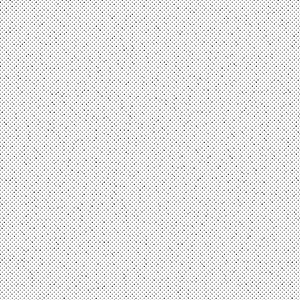
레이어 설정 Layer Setup





'Coelasquid'님의 다른 소재


'소재집'의 인기 소재


신규 소재





배지
-
 MVP ◆질문에 적절한 답변을 많이 게시하고 커뮤니티 운영에 크게 공헌한 사용자입니다. MVP는 3개월에 한 번, 그 사이에 획득한 포인트를 바탕으로 결정하고 표창을 실시하고 있습니다.
 -
 NVP(New Valuable Player) ◆MVP 다음으로 커뮤니티 운영에 공헌한 사용자입니다. 이제까지 MVP 수상 경험이 없는 분 중에서 획득한 포인트를 바탕으로 결정하여 표창을 실시하고 있습니다.
 -
 공식 엑스퍼트 ◆뛰어난 응답자의 증표인 MVP수상자 중에서 선택된 커뮤니티에서 가장 뛰어난 응답자의 증표입니다. 심사를 거쳐서 저희 회사에서 의뢰할 경우 취임되십니다.※ 옛 명칭 '에반젤리스트'
 -
 셀시스 공인 모더레이터 ◆모더레이터는 일본어와 기타 언어로 말할 수 있는 셀시스 공인 스태프입니다. 소프트웨어나 창작 전문가가 아니므로 직접 의문을 해결할 수는 없지만 여러분이 순조롭게 소통할 수 있도록 언어나 커뮤니케이션 측면에서 지원합니다.
 -
 셀시스 공식운영에 관련된 공식 계정입니다.