



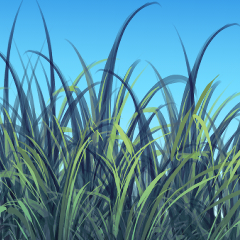
프로젝트를 위해 잔디를 많이 만들어야 하기 때문에 이 브러시를 만들었습니다. 바라건대 그것은 그늘에서 작업의 일부를 걸립니다.
이 브러시는 3 가지 유형으로 제공되지만, 예를 들어 회색 으로 그려진 기본 "화가 잔디"브러시를 사용합니다.
1. 브러시를 사용하여 잔디 그룹을 만듭니다. 브러시를 위아래로 드래그하여 더 나은 결과를 얻을 수 있습니다.)

2. 톤을 사용하여 값을 조정하는 것이 좋습니다. 물론 이것은 완전히 선택 사항입니다.


3. 그라데이션 맵을 사용하여 잔디에 색을 지정합니다. (그라데이션 맵을 사용하지 않으려면 하드 라이트 또는 오버레이를 색상 옵션으로 권장합니다.)

4. 다른 층에는 잔디나 꽃의 추가 블레이드와 같은 세부 정보를 추가합니다. 당신이 원하는 무엇이든.

5. 다음으로 다른 그라데이션 맵을 사용하여 빛을 추가합니다. 그라데이션 맵 레이어는 Vivid Light로 설정되지만 원하는 색상 방법을 사용할 수 있습니다.

6. 이제 그림자. 이 단계에 어두운 그라데이션 맵을 사용합니다. 그림자 레이어도 생생한 빛으로 설정됩니다.

7. 나 같은 색상 조정을 많이 사용하는 경우 배경을 추가하고 설정을 유지하려는 경우이 단계가 중요합니다.
색상 레이어를 단일 폴더로 이동하고 Through로 설정했는지 확인합니다(잔디 레이어에 레이어가 잘린 경우 걱정하지 마세요. 클립 풀기.) 잔디 레이어는 색상 레이어 외부에 남아 있어야 하며 그 아래에 배치해야 합니다.
지금, 오른쪽 C 잔디 레이어에 핥고 선택:
레이어에서 선택 > 선택 만들기.
그 후, 색상 폴더를 마우스 오른쪽 버튼으로 클릭하고 선택 :
레이어 마스크 > 외부 선택.
이제 다음과 같이 보일 것입니다.

8. 배경을 추가하고 완료!

다음은 3가지 유형입니다. 하나만 색으로 되어 있지만, 그만큼 세부적인 것은 아닙니다. 먼 거리에서 풀을 그리는 것이 예쁘다고 생각합니다. 나는 당신이 그들을 밖으로 시도 재미를 바랍니다. 행복한 드로잉!

I need to quickly create a lot of grass for a project, so I made this brush. Hopefully it takes some of the work out of shading.
This brush comes in 3 types, but for my example I use the basic "paintery grass" brush, which draws in grayscale.
1. Use the brush to create a group of grass. (You get better results by dragging the brush up and down.)
2. I recommend using Tone Curve to adjust the values. This is completely optional, of course.
3. I use a gradient map to color the grass. (If you don't want to use gradient maps, I recommend Hard Light or Overlay as coloring options.)
4. On another layer, add details like additional blades of grass or flowers. Whatever you want.
5. Next, I add light using another gradient map. The gradient map layer is set to Vivid Light, but you can use any coloring method you prefer.
6. Now the shadow. I use a dark gradient map for this step. The shadow layer is also set to Vivid Light.
7. If you use a lot of color adjustments like me, then this step is important if you want to add a background AND keep your settings.
Move your color layers into a single folder and make sure you set it to Through (Don't worry if you have layers clipped to the grass layer. Unclip them.)The grass layer should be left outside the color layer and placed below it.
Now, right-click on the grass layer and choose:
Selection from layer > Create selection.
After that, right-click on your color folder and choose:
Layer mask > Mask outside selection.
It should now look something like this:
8. Add your background and you're done!
Here are the 3 types. Only one is in color, but you don't get as much detail with it. I think it looks pretty for drawing grass in the distance. I hope you have fun trying them out. Happy drawing!
카테고리 1 Category 1



'KuroYukiArt'님의 다른 소재


'소재집'의 인기 소재


신규 소재


배지
-
 MVP ◆질문에 적절한 답변을 많이 게시하고 커뮤니티 운영에 크게 공헌한 사용자입니다. MVP는 3개월에 한 번, 그 사이에 획득한 포인트를 바탕으로 결정하고 표창을 실시하고 있습니다.
 -
 NVP(New Valuable Player) ◆MVP 다음으로 커뮤니티 운영에 공헌한 사용자입니다. 이제까지 MVP 수상 경험이 없는 분 중에서 획득한 포인트를 바탕으로 결정하여 표창을 실시하고 있습니다.
 -
 공식 엑스퍼트 ◆뛰어난 응답자의 증표인 MVP수상자 중에서 선택된 커뮤니티에서 가장 뛰어난 응답자의 증표입니다. 심사를 거쳐서 저희 회사에서 의뢰할 경우 취임되십니다.※ 옛 명칭 '에반젤리스트'
 -
 셀시스 공인 모더레이터 ◆모더레이터는 일본어와 기타 언어로 말할 수 있는 셀시스 공인 스태프입니다. 소프트웨어나 창작 전문가가 아니므로 직접 의문을 해결할 수는 없지만 여러분이 순조롭게 소통할 수 있도록 언어나 커뮤니케이션 측면에서 지원합니다.
 -
 셀시스 공식운영에 관련된 공식 계정입니다.