



이 자동 작용은 피부에 반짝이는 효과를 만듭니다. 위에서 아래로 순서대로 작업:


이 작업은 "Shimmer"라는 새 레이어를 만들고 블렌딩 모드를 설정하여 글로우를 추가합니다. 이제 반짝반짝 만들 수 있습니다. 이 레이어의 색상에 영향을 미칩니다. 칼라를 사용하는 것이 좋습니다 즉, 피부의 홍당무 또는 언더톤입니다.


- 이 작업은 단순히 쉬머 레이어를 복제합니다. "윤곽선"의 이름을 바꿉니다. 이 레이어를 배치해야 합니다. 다음 단계를 준비하기 위해 쉬머 레이어 아래에 있습니다. 하지 마십시오, 당신은 원하는 효과를 얻을 하지 않습니다.


- 이 작업은 반짝이는 영역을 어둡게 합니다. 컬러 번 블렌딩 모드. 엠보싱 효과를 만들 수 있도록 윤곽선을 변환합니다. 너는 또한 색조/채도/값을 조정할 수 있는 옵션이 제공됩니다. 개요. 엠보싱된 경우 윤곽선을 다시 한 번 변환할 수 있습니다. 효과는 당신의 취향에 없습니다.


이 작업은 반짝이는 부위, 주변 피부를 밝게 하고 사용 가우시안 블러. 나는 보통 크기를 5 픽셀로 증가하지만, 캔버스의 크기에 따라 다릅니다. 색조/채도/값이 주어집니다. 의 양을 조정하는 옵션 흐림이 주어집니다.


- 당신이 만족하지 않는 경우 결과, 수정 쉬머 및 부드럽게 윤곽선 작업은 선택적 작업입니다.
- 쉬머 레이어를 클릭하고 Shimmer 수정 작업을 사용하여 쉬머.
- 개요 레이어를 클릭하고 개요 연화 작업을 사용하여 개요.


This auto action creates a shimmery effect for skin. Please do the actions in order from top to bottom:
This action creates a new layer named "Shimmer" and sets the blending mode to Add Glow. You can now create your shimmery effect with any color on this layer. I recommend using a color that is the blush or undertone of the skin.
- This action simply duplicates the Shimmer layer and renames it "Outline." You should place this layer below the Shimmer Layer to prepare for the next step. If you don't, you will not get the desired effect.
- This action darkens the shimmery area with the Color Burn blending mode. You are given the option to transform the outline so that it creates an embossed effect. You are also given the option to adjust the Hue/Saturation/Value of the outline. You can transform the outline once again if the embossed effect is not to your liking.
This action increases the size of the shimmery area, lightens the skin around the area, and uses Gaussian Blur. I usually increase the size by 5 pixels, but it depends on the size of the canvas. The option to adjust the Hue/Saturation/Value is given. The option to adjust the amount of blurring is given.
- If you are not happy with the results, the Fix Shimmer and Soften Outline Actions are optional actions.
- Click on the Shimmer Layer and use the Fix Shimmer Action to change the color of the shimmer.
- Click on the Outline Layer and use the Soften Outline Action to soften the outline.
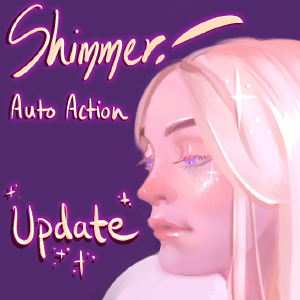
쉬머! 자동 동작 + 브러쉬 2개 Shimmer! Auto Action + 2 Brushes


구 버전





'tojibon'님의 다른 소재


'소재집'의 인기 소재


신규 소재



-
 MVP ◆질문에 적절한 답변을 많이 게시하고 커뮤니티 운영에 크게 공헌한 사용자입니다. MVP는 3개월에 한 번, 그 사이에 획득한 포인트를 바탕으로 결정하고 표창을 실시하고 있습니다.
 -
 NVP(New Valuable Player) ◆MVP 다음으로 커뮤니티 운영에 공헌한 사용자입니다. 이제까지 MVP 수상 경험이 없는 분 중에서 획득한 포인트를 바탕으로 결정하여 표창을 실시하고 있습니다.
 -
 공식 엑스퍼트 ◆뛰어난 응답자의 증표인 MVP수상자 중에서 선택된 커뮤니티에서 가장 뛰어난 응답자의 증표입니다. 심사를 거쳐서 저희 회사에서 의뢰할 경우 취임되십니다.※ 옛 명칭 '에반젤리스트'
 -
 셀시스 공인 모더레이터 ◆모더레이터는 일본어와 기타 언어로 말할 수 있는 셀시스 공인 스태프입니다. 소프트웨어나 창작 전문가가 아니므로 직접 의문을 해결할 수는 없지만 여러분이 순조롭게 소통할 수 있도록 언어나 커뮤니케이션 측면에서 지원합니다.
 -
 셀시스 공식운영에 관련된 공식 계정입니다.