



このカリグラフィーペンサブツールは、キャラクターの髪を素早く描画するための武器庫にあるべきブラシの一つです。それでは、それでは早速、なんて待っているんだろう...自分のために手に入れてください! This calligraphy pen sub tool is one brush you should have in your arsenal for quick render of your character’s hair. so without further ado, what a you waiting for … get it for yourself!
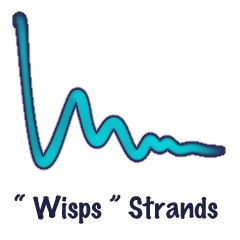
 Calligraphyのペンサブツールを使い、テーパーのイーズイン&アウトをすれば、難なくごっこした髪を作ることができます。


 Using the Calligraphy pen sub tool with a taper ease in & out, you will be able to create chunky hair effortlessly.
イーズイン&アウトテーパーエンド Ease in & out taper end

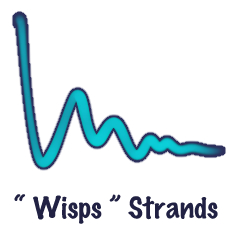
水彩のエッジを有効にすると With watercolor edge enable





"is.AÖD(☆▽☆)"さんの別の素材


"素材集"の人気素材


新着素材


-
 MVP ◆質問に対して適切な回答を数多く投稿し、コミュニティの運営に大きく貢献したユーザーです。MVPは3ヶ月に一度、その間に獲得したポイントを元に決定し、表彰を行っています。
 -
 NVP (New Valuable Player) ◆MVPに次いでコミュニティの運営に貢献したユーザーです。これまでMVPの受賞経験のない方から、獲得したポイントを元に決定し、表彰を行なっています。
 -
 公式エキスパート ◆優れた回答者の証であるMVP受賞者の中からさらに選ばれた、コミュニティで最も優良な回答者の証です。審査を経て当社から依頼し就任いただいています。※旧名称「エバンジェリスト」
 -
 セルシス公認モデレーター ◆モデレーターは、日本語とその他の言語が話せるセルシス公認のスタッフです。ソフトウェアや創作のエキスパートではないので、直接疑問を解決することはできませんが、みなさんがスムーズにコミュニケーションできるように、言葉やコミュニケーションの側面からサポートします。
 -
 セルシス公式運営に関連した公式アカウントです。