


研ぎ、スポンジ、回避、焼却ツール (Sharpen, Sponge, Dodge and Burn Tools) Sharpen, Sponge, Dodge and Burn Tools
コンテンツID:2275745
-
30


CSPでずっと欲しかったPhotoshopのシャープン、スポンジ、バーン、回避ツール。柔らかいブラシで使ってください。 Photoshop Sharpen, Sponge, Burn and Dodge Tools that I've always wanted in CSP. Use them with a soft brush.
オートアクションはすぐに使える状態です。ファイル内に少なくとも2つのレイヤーが必要で、アクションを始めるには見えるレイヤーにいる必要があります。私のおすすめは以下の通りです:
シャープン:普段は4000x4000のキャンバスで作業します。大きなキャンバスの場合は、オートアクションを実行する前にこちらのチェックボックスをチェックしてください:

次に、シャープでないマスクの半径と閾値をそれぞれ10〜20ずつ高めます。

その後はチェックボックスを外すだけで、設定は今後の利用のために保存されます。
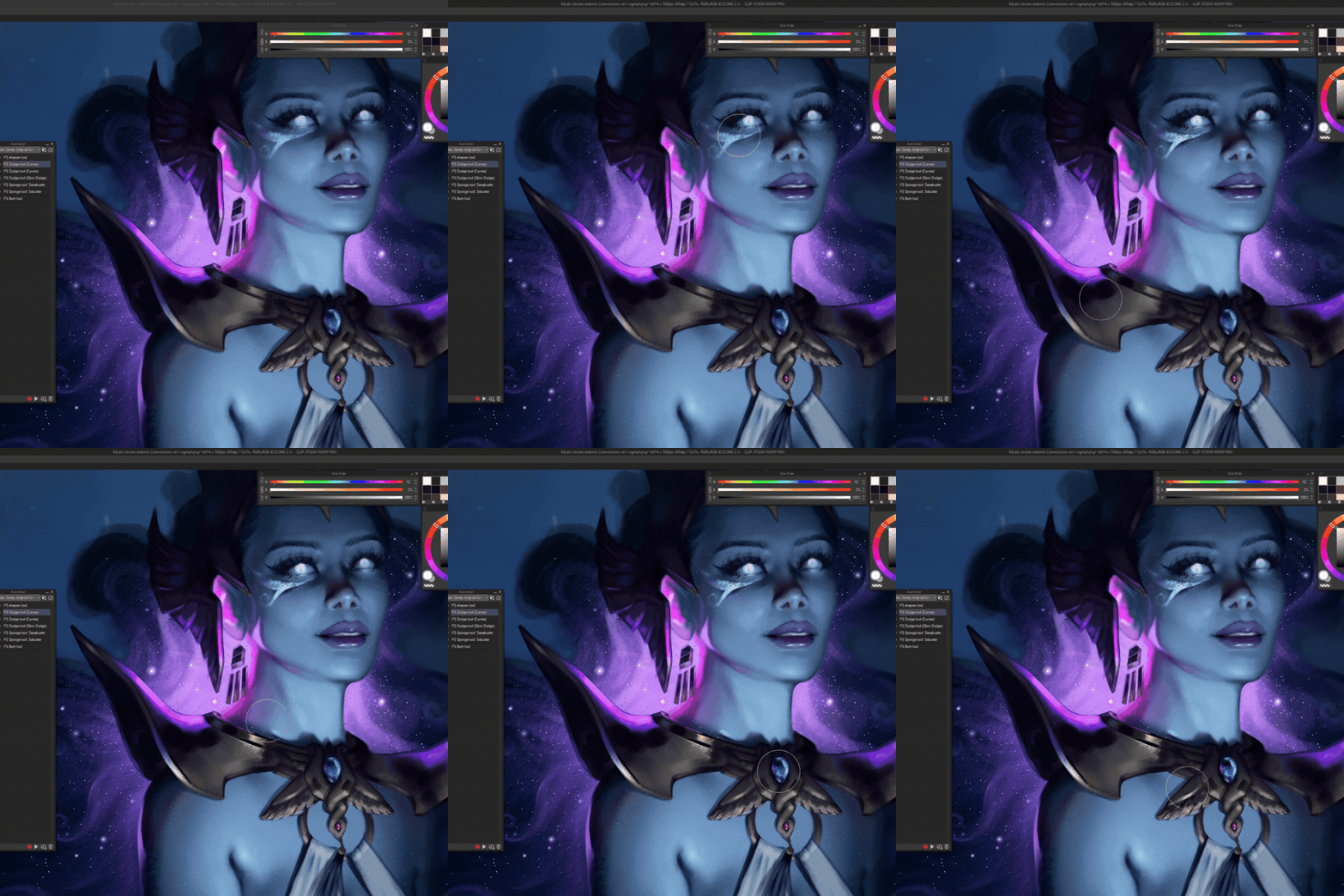
Dodge:暗い部分と明るい部分に異なるプリセットがあります。グロードッジオプションは、上にグロードッジレイヤーを作ってグレーがかった色(パフォーマンスに優しい)を選びます。
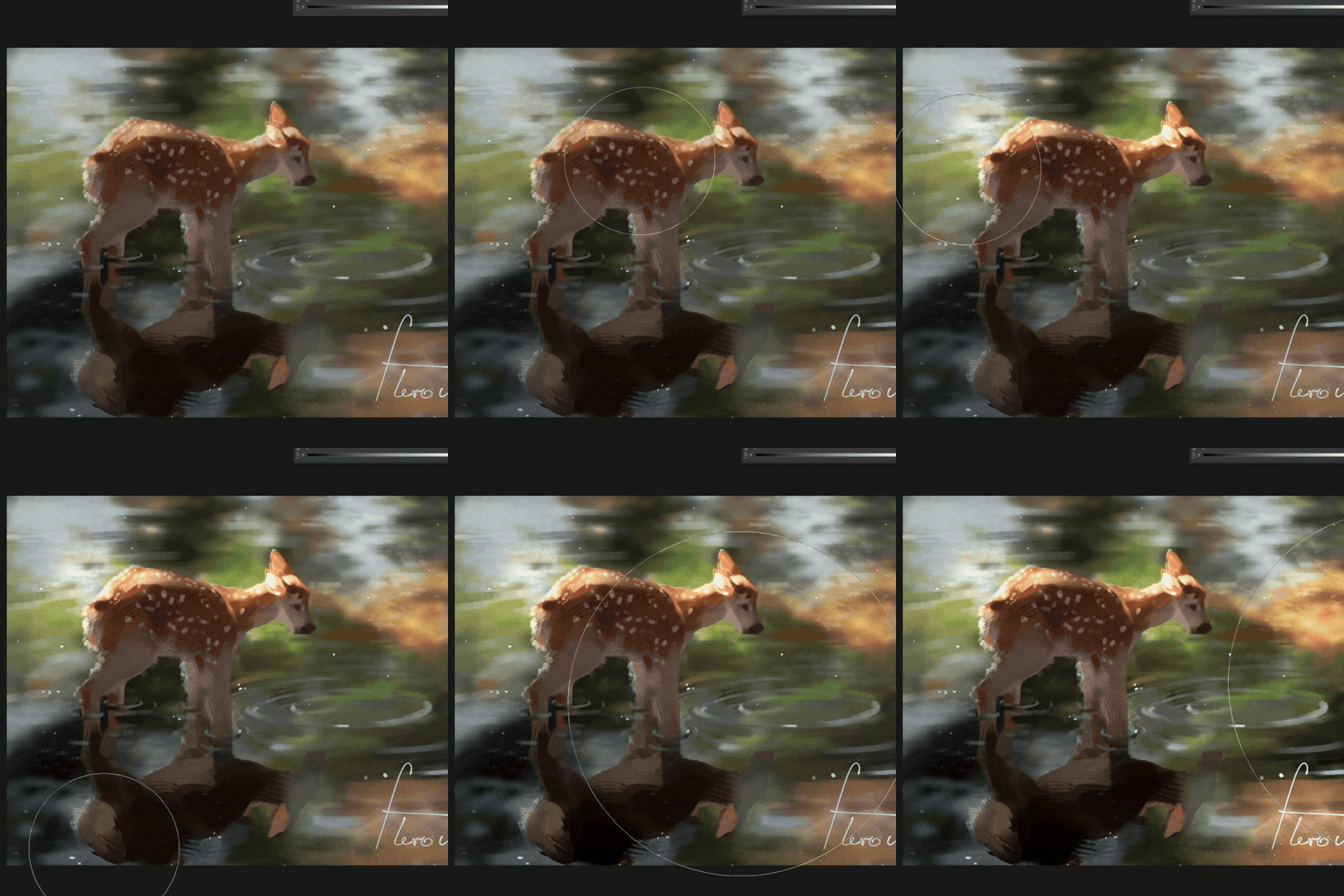
スポンジ:飽和/不彩度。メモはない。
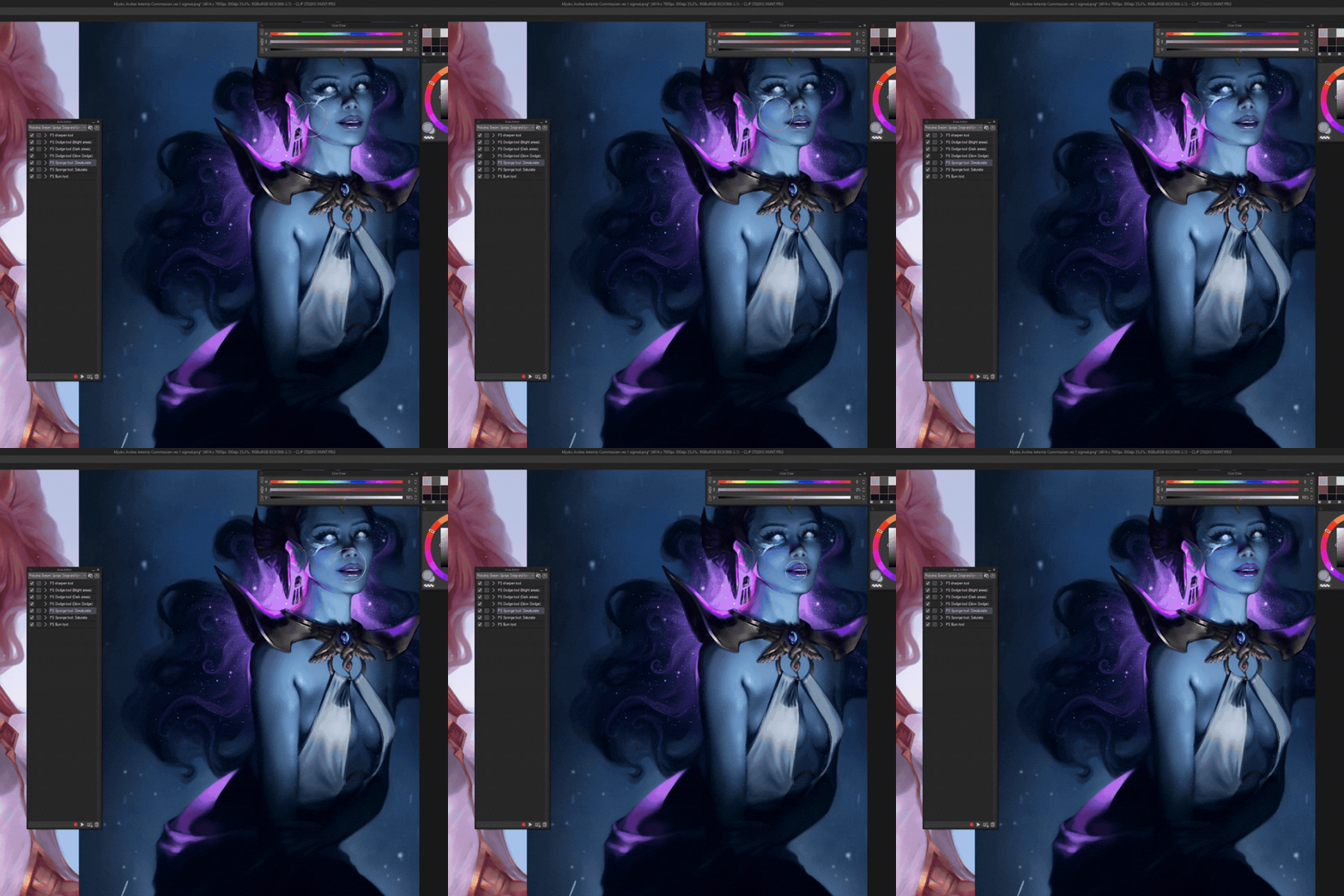
Burn:音符なし。
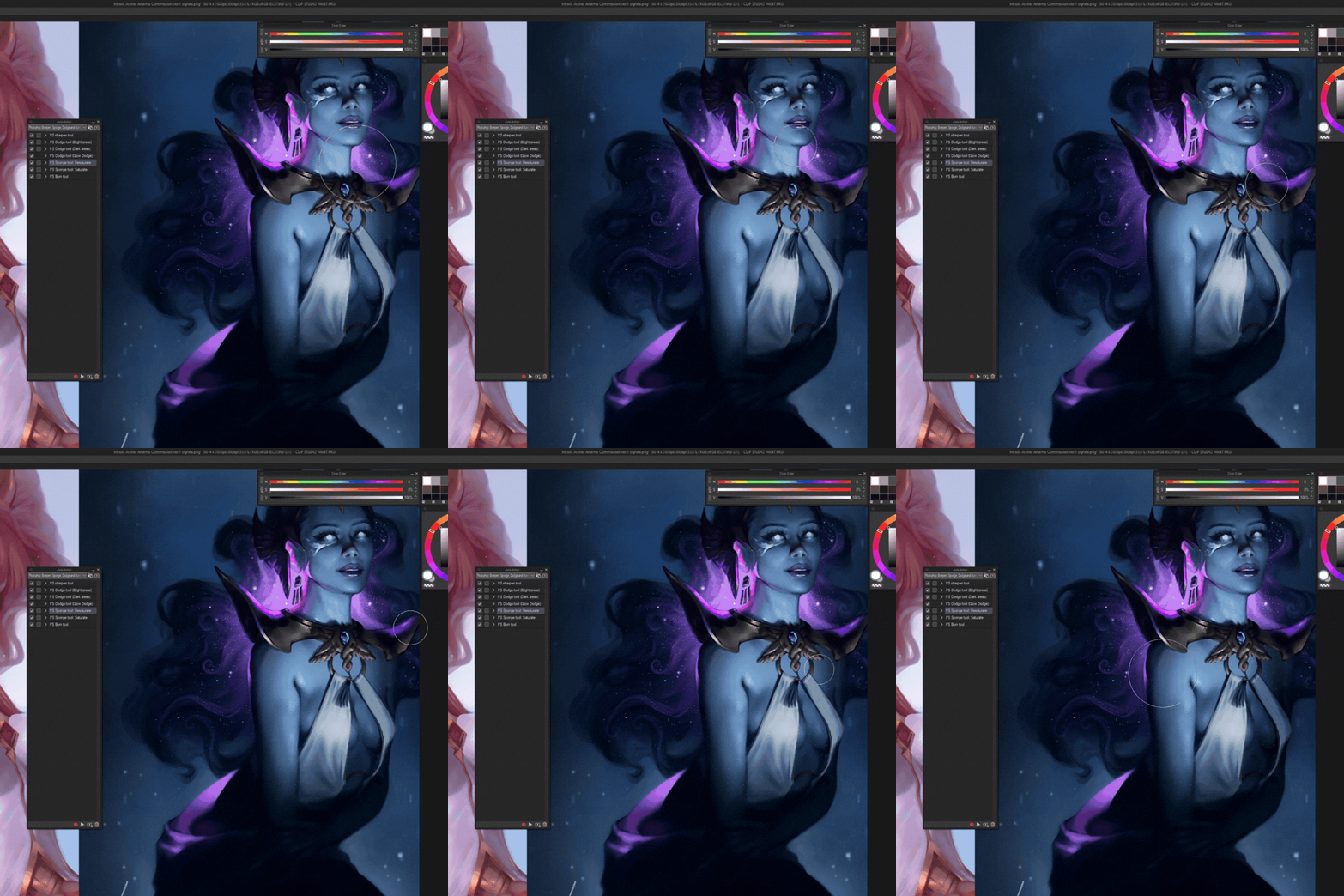
追伸:アクセスしやすくするために、クイックアクセスバーのすぐ下にカスタムアイコン付きの自動アクションを追加しましたが、もちろんそれをする必要はありません:)<3をお楽しみください

シャープン:普段は4000x4000のキャンバスで作業します。大きなキャンバスの場合は、オートアクションを実行する前にこちらのチェックボックスをチェックしてください:

次に、シャープでないマスクの半径と閾値をそれぞれ10〜20ずつ高めます。

その後はチェックボックスを外すだけで、設定は今後の利用のために保存されます。
Dodge:暗い部分と明るい部分に異なるプリセットがあります。グロードッジオプションは、上にグロードッジレイヤーを作ってグレーがかった色(パフォーマンスに優しい)を選びます。
スポンジ:飽和/不彩度。メモはない。
Burn:音符なし。
追伸:アクセスしやすくするために、クイックアクセスバーのすぐ下にカスタムアイコン付きの自動アクションを追加しましたが、もちろんそれをする必要はありません:)<3をお楽しみください

Auto actions are ready to use. You have to have at least two layers in the file and have to be on a visible layer to start the action. My recommendations:
Sharpen: I usually work on 4000x4000 canvas. For bigger canvases check this box right here before running the auto action:
Then heighten the radius and threshold of the unsharp mask by 10-20 each:
After that just uncheck the box and your settings will have saved for future uses.
Dodge: There are different presets for dark and bright areas. The glow dodge option just makes a glow dodge layer on top and picks a greyish color (performance friendly).
Sponge: Saturate/desaturate. No notes.
Burn: No notes.
PS. For ease of access I added all the auto actions in quick access bar right under my tool bar with custom icons, but you obviously don't need to do that :) Enjoy <3
Sharpen: I usually work on 4000x4000 canvas. For bigger canvases check this box right here before running the auto action:
Then heighten the radius and threshold of the unsharp mask by 10-20 each:
After that just uncheck the box and your settings will have saved for future uses.
Dodge: There are different presets for dark and bright areas. The glow dodge option just makes a glow dodge layer on top and picks a greyish color (performance friendly).
Sponge: Saturate/desaturate. No notes.
Burn: No notes.
PS. For ease of access I added all the auto actions in quick access bar right under my tool bar with custom icons, but you obviously don't need to do that :) Enjoy <3




"オートアクション"の人気素材


新着素材


バッジ
-
 MVP ◆質問に対して適切な回答を数多く投稿し、コミュニティの運営に大きく貢献したユーザーです。MVPは3ヶ月に一度、その間に獲得したポイントを元に決定し、表彰を行っています。
 -
 NVP (New Valuable Player) ◆MVPに次いでコミュニティの運営に貢献したユーザーです。これまでMVPの受賞経験のない方から、獲得したポイントを元に決定し、表彰を行なっています。
 -
 公式エキスパート ◆優れた回答者の証であるMVP受賞者の中からさらに選ばれた、コミュニティで最も優良な回答者の証です。審査を経て当社から依頼し就任いただいています。※旧名称「エバンジェリスト」
 -
 セルシス公認モデレーター ◆モデレーターは、日本語とその他の言語が話せるセルシス公認のスタッフです。ソフトウェアや創作のエキスパートではないので、直接疑問を解決することはできませんが、みなさんがスムーズにコミュニケーションできるように、言葉やコミュニケーションの側面からサポートします。
 -
 セルシス公式運営に関連した公式アカウントです。