



CMYKレイヤーのセットアップとざらついた繰り返しスクリーントーンパターンのマテリアル CMYK layer setup and gritty repeating screentone pattern materials
さて、トラブルシューティングのマインから、以前アップロードしたレイヤーセットアップの新しいバージョンを持って戻ってきました。このフォルダはスクリーントーン密度ではなく色ごとにグループ化され、Riso印刷用のファイル準備や、アナログ印刷メディアの仕上がりで画像を擦り落とすなど、使いやすいように整理されています。

前回と同じドリルで、フォルダを開いてレイヤーに描き、シアン、マゼンタ、イエロー、ブラックのトーン密度を10%、20%、50%、70%、100%で塗りつぶします。
スクリーントーンテクスチャのスケールを変更するには、オブジェクトエディターを選択し、ツールプロパティウィンドウから「スケール比率」を変更してください。これで点が大きくなったり小さくなったりします。

色が自分の好みに決まったら、印刷などでこれらのプレートを白黒のフラットバージョンにしたいなら、カラーレイヤー効果をオフにしてドットを再び黒くできます。

これらのレイヤーをきれいにしたい場合、ドットが白黒のままなら、フォルダ全体を選択して「選択したレイヤーをマージする」から、ラベルの色を自動的に反映するレイヤーにフラット化できます。(この方法を使う場合は、点は白黒でなければ平らにすると薄くなります)。色が何らかの理由で動かず手動で変更する必要がある場合、黄色、マゼンタ、シアンの6進コードにフォルダ名を付けました。

これらのレイヤーをいじって、より伝統的な見た目にする方法はたくさんありますが、これはレイヤーが多いのがストレスでシンプルにしたい場合に限っての話です。
これでレイヤーをずらしてテクスチャや汚れを加えたり、紙のテクスチャを投げ入れたり、好きな ように見せることができます

最後にもう一つトラブルシューティングですが、CMYKレイヤーで描いたものがフォルダ内のどのレイヤーの上でも不透明に見えることがあります(例えば、下部に紙のテクスチャがある場合、ドットが白い塗りつぶしのように見えてしまい、倍率にならない状態になります)。これは意図的に、色の参照レイヤーが下にあっても見えないようにしています作業中はフィルを通しますが、そうさせたくなければフォルダのレイヤーモードを「ノーマル」から「スルー」に変更できます。
それ以外には、リピート音をたくさん入れておいて、好きなだけ演奏できるようにしています。ほとんどのモデルには異なるバリエーションがあり、それぞれノイズやざらつきが異なるため、バリエーションを持てるだけでなく、すべての画像で同じ小さな傷や擦り傷が出るわけではありません。

Okay, I have returned from the troubleshooting mines with a new version of the layer setup I uploaded earlier. This one is reorganized so the folders are grouped by colour rather than by screentone density to make it easier to use for things like prepping files for Riso printing, or scuffing up the images to make finished pieces with an analogue print media appearance.
Same drill as last time, open the folder and draw on the layers to create fills at 10%, 20%, 50%, 70%, and 100% tone density on the Cyan, Magenta, Yellow, and Black tones.
To change the scale of the screentone texture, select the object editor and go to the Tool Properties window to change “scale ratio”. This will make the dots bigger or smaller.
Once you have the colours how you like them, if you want flat black and white versions of these plates for something like printing you can turn off the colour layer effect to make the dots black again.
If you want to clean up these layers, while the dots are in black and white, you can select an entire folder and go to “merge selected layer’ to flatten them into one layer that should automatically be the color of the label. (dots need to be black and white if you do this, or they’ll get lighter when you flatten them). I made the folder name the hex codes for Yellow, Magenta, and Cyan if the colours aren’t working for whatever reason and you need to manually change them.
There are a whole bunch of ways to mess with these and make them look more traditional without flattening, this is just if it stresses you out to have a lot of layers and want to simplify.
Now you can offset the layers and add texture and grime, throw a paper texture, whatever you want to make it look how you want
One last troubleshooting thing, you might notice that things you draw in the cmyk layers look opaque on top of any layers under the folder (as in, if you have a paper texture at the bottom rather than on top, the dots will look like they have a white fill around them rather than multiply) I did this on purpose so if I have a reference layer for colours at the bottom I can’t see it through the fills while I work, but if you don’t want it to do that you can change the layer mode of the folder from “normal” to “through”.
Other than that, I put a whole pile of repeating tones in there you can play with to your heart’s content. There are different variants of most of them because they all have different noise and grit on them, so you can have some variety and not the same little nicks and scuffs in every image.
トーン Tones
-
グランジトン90A Grungetone90A
-
グランジトン75B Grungetone75B
-
グランジトン75A Grungetone75A
-
グランジトン75C Grungetone75C
-
グランジトン70A Grungetone70A
-
グランジトン70B Grungetone70B
-
グランジトン70C Grungetone70C
-
グランジトン40A Grungetone40A
-
グランジトン40B Grungetone40B
-
グランジトン40C Grungetone40C
-
グランジトン25A Grungetone25A
-
グランジトン25B Grungetone25B
-
グランジトン25C Grungetone25C
-
Grungetone20A Grungetone20A
-
グランジトン20B Grungetone20B
-
グランジトン20C Grungetone20C
-
グランジトーン10A GrungeTone10A
-
グランジトン10B Grungetone10B
-
グランジトン10C Grungetone10C






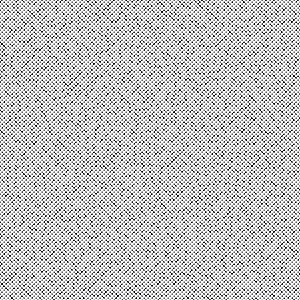
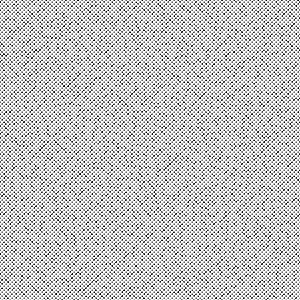


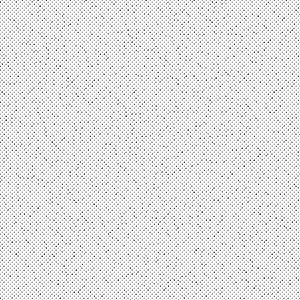
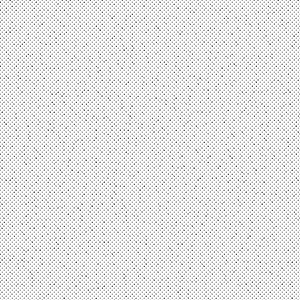
レイヤー設定 Layer Setup





"Coelasquid"さんの別の素材


"素材集"の人気素材


新着素材



バッジ
-
 MVP ◆質問に対して適切な回答を数多く投稿し、コミュニティの運営に大きく貢献したユーザーです。MVPは3ヶ月に一度、その間に獲得したポイントを元に決定し、表彰を行っています。
 -
 NVP (New Valuable Player) ◆MVPに次いでコミュニティの運営に貢献したユーザーです。これまでMVPの受賞経験のない方から、獲得したポイントを元に決定し、表彰を行なっています。
 -
 公式エキスパート ◆優れた回答者の証であるMVP受賞者の中からさらに選ばれた、コミュニティで最も優良な回答者の証です。審査を経て当社から依頼し就任いただいています。※旧名称「エバンジェリスト」
 -
 セルシス公認モデレーター ◆モデレーターは、日本語とその他の言語が話せるセルシス公認のスタッフです。ソフトウェアや創作のエキスパートではないので、直接疑問を解決することはできませんが、みなさんがスムーズにコミュニケーションできるように、言葉やコミュニケーションの側面からサポートします。
 -
 セルシス公式運営に関連した公式アカウントです。