




アニメーション用の基本的なワークスペース。テンキー付きの拡張キーボードと一緒に使用していますが、テンキーがなくても問題なく動作します。
これは、独自のセットアップの出発点として設計されています。
A basic workspace for animation. I use it with an extended keyboard with a numberpad but it works OK without.
It's designed as a starting point for your own set up.
注目すべきアニメーションショートカット:
キャンバスを回転 - Shift + Space
キャンバスをリセット - F12
前のフレーム - , (カンマ) テンキー 1
次のフレーム - .(ピリオド)テンキー3
プレイストップ - / テンキー 0
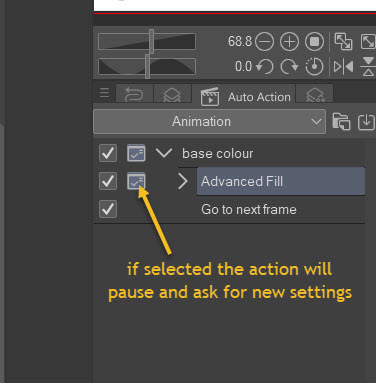
設定が機能しない場合は、自動アクションで設定を変更するか、アクションを一時停止して設定を求めることができます。
キャンバスを回転 - Shift + Space
キャンバスをリセット - F12
前のフレーム - , (カンマ) テンキー 1
次のフレーム - .(ピリオド)テンキー3
プレイストップ - / テンキー 0
最初のフレーム - テンキー 7
最後のフレーム - テンキー 9
クイックアクセスパネル - Q
タイムラインにフレームを追加する - F5
タイムラインからフレームを削除する Shift + F5
新しいアニメーションセル - F7
タイムライン順のセルの名前を変更 - T
オニオンスキン - '
クイックアクセスパネルと自動アクションには、ベースカラーと呼ばれるアクションも含まれています。
これは、参照レイヤーとして選択されたラインフォルダーで動作するように設計されています。
カラーレイヤーでは、高度な塗りつぶしを使用して線の内側を選択して塗りつぶし、ベースカラー/マスクを作成してから、次のフレームに移動します。
クイックアクセスパネル - Q
タイムラインにフレームを追加する - F5
タイムラインからフレームを削除する Shift + F5
新しいアニメーションセル - F7
タイムライン順のセルの名前を変更 - T
オニオンスキン - '
クイックアクセスパネルと自動アクションには、ベースカラーと呼ばれるアクションも含まれています。
これは、参照レイヤーとして選択されたラインフォルダーで動作するように設計されています。
カラーレイヤーでは、高度な塗りつぶしを使用して線の内側を選択して塗りつぶし、ベースカラー/マスクを作成してから、次のフレームに移動します。
設定が機能しない場合は、自動アクションで設定を変更するか、アクションを一時停止して設定を求めることができます。
Animation Shortcuts of note:
Rotate canvas - Shift +Space
Reset canvas - F12
Previous Frame - , (comma) num pad 1
Next frame - . (period) num pad 3
Play Stop - / num pad 0
If the settings don't work for you can change them in the auto action or have the action pause and ask for settings.
Rotate canvas - Shift +Space
Reset canvas - F12
Previous Frame - , (comma) num pad 1
Next frame - . (period) num pad 3
Play Stop - / num pad 0
First frame - num pad 7
Last frame - num pad 9
Quick access panel - Q
Add frames to timeline - F5
Remove frames from timeline Shift + F5
New Animation cel - F7
Rename cels in timeline order - T
Onion Skin - `
Also included in the Quick access panel and auto action is an action called base colour.
It is designed to work with a line folder selected as a reference layer.
On a colour layer it uses an advanced fill to select and fill the interior of the lines to create a base colour/ mask and then move to the next frame.
Quick access panel - Q
Add frames to timeline - F5
Remove frames from timeline Shift + F5
New Animation cel - F7
Rename cels in timeline order - T
Onion Skin - `
Also included in the Quick access panel and auto action is an action called base colour.
It is designed to work with a line folder selected as a reference layer.
On a colour layer it uses an advanced fill to select and fill the interior of the lines to create a base colour/ mask and then move to the next frame.
If the settings don't work for you can change them in the auto action or have the action pause and ask for settings.







"ワークスペース"の人気素材





新着素材





バッジ
-
 MVP ◆質問に対して適切な回答を数多く投稿し、コミュニティの運営に大きく貢献したユーザーです。MVPは3ヶ月に一度、その間に獲得したポイントを元に決定し、表彰を行っています。
 -
 NVP (New Valuable Player) ◆MVPに次いでコミュニティの運営に貢献したユーザーです。これまでMVPの受賞経験のない方から、獲得したポイントを元に決定し、表彰を行なっています。
 -
 公式エキスパート ◆優れた回答者の証であるMVP受賞者の中からさらに選ばれた、コミュニティで最も優良な回答者の証です。審査を経て当社から依頼し就任いただいています。※旧名称「エバンジェリスト」
 -
 セルシス公認モデレーター ◆モデレーターは、日本語とその他の言語が話せるセルシス公認のスタッフです。ソフトウェアや創作のエキスパートではないので、直接疑問を解決することはできませんが、みなさんがスムーズにコミュニケーションできるように、言葉やコミュニケーションの側面からサポートします。
 -
 セルシス公式運営に関連した公式アカウントです。