



Montaje de capas CMYK y materiales de patrón de tonos de pantalla repetidos y ásperos CMYK layer setup and gritty repeating screentone pattern materials
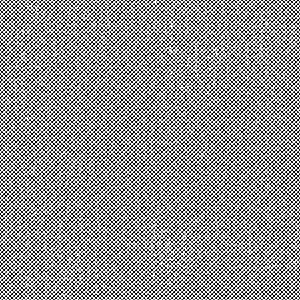
Vale, he vuelto de las minas de resolución de problemas con una nueva versión de la configuración de capas que subí antes. Esta se reorganiza para agrupar las carpetas por color en lugar de por densidad de tonos de pantalla, para facilitar su uso en tareas como preparar archivos para impresión Riso, o desgastar las imágenes para crear piezas terminadas con un aspecto analógico de formato impreso.

El mismo ejercicio que la última vez, abre la carpeta y dibuja sobre las capas para crear rellenos al 10%, 20%, 50%, 70% y 100% de densidad tonal en los tonos Cian, Magenta, Amarillo y Negro.
Para cambiar la escala de la textura de tono de pantalla, selecciona el editor de objetos y ve a la ventana de Propiedades de la herramienta para cambiar la "relación de escala". Esto hará que los puntos sean más grandes o más pequeños.

Una vez que tengas los colores como te gustan, si quieres versiones planas en blanco y negro de estas planchas para algo como la impresión, puedes desactivar el efecto de capa de color para que los puntos vuelvan a ser negros.

Si quieres limpiar estas capas, mientras los puntos están en blanco y negro, puedes seleccionar una carpeta entera e ir a "fusionar capa seleccionada" para aplanarlas en una sola capa que automáticamente debería ser del color de la etiqueta. (los puntos deben ser blanco y negro si haces esto, o se aclararán al aplanarlos). Hice que la carpeta nombrara los códigos hexadecimales de Amarillo, Magenta y Cian si los colores no funcionan por cualquier motivo y necesitas cambiarlos manualmente.

Hay muchas formas de modificar y hacer que parezcan más tradicionales sin aplanar, solo si te estresa tener muchas capas y quieres simplificar.
Ahora puedes desplazar las capas y añadir textura y suciedad, añadir una textura de papel, lo que quieras para que quede como quieras

Una última cosa para solucionar problemas, puede que notes que las cosas que dibujas en las capas CMYK se ven opacas encima de cualquier capa bajo la carpeta (es decir, si tienes una textura de papel en la parte inferior en vez de arriba, los puntos parecerán tener un relleno blanco alrededor en lugar de multiplicarse). Lo hice a propósito para que si tengo una capa de referencia para colores en la parte inferior no pueda verla lo hace a través de los rellenos mientras trabajo, pero si no quieres que lo haga puedes cambiar el modo de capa de la carpeta de "normal" a "atravesado".
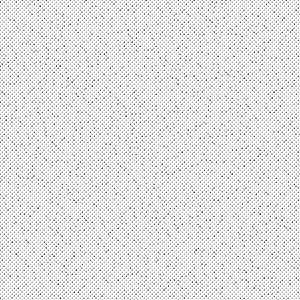
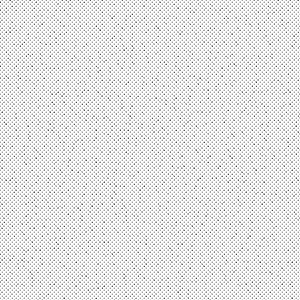
Aparte de eso, he puesto un montón de tonos repetitivos que puedes jugar con ellos todo lo que quieras. Hay diferentes variantes de la mayoría porque todas tienen distintos ruidos y arenosidad, así que puedes tener algo de variedad y no los mismos pequeños cortes y marcas en cada imagen.

Okay, I have returned from the troubleshooting mines with a new version of the layer setup I uploaded earlier. This one is reorganized so the folders are grouped by colour rather than by screentone density to make it easier to use for things like prepping files for Riso printing, or scuffing up the images to make finished pieces with an analogue print media appearance.
Same drill as last time, open the folder and draw on the layers to create fills at 10%, 20%, 50%, 70%, and 100% tone density on the Cyan, Magenta, Yellow, and Black tones.
To change the scale of the screentone texture, select the object editor and go to the Tool Properties window to change “scale ratio”. This will make the dots bigger or smaller.
Once you have the colours how you like them, if you want flat black and white versions of these plates for something like printing you can turn off the colour layer effect to make the dots black again.
If you want to clean up these layers, while the dots are in black and white, you can select an entire folder and go to “merge selected layer’ to flatten them into one layer that should automatically be the color of the label. (dots need to be black and white if you do this, or they’ll get lighter when you flatten them). I made the folder name the hex codes for Yellow, Magenta, and Cyan if the colours aren’t working for whatever reason and you need to manually change them.
There are a whole bunch of ways to mess with these and make them look more traditional without flattening, this is just if it stresses you out to have a lot of layers and want to simplify.
Now you can offset the layers and add texture and grime, throw a paper texture, whatever you want to make it look how you want
One last troubleshooting thing, you might notice that things you draw in the cmyk layers look opaque on top of any layers under the folder (as in, if you have a paper texture at the bottom rather than on top, the dots will look like they have a white fill around them rather than multiply) I did this on purpose so if I have a reference layer for colours at the bottom I can’t see it through the fills while I work, but if you don’t want it to do that you can change the layer mode of the folder from “normal” to “through”.
Other than that, I put a whole pile of repeating tones in there you can play with to your heart’s content. There are different variants of most of them because they all have different noise and grit on them, so you can have some variety and not the same little nicks and scuffs in every image.
Tonos Tones
-
Grungetone90A Grungetone90A
-
Grungetone75B Grungetone75B
-
Grungetone75A Grungetone75A
-
Grungetone75C Grungetone75C
-
Grungetone70A Grungetone70A
-
Grungetone70B Grungetone70B
-
Grungetone70C Grungetone70C
-
Grungetone40A Grungetone40A
-
Grungetone40B Grungetone40B
-
Grungetone40C Grungetone40C
-
Grungetone25A Grungetone25A
-
Grungetone25B Grungetone25B
-
Grungetone25C Grungetone25C
-
Grungetone20A Grungetone20A
-
Grungetone20B Grungetone20B
-
Grungetone20C Grungetone20C
-
GrungeTone10A GrungeTone10A
-
Grungetone10B Grungetone10B
-
Grungetone10C Grungetone10C









Configuración de capas Layer Setup



Más materiales de Coelasquid


Materiales populares de Catálogos de materiales


Nuevos materiales




Insignias
-
 MVP ◆Estos usuarios han contribuido en gran medida a la gestión de la comunidad, al publicar multitud de útiles respuestas a las preguntas planteadas. Una vez cada tres meses, los MVP son seleccionados en base a los puntos obtenidos durante ese período y, en consecuencia, son reconocidos por su esfuerzo.
 -
 New Valuable Player (NVP) ◆Son las personas que más han contribuido a la comunidad después de los MVP. Este galardón se otorga según los puntos conseguidos a los usuarios que aún no han obtenido ningún premio MVP.
 -
 Especialista oficial ◆Elegidos de entre todos los MVP, quienes ya han demostrado ser de inestimable ayuda, esto es un testimonio de su excepcional apoyo para con la comunidad. Tras un minucioso escrutinio, son nombrados por Celsys para ocupar dicho cargo.Nota: Anteriormente denominados "evangelistas".
 -
 Moderador oficial de Celsys ◆Los moderadores son miembros del personal de Celsys que pueden comunicarse en japonés y otros idiomas. No son expertos en software o ilustración, por lo que no pueden responder directamente a las preguntas. Sin embargo, tratarán de asegurarse de que la comunicación entre usuarios de distintas lenguas sea tan fluida y comprensible como sea posible.
 -
 Cuenta oficial de CelsysCuenta oficial del administrador