


Contorno automático (con grosor de línea) (Auto-Outline (with line-weight)) Auto-Outline (with line-weight)
Content ID:1968595
-
2 959


Acción automática que crea un contorno negro en las formas, pero también ofrece la opción de simular el grosor de la línea.
Auto-Action that creates a black outline on shapes but also offers the option to simulate line-weight.
Auto-Outline v2
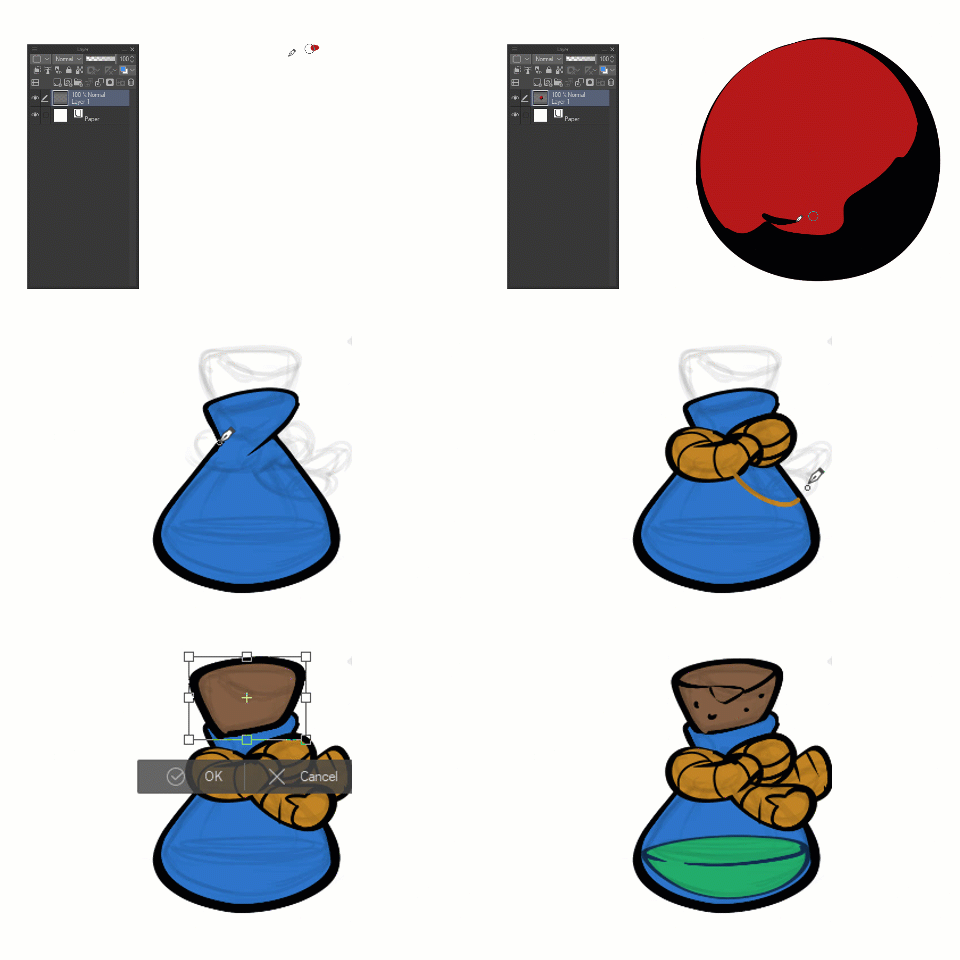
Esta acción automática crea automáticamente un contorno negro en las formas, pero también ofrece la opción de simular el grosor de la línea.
Puede ser útil para hacer dibujos con líneas y colores al mismo tiempo en el estilo cel-shade.
Modo de empleo:

- Dibujar la forma principal
- Ejecute la acción automática (sugiero agregar a un atajo de teclado)
- Transformar el contorno (simulando el grosor de línea); Pulsa enter para confirmar
- Dibujar las formas y detalles interiores (los píxeles transparentes están configurados en bloqueado)
Cómo personalizar:
Puede modificar esos comandos para personalizar la acción automática:
- A - grábese seleccionando otro color primario para usar otro tono/valor para la línea.
- B - esto controla el contorno más delgado; puede elegir estas dos variaciones (Expandir área seleccionada) o grabar un nuevo comando con un valor personalizado.
- C: puede desactivar este comando si prefiere no tener los píxeles transparentes bloqueados cuando finalice la acción.

* Para una mayor eficiencia, configure la acción automática que se utilizará con un método abreviado de teclado.
2022 - DADOtronic (@dadotronic en twitter)
Auto-Outline v2
This Auto-Action automatically creates a black outline on shapes but also offers the option to simulate line-weight.
It can be useful for making drawings with lines and colors at the same time in the cel-shade style.
How-to use:
- Draw the main shape
- Execute the Auto-Action (I suggest add to a keyboard shortcut)
- Transform the outline (simulating line-weight); hit enter to confirm
- Draw the interior shapes and details (transparent pixels is set to locked)
How-to customize:
You can modify those commands to customize the Auto-Action:
- A - record yourself selecting another primary color to use another hue/value for the line.
- B - this controls the thinnest outline; you can choose these two variations (Expand Selected Area) or record a new command with a custom value.
- C - You can toggle this command off if you prefer to not have the transparent pixels locked when the action finishes.
* for more efficiency, set the auto-action to be used with a keyboard shortcut.
2022 - DADOtronic (@dadotronic on twitter)





Más materiales de Dadotronic


Materiales populares de Acciones automáticas


Nuevos materiales



Insignias
-
 MVP ◆Estos usuarios han contribuido en gran medida a la gestión de la comunidad, al publicar multitud de útiles respuestas a las preguntas planteadas. Una vez cada tres meses, los MVP son seleccionados en base a los puntos obtenidos durante ese período y, en consecuencia, son reconocidos por su esfuerzo.
 -
 New Valuable Player (NVP) ◆Son las personas que más han contribuido a la comunidad después de los MVP. Este galardón se otorga según los puntos conseguidos a los usuarios que aún no han obtenido ningún premio MVP.
 -
 Especialista oficial ◆Elegidos de entre todos los MVP, quienes ya han demostrado ser de inestimable ayuda, esto es un testimonio de su excepcional apoyo para con la comunidad. Tras un minucioso escrutinio, son nombrados por Celsys para ocupar dicho cargo.Nota: Anteriormente denominados "evangelistas".
 -
 Moderador oficial de Celsys ◆Los moderadores son miembros del personal de Celsys que pueden comunicarse en japonés y otros idiomas. No son expertos en software o ilustración, por lo que no pueden responder directamente a las preguntas. Sin embargo, tratarán de asegurarse de que la comunicación entre usuarios de distintas lenguas sea tan fluida y comprensible como sea posible.
 -
 Cuenta oficial de CelsysCuenta oficial del administrador