


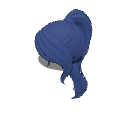
Hoher Pferdeschwanz 3D-Haar mit Ponypony (High Ponytail 3D Hair with Bangs) High Ponytail 3D Hair with Bangs


Ich habe die Größe des Haarmaterials in Blender sorgfältig angepasst und zahlreiche Feinjustierungen vorgenommen, um sicherzustellen, dass es perfekt am Kopf sitzt. Es ist einsatzbereit, sodass du es mit Zuversicht genießen kannst, weil alles fein abgestimmt wurde, um die beste Passform zu gewährleisten!
Das Haar besteht aus drei einzelnen Teilen. Du kannst den Pferdeschwanz und die Ponyhosen an- oder abschalten oder sie verschieben
das Haar besteht jedoch aus einem einzigen Netz und ist nicht posierbar. 😔
Dieses Haar ist für das "3D-Zeichnungsfigur-Ver.2 (Weiblich)"-Modell angepasst. Bitte passen Sie die Skala für größere oder kleinere Köpfe an.

Vergiss nicht, das Material am Kopf zu befestigen!
Schritt 1: Importieren Sie Ihre 3D-Figur auf die Leinwand.
(Achte darauf, das zuerst zu tun. Wenn du das nach dem Posieren der 3D-Figur machst, passt das Haar nicht richtig zu der Pose oder wird sie nicht richtig ausrichten.)
Schritt 2: Mit ausgewählter 3D-Figur (auf derselben Ebene) importieren Sie Ihr Haarmaterial. Mach dir keine Sorgen, wenn das Material weit entfernt von der Figur spawnt; Gehen Sie einfach zum nächsten Schritt über.

Schritt 3: Klicken Sie auf das Schraubenschlüsselsymbol, um die Detailpalette des Unterwerkzeugs zu öffnen und zur Registerkarte Objektliste zu navigieren.

Schritt 4: Ziehen Sie das Haarmaterial auf die 3D-Figur in der Liste, um daraus eine Kinderebene zu machen.

Schritt 5: Erweitern Sie das Menü "Anhangspunkt" direkt unten und wählen Sie Kopf aus.

Das Haar richtet sich automatisch mit dem Kopf aus.
Da das Haar jetzt an der Figur befestigt ist, folgt es dem Kopf nahtlos, egal welche Pose du einnimmst.
I carefully adjusted the hair material’s size in Blender and made numerous fine-tunings to ensure it fits perfectly when attached to the head. It’s ready to use, so you can enjoy it with confidence knowing everything has been fine-tuned for the best fit!
The hair comes in 3 separate parts. You can toggle the ponytail and bangs on or off, or move them
however, the hair is a single mesh and is not poseable. 😔
This hair is fitted for the "3D drawing figure-Ver.2 (Female)" model. Please adjust the scale for larger or smaller heads.
Don’t forget to attach the material to the head!
Step 1: Import your 3D figure onto the canvas.
(Make sure to do this first. If you do it after posing the 3D figure, the hair will not fit or align correctly with the pose.)
Step 2: With your 3D figure selected (on the same layer), import your hair material. Don't worry if the material spawns far away from the figure; just proceed to the next step.
Step 3: Click the wrench icon to open the Sub Tool Detail palette and navigate to the Object list tab.
Step 4: Drag and drop the hair material onto the 3D figure in the list to make it a child layer.
Step 5: Expand the Attachment point menu directly below and select Head.
The hair will automatically align with the head.
Since the hair is now attached to the figure, it will follow the head seamlessly no matter what pose you apply.
Material Material

 Bedenkliches Material melden
Du musst Anmelden klicken, um ein Problem zu melden.
Bitte melde das Problem erneut, nachdem du dich angemeldet hast.
Bitte melde das Problem erneut, nachdem du dich angemeldet hast.
Wenn Sie noch kein CLIP STUDIO-Konto haben
Bitte schreib uns eine E-Mail mit den folgenden Angaben.
- Produkt-/Software-Name
- Detaillierte Information über das Problem

Software
-
 CLIP STUDIO PAINT PRO/EX
-
CLIP STUDIO PAINT DEBUT
 Erneut herunterladen
Bitte kaufen GOLD oder CLIPPY, falls vorhast, ein Gerät zu verwenden, das nicht unter deinen monatlichen/jährlichen Nutzungsplan fällt.

Preis
10

Aktuelles Guthaben
 Jetzt auschecken
 Kauf erfolgreich
 Speicherort für Materialien ansehen


10
CLIPPY
Typ
3D-Objekt

Content ID:
2323416

Veröffentlicht : 41 minutes ago
Zuletzt aktualisiert : 41 minutes ago








Abzeichen
-
 MVP ◆Dieser Nutzer hat einen großen Beitrag zur Verwaltung der Community geleistet, indem er viele großartige Antworten auf die gestellten Fragen veröffentlicht hat. Alle drei Monate werden die MVPs auf der Grundlage der in diesem Zeitraum erworbenen Punkte ermittelt und entsprechend anerkannt.
-
 New Valuable Player (NVP) ◆Die NVP-Auszeichnung geht an die Nutzer, die nach den MVP den größten Beitrag zur Community geleistet haben. Sie werden basierend auf den gesammelten Punkten unter denjenigen ausgewählt, die bisher noch nicht als MVP ausgezeichnet wurden.
-
 Offizielle Experten ◆Ausgewählt aus allen MVP-Preisträgern, die bereits ein Zeichen für Exzellenz sind, zeugt diese Auszeichnung von herausragender Korrespondenz in der Community. Nach sorgfältiger Prüfung werden sie von CELSYS ernannt und übernehmen ihre Position.* Vorherige Bezichnung: Evangelist
-
 Offizieller Moderator von CELSYS ◆Moderatoren sind offizielle CELSYS-Mitarbeiter, die fließend Japanisch und verschiedene andere Sprachen sprechen. Moderatoren sind keine Experten der Software oder Illustrationen und können daher nicht direkt auf Ihre Fragen antworten. Aber Moderatoren bieten Unterstützung in Kommunikation und Sprache, um sicherzustellen, dass alle reibungslos miteinander kommunizieren können.
-
 Offizieller Account von CELSYSDer offizielle Administrator-Account