



這個書法筆子子工具是你應該備有的筆刷,能快速渲染角色的頭髮。那麼,話不多說,你還在等......自己去買吧! This calligraphy pen sub tool is one brush you should have in your arsenal for quick render of your character’s hair. so without further ado, what a you waiting for … get it for yourself!
* 在你開始在 Clip Studio Paint 中實作那個捕捉動態髮型銳利、圖像邊緣的高衝擊工具之前,必須精準且細膩地自訂你的「書法筆」外觀與功能。
 使用 Calligraphy 筆子工具,配合漸細的進出,你就能輕鬆打造出濃密的頭髮。
在開始畫頭髮之前,先在設定中設定好,並且把筆刷的顏色設為純藍色,因為它是無偏的。

當你正確完成上述步驟後,就能有效地描繪出角色頭髮的內線和外線。

> 根據你如何使用這把刷子,你可以創造出獨特的髮型和獨特的表情。


> [ 另外,在你完成角色髮型後 ]

> 你可以點擊「圖層屬性」中的「僅黑」按鈕,將平面黑白轉成線條畫,
或者
你可以簡單地將圖層的「混合模式」轉換成任何暗色模式,例如暗色、乘法、色彩燒錄、線性燒錄。

完成後,線稿應該會顯現出來,

你現在可以像下面👇所示的那樣,渲染線稿圖層底部的髮色。

* Before you can start implementing that high-impact tool in Clip Studio Paint that captures the crisp, graphic edges essential for dynamic hair, it's crucial to customize the appearance and function of your "Calligraphy pen" with precision and finesse.
Using the Calligraphy pen sub tool with a taper ease in & out, you will be able to create chunky hair effortlessly.And before you start you hair draw, first make this necessary below settings, alongside you should make the color of the brush the able light blue color cause it impartial value.
Once you have done the above properly, you can effectively draw out Both the inner and out lines of your character’s hair.
> Base on how you use this brush you can create unique hairstyles with unique expressions to them.
> [ Also, after you have create your character’s haircut ]
> You can convert the Flat black and white color into a line art by either clicking on the “Black only button” located in the “Layer property”,
Or
You can simply convert the Layer “Blending Mode” to any of the Dark modes eg., Darken, Multiply, Color burn, Linear burn.
Once that’s done, the line art should now then be visible,
Of which you can now, render the hair color bottom of the line art layer as show below 👇.
緩緩進出錐形端 Ease in & out taper end

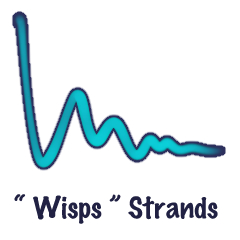
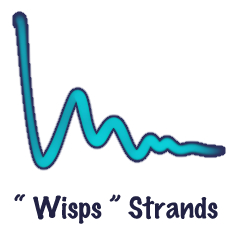
啟用水彩邊緣 With watercolor edge enable





「is.AÖD(☆▽☆)」的其他素材


「素材集」的人氣素材


最新素材




徽章
-
 MVP ◆針對問題投稿了眾多適切的回答,對社群有顯著貢獻的用戶。每3個月一次,會依據期間內獲得的點數選出MVP用戶,並進行表揚。
 -
 NVP(New Valuable Player) ◆繼MVP後,對社群營運做出良好貢獻的用戶。將從不曾獲選為MVP的用戶中,依據獲得的點數進行評選、表揚。
 -
 官方推廣大使 ◆從被證明為優良回答用戶的MVP獲獎者中選出社群中最優異的回答者。並經審查後由本社委託就任。※舊名稱為「Evangelist」
 -
 CELSYS公認Moderator ◆Moderator為會使用日文及其他語言的CELSYS公認工作人員。由於並非軟體或創作的專業人士,Moderator無法直接為用戶解決疑問,但能在語言、交流方面提供支援,幫助用戶們順利地進行溝通。
 -
 CELSYS官方為與營運相關的官方帳號。