



二十五種材料可以讓你的貼紙看起來毛茸茸、閃爍或全息效果! Twenty five materials that can add to your stickers for a fuzzy, glittery, or holographic look!
這會有點長,因為這些材料有多種使用方式。 如果你想,可以直接往下滑看看這些材料。
想要閃亮的質感? 想要彩帶質感? 想要毛絨或布料質感? 試試看吧! 有4支畫筆和21張圖片,讓你的貼紙或藝術作品更有活力。:D

首先是畫筆:

這些刷子都設定為一般混合模式。 我喜歡在另一個圖層加亮片,然後套用混合模式。 你可以自由調整顏色、噴霧、混合模式等。你也可以把這些當作基本可愛的造型刷子使用。
有機的質地:

上方:原味與有機點。
中間:Felt 與 Light Fuzz。
底部:點點與經典噪音,模糊。
我用過圖層屬性的「覆蓋」模式,但你也可以試試看,看看有沒有更適合你的作品的方法。 https://help.clip-studio.com/en-us/manual_en/180_layers/Layer_properties.htm#1364172
想要像氈布或布料一樣的感覺,我喜歡在貼上紋理前先模糊影像。 這樣看起來會更柔和、更模糊。

(左:無模糊,右:模糊)
材質/圖案。 我會在下面補充我使用的圖層設定。 你不必複製我的設定,因為每個圖案在不同顏色下看起來都不一樣。 例如,深色疊加層適合深色和淺色,而淺色則在兩者上都不太穩定。 調整它們到你喜歡的程度。
我喜歡用裁切功能來處理這些,但你也可以用遮罩功能。
裁剪: https://help.clip-studio.com/en-us/manual_en/180_layers/Other_layer_settings.htm#1364239
遮蔽: https://help.clip-studio.com/en-us/manual_en/180_layers/Layer_masks.htm
(抱歉一如往常只貼英文說明書,應該很容易轉換成其他語言)

1. 基本三角形網格 - 圖層屬性「覆蓋層」。 原始顏色變暗。
2. 基本三角形格線 - 增益模式「覆蓋層」,已套用漸層。
3. 三角形格子 - 更多三角形。 模式:添加光暈。
4. 狂野玻璃波。 模式:飽和。
5. 三角形格子 - 優雅色彩。 模式:覆蓋,不透明度44%。
6. 三角形格子 - 全息疊加。 模式:疊加,70% 不透明度。

7. 狂野玻璃波。 模式:覆蓋,100%。
8. 圓形亮粉 - 全息紋理。 模式:覆蓋,100%。 調整了原始影像的對比度。
9. 圓圈亮片更深。 模式:分法,85%。
10. 圓圈閃光變暗。 模式:閃光閃避,38%。
11. 開始閃爍 - 全息。 模式:覆蓋,72%。
12. 星光閃爍更深。 模式:線性光,100%。

13. 星形閃粉圖案,兩者皆有漸層。
14. 六邊形圖案,帶有漸層,僅適用於圖案。
你可以嘗試混合模式和調整圖層,可以無限多。 如果你想改變顏色,可以用漸層圖層,或是手動透過右鍵點擊圖片材質,然後點選「光柵化」來調整。 不熟悉漸層圖層? 可以看這裡: https://help.clip-studio.com/en-us/manual_en/390_filters/Tonal_Correction_Effects.htm#1364051
需要一些漸層貼紙給你的閃亮貼紙嗎? 我在下面 做了幾個。只要把下面的內容 ID 編號複製貼上到搜尋欄就能找到。:D

一: 2106625 |二:1963105 | 三: 2167418 | 四: 2209830
如果你想要更多閃亮和光澤,這裡有我之前做過的一些刷子:

一:1980728 | 二: 2026033 | 三: 2125947 | 四: 2126273
....我覺得這些年來我發佈的素材太多了。至少你們喜歡。;w;♥
總之,希望你玩得開心,玩得開心!
This is going to be a little long since there's multiple ways to use these materials. Feel free to scroll down and look at the material as-is if you want.
Want a glitter texture? Want a confetti texture? Want a fuzzy or cloth texture? Try these out! There are 4 brushes & 21 images for you to use to give pizazz to your stickers or your art. :D
First, the brushes:
All of these brushes are set to normal blending mode. I like to add the glitter on a separate layer & apply a blending mode to that instead. Feel free to modify them on color, spray, blending mode, etc.. You can also use these as basic cute shape brushes.
The organic textures:
Top: Original & Organic dots.
Middle: Felt & Light Fuzz.
Bottom: Dots & Classic Noise, blurred.
I used the Layer Property "Overlay" mode, but feel free to experiment and see if something works better for your art. https://help.clip-studio.com/en-us/manual_en/180_layers/Layer_properties.htm#1364172
For a Felt or Cloth-like feeling, I like to blur the image before I put the texture on it. That way, it looks softer and fuzzier.
(Left: No blur, Right: Blur)
The textures/patterns. I'll add what layer settings I used below. You don't have to copy my settings as each pattern will look different on different colors. For example, the darker overlays work great with darker colors and lighter colors, while the lighter colors can be finicky on both. Adjust them to your liking.
I like using the clipping function for these, but you can also use the masking function.
Clipping: https://help.clip-studio.com/en-us/manual_en/180_layers/Other_layer_settings.htm#1364239
Masking: https://help.clip-studio.com/en-us/manual_en/180_layers/Layer_masks.htm
(Apologies as usual for only posting the English manual, it should be easy to convert to other languages)
1. Basic Triangle Grid - Layer Property "Overlay". Darkened original colors.
2. Basic Triangle Grid - BLENDING Mode "overlay", gradient applied.
3. triangle grid - more triangles. Mode: Add glow.
4. Wild Glass Wave. Mode: Saturation.
5. Triangle Grid - Elegant Color. Mode: Overlay, 44% opacity.
6. Triangle Grid - Holographic Overlay. Mode: Overlay, 70% opacity.
7. Wild glass wave. Mode: Overlay, 100%.
8. Circle Glitter - Holographic Texture. Mode: overlay, 100%. Adjusted contrast of original image.
9. Circle Glitter Darker. Mode: Divide, 85%.
10. Circle Glitter Darker. Mode: Glow Dodge, 38%.
11. Start Glitter - Holographic. Mode: Overlay, 72%.
12. Star Glitter Darker. Mode: Linear Light, 100%.
13. Star Glitter Pattern with Gradient over both.
14. Hexagon Pattern with gradient, only applied to pattern.
The experimentation you can do with blending modes and adjustment layers are endless. If you want to change the colors, you can use a gradient layer or adjust them manually by right clicking the image material, then clicking "rasterize". Unfamiliar with gradient layers? Look here: https://help.clip-studio.com/en-us/manual_en/390_filters/Tonal_Correction_Effects.htm#1364051
Need some gradients for your shiny stickers? I've made several below. Just copy & paste the content ID numbers below into the search bar to find them. :D
One: 2106625 | Two: 1963105 | Three: 2167418 | Four: 2209830
If you need more sparkles & shine, here's some brushes I made a while back as well:
One: 1980728 | Two: 2026033 | Three: 2125947 | Four: 2126273
....I think I've posted way too many assets over the years. At least you guys enjoy them. ;w; ♥
Anyway, hope you have fun and enjoy!
畫筆 Brushes


紋理與圖案 Textures & Patterns
-
感覺文字 felt text
-
有機點 organic dots
-
輕盈的 文字 light fluff txt
-
點狀紋理 dot texture
-
經典噪音被平滑化 classic noise smoothed
-
三角形格網 - 緞帶 triangle grid - ribbon
-
三角形格網 - 黑白 triangle grid - black & white
-
六角閃耀 hex shine
-
六角閃亮2 hex shiny 2
-
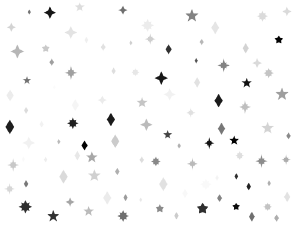
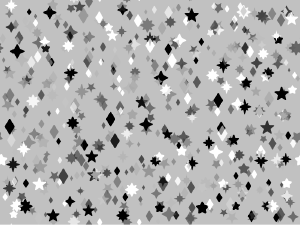
星星閃粉圖案1 star glitter pattern 1
-
星星閃爍圖案淡出 1 star glitter pattern fade 1
-
星光閃耀2 star fade glitter 2
-
星星閃粉圖案2 star glitter pattern 2
-
星星閃粉圖案 star glitter pattern







色彩模式 Color Patterns
-
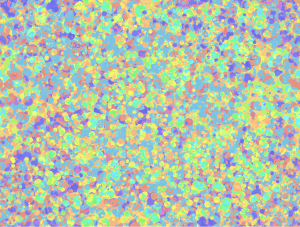
圓形亮片 - 全息紋理 circle glitter - holographic texture
-
圓形亮片 - 全息覆蓋層較暗 circle glitter - holographic overlay darker
-
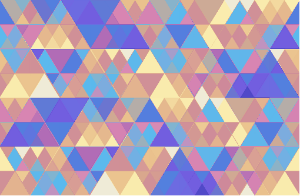
三角形格網 - 全息疊加 triangle grid - holographic overlay
-
三角形格子 - 優雅的色彩疊加 triangle grid - elegant color overlay
-
星星閃粉 - 全息疊加 star glitter - holographic overlay
-
星星閃粉 - 疊加圖 2 star glitter - overlay 2
-
野性玻璃波疊加 wild glass wave overlay







「saturns_day」的其他素材


「素材集」的人氣素材


最新素材




徽章
-
 MVP ◆針對問題投稿了眾多適切的回答,對社群有顯著貢獻的用戶。每3個月一次,會依據期間內獲得的點數選出MVP用戶,並進行表揚。
 -
 NVP(New Valuable Player) ◆繼MVP後,對社群營運做出良好貢獻的用戶。將從不曾獲選為MVP的用戶中,依據獲得的點數進行評選、表揚。
 -
 官方推廣大使 ◆從被證明為優良回答用戶的MVP獲獎者中選出社群中最優異的回答者。並經審查後由本社委託就任。※舊名稱為「Evangelist」
 -
 CELSYS公認Moderator ◆Moderator為會使用日文及其他語言的CELSYS公認工作人員。由於並非軟體或創作的專業人士,Moderator無法直接為用戶解決疑問,但能在語言、交流方面提供支援,幫助用戶們順利地進行溝通。
 -
 CELSYS官方為與營運相關的官方帳號。