



自動操作,可在形狀上創建黑色輪廓,但也提供類比線路寬的選項。
Auto-Action that creates a black outline on shapes but also offers the option to simulate line-weight.
自動大綱 v2
此自動操作會自動在形狀上創建黑色輪廓, 但也 提供類比線路寬的選項。
它可用於以 cel-shade 樣式同時製作具有線條和顏色的繪圖。
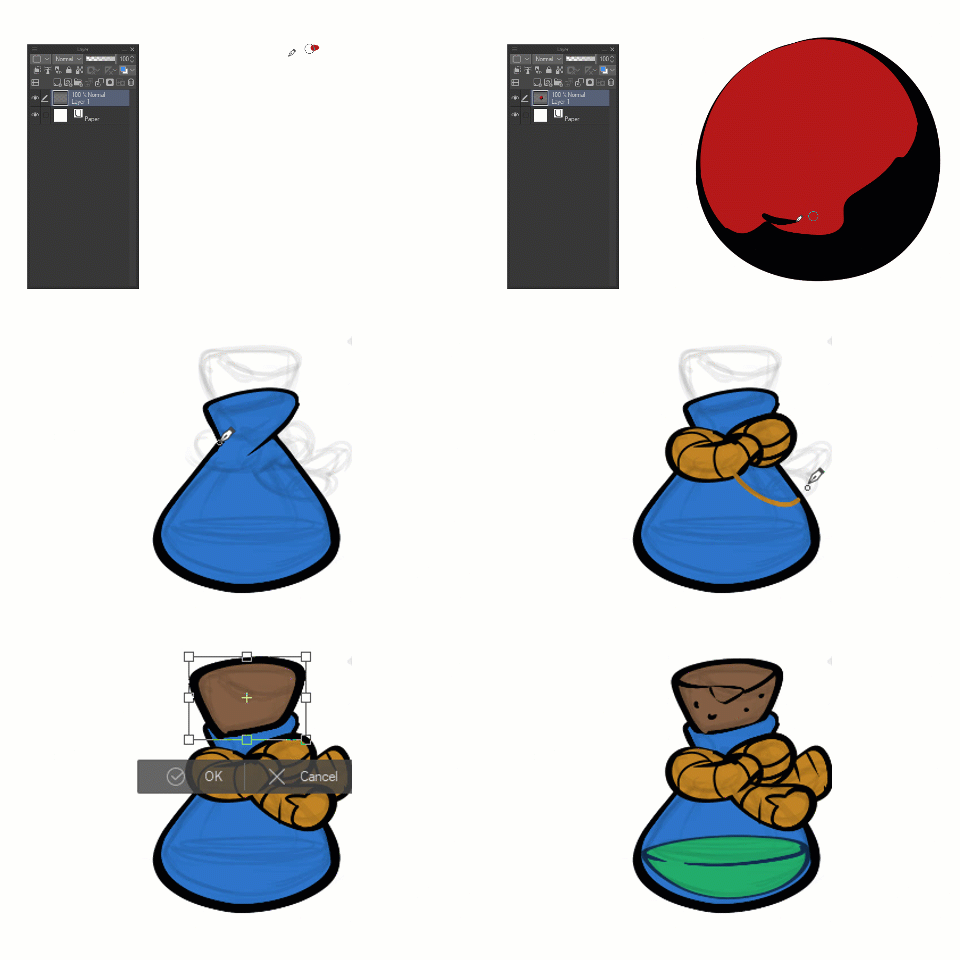
使用方法:

- 繪製主形狀
- 執行自動操作(我建議添加到鍵盤快速鍵)
- 變換輪廓(類比線路寬);按回車鍵確認
- 繪製內部形狀和細節(透明圖元設置為鎖定)
如何自訂:
您可以修改這些命令以自訂自動操作:
- A - 記錄自己選擇另一種 原色 以使用另一種色調/值作為線條。
- B - 這控制 最細的輪廓;您可以選擇這兩種變體(展開選定區域)或使用自訂值記錄新命令。
- C - 如果您希望在操作完成時 不 鎖定透明圖元,則可以關閉此命令。

* 為了提高效率,請設置與鍵盤快速鍵一起使用的自動操作。
2022 - DADOtronic(推特上@dadotronic)
Auto-Outline v2
This Auto-Action automatically creates a black outline on shapes but also offers the option to simulate line-weight.
It can be useful for making drawings with lines and colors at the same time in the cel-shade style.
How-to use:
- Draw the main shape
- Execute the Auto-Action (I suggest add to a keyboard shortcut)
- Transform the outline (simulating line-weight); hit enter to confirm
- Draw the interior shapes and details (transparent pixels is set to locked)
How-to customize:
You can modify those commands to customize the Auto-Action:
- A - record yourself selecting another primary color to use another hue/value for the line.
- B - this controls the thinnest outline; you can choose these two variations (Expand Selected Area) or record a new command with a custom value.
- C - You can toggle this command off if you prefer to not have the transparent pixels locked when the action finishes.
* for more efficiency, set the auto-action to be used with a keyboard shortcut.
2022 - DADOtronic (@dadotronic on twitter)




「Dadotronic」的其他素材


「自動動作」的人氣素材


最新素材


徽章
-
 MVP ◆針對問題投稿了眾多適切的回答,對社群有顯著貢獻的用戶。每3個月一次,會依據期間內獲得的點數選出MVP用戶,並進行表揚。
 -
 NVP(New Valuable Player) ◆繼MVP後,對社群營運做出良好貢獻的用戶。將從不曾獲選為MVP的用戶中,依據獲得的點數進行評選、表揚。
 -
 官方推廣大使 ◆從被證明為優良回答用戶的MVP獲獎者中選出社群中最優異的回答者。並經審查後由本社委託就任。※舊名稱為「Evangelist」
 -
 CELSYS公認Moderator ◆Moderator為會使用日文及其他語言的CELSYS公認工作人員。由於並非軟體或創作的專業人士,Moderator無法直接為用戶解決疑問,但能在語言、交流方面提供支援,幫助用戶們順利地進行溝通。
 -
 CELSYS官方為與營運相關的官方帳號。