


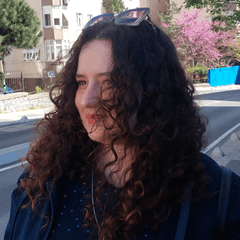

Blenderで髪の素材のサイズを慎重に調整し、頭にぴったりフィットするように何度も微調整を重ねました。すぐに使えるので、すべてが最適なフィット感に調整されていると安心して楽しめます!

素材をヘッドに取り付けるのを忘れないでください!
ステップ1: 3Dフィギュアをキャンバスにインポートします。
ステップ2: 3Dフィギュアを選択し(同じレイヤー上)、髪のマテリアルをインポートします。素材がフィギュアから遠くに出現しても心配いりません。次のステップに進めばいいのです。

ステップ3: レンチアイコンをクリックしてサブツールの詳細パレットを開き、オブジェクトリストタブに移動します。

ステップ4: リスト内の3Dフィギュアに髪のマテリアルをドラッグ&ドロップして子レイヤーにします。

ステップ5: 「アタッチメントポイント」メニューを直下に展開し、「ヘッド」を選択します。

髪は自動的に頭と揃います。
髪がフィギュアに付いているので、どんなポーズをしても髪が頭に沿って自然についてきます。
I carefully adjusted the hair material’s size in Blender and made numerous fine-tunings to ensure it fits perfectly when attached to the head. It’s ready to use, so you can enjoy it with confidence knowing everything has been fine-tuned for the best fit!
Don’t forget to attach the material to the head!
Step 1: Import your 3D figure onto the canvas.
Step 2: With your 3D figure selected (on the same layer), import your hair material. Don't worry if the material spawns far away from the figure; just proceed to the next step.
Step 3: Click the wrench icon to open the Sub Tool Detail palette and navigate to the Object list tab.
Step 4: Drag and drop the hair material onto the 3D figure in the list to make it a child layer.
Step 5: Expand the Attachment point menu directly below and select Head.
The hair will automatically align with the head.
Since the hair is now attached to the figure, it will follow the head seamlessly no matter what pose you apply.
素材 Material


"suna.art"さんの別の素材


"3Dオブジェクト"の人気素材


新着素材






バッジ
-
 MVP ◆質問に対して適切な回答を数多く投稿し、コミュニティの運営に大きく貢献したユーザーです。MVPは3ヶ月に一度、その間に獲得したポイントを元に決定し、表彰を行っています。
 -
 NVP (New Valuable Player) ◆MVPに次いでコミュニティの運営に貢献したユーザーです。これまでMVPの受賞経験のない方から、獲得したポイントを元に決定し、表彰を行なっています。
 -
 公式エキスパート ◆優れた回答者の証であるMVP受賞者の中からさらに選ばれた、コミュニティで最も優良な回答者の証です。審査を経て当社から依頼し就任いただいています。※旧名称「エバンジェリスト」
 -
 セルシス公認モデレーター ◆モデレーターは、日本語とその他の言語が話せるセルシス公認のスタッフです。ソフトウェアや創作のエキスパートではないので、直接疑問を解決することはできませんが、みなさんがスムーズにコミュニケーションできるように、言葉やコミュニケーションの側面からサポートします。
 -
 セルシス公式運営に関連した公式アカウントです。