



白黒の陰影をカラフルにするオートアクション。 An auto action that makes black and white shading colorful.
使い方:

1. シャドウレイヤーに黒で描き、そのレイヤーを「シェーディング」と名付けます。
2. ライトレイヤーに白で描き、そのレイヤーを「ハイライト」と名付けます。

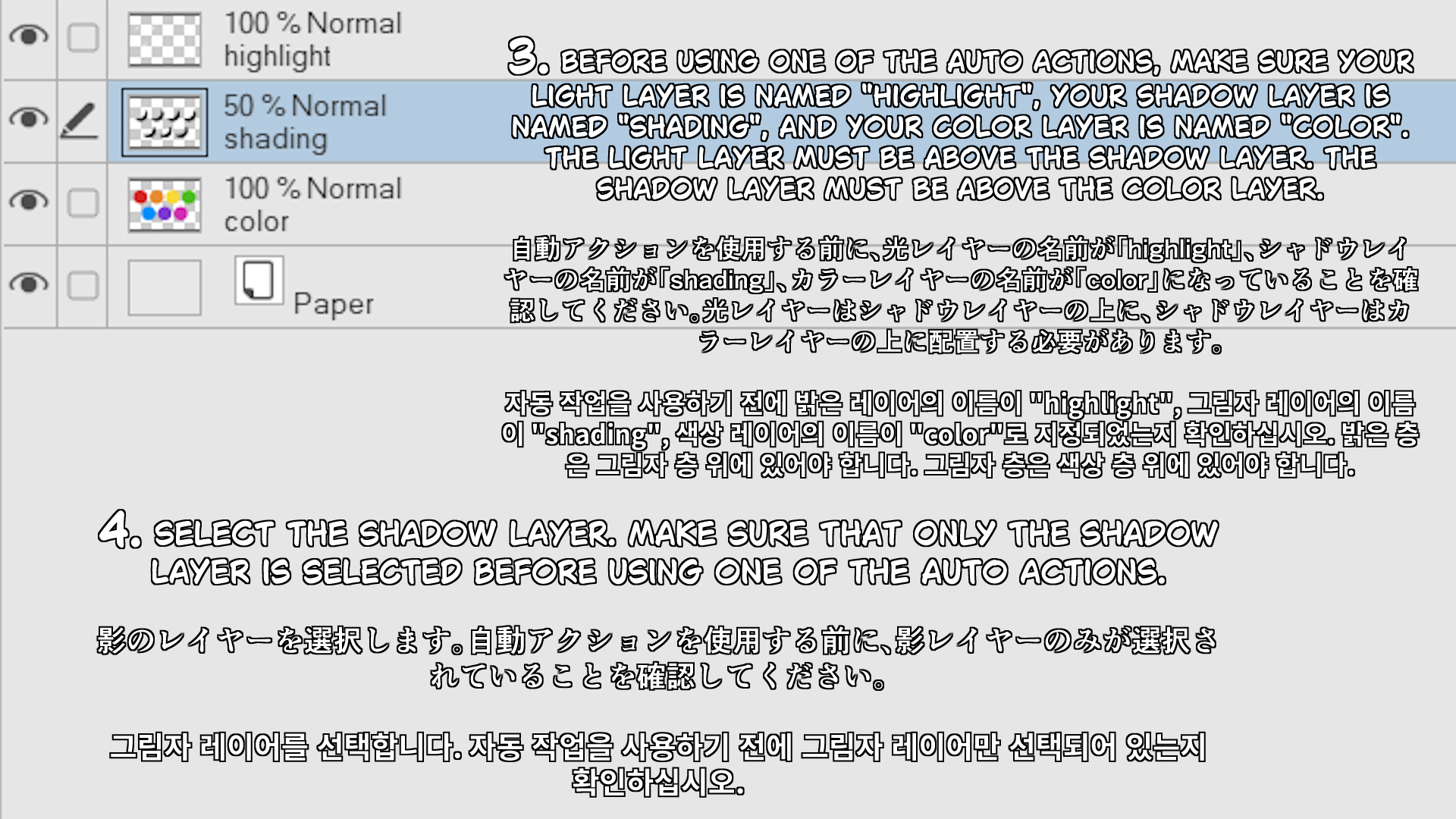
3. オートアクションを使う前に、光レイヤーの名前が「highlight」、影レイヤーが「shading」、カラーレイヤーが「color」と名付けられていることを確認してください。光の層は影の層の上に置かれなければなりません。シャドウレイヤーはカラーレイヤーの上にある必要があります。
4. シャドウレイヤーを選択します。オートアクションを使う前に、シャドウレイヤーだけを選択してください。
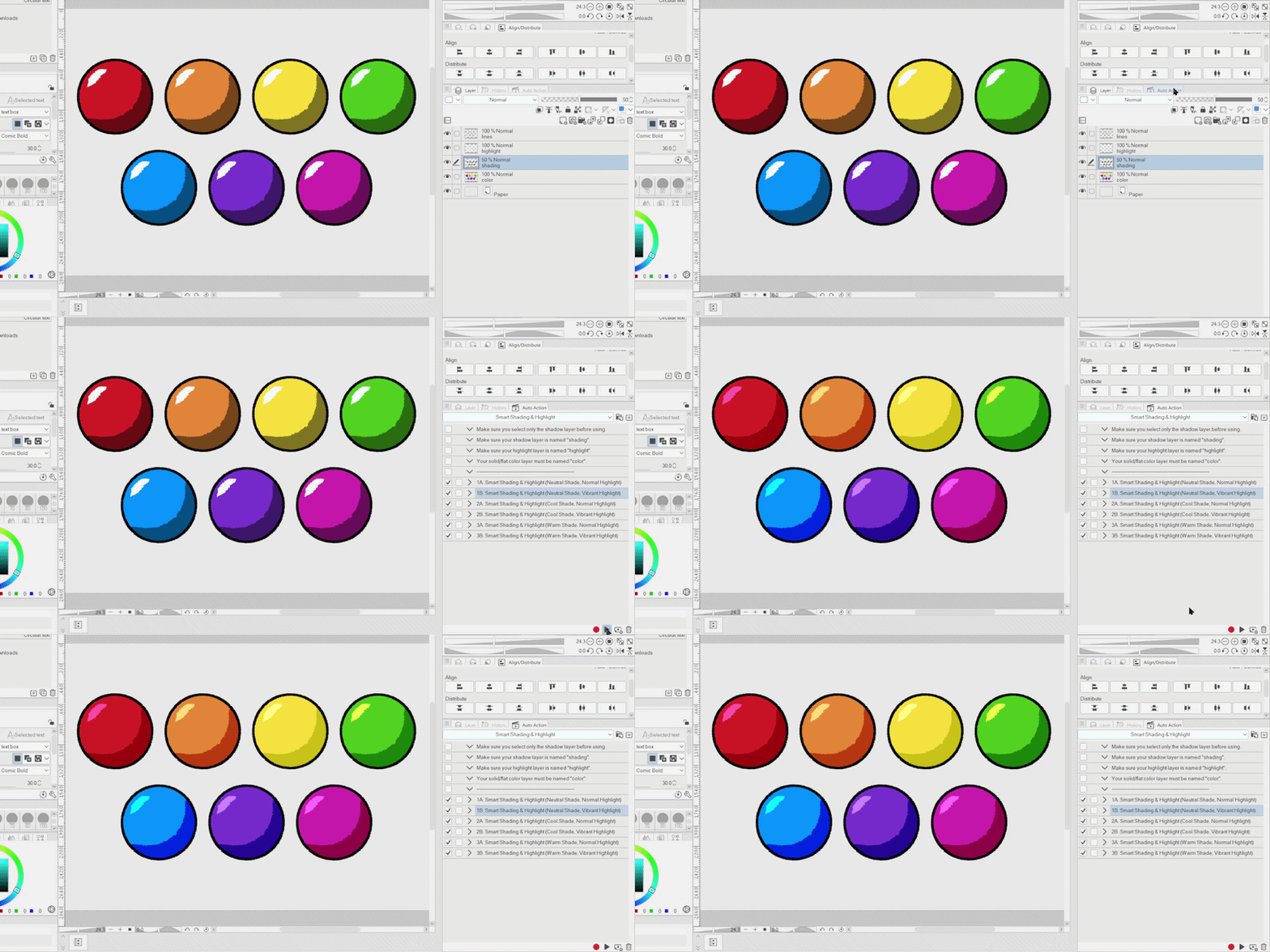
5. 番号付きのオートアクションの中から1つを選び、再生ボタンをクリックします。
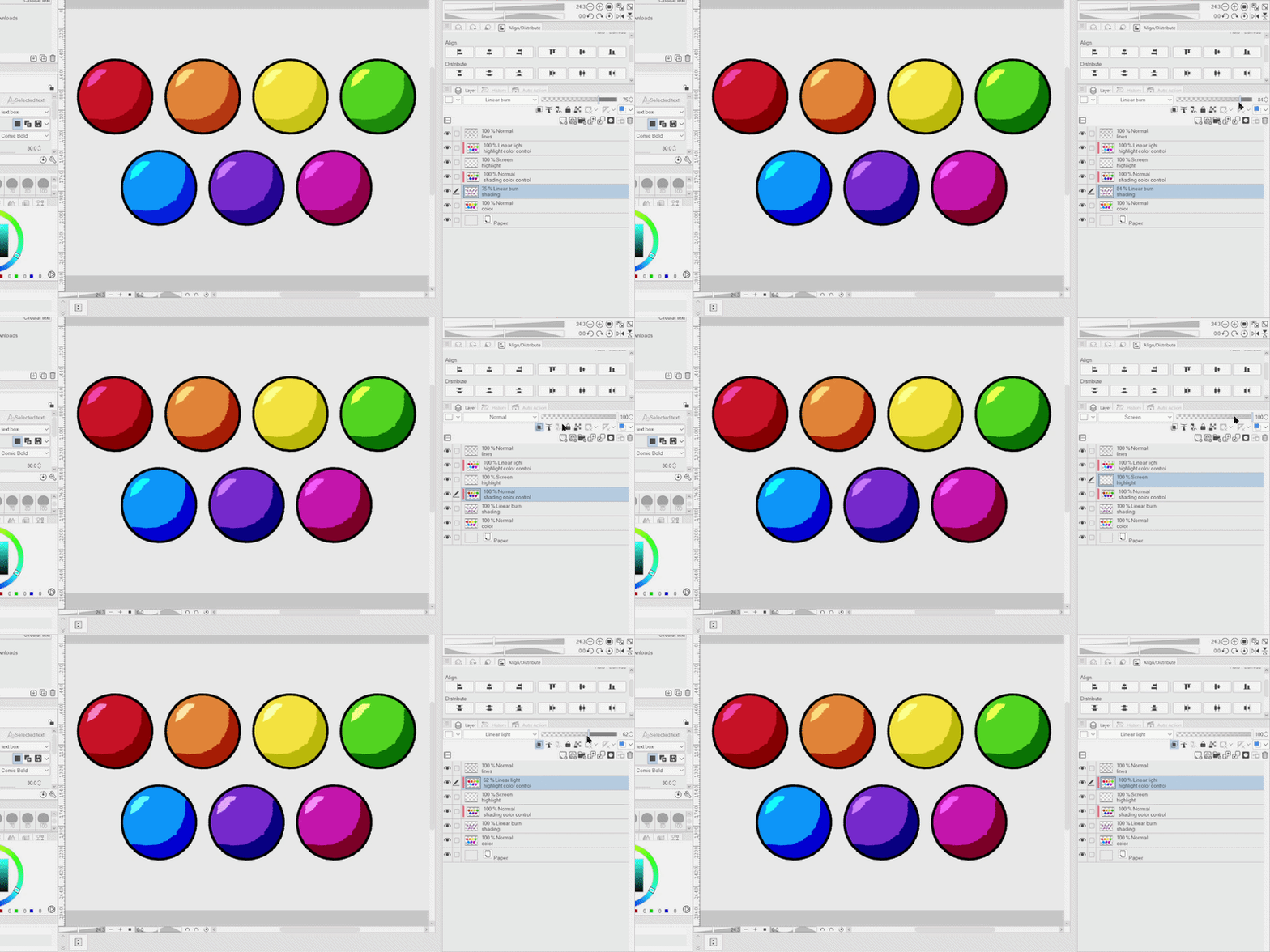
6. ハイライトレイヤー、「ハイライトカラーコントロール」レイヤー、シャドウレイヤー、「シェーディングカラーコントロール」レイヤーの不透明度を調整します。
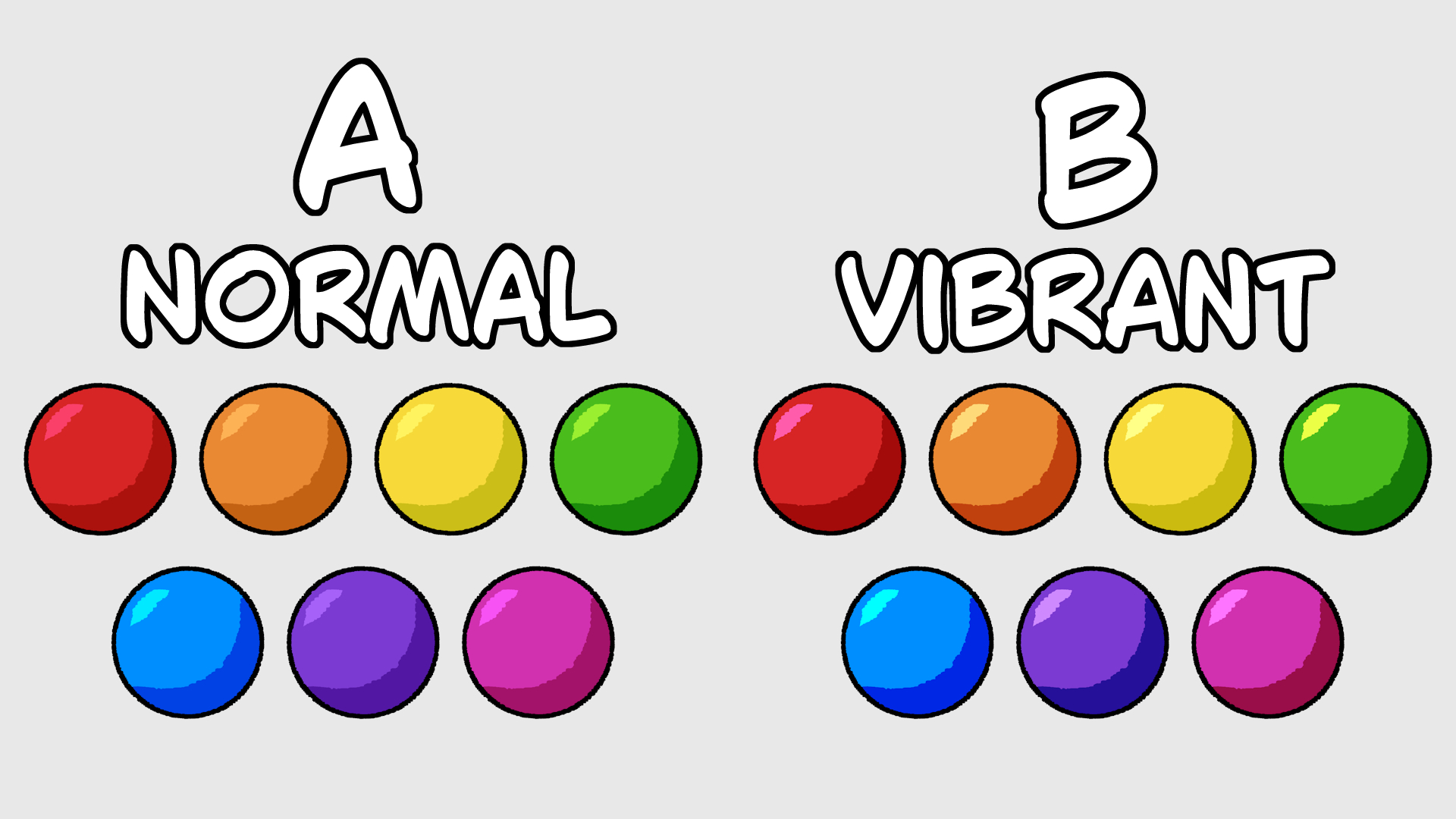
影の温度や光の飽和度が異なる6つのオートアクションがあります。「シェーディングカラーコントロール」レイヤーの不透明度を上げたり下げたりすることで、シャドウ温度の強度を調整できます。また、「ハイライトカラーコントロール」レイヤーの不透明度を上げたり下げたりすることで、光の彩度を調整することもできます。
How to Use:
1. Draw on your shadow layer in black and name the layer "shading".
2. Draw on your light layer in white and name the layer "highlight".
3. Before using one of the auto actions, make sure your light layer is named "highlight", your shadow layer is named "shading", and your color layer is named "color". The light layer must be above the shadow layer. The shadow layer must be above the color layer.
4. Select the shadow layer. Make sure that only the shadow layer is selected before using one of the auto actions.
5. Choose one of the numbered auto actions and click the play button.
6. Adjust the opacity of the highlight layer, the "highlight color control" layer, the shadow layer and the "shading color control" layer.
There are six auto actions with different shadow temperatures and light saturation. You can adjust the intensity of the shadow temperature by increasing or decreasing the opacity of the "shading color control" layer. You can also adjust the saturation of the light by increasing or decreasing the opacity of the "highlight color control" layer.





"daffodilyily"さんの別の素材


"オートアクション"の人気素材





新着素材


バッジ
-
 MVP ◆質問に対して適切な回答を数多く投稿し、コミュニティの運営に大きく貢献したユーザーです。MVPは3ヶ月に一度、その間に獲得したポイントを元に決定し、表彰を行っています。
 -
 NVP (New Valuable Player) ◆MVPに次いでコミュニティの運営に貢献したユーザーです。これまでMVPの受賞経験のない方から、獲得したポイントを元に決定し、表彰を行なっています。
 -
 公式エキスパート ◆優れた回答者の証であるMVP受賞者の中からさらに選ばれた、コミュニティで最も優良な回答者の証です。審査を経て当社から依頼し就任いただいています。※旧名称「エバンジェリスト」
 -
 セルシス公認モデレーター ◆モデレーターは、日本語とその他の言語が話せるセルシス公認のスタッフです。ソフトウェアや創作のエキスパートではないので、直接疑問を解決することはできませんが、みなさんがスムーズにコミュニケーションできるように、言葉やコミュニケーションの側面からサポートします。
 -
 セルシス公式運営に関連した公式アカウントです。