



Eine Auto-Action, die Schwarz-Weiß-Schattierungen farbenfroh macht. An auto action that makes black and white shading colorful.
Wie man verwendet:
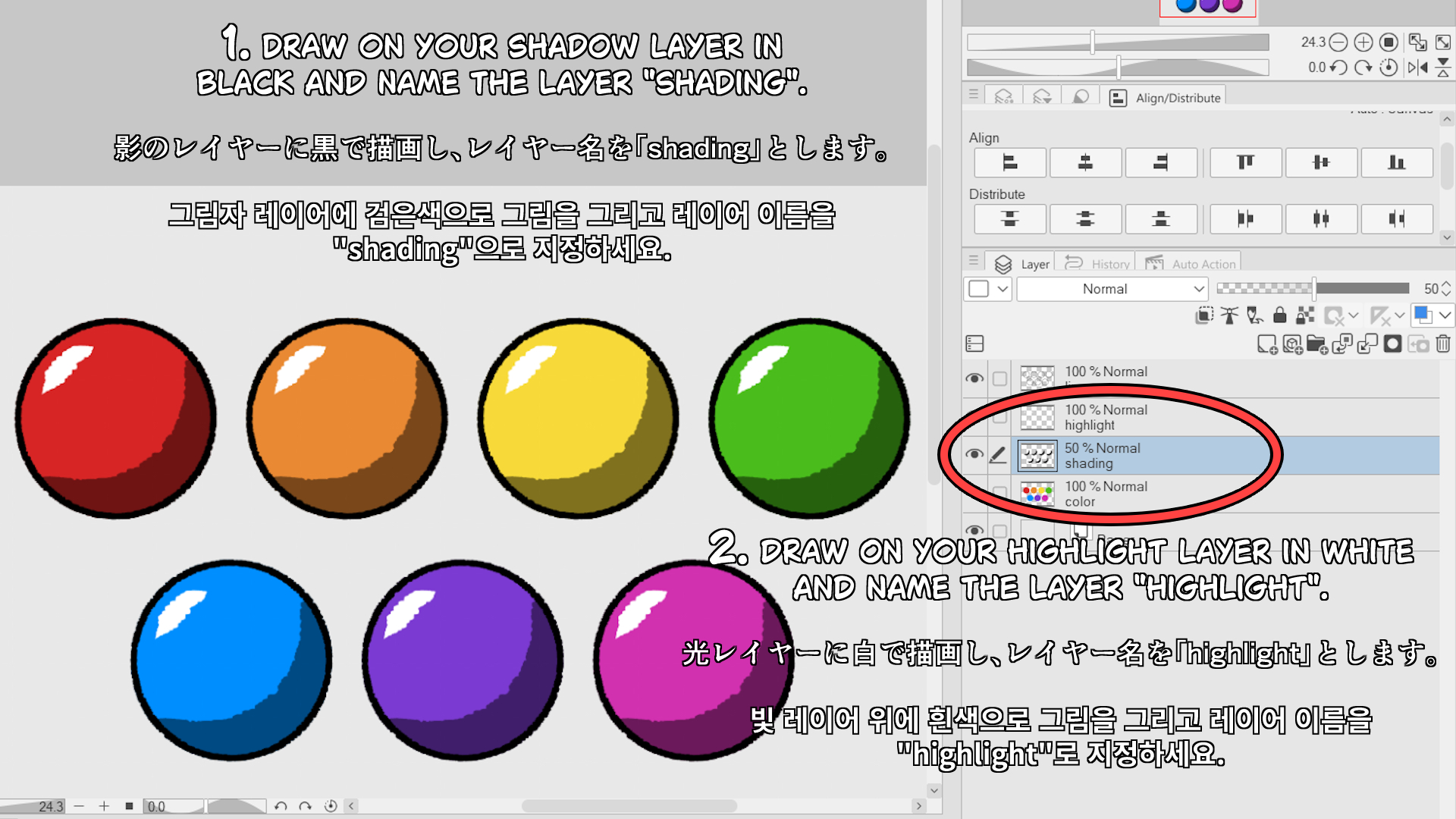

1. Zeichne auf deiner Schattenschicht in Schwarz und nenne die Ebene "Shading".
2. Zeichne auf deiner hellen Schicht in Weiß und nenne die Ebene "Highlight".
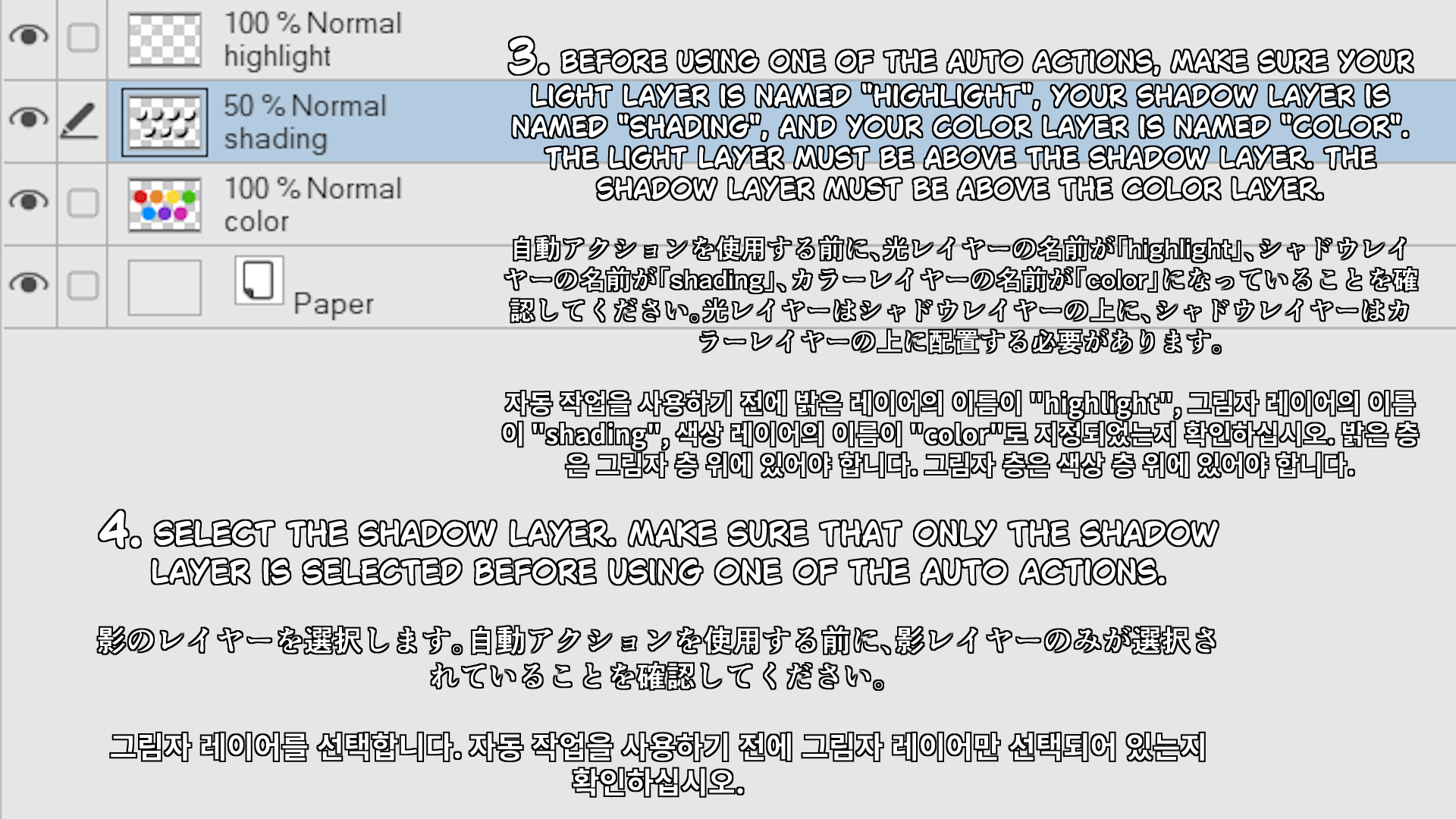
3. Bevor du eine der Auto-Aktionen anwendest, stelle sicher, dass deine Lichtschicht "Highlight", deine Schattenebene "Shading" und deine Farbschicht "Farbe" heißt. Die helle Schicht muss über der Schattenschicht liegen. Die Schattenschicht muss über der Farbschicht liegen.
4. Wähle die Schattenschicht aus. Stelle sicher, dass nur die Schattenebene ausgewählt ist, bevor du eine der Auto-Aktionen anwendest.
5. Wählen Sie eine der nummerierten automatischen Aktionen und klicken Sie auf den Play-Button.

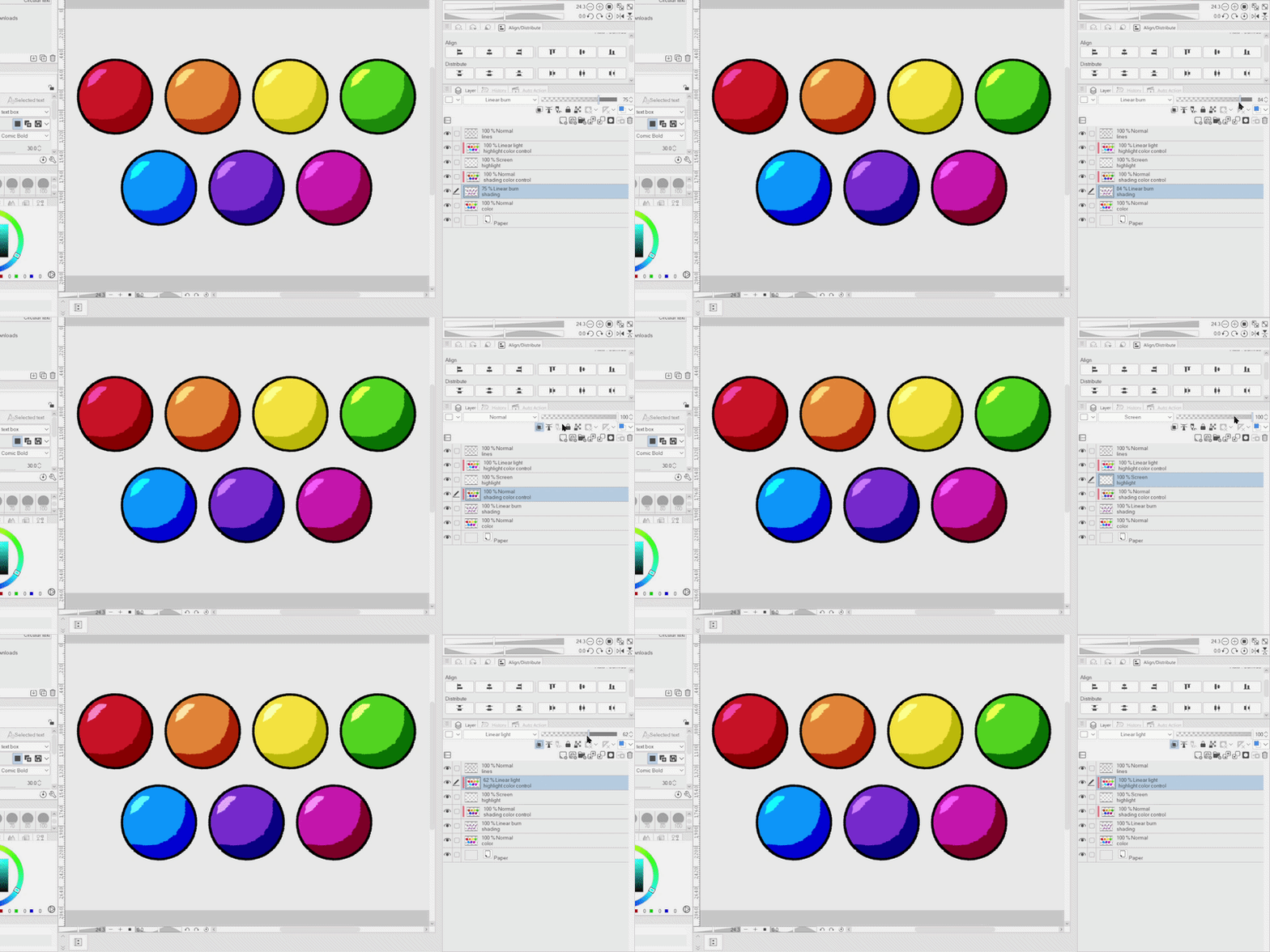
6. Passen Sie die Deckkraft der Lichterebene, der "Lichtfarbenkontrolle", der Schattenschicht und der "Schattierungsfarbesteuerung" an.
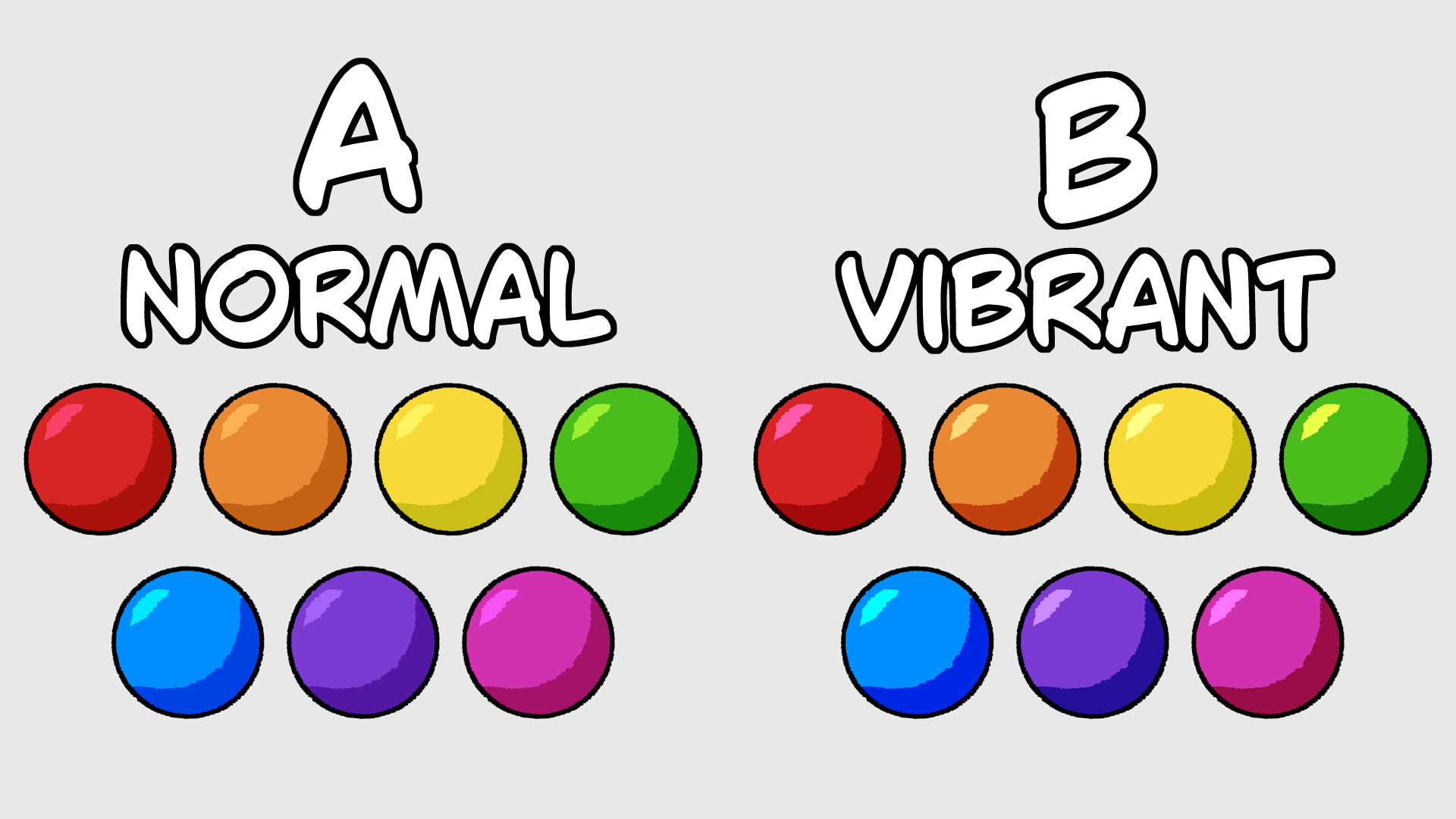
Es gibt sechs Auto-Actions mit unterschiedlichen Schattentemperaturen und Lichtsättigung. Du kannst die Intensität der Schattentemperatur anpassen, indem du die Deckkraft der "Shading color control"-Ebene erhöhst oder verringerst. Du kannst auch die Lichtsättigung anpassen, indem du die Opazität der "Lichtkontrolle"-Schicht erhöhst oder verringerst.
How to Use:
1. Draw on your shadow layer in black and name the layer "shading".
2. Draw on your light layer in white and name the layer "highlight".
3. Before using one of the auto actions, make sure your light layer is named "highlight", your shadow layer is named "shading", and your color layer is named "color". The light layer must be above the shadow layer. The shadow layer must be above the color layer.
4. Select the shadow layer. Make sure that only the shadow layer is selected before using one of the auto actions.
5. Choose one of the numbered auto actions and click the play button.
6. Adjust the opacity of the highlight layer, the "highlight color control" layer, the shadow layer and the "shading color control" layer.
There are six auto actions with different shadow temperatures and light saturation. You can adjust the intensity of the shadow temperature by increasing or decreasing the opacity of the "shading color control" layer. You can also adjust the saturation of the light by increasing or decreasing the opacity of the "highlight color control" layer.





Weitere Materialien von daffodilyily


Beliebte Materialien zu „Auto-Action“


Neue Materialien



Abzeichen
-
 MVP ◆Dieser Nutzer hat einen großen Beitrag zur Verwaltung der Community geleistet, indem er viele großartige Antworten auf die gestellten Fragen veröffentlicht hat. Alle drei Monate werden die MVPs auf der Grundlage der in diesem Zeitraum erworbenen Punkte ermittelt und entsprechend anerkannt.
 -
 New Valuable Player (NVP) ◆Die NVP-Auszeichnung geht an die Nutzer, die nach den MVP den größten Beitrag zur Community geleistet haben. Sie werden basierend auf den gesammelten Punkten unter denjenigen ausgewählt, die bisher noch nicht als MVP ausgezeichnet wurden.
 -
 Offizielle Experten ◆Ausgewählt aus allen MVP-Preisträgern, die bereits ein Zeichen für Exzellenz sind, zeugt diese Auszeichnung von herausragender Korrespondenz in der Community. Nach sorgfältiger Prüfung werden sie von CELSYS ernannt und übernehmen ihre Position.* Vorherige Bezichnung: Evangelist
 -
 Offizieller Moderator von CELSYS ◆Moderatoren sind offizielle CELSYS-Mitarbeiter, die fließend Japanisch und verschiedene andere Sprachen sprechen. Moderatoren sind keine Experten der Software oder Illustrationen und können daher nicht direkt auf Ihre Fragen antworten. Aber Moderatoren bieten Unterstützung in Kommunikation und Sprache, um sicherzustellen, dass alle reibungslos miteinander kommunizieren können.
 -
 Offizieller Account von CELSYSDer offizielle Administrator-Account